

Automating Incident Response with Google Chat Apps Script and PagerDuty


While resolution time often gets the spotlight, the seconds it takes to acknowledge a critical alert can make or break your system during a crisis. Discover why Mean Time to Acknowledge (MTTA) is your true first line of defense against catastrophic failure in high-stakes environments.

The Critical Role of MTTA in High Stakes Environments
In the realm of Site Reliability Engineering (SRE) and cloud operations, metrics are the lifeblood of continuous improvement. While Mean Time to Resolve (MTTR) often receives the majority of the spotlight, Mean Time to Acknowledge (MTTA) is arguably the most critical leading indicator of your incident response health. MTTA measures the time elapsed between a monitoring system triggering an alert and an on-call engineer actively acknowledging that they are investigating the issue.
In high-stakes environments—whether you are managing a globally distributed Google Kubernetes Engine (GKE) cluster for a financial institution, or maintaining the backend of a high-traffic e-commerce platform during a peak sales event—a low MTTA is your first line of defense against catastrophic failure. It represents the vital pivot point from automated detection to active human intervention.
Why Seconds Matter During System Outages
When a critical cloud service degrades, the blast radius expands exponentially with every passing moment. A minor database latency spike can quickly cascade into connection pool exhaustion, ultimately leading to a complete API gateway failure. In these scenarios, seconds literally equate to lost revenue, breached Service Level Agreements (SLAs), and eroded customer trust.
Furthermore, rapid acknowledgment is about more than just stopping the bleeding; it is about establishing operational control. When an incident is acknowledged swiftly, it signals to automated systems (like PagerDuty escalation policies) and human stakeholders that an expert is on the case. This rapid response prevents alert fatigue, stops unnecessary and disruptive escalations to secondary on-call tiers, and minimizes the “bystander effect” where multiple engineers waste time wondering who is handling the issue. In modern, highly coupled cloud architectures, the difference between a brief, unnoticed degradation and a headline-making outage is often determined in the first sixty seconds.
The Bottleneck of Manual Incident Triage
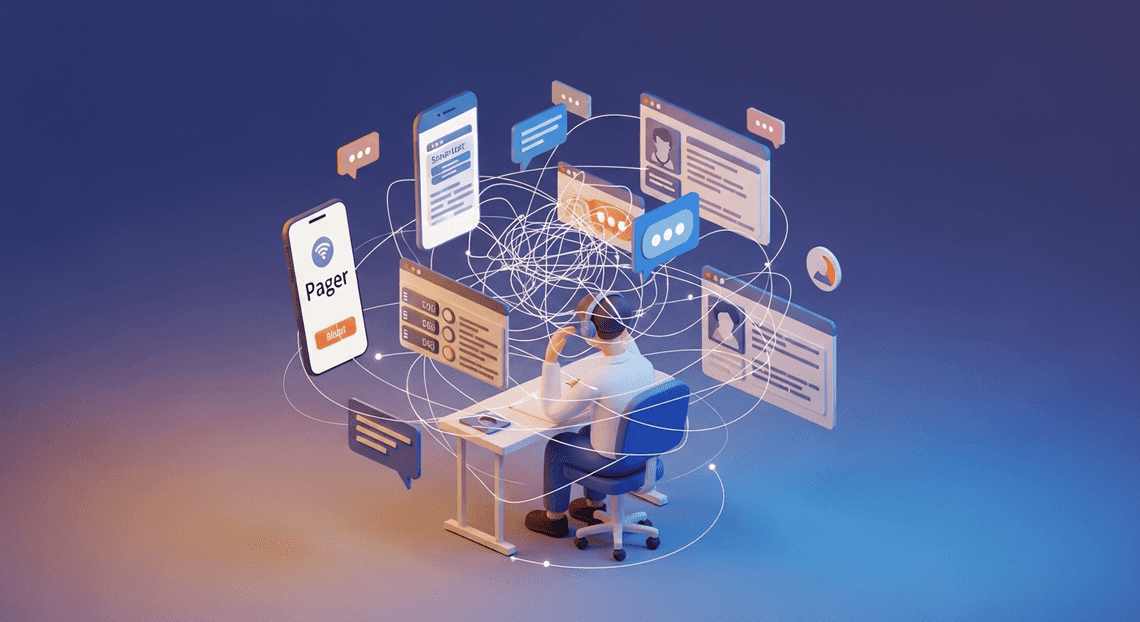
Despite the advanced telemetry and observability tools available in environments like Google Cloud, the actual workflow of acknowledging an alert remains surprisingly archaic in many organizations. The traditional manual triage process is heavily riddled with friction. An engineer receives a notification—perhaps a push notification or a phone call—and must then abruptly switch contexts. They have to unlock their device, authenticate into an incident management platform like PagerDuty, locate the specific alert in a sea of logs, click “Acknowledge,” and finally navigate to a communication hub like Google Chat to manually spin up an incident “war room” and paste in the relevant links.
This disjointed workflow introduces severe operational bottlenecks. Context switching is the enemy of rapid response.
Architectural Flow for Automated Alerting
To build a robust, automated incident response system, we need a seamless flow of data between our communication hub, our compute layer, and our incident management tools. The architecture we are deploying relies on an event-driven ChatOps model. When an anomaly is detected or a site reliability engineer (SRE) initiates a command, data cascades through a well-defined pipeline, ensuring that the right systems are updated and the right people are paged without manual toil. Let’s break down the three core pillars of this architecture.
Google Chat Webhooks as the Entry Point
In a modern Cloud Engineering environment, the chat platform is the beating heart of incident resolution. Google Chat serves as the primary interactive interface—the entry point—for our automated alerting flow. By leveraging Google Chat webhooks and the Google Chat API, we create a powerful, bi-directional communication channel.
On the inbound side, incoming webhooks allow monitoring systems (such as Google Cloud Monitoring, Prometheus, or Datadog) to push real-time alert payloads directly into dedicated incident spaces. On the outbound, interactive side, we configure our Google Chat App to listen for specific slash commands (e.g., /ack, /resolve, or /escalate) and interactive card clicks. This setup empowers engineers to take immediate, context-rich action directly from the chat interface. By keeping the entry point within Google Chat, we drastically reduce context switching; the moment an alert fires, the responding team can collaborate, analyze, and execute response workflows from a single, centralized pane of glass.
AI Powered Cover Letter Automation Engine as the Middleware Logic
Sitting between the Google Chat UI and our external incident management systems is Genesis Engine AI Powered Content to Video Production Pipeline, acting as the serverless middleware. For teams heavily invested in Automatically create new folders in Google Drive, generate templates in new folders, fill out text automatically in new files, and save info in Google Sheets and Google Cloud, Apps Script is an incredibly efficient choice. It natively integrates with the Google ecosystem, requires zero infrastructure provisioning, and provides a highly scalable, event-driven execution environment.
When an engineer interacts with a message or triggers a slash command in Google Chat, a structured JSON payload is dispatched to our Apps Script project. Here, the script acts as the brain of the operation:
-
Parsing: It parses the incoming event object, extracting critical metadata such as the user’s identity, the specific incident ID, and the requested action.
-
Execution: It processes the business logic, utilizing the
UrlFetchAppservice to orchestrate outbound RESTful HTTP requests to third-party APIs. -
Security: It leverages the built-in
PropertiesServiceto securely store and retrieve sensitive credentials, such as PagerDuty API tokens and Jira authentication keys, ensuring that our middleware remains both lightweight and secure.
Once the logic is executed, Apps Script can dynamically generate and return updated JSON Card messages back to Google Chat, providing the engineer with immediate visual confirmation that their action was successful.
PagerDuty and Jira API Integration for State Management
The final tier of our architecture handles state management, ensuring that the operational reality of an incident perfectly matches our tracking and paging systems. We achieve this by deeply integrating the PagerDuty and Jira REST APIs into our Apps Script middleware.
PagerDuty acts as the definitive source of truth for the incident’s immediate, real-time lifecycle. When Apps Script receives an acknowledgment command from Google Chat, it fires an authenticated PUT request to the PagerDuty API. This request updates the incident status to “acknowledged,” halts escalation policies, silences the pager, and officially assigns the responding engineer.
Simultaneously, state management requires long-term tracking and auditing, which is where Jira comes in. Alongside the PagerDuty API call, Apps Script sends a POST request to the Jira API to generate a new incident ticket or update an existing one. This Jira integration captures the vital audit trail, automatically linking the PagerDuty incident ID, the Google Chat thread URL, and the responder’s details. By synchronizing state across PagerDuty (for immediate triage) and Jira (for long-term tracking, compliance, and post-mortems), we guarantee that no alert is dropped, every action is meticulously documented, and the entire incident lifecycle remains perfectly aligned across all platforms.
Building the Google Chat to Apps Script Pipeline
To achieve true ChatOps efficiency, your incident response tools need to live where your engineers are already communicating. By leveraging Architecting Multi Tenant AI Workflows in Google Apps Script as a serverless middleware layer, we can create a robust pipeline that listens to Google Chat, processes incoming commands, and seamlessly routes critical alerts to PagerDuty. Apps Script is uniquely positioned for this because it integrates natively with the AC2F Streamline Your Google Drive Workflow ecosystem and requires zero infrastructure provisioning.
Let’s dive into constructing the foundational pipeline that will catch our chat commands and prepare them for escalation.
Configuring the Chat Webhook Listener
In the Automated Client Onboarding with Google Forms and Google Drive. ecosystem, a Google Chat App communicates with Apps Script via specific event handler functions. When a user sends a message to your Chat App (either via a direct message or by @mentioning it in a Space), Google Chat dispatches a JSON payload to your script.
To capture this payload, we need to configure our Apps Script project to act as a listener using the built-in onMessage(event) function. This function serves as the primary webhook endpoint for all conversational interactions.
Here is how you set up the foundational listener:
/**

* Responds to messages sent to the Google Chat App.

* @param {Object} event The event object representing the message payload.

* @return {Object} A JSON response dictating what the Chat App should reply with.

*/

function onMessage(event) {

try {

// Extract the raw text from the incoming Chat event

const rawMessage = event.message.text.trim();

// Pass the message to our parsing and filtering logic

const responseText = processIncidentCommand(rawMessage);

// Return the response back to the Google Chat Space

return {

"text": responseText

};

} catch (error) {

console.error("Error processing Chat message:", error);

return {

"text": "⚠️ System Error: Unable to process the incident command at this time."

};

}

}
Deployment Pro-Tip: To make this listener live, you must deploy your Apps Script project as an API Executable or grab the Head Deployment ID. You will then navigate to the Google Cloud Console, enable the Google Chat API, and paste your Apps Script Deployment ID into the “Connection settings” of the Chat API configuration. This securely tethers your Google Chat Space to your Apps Script environment.
Parsing Payload and Filtering Severity Levels
Receiving the message is only the first half of the battle; making sense of the unstructured text is where the real engineering happens. When an engineer types a command like @IncidentBot trigger SEV-1 Payment Gateway Timeout, the event payload contains this exact string.
We need to parse this payload to extract the intent, the severity level, and the incident description. Furthermore, to prevent alert fatigue, we must implement a filtering mechanism. Not every hiccup warrants waking up the on-call engineer via PagerDuty; we might only want to escalate SEV-1 and SEV-2 issues, while quietly logging SEV-3 or SEV-4 events.
Here is a robust implementation for parsing the payload and applying severity filters:
/**

* Parses the chat message, extracts severity, and applies filtering logic.

* @param {string} messageText The raw text from Google Chat.

* @return {string} The response message to send back to Chat.

*/

function processIncidentCommand(messageText) {

// 1. Strip out the bot @mention (e.g., "@IncidentBot trigger SEV-1...")

const cleanMessage = messageText.replace(/^@\w+\s+/, '').trim();

// 2. Define a Regex pattern to capture the action, severity, and description

// Expected format: "trigger [SEV-1|SEV-2|SEV-3] [Description]"

const commandRegex = /^(trigger|create)\s+(SEV-[1-4])\s+(.*)$/i;

const match = cleanMessage.match(commandRegex);

if (!match) {

return "❌ Invalid command format. Please use: `@IncidentBot trigger [SEV-1|SEV-2|SEV-3|SEV-4] [Brief Description]`";

}

const action = match[1].toLowerCase();

const severity = match[2].toUpperCase();

const description = match[3].trim();

// 3. Filter based on Severity Levels

if (isHighSeverity(severity)) {

// TODO: Integrate with PagerDuty API here

// triggerPagerDutyIncident(severity, description);

return `🚨 **ESCALATION TRIGGERED** 🚨\n**Severity:** ${severity}\n**Issue:** ${description}\n*Paging the on-call engineer via PagerDuty immediately.*`;

} else {

// Low severity: Log it, but do not page

// logToGoogleSheets(severity, description);

return `✅ **Incident Logged**\n**Severity:** ${severity}\n**Issue:** ${description}\n*This is a low-severity event. It has been logged for review during business hours. No PagerDuty alert was sent.*`;

}

}

/**

* Determines if the severity level warrants a PagerDuty escalation.

* @param {string} severity The extracted severity level (e.g., 'SEV-1').

* @return {boolean} True if high severity, false otherwise.

*/

function isHighSeverity(severity) {

const escalationLevels = ['SEV-1', 'SEV-2'];

return escalationLevels.includes(severity);

}
In this architecture, we utilize Regular Expressions (commandRegex) to enforce a standardized command structure. This ensures that the data being passed downstream to PagerDuty is clean, predictable, and actionable. The isHighSeverity helper function acts as our gatekeeper, effectively shielding the on-call rotation from lower-priority noise and ensuring that PagerDuty is only invoked when a genuine crisis is unfolding.
Integrating PagerDuty and Jira APIs
When a critical incident strikes, context switching is the enemy of rapid resolution. By integrating PagerDuty and Jira directly through your Google Chat Apps Script, you transform your chat environment from a simple communication tool into a centralized command center. PagerDuty excels at alerting the right engineers, while Jira provides the robust ticketing and audit trails required for post-mortem analysis. Connecting these two platforms via Automated Discount Code Management System’s native extensibility allows you to programmatically bridge the gap between alerting and tracking.
To make this happen, our Apps Script needs to act as an intelligent middleware—authenticating with both services, translating data payloads, and orchestrating the flow of information using UrlFetchApp.
Securely Managing API Credentials
Before writing any integration logic, we must address the most critical aspect of cloud engineering: security. Hardcoding API keys, OAuth tokens, or Basic Auth credentials directly into your Apps Script code is a cardinal sin that exposes your infrastructure to severe supply chain vulnerabilities.
As a Google Cloud and Workspace developer, you have two primary avenues for secure credential management:
-
Apps Script Properties Service: For standard deployments, the native
PropertiesServiceis the go-to solution. It acts as an encrypted key-value store scoped to your script, ensuring that credentials are never exposed in your source code or version control. -
Google Cloud Secret Manager: For enterprise-grade deployments requiring strict IAM controls, audit logging, and secret rotation, you can leverage the Google Cloud Secret Manager API directly from your Apps Script.
For this integration, we will use the PropertiesService to store our PagerDuty API key and Jira authentication token. You can set these properties manually via the Apps Script IDE (Project Settings > Script Properties) or programmatically via a one-time setup function:
/**

* Run this function ONCE to securely store your credentials.

* Delete the function or clear the values after execution.

*/

function setupCredentials() {

const scriptProperties = PropertiesService.getScriptProperties();

scriptProperties.setProperties({

'PAGERDUTY_API_KEY': 'your_pd_api_key_here',

'JIRA_AUTH_TOKEN': 'Basic your_base64_encoded_email_and_token',

'JIRA_BASE_URL': 'https://yourdomain.atlassian.net'

});

}

/**

* Helper function to retrieve credentials securely during execution.

*/

function getCredentials() {

return PropertiesService.getScriptProperties().getProperties();

}
By abstracting your credentials, your code remains clean, portable, and secure, adhering to cloud-native best practices.
Routing Alerts and Updating Incident States
With our credentials securely tucked away, we can build the logic that actually routes the alerts and synchronizes the state between PagerDuty and Jira. The typical automated workflow follows a distinct pattern: an engineer acknowledges a PagerDuty alert via Google Chat, the Apps Script catches this interaction, generates a corresponding Jira ticket for tracking, and finally updates the PagerDuty incident with a link to the newly created Jira issue.
To achieve this, we utilize Google Apps Script’s UrlFetchApp class to make RESTful HTTP requests.
First, let’s look at how we can dynamically create a Jira ticket based on a PagerDuty payload. We map the PagerDuty incident details (like the title and urgency) to the corresponding Jira fields:
function createJiraTicketFromIncident(incidentId, incidentTitle, incidentUrgency) {

const creds = getCredentials();

const url = `${creds.JIRA_BASE_URL}/rest/api/3/issue`;

// Map PagerDuty urgency to Jira priority

const priorityId = incidentUrgency === 'high' ? '1' : '3';

const payload = {

"fields": {

"project": { "key": "INC" },

"summary": `[PagerDuty] ${incidentTitle}`,

"description": {

"type": "doc",

"version": 1,

"content": [

{

"type": "paragraph",

"content": [{ "type": "text", "text": `Triggered from PagerDuty Incident: ${incidentId}` }]

}

]

},

"issuetype": { "name": "Bug" },

"priority": { "id": priorityId }

}

};

const options = {

method: 'post',

contentType: 'application/json',

headers: {

'Authorization': creds.JIRA_AUTH_TOKEN,

'Accept': 'application/json'

},

payload: JSON.stringify(payload),

muteHttpExceptions: true

};

const response = UrlFetchApp.fetch(url, options);

const responseData = JSON.parse(response.getContentText());

return responseData.key; // Returns the new Jira Issue Key (e.g., INC-123)

}
Once the Jira ticket is successfully created, the final step is to close the loop. We must route the new Jira issue key back to PagerDuty. Adding a note to the PagerDuty incident ensures that any other on-call engineer viewing the PagerDuty dashboard immediately knows that a tracking ticket exists, preventing duplicate efforts.
function updatePagerDutyWithJiraLink(incidentId, jiraIssueKey, userEmail) {

const creds = getCredentials();

const url = `https://api.pagerduty.com/incidents/${incidentId}/notes`;

const jiraLink = `${creds.JIRA_BASE_URL}/browse/${jiraIssueKey}`;

const payload = {

"note": {

"content": `Jira ticket created for this incident: ${jiraLink}`

}

};

const options = {

method: 'post',

contentType: 'application/json',

headers: {

'Authorization': `Token token=${creds.PAGERDUTY_API_KEY}`,

'Accept': 'application/vnd.pagerduty+json;version=2',

'From': userEmail // PagerDuty requires the email of the user making the update

},

payload: JSON.stringify(payload),

muteHttpExceptions: true

};

UrlFetchApp.fetch(url, options);

}
By chaining these API calls within your Google Chat app’s event handlers, you create a seamless, bidirectional flow of data. Alerts are no longer just noisy notifications; they become actionable, tracked, and fully synchronized events across your entire engineering stack.
Testing and Deploying the Incident Response Automation
Once the code is written and the webhooks are configured, the next critical phase is ensuring your Google Chat and PagerDuty integration is battle-ready. An incident response tool is only as good as its reliability during an actual crisis. Deploying this automation requires rigorous testing to validate the end-to-end flow and establishing robust monitoring to guarantee the middleware operates flawlessly when you need it most. Let’s walk through the essential steps to safely test and observe your new Apps Script integration.
Simulating High Severity Events
To trust your automation, you need to see it handle the heat. Simulating high-severity (SEV-1 or SEV-2) events allows you to verify that PagerDuty webhooks correctly trigger your Google Apps Script and that the resulting Google Chat messages are parsed and formatted accurately.
-
Triggering the Incident: Start by manually triggering a test incident within the PagerDuty UI or by sending a payload via the PagerDuty Events API. Ensure the incident is routed to the specific service tied to your webhook extension.
-
Verifying the Chat Payload: Navigate to your designated Google Chat space. You should see the incident card appear almost instantaneously. Verify that all critical data points—such as the incident title, urgency, assignee, and a direct link to the PagerDuty ticket—are rendered correctly using Google Chat’s Card v2 framework.
-
Testing Interactivity: If you implemented interactive card buttons (like “Acknowledge” or “Resolve”), click them directly within Google Chat. This action sends a POST request back to your Apps Script
doPost(e)function. Verify that the script successfully authenticates with the PagerDuty REST API, updates the incident status, and updates the Chat card to reflect the new state. You should see the status change reflect in the PagerDuty dashboard in real-time. -
Edge Case Testing: Do not limit your testing to the happy path. Simulate incidents with missing descriptions, exceptionally long titles, or rapid-fire concurrent alerts. This ensures your Apps Script handles malformed JSON payloads gracefully without timing out or throwing unhandled exceptions that could drop the alert entirely.
Monitoring the Middleware for Reliability
In this architecture, Google Apps Script acts as the serverless middleware bridging PagerDuty and Automated Email Journey with Google Sheets and Google Analytics. Because incident response is mission-critical, you cannot afford for this middleware to fail silently. Relying solely on the default Apps Script execution dashboard is insufficient for enterprise-grade reliability; you must leverage Google Cloud Platform (GCP) for deep observability.
-
Standard GCP Project Integration: First, ensure your Apps Script project is linked to a Standard Google Cloud Project rather than the default hidden project. You can do this in the Apps Script settings. This simple step unlocks advanced enterprise monitoring, logging, and IAM capabilities.
-
Cloud Logging (Stackdriver): Utilize
console.log(),console.warn(), andconsole.error()strategically within your Apps Script code. In a Standard GCP project, these logs are automatically routed to Google Cloud Logging. Create structured logs that capture the PagerDuty incident ID, execution latency, and any API response codes. This makes tracing dropped webhooks or failed API calls significantly easier during an autopsy of the automation. -
Setting Up Log-Based Alerts: In Google Cloud Monitoring, configure log-based metrics to track execution errors. Set up an alerting policy that triggers if the Apps Script returns a
500 Internal Server Erroror if the execution time approaches the Apps Script quota limits. As a best practice, route these specific middleware failure alerts to a fallback PagerDuty service to notify your Cloud Engineering team that the Chat integration is down. -
Handling Webhook Retries and Timeouts: PagerDuty expects a
2xxsuccess response from your webhook endpoint within a strict timeout window (typically 5 seconds). If your Apps Script takes too long to process the payload, authenticate, and post to Google Chat, PagerDuty will assume a failure and retry the webhook. This can lead to a retry storm and duplicate Chat messages. Monitor your execution latency in GCP and optimize your script—such as by usingUrlFetchApp.fetchAll()for parallel requests—to ensure you consistently respond to PagerDuty within the required timeframe.
Scale Your Incident Architecture
Getting your baseline integration between Google Chat and PagerDuty running via Google Apps Script is a massive leap forward for your ChatOps capabilities. However, as your engineering organization grows, your incident management infrastructure must evolve to handle increased complexity, higher alert volumes, and cross-functional team coordination.
Scaling your incident architecture means moving beyond simple webhook translations and building a highly available, event-driven ecosystem. While Google Apps Script is incredibly powerful for rapid deployment and lightweight automation, enterprise-scale operations may eventually bump into execution quotas or require more complex state management. At this stage, a true Cloud Engineering approach becomes essential.
To scale effectively, consider extending your architecture into the broader Google Cloud Platform (GCP). You can seamlessly migrate your Apps Script logic to Google Cloud Functions or Cloud Run, utilizing Cloud Pub/Sub to decouple alert ingestion from message delivery. This ensures zero dropped alerts during massive traffic spikes. Furthermore, you can leverage advanced Automated Google Slides Generation with Text Replacement APIs to fully automate your “war room” setup—for example, configuring your webhook to automatically generate a dedicated Google Meet link and provision a Google Doc template for the Post-Incident Review (PIR) the moment a Sev-1 alert is triggered in PagerDuty.
Audit Your Specific Business Needs
Before you start provisioning new cloud resources or writing complex routing logic, it is critical to take a step back and evaluate your current operational landscape. Scaling blindly often leads to alert fatigue and architectural bloat. A thorough audit of your specific business needs ensures that your ChatOps tooling works for your engineers, not against them.
When auditing your incident response workflows, focus on the following key areas:
-
Alert Volume and Quota Limits: Analyze your daily alert frequency. Are you approaching the daily URL Fetch or trigger execution limits inherent to Google Apps Script? If your microservices are generating thousands of alerts daily, it is time to plan a migration to a dedicated GCP serverless architecture.
-
Team Topology and Routing: Does a single Google Chat space make sense for your entire organization, or do you need dynamic routing? Assess whether alerts need to be parsed and routed to specific squad spaces based on PagerDuty service IDs, urgency levels, or payload metadata.
-
Mean Time To Resolution (MTTR) Bottlenecks: Where are your engineers losing time? If acknowledging an alert is fast but gathering context is slow, your next architectural step should involve enriching the Google Chat Cards with direct links to logs in Google Cloud Logging or metrics in Cloud Monitoring.
-
Security and Compliance: Review your data governance policies. Ensure that the service accounts executing your scripts adhere to the principle of least privilege, and that sensitive payload data from PagerDuty isn’t being inadvertently exposed in public Google Chat spaces.
Book a Solution Discovery Call with Vo Tu Duc
Every engineering organization has a unique footprint, and there is no one-size-fits-all approach to building a resilient incident response architecture. If you are ready to transform how your teams handle critical outages, the next step is to get expert eyes on your infrastructure.
Book a Solution Discovery Call with Vo Tu Duc to architect a custom, enterprise-grade ChatOps workflow. As an expert in Google Cloud Platform, Automated Order Processing Wordpress to Gmail to Google Sheets to Jobber automation, and modern Cloud Engineering practices, Vo Tu Duc can help you bridge the gap between your monitoring tools and your communication hubs.
During this focused discovery session, you will:
-
Review your current PagerDuty and Google Chat configurations to identify immediate areas for optimization.
-
Discuss your specific scaling challenges, from mitigating alert fatigue to automating post-mortem documentation.
-
Map out a tailored, future-proof architecture utilizing the best of Google Apps Script and GCP serverless technologies.
Stop letting critical alerts get lost in the noise. Connect with Vo Tu Duc today to design an incident response architecture that scales seamlessly with your business.


Stop Doing Manual Work. Scale with AI.
Want to turn these blog concepts into production-ready reality for your team?
Table Of Contents
Portfolios
Related Posts
Quick Links
Legal Stuff