

Automating Secure Document Signing with Google Workspace


The comfort of your manual document workflow hides a staggering cost in lost productivity, compliance risks, and frustrating delays that stall critical business processes.

The High Cost of Manual Document Workflows
In a world driven by digital transformation, the persistence of manual document workflows is more than just an anachronism—it’s a significant drain on resources, a source of operational friction, and a security liability. While the “way it’s always been done” might feel comfortable, the true cost of printing, signing, scanning, and emailing is staggering when you account for lost productivity, compliance risks, and the frustrating delays that stall critical business processes. Before we build a better system, we must first dissect the fundamental flaws of the old one.
Identifying the Bottlenecks in Legal Operations
Manual document handling, especially in high-stakes environments like legal, sales, and HR, is a journey fraught with bottlenecks. Each stage introduces delays and potential for error, creating a cumulative effect that grinds progress to a halt.
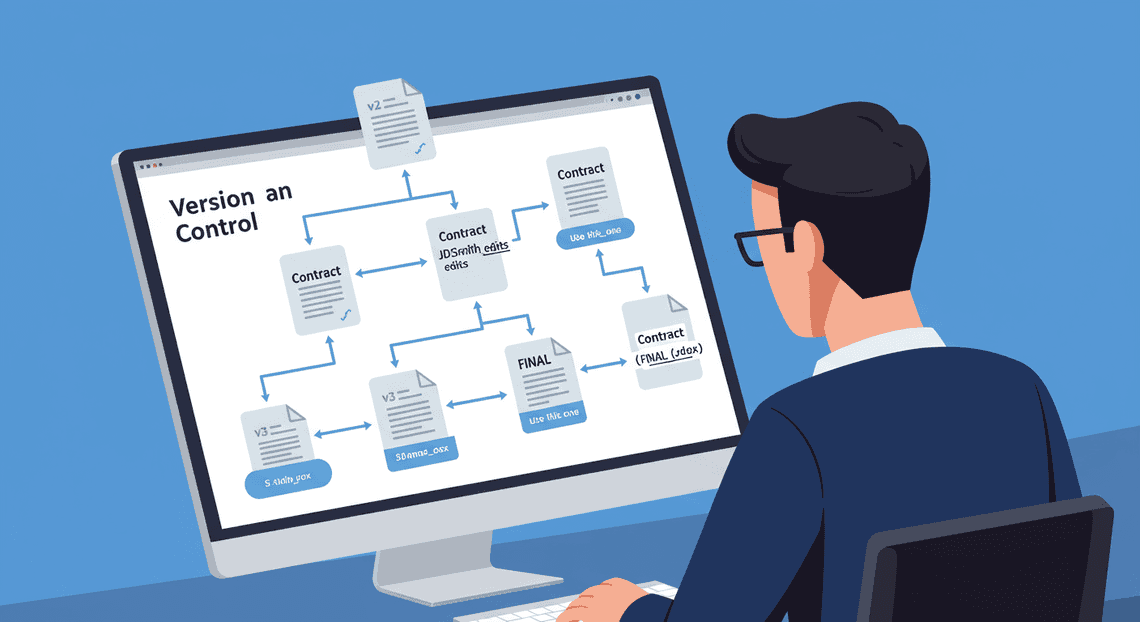
- Drafting and Version Control Chaos: The process often begins with a frantic search for the “latest” template. As the document circulates for review, it spawns a confusing lineage of file names:
Contract_v2.docx,Contract_v3_JDSmith_edits.docx,Contract_FINAL.docx, and the dreadedContract_FINAL_FINAL_use_this_one.docx. Tracking changes across these disparate versions is a manual, error-prone nightmare that consumes valuable time and increases the risk of working from an outdated draft.
-
The Review and Approval Black Hole: Once a draft is sent for review, it often disappears into an email black hole. Stakeholders are siloed, providing feedback in separate email threads that must be manually collated. Chasing down approvals becomes a full-time job, with endless “gentle reminder” emails. There is no central dashboard, no clear visibility into who has reviewed the document, who is holding it up, and what changes have been requested or approved.
-
The “Last Mile” Signing Problem: The final act of getting a signature is often the most inefficient. The workflow requires a stakeholder to print a document, physically sign it, scan it (often with a low-quality mobile app), and email it back. This physical-to-digital-to-physical loop is slow, cumbersome, and dependent on a person’s physical location and access to hardware. Each step is a potential point of failure that can delay a deal closing or a new hire starting for days.
The Hidden Risks of Manual Document Handling
Beyond the obvious inefficiencies, manual workflows harbor significant hidden risks that can expose an organization to legal, financial, and reputational damage. These aren’t just operational headaches; they are critical security and compliance vulnerabilities.
-
Pervasive Security Flaws: Email was never designed to be a secure transport layer for sensitive agreements. Sending contracts, NDAs, or employee offers as attachments exposes them to interception, unauthorized forwarding, and data breaches. Once a document leaves your outbox, you lose all control over it. Physical copies are even more vulnerable—they can be lost, stolen, viewed by unauthorized individuals, or improperly destroyed, creating a tangible compliance risk.
-
**The Absence of an Audit Trail: In the event of a dispute, can you prove who signed the document, when they signed it, and that the document wasn’t altered post-signature? With a manual process, the answer is often a shaky “maybe.” A scattered trail of emails and scanned PDFs is not a legally defensible, immutable audit log. This lack of a clear, chronological record can be a catastrophic failure during an audit or legal challenge.
-
The Inevitability of Human Error: To err is human, but in document management, human error can be costly. Sending the wrong version of a contract to a client, forgetting to get a required signature from a key stakeholder, or misfiling the final executed copy in a labyrinthine shared drive are common mistakes. These aren’t minor slip-ups; they can invalidate agreements, violate compliance mandates, and create significant legal exposure.
Introducing an Automated Solution for Secure Signing
The solution to this chaos is not to work harder, but to work smarter by fundamentally re-engineering the process. Imagine a workflow where documents never have to leave a secure, centralized environment. This is the promise of an automated signing solution integrated directly within your existing collaboration suite.
By leveraging the power of [Automatically create new folders in Google Drive, generate templates in new folders, fill out text automatically in new files, and save info in [Automated Web Scraping with [Multilingual Text-to-Speech Tool with SocialSheet Streamline Your Social Media Posting 123](https://votuduc.com/Multilingual-Text-to-Speech-Tool-with-Google-Workspace-p809282)](https://votuduc.com/Automated-Web-Scraping-with-Google-Sheets-p292968)](https://workspace.google.com/marketplace/app/auto_create_folder_and_files/430076014869), we can transform this fragmented, high-risk process into a streamlined, secure, and fully auditable workflow. This approach eliminates the bottlenecks by:
-
Centralizing document creation and storage in Google Drive.
-
Streamlining reviews and approvals using the collaborative features of Google Docs.
-
Automating the routing, signing, and archiving of documents.
-
Embedding security and creating an immutable audit trail for every action taken.
This isn’t just about adding an e-signature tool; it’s about building an end-to-end system that turns a major operational liability into a strategic asset, enabling you to close deals faster, onboard employees smoother, and operate with a higher degree of security and compliance.
Architecting Your Automated Signing Protocol
Before a single line of code is written, a robust system must be designed. Just as you wouldn’t build a house without a blueprint, we won’t build our [Automated Job Creation in Real Time Jobber and Google Sheets Integration from Gmail](https://votuduc.com/Automated-Job-Creation-in-Jobber-from-Gmail-p115606) without a clear architecture. This protocol is the conceptual framework that defines how information flows, which tools are responsible for specific tasks, and the sequence of events that transforms a line of data into a securely delivered document. A well-defined architecture ensures scalability, maintainability, and clarity throughout the development process.
Core Components: Google Sheets, Docs, and Gmail
The elegance of this solution lies in its use of familiar, powerful tools already within the AC2F Streamline Your Google Drive Workflow ecosystem. Each component serves a distinct and critical purpose, working in concert to form our Automated Quote Generation and Delivery System for Jobber pipeline.
- Google Sheets: The Control Panel & Database
Think of Google Sheets as the central hub of the entire operation. It’s not just a spreadsheet; it’s our structured database and user interface. Its primary roles are:
-
Data Storage: It houses all the variable information for each document—signer names, email addresses, contract dates, specific clauses, financial figures, and any other custom data points.
-
Status Tracking: A dedicated column in the Sheet acts as a real-time status board. We can see at a glance whether a document is
Pending,Sent for Signature,Completed, or hasEncountered an Error. -
Automated Work Order Processing for UPS Trigger: The Sheet is the starting point. The entire workflow can be initiated by adding a new row of data, whether done manually, through a Google Form submission, or via an external API call.
-
Google Docs: The Template Engine
Google Docs provides the foundation for the documents themselves. We use it to create a master template that serves as the blueprint for every unique document we generate.
-
Master Template: You create one polished, professionally formatted Google Doc that contains all the static legal text and boilerplate language.
-
Dynamic Placeholders: Within this template, we use simple, recognizable placeholders for all the variable data. For example,
{{signer_name}},{{agreement_date}}, and{{project_scope}}. These markers are what our script will look for and replace. -
Source for Generation: The script never modifies the original template. Instead, it creates a copy for each signing request, ensuring the master document remains pristine and ready for the next run.
-
Gmail: The Secure Delivery Channel
Once a personalized document is generated, it needs to be delivered to the signer. Gmail is the natural, integrated choice for this communication.
-
Personalized Dispatch: The script leverages the Gmail API to send emails directly from your Google account. This allows for full personalization of the subject line and body content, using the same data from the Google Sheet.
-
Document Attachment: The final, generated PDF is attached to the email, providing the signer with the document they need to review and sign.
-
Communication Record: Using your own Gmail account creates an automatic and searchable record of when each document was sent and to whom, adding a layer of auditability to the process.
The Orchestration Engine: AI Powered Cover Letter Automation Engine
If Sheets, Docs, and Gmail are the organs, Genesis Engine AI Powered Content to Video Production Pipeline is the central nervous system that connects them and commands them to act. It’s a cloud-based scripting platform based on JavaScript that lives within your Automated Client Onboarding with Google Forms and Google Drive. environment. It is the “glue” that automates the entire protocol.
In our architecture, the script is responsible for:
-
Monitoring & Triggering: It actively watches the Google Sheet for the trigger condition (e.g., a new row with the status “Ready to Send”).
-
Data Ingestion: It reads the entire row of data associated with a new request.
-
Document Generation: It programmatically creates a copy of the master Google Doc template.
-
Dynamic Merging: It systematically finds and replaces every placeholder (e.g.,
{{signer_name}}) in the new Doc with the corresponding data from the Sheet. -
Format Conversion: It converts the finalized, personalized Google Doc into a professional, non-editable PDF format. This is a crucial step for maintaining document integrity.
-
File Management: It saves the newly created PDF to a designated folder in Google Drive, often using a systematic naming convention for easy retrieval.
-
Email Composition & Delivery: It constructs and sends a personalized email via the Gmail service, attaching the PDF.
-
Status Logging: Crucially, it writes back to the Google Sheet, updating the status from “Ready to Send” to “Sent” and often logging a timestamp and a direct link to the generated PDF in Google Drive for a complete audit trail.
Workflow Overview: From Data Entry to Signed Document
Let’s visualize the entire process from a high level. The data flows through our architecture in a precise, automated sequence.
-
Initiation: The workflow begins in Google Sheets. A user, a form, or another application adds a new row of data containing all the necessary information for a new agreement (signer’s details, contract terms, etc.) and sets the status to
Ready to Send. -
Trigger & Execution: The [Architecting Multi Tenant AI Workflows in Building Modular Agentic Apps Script with Gemini Function Calling](https://votuduc.com/architecting-multi-tenant-ai-workflows-in-google-apps-script-p-20260321290501), running on an automated trigger (e.g., every 5 minutes) or a manual one (e.g., a custom menu button), detects the new row.
-
Data Ingestion: The script reads the data from the columns of that specific row.
-
Document Personalization: The script accesses the master Google Doc template, creates a temporary copy, and injects the data from the Sheet by replacing all
{{...}}placeholders. -
PDF Conversion & Storage: The personalized Google Doc is converted into a PDF and saved into a specified “Sent Agreements” folder in Google Drive.
-
Secure Delivery: The script uses Gmail to send an email to the signer’s address. The email contains a personalized message and the newly generated PDF as an attachment.
-
Feedback Loop: Upon successful sending, the script returns to the Google Sheet. It updates the status column for that row to
Sent, and adds the timestamp and a link to the PDF in Google Drive.
This completes the automated generation and delivery portion of the protocol. The system now waits for the signer to take action, setting the stage for the next phase of the process: capturing the signature and archiving the completed document.
Step-by-Step Implementation Guide
Now, let’s roll up our sleeves and build this automation from the ground up. This guide breaks down the process into four core stages, from setting up your data source to receiving real-time status updates.
Step 1: Configure Your Google Sheet as a Control Panel
Your Google Sheet is more than just a data repository; it’s the mission control for this entire workflow. Every row will represent a unique document transaction, and every column will track a critical piece of information.
First, create a new Google Sheet. Rename the first tab to something meaningful, like “Signature_Requests”. Then, set up the following columns. The exact names are important, as our script will reference them directly.
| Column Header | Purpose | Example |
| :--- | :--- | :--- |
| ClientName | The full name of the primary recipient. | Jane Doe |
| ClientEmail | The email address where the signature request will be sent. | [email protected] |
| DocumentTitle | A custom title for the document being generated. | Q4 Consulting Agreement |
| ContractValue | A specific data point to be merged into the document. | $10,000 |
| SendStatus | Tracks the status of the script’s execution for this row. | SENT, ERROR, or blank |
| SignatureStatus | Updated by the webhook to reflect the signing status. | SIGNED, VIEWED, DECLINED |
| SignatureRequestID | Stores the unique ID from the e-signature service. | 1a2b3c4d5e6f7g8h |
| SignedDocumentURL | A direct link to the completed, signed document. | https://api.service.com/docs/... |
| LastUpdated | A timestamp automatically added when the row is processed. | 2023-10-27 10:30:15 |
Pro-Tip: Use Data Validation for the SendStatus and SignatureStatus columns to create dropdowns. This keeps your data clean and makes manual updates easier if needed. This sheet is now your single source of truth for every document in the pipeline.
Step 2: Design a Dynamic Google Doc Template with Placeholders
Next, create the master Google Doc that will serve as your template. This document contains all the standard text, formatting, and branding. The magic happens with placeholders—special markers that our script will find and replace with data from your Google Sheet.
The standard convention for placeholders is to use double curly braces, like {{ColumnHeader}}. It is critical that the text inside the braces exactly matches the column headers you defined in Step 1.
-
Create a new Google Doc. Give it a clear name, like “Master Contract Template”.
-
Draft your content. Write the agreement, proposal, or form as you normally would.
-
Insert placeholders where you need dynamic data.
Here’s a simplified example of what your template might look like:
{{DocumentTitle}}
This agreement is made and entered into as of this date by and between ACME Corp (“The Company”) and {{ClientName}} (“The Client”).
Scope of Work
The Client agrees to a service package with a total value of {{ContractValue}}. The terms and conditions are outlined in Appendix A.
Signatures
Please sign below to indicate your acceptance of these terms.
Once your template is ready, open it and copy its ID from the URL. The ID is the long string of characters between /d/ and /edit. You will need this ID for the script.
https://docs.google.com/document/d/1aBcDeFgHiJkLmNoPqRsTuVwXyZ_12345AbCdEfG/edit
Step 3: Develop the Apps Script for Merging and Sending
This is where we automate the heavy lifting. We’ll write a Google Apps Script bound to our Sheet that reads the data, merges it into the template, and dispatches it through your chosen e-signature service’s API.
-
In your Google Sheet, go to Extensions > Apps Script.
-
Replace the boilerplate code with the following structure.
// The unique ID of your Google Doc template

const TEMPLATE_ID = 'YOUR_TEMPLATE_ID_HERE';

// The ID of the folder where generated documents will be saved

const DESTINATION_FOLDER_ID = 'YOUR_FOLDER_ID_HERE';

/**

* Creates a custom menu in the Google Sheet UI to run the script.

*/

function onOpen() {

SpreadsheetApp.getUi()

.createMenu('Signature Automation')

.addItem('Send Pending Documents', 'processSheet')

.addToUi();

}

/**

* Main function to process rows, generate documents, and send for signature.

*/

function processSheet() {

const sheet = SpreadsheetApp.getActiveSpreadsheet().getSheetByName('Signature_Requests');

const dataRange = sheet.getDataRange();

const values = dataRange.getValues();

const headers = values[0];

const ui = SpreadsheetApp.getUi();

// Start from the second row to skip headers

for (let i = 1; i < values.length; i++) {

const row = values[i];

const rowData = {};

// Create an object from the row data for easy access

headers.forEach((header, index) => {

rowData[header] = row[index];

});

// Process only rows that haven't been sent yet

if (rowData.SendStatus === '') {

try {

// 1. Create a copy of the template

const docName = `${rowData.DocumentTitle} - ${rowData.ClientName}`;

const newDocFile = DriveApp.getFileById(TEMPLATE_ID).makeCopy(docName, DriveApp.getFolderById(DESTINATION_FOLDER_ID));

const newDoc = DocumentApp.openById(newDocFile.getId());

const body = newDoc.getBody();

// 2. Replace all placeholders with data from the sheet

for (const header of headers) {

body.replaceText(`{{${header}}}`, rowData[header]);

}

newDoc.saveAndClose();

// 3. Convert the final Google Doc to a PDF Blob

const pdfBlob = newDoc.getAs('application/pdf');

// 4. --- E-SIGNATURE API INTEGRATION ---

// This part is specific to your chosen service (e.g., DocuSign, Dropbox Sign, etc.)

// You will typically make an API call here.

const response = sendToSignatureService(rowData.ClientName, rowData.ClientEmail, docName, pdfBlob);

// 5. Update the sheet with the results

sheet.getRange(i + 1, headers.indexOf('SendStatus') + 1).setValue('SENT');

sheet.getRange(i + 1, headers.indexOf('SignatureRequestID') + 1).setValue(response.signatureRequestId); // Assuming the API returns an ID

sheet.getRange(i + 1, headers.indexOf('LastUpdated') + 1).setValue(new Date());

} catch (e) {

// Log any errors directly into the sheet

sheet.getRange(i + 1, headers.indexOf('SendStatus') + 1).setValue('ERROR');

sheet.getRange(i + 1, headers.indexOf('LastUpdated') + 1).setValue(e.message);

}

}

}

ui.alert('Processing Complete', 'All pending documents have been sent.', ui.ButtonSet.OK);

}

/**

* Placeholder function for your e-signature service API call.

* @param {string} recipientName The name of the signer.

* @param {string} recipientEmail The email of the signer.

* @param {string} documentTitle The title of the document.

* @param {Blob} pdfBlob The PDF file content.

* @return {object} An object containing the response from the API.

*/

function sendToSignatureService(recipientName, recipientEmail, documentTitle, pdfBlob) {

// --- PSEUDO-CODE ---

// const API_KEY = 'YOUR_E_SIGNATURE_API_KEY';

// const API_ENDPOINT = 'https://api.your-service.com/v1/signature_requests';

//

// const payload = {

//   'subject': documentTitle,

//   'signers': [{'name': recipientName, 'email_address': recipientEmail}],

//   'files': [pdfBlob],

//   'webhook_url': ScriptApp.getService().getUrl() // The magic link to our webhook!

// };

//

// const options = {

//   'method': 'post',

//   'contentType': 'application/json',

//   'headers': {'Authorization': 'Bearer ' + API_KEY},

//   'payload': JSON.stringify(payload)

// };

//

// const response = UrlFetchApp.fetch(API_ENDPOINT, options);

// const jsonResponse = JSON.parse(response.getContentText());

//

// return { signatureRequestId: jsonResponse.data.signature_request_id };

// For testing, return a dummy ID

return { signatureRequestId: 'dummy_id_' + new Date().getTime() };

}
Key Actions in the Script:
-
onOpen(): Creates a custom menu in the Sheet for easy execution. -
processSheet(): The main loop that iterates through each row. -
Data Merging: It copies the template, finds placeholders like
{{ClientName}}, and replaces them with the corresponding cell data for that row. -
API Call (
sendToSignatureService): This is the crucial integration point. You will need to replace the pseudo-code with the actual API request for your e-signature provider. Notice how we passScriptApp.getService().getUrl()as a webhook URL—this tells the service where to send status updates. -
Status Update: After a successful API call, the script updates the
SendStatusandSignatureRequestIDin the Sheet, providing a clear audit trail.
Step 4: Implement a Webhook to Log Signature Status
A webhook is an automated message sent from one app to another when something happens. In our case, the e-signature service will call a unique URL to notify our script whenever a document is viewed, signed, or declined. We will create this URL by deploying our script as a web app.
- Add the following
doPost(e)function to your Apps Script project. This special function is automatically triggered when your web app URL receives an HTTP POST request.
/**

* Handles incoming POST requests from the e-signature service webhook.

* @param {object} e The event parameter containing the request data.

*/

function doPost(e) {

try {

// The webhook payload is usually a JSON string

const postData = JSON.parse(e.postData.contents);

// --- PAYLOAD STRUCTURE DEPENDS ON YOUR SERVICE ---

// You must inspect the webhook documentation from your e-signature provider

// to get the correct paths to the data you need.

const eventType = postData.event.event_type; // e.g., 'signature_request_signed'

const signatureRequestId = postData.signature_request.signature_request_id;

const signedPdfUrl = postData.signature_request.files_url || ''; // URL to the final PDF

const sheet = SpreadsheetApp.getActiveSpreadsheet().getSheetByName('Signature_Requests');

const data = sheet.getDataRange().getValues();

const headers = data[0];

const idColumnIndex = headers.indexOf('SignatureRequestID');

// Find the matching row in our sheet using the unique ID

for (let i = 1; i < data.length; i++) {

if (data[i][idColumnIndex] === signatureRequestId) {

const statusColumnIndex = headers.indexOf('SignatureStatus') + 1;

const urlColumnIndex = headers.indexOf('SignedDocumentURL') + 1;

const timestampColumnIndex = headers.indexOf('LastUpdated') + 1;

// Update the status based on the event

sheet.getRange(i + 1, statusColumnIndex).setValue(eventType.toUpperCase());

sheet.getRange(i + 1, timestampColumnIndex).setValue(new Date());

if (signedPdfUrl) {

sheet.getRange(i + 1, urlColumnIndex).setValue(signedPdfUrl);

}

// Return a success response to the webhook service

return ContentService.createTextOutput(JSON.stringify({ 'status': 'success' })).setMimeType(ContentService.MimeType.JSON);

}

}

} catch (error) {

// Log errors for debugging

Logger.log(error.toString());

Logger.log(e.postData.contents);

}

// If we reach here, the ID was not found or an error occurred.

return ContentService.createTextOutput(JSON.stringify({ 'status': 'error', 'message': 'Request ID not found or invalid payload' })).setMimeType(ContentService.MimeType.JSON);

}
- Deploy as a Web App:
Click the* Deploy button in the Apps Script editor, then New deployment**.
Select the gear icon and choose* Web app**.
-
In the configuration:
-
Description:
E-Signature Webhook -
Execute as:
Me(your Google account) -
Who has access:
Anyone(This is crucial. The e-signature service needs public access to call this URL).
Click* Deploy**.
-
Authorize the script’s permissions.
-
Copy the Web app URL. This is your live webhook endpoint.
- Configure Your E-Signature Service:
-
Log in to your e-signature service’s dashboard.
-
Go to the API settings or developer section and find the “Webhooks” or “API Events” area.
-
Add a new webhook and paste the URL you just copied.
-
Subscribe to the events you care about, such as “Request Signed,” “Request Viewed,” and “Request Declined.”
Now, when a document’s status changes, the service will instantly send data to your doPost function, which will find the correct row in your Google Sheet and update it in real-time.
Key Benefits for Legal Ops and Administrators
Shifting from manual document handling to an automated signing workflow within Automated Discount Code Management System isn’t just a minor process improvement; it’s a strategic upgrade to your operational core. For Legal Operations professionals and System Administrators, this transition eliminates tedious, error-prone tasks and unlocks significant gains in efficiency, security, and scalability. Let’s dissect the primary advantages this automation brings to your team.
Drastically Reducing Contract Turnaround Time
In the world of business, time is a critical resource. The traditional “print, sign, scan, email” cycle for contracts is a notorious bottleneck, often stretching the signing process from days into weeks. This delay, known as poor contract velocity, can stall deals, delay partnerships, and frustrate stakeholders.
Automating this process within Automated Email Journey with Google Sheets and Google Analytics directly attacks this inefficiency. Here’s how:
-
Instantaneous Routing: As soon as a document is finalized in Google Docs or triggered from a Google Form, the workflow automatically routes it to the correct signatories in the specified order. There’s no manual email composition, no checking for the right attachment version, and no delay.
-
Real-Time Visibility: The “black hole” of an email outbox is eliminated. A centralized dashboard, often built within Google Sheets or a dedicated interface, provides at-a-glance status updates. You can see precisely who has viewed, who has signed, and whose signature is pending.
-
Automated Nudging: The system can be configured to send automated reminders to signatories who haven’t completed their action within a set timeframe. This removes the awkward and time-consuming task of manual follow-ups, ensuring the process keeps moving forward without constant intervention from your team.
By collapsing the signing lifecycle, you transform contract execution from a multi-day ordeal into a process that can be completed in minutes, directly accelerating revenue generation and operational onboarding.
Enhancing Security and Building a Verifiable Audit Trail
Emailing sensitive agreements as attachments is an inherently insecure practice. Documents can be intercepted, accidentally forwarded to the wrong recipient, or subtly altered without a clear record. An automated Automated Google Slides Generation with Text Replacement solution replaces this vulnerability with a robust, secure framework.
-
Controlled Environment: The entire process lives within your secure Automated Order Processing Wordpress to Gmail to Google Sheets to Jobber tenant. Access to document templates and completed contracts is governed by granular Google Drive permissions, ensuring only authorized personnel can view or manage them.
-
Authenticated Signatories: Signers are typically authenticated through their Google accounts or via unique, secure links sent to their verified email addresses. This provides a much stronger layer of identity verification than a simple scanned image of a signature.
-
Immutable, Court-Admissible Records: This is the cornerstone of a secure digital signing process. Upon completion, the system generates a comprehensive audit trail or a “Certificate of Completion.” This is a non-editable record that cryptographically seals the document and logs every event in its lifecycle, including:
-
The name and email address of each participant.
-
Precise timestamps (UTC) for every action: document creation, viewing, and signing.
-
The IP address and user agent (browser/OS) of each signer.
-
A unique document hash to guarantee that the signed version is tamper-evident and has not been altered since the moment of signing.
This verifiable audit trail provides a powerful, legally defensible record of consent, which is critical for compliance, dispute resolution, and maintaining the integrity of your agreements.
Scaling Your Operations Without Increasing Headcount
As your organization grows, the volume of agreements—from sales contracts and NDAs to vendor forms and HR documents—grows with it. The traditional response is to hire more administrative or paralegal staff to manage the increased workload. Automation offers a more efficient and scalable alternative.
-
From Doer to Manager: Your team’s role shifts from being the manual processor of every single document to the manager of an automated system. Instead of drafting 100 individual NDAs, they create and maintain one master NDA template in Google Docs that can be used to generate thousands of unique agreements.
-
Empowering Self-Service: You can connect a Google Form to your workflow, creating a self-service portal for other departments. A salesperson can fill out a form with client details, and the system will automatically generate the corresponding contract from a template, send it for internal approval if needed, and then route it for signature—all without direct intervention from the legal or admin team.
-
Integrate and Multiply: By leveraging Google Apps Script or third-party integration platforms, you can trigger these signing workflows from other business systems. A deal marked “Closed-Won” in your CRM can automatically initiate the contract generation process. An accepted offer in your Applicant Tracking System (ATS) can automatically send out the new hire packet.
This approach acts as a force multiplier, allowing a lean team to manage a massive volume of documents efficiently. It frees up your skilled personnel from repetitive, low-value tasks so they can focus on more strategic work like complex negotiations, process optimization, and risk management—activities that truly drive the business forward.
Conclusion: Scaling Your Custom Architecture
You’ve now walked through the architecture of a powerful, in-house document signing solution built entirely on the Automated Payment Transaction Ledger with Google Sheets and PayPal and Google Cloud ecosystem. This isn’t just a clever workaround; it’s a fundamental shift in how you can handle sensitive, identity-driven processes. By moving away from costly third-party platforms, you reclaim full ownership over your data, your security posture, and your operational workflows. Let’s recap the value and explore where you can go from here.
Recap: The Power of a Verified Communication Workflow
The core strength of the system we’ve designed lies in its simplicity and reliance on a trusted identity provider: Google itself. Instead of depending on an external service to validate a signature, we’ve created a verified communication workflow. The “signature” is an auditable action—like submitting a specific Google Form or replying to an email with a unique token—performed by a user authenticated through Google’s robust OAuth 2.0 framework.
This approach delivers several key advantages:
-
Unyielding Security: The entire process is anchored to a verified Google identity. You have a high degree of confidence that the person taking the action is who they claim to be, all backed by Google’s security infrastructure, including multi-factor authentication.
-
Complete Data Sovereignty: Your documents, templates, and audit logs never leave your Google Docs to Web environment. This is a critical benefit for organizations with strict data residency, privacy, or compliance requirements.
-
Significant Cost Reduction: By leveraging the tools you already pay for in SocialSheet Streamline Your Social Media Posting and the pay-as-you-go model of Google Cloud services like Apps Script or Cloud Functions, you eliminate the per-signature or per-user fees that define commercial e-signature platforms.
-
Airtight Audit Trails: Every step, from document generation and sharing to the final “signing” action, is logged programmatically. You can build a clear, immutable record in a Google Sheet or a dedicated logging service, providing a transparent history for any agreement.
Beyond Signing: Expanding Your Automation Potential
Treat this document signing solution as your foundational blueprint for a much broader automation strategy. The same principles—trigger, process, and record—can be applied to countless other business workflows that require verification and action. The architecture is a launchpad, not a final destination.
Consider these expansion opportunities:
-
Automated Employee Onboarding: When a new employee is added to your Speech-to-Text Transcription Tool with Google Workspace organization, trigger a workflow that automatically sends them an NDA, an IT policy agreement, and a benefits enrollment form. Once “signed,” their access permissions can be automatically elevated, and HR is notified.
-
Streamlined Sales Contract Flow: Integrate your CRM (like Salesforce or HubSpot) with this system. When a deal is moved to the “Contract Sent” stage, a Cloud Function can pull customer data, generate a personalized contract from a Google Doc template, and initiate the signing workflow. A signed contract can then automatically update the CRM and trigger the invoicing process.
-
Internal Approval Processes: Go beyond external signatures. Use this for internal purchase order approvals, vacation requests, or expense report sign-offs. A manager “signs” by clicking a verified link in an email, which logs their approval and moves the request to the next stage.
-
Vendor and Partner Management: Automate the distribution and signing of Master Service Agreements (MSAs), SOWs, and compliance questionnaires for new vendors, ensuring all necessary paperwork is completed and archived before they are onboarded into your systems.
Next Steps for Your Business
Moving from concept to production requires a deliberate, iterative approach. Here’s a clear path to get started and scale your efforts effectively:
-
Identify a Pilot Project: Don’t try to boil the ocean. Start with a single, high-impact, low-complexity workflow. A great candidate is often an internal process, like signing an updated employee handbook, as it allows you to test and refine the system with a friendly audience.
-
Build and Iterate: Construct your MVP (Minimum Viable Product) using the principles outlined in this article. Focus on a solid foundation with robust logging. Gather feedback from your pilot users and continuously improve the user experience and the reliability of the automation.
-
Level Up with Google Cloud: While Apps Script is an excellent starting point, consider migrating more complex or high-volume workflows to more powerful Google Cloud services. Use Cloud Functions for event-driven processing, Cloud Run to deploy containerized applications for more complex logic, and Google Workflows to orchestrate multi-step processes involving several APIs and services.
-
Prioritize Security Hardening: As you scale, formalize your security practices. Implement the Principle of Least Privilege for all service accounts and API permissions. Use Google Cloud’s Secret Manager for storing API keys and other secrets. Conduct regular reviews of your code and IAM policies to ensure your secure foundation remains solid.
By taking these steps, you are not just building a tool; you are building a capability. You are creating a more efficient, secure, and integrated operational environment, powered by the tools you already trust.


Stop Doing Manual Work. Scale with AI.
Want to turn these blog concepts into production-ready reality for your team?
Table Of Contents
Portfolios
Related Posts
Quick Links
Legal Stuff