

A Headless AppSheet Pattern for Unifying Disparate ERPs


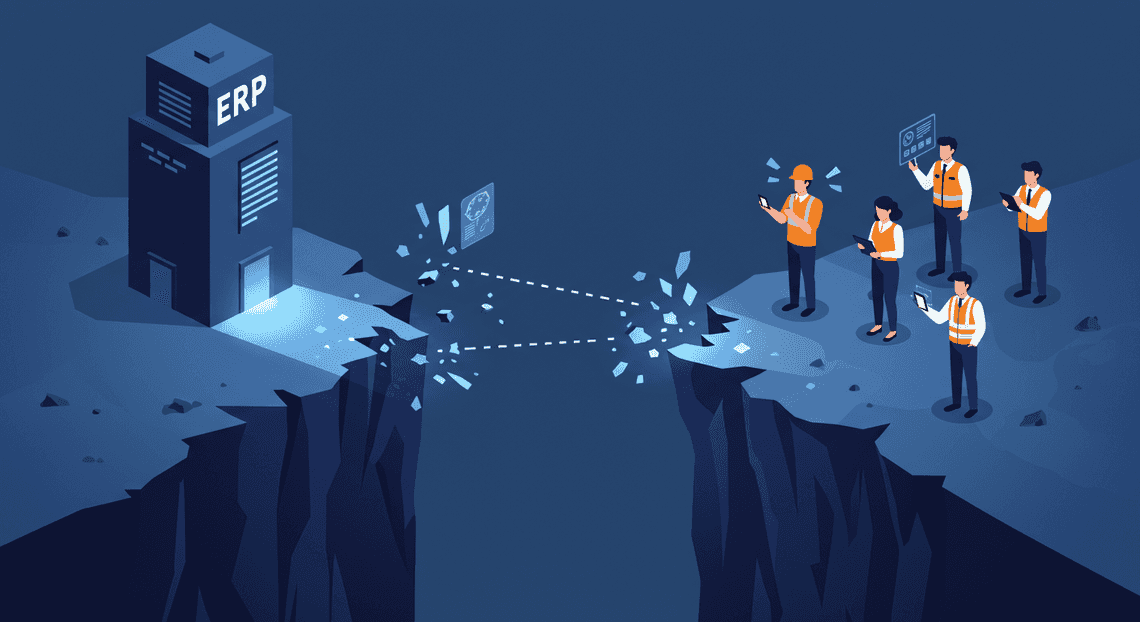
ERPs are the backbone of your business, but their legacy design creates a digital chasm that leaves mobile field teams disconnected from the central data they need. This problem is magnified by mergers and acquisitions, leading to operational chaos and frustrating delays.
The Modern Integration Challenge: Siloed ERPs and Disconnected Field Teams
Enterprise Resource Planning (ERP) systems are the operational backbone of modern business. They are the authoritative systems of record, managing everything from finance and supply chain to manufacturing and human resources. Yet, for all their power, these monolithic systems were architected in an era predating the modern, mobile-first workforce. This creates a fundamental disconnect—a digital chasm—between the centralized data core and the distributed teams on the front lines.
When a company grows, especially through mergers and acquisitions, this problem is magnified. Instead of one complex ERP, the organization now contends with two, three, or more disparate systems. Each has its own data schema, business logic, and access protocols. For field service technicians, sales representatives, or logistics coordinators, this translates into a nightmare of swivel-chair integration, operational delays, and data entry errors. They need immediate access to the right information—a work order from SAP, a customer history from NetSuite, and inventory levels from a legacy AS/400 system—all on a single device, often with intermittent connectivity. The traditional model simply cannot meet this demand.
Why traditional ERP systems fail mobile workforces
The unsuitability of legacy ERPs for field operations isn’t a single failing but a cascade of architectural and design limitations. Attempting to directly expose a traditional ERP to a mobile workforce is often an exercise in futility for several key reasons:
- Hostile User Experience (UX): ERP interfaces are notoriously dense and complex. They are designed for trained “power users” sitting at a desktop with a large monitor, keyboard, and mouse. Translating these screens, with their hundreds of fields and multi-tabbed forms, to a 6-inch mobile display is practically impossible. The result is an unusable application that frustrates users and tanks adoption.

-
The Connectivity Assumption: Core ERP modules are built on the assumption of a persistent, low-latency network connection. Field teams operate in the real world of basements, remote sites, and spotty cellular coverage. Without robust, built-in offline capabilities, any network hiccup grinds work to a halt, leaving the user unable to access or update critical information.
-
Prohibitive Licensing Models: ERP licensing is expensive. Procuring a full-featured license for every field technician who only needs to update a work order status and log their time is financially unjustifiable. It’s like buying a commercial airliner to deliver a small package.
-
Data Overload and Inaccessibility: Mobile users don’t need access to the entire ERP. They need a curated, context-aware slice of data relevant to their immediate task. A traditional ERP presents the entire ocean of data, forcing the user to navigate complex menus and run custom reports to find the single piece of information they need.
-
Process Rigidity vs. Field Dynamics: ERP workflows are, by design, rigid and structured to ensure compliance and data integrity. Fieldwork is dynamic and unpredictable. Forcing a mobile worker to follow a 15-step, screen-by-screen process designed for an accountant is inefficient and encourages workarounds, leading to poor data quality where it matters most—at the point of execution.
Introducing the ‘Headless AI-Powered Invoice Processor’ concept as a solution
To bridge this chasm, we need to decouple the user experience from the back-end systems of record. This is the core principle behind the “Headless AMA Patient Referral and Anesthesia Management System” pattern. The term “headless” is borrowed from the world of content management systems, where the content repository (the “body”) is separated from the presentation layer (the “head”).
In our context:
-
The Body: The disparate ERP systems (SAP, Oracle, etc.) remain the authoritative systems of record. They house the data and the core business logic. They are the powerful, complex “body” of the operation.
-
The Head: AppSheetway Connect Suite serves as the new, purpose-built “head” or presentation layer. It provides the mobile-first, offline-capable, and context-aware user interface for the field teams.
The Headless OSD App Clinical Trial Management pattern doesn’t replace the ERPs; it abstracts their complexity. Instead of forcing users to interact directly with multiple cumbersome back-ends, we build a single, cohesive AppSheet application that communicates with the ERPs through a managed integration layer. The user interacts with a simple, task-oriented app on their phone. In the background, data is intelligently synchronized to and from the correct ERP, translated into the appropriate format, and validated against the source system’s business rules. This allows field teams to work efficiently without ever needing to know which back-end system holds the data for their current task.
An architectural overview for [Automatically create new folders in Google Drive, generate templates in new folders, fill out text automatically in new files, and save info in [Automated Web Scraping with [Multilingual Text-to-Speech Tool with SocialSheet Streamline Your Social Media Posting 123](https://votuduc.com/Multilingual-Text-to-Speech-Tool-with-Google-Workspace-p809282)](https://votuduc.com/Automated-Web-Scraping-with-Google-Sheets-p292968)](https://workspace.google.com/marketplace/app/auto_create_folder_and_files/430076014869) integrators
For architects and developers within the Google Cloud and Workspace ecosystem, this pattern can be implemented using a powerful, scalable, and familiar set of tools. The architecture is designed to be modular, allowing for both simple and highly complex integrations.
Here is a breakdown of the core components and data flow:
Architectural Components:
- Presentation Layer (The Head):
- AppSheet: The no-code/low-code platform for building the mobile and web applications. It handles the UI, offline sync, and user-side logic.
- Intermediary Data Store:
-
Google Sheets: Ideal for rapid prototyping, simple use cases, and situations where business users need to easily view or edit the staged data.
-
Cloud SQL: A managed relational database (MySQL, PostgreSQL) for more demanding scenarios requiring transactional integrity, scalability, and robust querying capabilities. This is the recommended choice for production deployments.
- Integration & Orchestration Layer (The “Neck”):
-
[AI Powered Cover Letter [Automated Job Creation in Real Time Jobber and Google Sheets Integration from Gmail](https://votuduc.com/Automated-Job-Creation-in-Jobber-from-Gmail-p115606) Engine](https://votuduc.com/AI-Powered-Cover-Letter-Automated Quote Generation and Delivery System for Jobber-Engine-p111092): Excellent for simple, schedule-based integrations.
UrlFetchAppcan call ERP APIs, and triggers (onEdit, time-based) can initiate data syncs directly from Google Sheets. -
Cloud Functions & Cloud Scheduler: The serverless workhorse for more robust integrations. Cloud Scheduler triggers a Cloud Function on a recurring basis (e.g., every 5 minutes) to pull data from ERPs. Functions can also be triggered by events, such as a new row being added to Cloud SQL.
-
Apigee (API Gateway): For enterprise-grade solutions, Apigee is essential. It sits in front of the ERP APIs, providing a unified, secure, and managed gateway. It handles authentication, rate limiting, and can transform legacy SOAP APIs into modern RESTful endpoints that are easier for the integration layer to consume.
- Systems of Record (The Body):
- Disparate ERPs: SAP, NetSuite, Oracle, custom legacy systems, etc. The only requirement is that they can expose their data via some form of API (REST, SOAP, OData, etc.).
Conceptual Data Flow (Read & Write):
The process operates as a continuous, bidirectional synchronization loop.
Read Flow (ERP -> AppSheet):
-
A Cloud Scheduler job invokes a Cloud Function on a set interval.
-
The Cloud Function calls a unified endpoint on Apigee.
-
Apigee routes the request to the appropriate underlying ERP API (e.g.,
GET /work-orders), handling authentication and transformation. -
The Cloud Function receives the data from the ERP, sanitizes/transforms it into a simple, flat structure, and writes it to the intermediary data store (Cloud SQL or Google Sheets).
-
AppSheet, connected to this intermediary store, automatically detects the changes and syncs the new data down to the user’s device.
Write Flow (AppSheet -> ERP):
-
A field user updates a record in the AppSheet app (e.g., changes a status to “Completed”). The app syncs this change to the intermediary store when connectivity is available.
-
This update action in Cloud SQL (or Google Sheets) triggers a second Cloud Function (e.g., via a database trigger or an Apps Script
onEdittrigger). -
This function reads the updated row, formats the payload required by the ERP, and calls the appropriate API endpoint via Apigee (e.g.,
POST /work-orders/{id}/update). -
Apigee and the ERP process the update, ensuring the system of record is modified. Optionally, a success/fail status can be written back to a “sync status” column in the intermediary store for the user to see.
Deconstructing the Headless Architecture
At its core, this pattern is a classic example of decoupling, separating the presentation layer (what the user sees and interacts with) from the backend systems of record. This separation is achieved through a set of carefully chosen, interconnected components that act as intermediaries. Think of it as a well-organized restaurant: the waiter takes your order on a simple notepad, the chef in the kitchen translates that order into a complex series of actions, and the pantries hold the raw ingredients. The diner never needs to know how the pantries are organized; they just get a unified, delicious meal.
Our architecture follows a similar principle, breaking down the solution into four distinct, cooperative layers. Let’s dissect each one.
Component 1: The AppSheet Front-End UI
In this model, AppSheet serves exclusively as the “head”—the user interface. Its primary responsibility is to provide a rich, responsive, and intuitive experience for the end-user, completely abstracting away the complexities of the underlying ERPs.
Key Functions:
-
User Interaction: It provides the forms, views, dashboards, and interactive elements for users to input data and consume information. This is AppSheet’s core strength—rapidly building cross-platform applications with a professional look and feel without writing traditional code.
-
Input Capture: Users submit requests, create new records, or initiate processes through AppSheet forms. This data isn’t sent directly to an ERP. Instead, it’s written as a new row in our data staging layer (Google Sheets).
-
Triggering Actions: AppSheet “Actions” are configured to initiate the backend processes. While these actions might appear to the user as “Submit to SAP” or “Create Oracle PO,” they are, in reality, simply writing or updating a row in the staging sheet, which in turn triggers the middleware.
-
Displaying State: The UI dynamically reflects the status of a request by reading data from the staging layer. A user can see if their request is “Pending,” “In Progress,” “Approved,” or “Error,” providing crucial feedback without ever polling the ERPs directly.
By limiting AppSheet’s role to the presentation layer, we play to its strengths while offloading the heavy lifting of complex business logic and API integration to a more suitable component.
Component 2: The Google Sheets Data Staging Layer
This is arguably the most critical component for enabling the decoupling. Google Sheets acts not as a permanent database, but as a transient data staging area—a transactional buffer or message queue between the front-end and the middleware.
Key Functions:
-
Decoupling Buffer: It immediately accepts data from the AppSheet UI, allowing the user interface to be fast and responsive. The user can submit their form and move on, while the slower, asynchronous processing happens in the background. This prevents the UI from freezing while waiting for multiple, potentially slow, ERP API calls to complete.
-
State Management: Each row in the Google Sheet represents a single transaction or request. Columns are used to track the state of that transaction (e.g.,
RequestID,Timestamp,UserID,Payload,Status,ErrorMessage). The middleware engine updates this status as it processes the request, providing a complete audit trail and a single source of truth for the transaction’s lifecycle. -
Simplified Data Contract: AppSheet is natively optimized to work with tabular data. By using Google Sheets, we provide AppSheet with a simple, predictable data source structure. We don’t need to configure complex API data sources within AppSheet; it only needs to know how to read and write to a simple spreadsheet.
This layer effectively transforms a series of complex, stateful API interactions into a simple, state-driven CRUD (Create, Read, Update, Delete) operation against a spreadsheet, dramatically simplifying the AppSheet application build.
Component 3: The Genesis Engine AI Powered Content to Video Production Pipeline Middleware Engine
This is the intelligent core of the architecture—the orchestration engine that contains all the business logic. Running server-side within the AC2F Streamline Your Google Drive Workflow ecosystem, [Architecting Multi Tenant AI Workflows in Building Modular Agentic Apps Script with Gemini Function Calling](https://votuduc.com/architecting-multi-tenant-ai-workflows-in-google-apps-script-p-20260321290501) acts as the robust middleware connecting the simple staging layer to the complex world of ERP APIs.
Key Functions:
-
Event-Driven Execution: The script is triggered by events in the Google Sheet. Using simple triggers like
onEdit()or installable triggers likeonFormSubmit(), the script automatically executes its logic whenever a new request is logged by the AppSheet front-end. -
API Orchestration: This is its primary duty. The script reads the request data from a row in the staging sheet, then makes the necessary, sequential, or parallel API calls to the various ERP backends. For example, it might first call a NetSuite API to validate a customer ID, then call a Salesforce API to retrieve contact details, and finally call an SAP API to post a journal entry.
-
Data Transformation and Validation: Before sending data to an ERP, the script can perform complex validation that would be difficult or impossible in AppSheet alone. It can also transform the simple, flat data from the Google Sheet into the structured JSON or XML format required by the target ERP’s API endpoint, and vice-versa.
-
Error Handling and Logging: When an API call fails, the Apps Script engine is responsible for catching the error. It can implement retry logic, send notifications to administrators, and—most importantly—write a detailed error message back to the
ErrorMessagecolumn in the Google Sheet staging layer. This makes the error visible to the end-user directly in their AppSheet UI, allowing for transparent and actionable feedback.
Using a full-fledged programming environment like Apps Script (which is essentially server-side JavaScript) gives us the power and flexibility to handle any integration logic, no matter how complex.
Component 4: The ERP Backend Systems and their APIs
These are the authoritative systems of record. Our pattern does not seek to replace them but to unify them. This layer can consist of any number of disparate systems, from modern cloud-based SaaS platforms to legacy on-premise monoliths.
Key Functions:
-
System of Record: They remain the ultimate source of truth for all core business data—be it financial records, customer information, inventory levels, or manufacturing orders. The headless pattern ensures data integrity by interacting with these systems through their designated channels.
-
Exposing APIs: The entire architecture hinges on the availability of APIs (Application Programming Interfaces) for these backend systems. Whether they are modern RESTful APIs, older SOAP web services, or even direct database connections (used with caution via JDBC services in Apps Script), there must be a programmatic way to read and write data.
-
Executing Business Logic: The ERPs are still responsible for their own internal business logic. When our middleware sends a request to create a sales order, the ERP itself handles all the cascading logic—allocating inventory, checking credit limits, and so on. Our pattern simply acts as the catalyst for these established internal processes.
The beauty of this architecture is that the complexity and heterogeneity of this layer are completely hidden from the end-user. The middleware’s job is to be the expert translator, speaking the unique language of each ERP’s API so that the AppSheet front-end and the user don’t have to.
The Data Flow: A Step-by-Step Implementation Guide
This is where the magic happens. The “headless” engine of our pattern is an orchestration layer, built with Automating Technical Debt Audits in Apps Script with AI Agents, that runs independently of the AppSheet front-end. It’s responsible for the heavy lifting: connecting to our disparate systems, pulling the data, and molding it into a unified structure that AppSheet can effortlessly consume. Let’s break down the implementation of this data flow piece by piece.
Step 1: Triggering the sync process with Apps Script
The entire process begins with a trigger. We need a reliable way to kick off our data synchronization script on a schedule. Google Apps Script, being a server-side platform tightly integrated with Automated Client Onboarding with Google Forms and Google Drive., is the perfect tool for this job.
You have several options for triggering your script, but for a background ERP sync, a time-driven trigger is the most robust and common-sense choice. This allows you to define a cadence for data freshness—every hour, every four hours, or once a night—balancing the need for up-to-date information with the rate limits and performance considerations of your ERP APIs.
Setting up a time-driven trigger is straightforward:
-
Open your Apps Script project tied to your Google Sheet.
-
Navigate to the “Triggers” section (the clock icon on the left).
-
Click “Add Trigger”.
-
Configure the trigger to run your main function (e.g.,
syncAllERPData). -
Choose “Time-driven” as the event source.
-
Select the type of timer (e.g., “Hour timer”) and the frequency (e.g., “Every 4 hours”).
Here’s what your main function signature, the entry point for the trigger, will look like:
// The main function that will be executed by our time-driven trigger.

function syncAllERPData() {

// 1. Fetch data from ERP A

// 2. Fetch data from ERP B

// 3. Consolidate and normalize the data

// 4. Write the final dataset to Google Sheets

Logger.log('ERP data synchronization complete.');

}
While time-driven triggers are ideal for production, it’s also wise to create a manual trigger for testing and on-demand updates. You can easily do this by adding a custom menu to your Google Sheet, allowing you to run the sync with a single click.
// Add a custom menu to the Google Sheet UI for manual triggering.

function onOpen() {

SpreadsheetApp.getUi()

.createMenu('ERP Sync')

.addItem('Run Manual Sync Now', 'syncAllERPData')

.addToUi();

}
Step 2: Authenticating and fetching data from multiple ERP APIs
This step is the heart of the integration. Your Apps Script needs to securely authenticate with each ERP’s API and retrieve the necessary data. Authentication methods will vary significantly between systems, but they typically fall into two categories: API Keys or OAuth2.
Securely Storing Credentials:
NEVER hardcode API keys, client secrets, or other credentials directly in your script. Use Apps Script’s PropertiesService to store them securely as script properties.
// Storing a secret credential

PropertiesService.getScriptProperties().setProperty('NETSUITE_API_KEY', 'YOUR_SECRET_KEY_HERE');

// Retrieving the credential in your function

const apiKey = PropertiesService.getScriptProperties().getProperty('NETSUITE_API_KEY');
Fetching Data with UrlFetchApp:
Apps Script’s built-in UrlFetchApp service is your tool for making HTTP requests. We’ll structure our code to be modular, with a separate function for each ERP integration. This keeps the logic clean and manageable.
Below is a conceptual example of fetching customer data from two different ERPs—one using an API Key and the other a Bearer Token (common with OAuth2).
/**

* Fetches customer data from a hypothetical "Legacy ERP" using an API Key.

*/

function fetchFromLegacyERP() {

const apiKey = PropertiesService.getScriptProperties().getProperty('LEGACY_ERP_API_KEY');

const endpoint = 'https://api.legacyerp.com/v1/customers';

const options = {

'method': 'get',

'headers': {

'X-API-Key': apiKey

},

'muteHttpExceptions': true // Important for custom error handling

};

try {

const response = UrlFetchApp.fetch(endpoint, options);

const responseCode = response.getResponseCode();

if (responseCode === 200) {

return JSON.parse(response.getContentText());

} else {

Logger.log(`Error fetching from Legacy ERP. Status: ${responseCode}, Body: ${response.getContentText()}`);

return []; // Return an empty array on failure

}

} catch (e) {

Logger.log(`Critical error fetching from Legacy ERP: ${e}`);

return [];

}

}

/**

* Fetches client data from a hypothetical "Modern ERP" using an OAuth2 Bearer Token.

* Note: This assumes you have a separate function to get a valid token.

*/

function fetchFromModernERP() {

const token = getModernERPOAuthToken(); // A function that handles the OAuth2 flow

const endpoint = 'https://api.modernerp.io/v3/clients?active=true';

const options = {

'method': 'get',

'headers': {

'Authorization': `Bearer ${token}`

},

'muteHttpExceptions': true

};

try {

const response = UrlFetchApp.fetch(endpoint, options);

// ... error handling similar to the function above ...

if (response.getResponseCode() === 200) {

return JSON.parse(response.getContentText()).data; // API might nest results in a 'data' key

}

return [];

} catch (e) {

Logger.log(`Critical error fetching from Modern ERP: ${e}`);

return [];

}

}
Your main syncAllERPData function would then call these functions to aggregate the raw data from all sources.
Step 3: Normalizing and writing consolidated data to Google Sheets
Raw data from different systems is never consistent. One ERP might use cust_id, while another uses customerNumber. One might return status: "Active", while another uses isActive: true. The goal of normalization is to transform this disparate data into a single, canonical model that our AppSheet application will use.
This is also where we add a crucial piece of metadata: a “Source” column. This allows us to trace every record back to its origin system, which is invaluable for debugging and potential write-back scenarios.
Let’s expand our main function to include this normalization logic.
function syncAllERPData() {

// --- Step 2: Fetching ---

const legacyData = fetchFromLegacyERP();

const modernData = fetchFromModernERP();

// --- Step 3: Normalizing ---

const normalizedLegacyData = legacyData.map(customer => ({

id: `LEGACY-${customer.cust_id}`, // Create a globally unique ID

name: customer.company_name,

status: customer.status === 'Active' ? 'Active' : 'Inactive',

email: customer.primary_contact_email,

source: 'Legacy ERP'

}));

const normalizedModernData = modernData.map(client => ({

id: `MODERN-${client.clientNumber}`, // Create a globally unique ID

name: client.clientName,

status: client.isActive ? 'Active' : 'Inactive',

email: client.email,

source: 'Modern ERP'

}));

// Combine all normalized data into a single array

const consolidatedData = [...normalizedLegacyData, ...normalizedModernData];

// --- Step 3: Writing to Google Sheets ---

writeDataToSheet(consolidatedData);

}

/**

* Clears the target sheet and writes the new consolidated data in a single operation.

* @param {Array<Object>} data The array of normalized data objects.

*/

function writeDataToSheet(data) {

const ss = SpreadsheetApp.getActiveSpreadsheet();

const sheet = ss.getSheetByName('Consolidated_Customers');

if (!data || data.length === 0) {

Logger.log('No data to write. Clearing sheet.');

sheet.clearContents();

// Optional: write headers back if clearContents() removes them

return;

}

// Define the order of columns in your sheet

const headers = ['ID', 'Name', 'Status', 'Email', 'Source'];

// Convert array of objects to a 2D array for setValues()

const dataAsArray = data.map(row => [

row.id,

row.name,

row.status,

row.email,

row.source

]);

// Clear existing data (but not the headers)

const dataRange = sheet.getRange(2, 1, sheet.getLastRow(), sheet.getLastColumn());

if (sheet.getLastRow() > 1) {

dataRange.clearContent();

}

// Write the new data in one go for maximum efficiency

sheet.getRange(2, 1, dataAsArray.length, headers.length).setValues(dataAsArray);

Logger.log(`Successfully wrote ${dataAsArray.length} rows to the sheet.`);

}
This approach—clearing and writing the full dataset—is highly efficient and ensures the Google Sheet is always a perfect mirror of the consolidated data at the time of the last sync.
Step 4: How AppSheet instantly reflects the synchronized data
This final step is the simplest because AppSheet does all the work for us. You don’t need to write any code or configure any webhooks within AppSheet to make this happen.
AppSheet is built to treat its data source—in this case, our Google Sheet—as the single source of truth. When our Apps Script function runs and overwrites the data in the Consolidated_Customers sheet, the following occurs:
-
Backend Detection: The AppSheet platform, which is constantly connected to the Google Sheet, detects that the underlying data has changed.
-
Sync on Demand: The next time a user opens the app or manually triggers a sync (by swiping down or clicking the sync button), AppSheet fetches the latest version of the data from the sheet.
-
Efficient Updates: AppSheet’s sync mechanism is highly optimized. It performs a “delta sync,” calculating the differences between the data it has cached on the device and the new data in the source. It then efficiently downloads only the rows that have been added, updated, or deleted.
The result is a seamless user experience. The background Apps Script engine can run every hour, and users of the AppSheet app will always see the most recently unified data without any awareness of the complex orchestration happening behind the scenes. This decoupling is the core strength of the headless pattern: the data engine and the user interface are completely independent, allowing each to be developed, managed, and scaled on its own terms.
Key Architectural Considerations and Best Practices
Building a headless integration layer isn’t just about making API calls; it’s about engineering a system that is secure, scalable, and resilient. A poorly designed bridge between your AppSheet front-end and your ERP backends will inevitably lead to data loss, security vulnerabilities, and maintenance headaches. By focusing on the following architectural pillars, you can construct a robust and reliable solution that stands the test of time.
Managing API credentials and security with Properties Service
Hardcoding API keys, authentication tokens, or endpoint URLs directly into your Apps Script code is a critical security anti-pattern. It exposes sensitive credentials to anyone with read access to the script and embeds them in the project’s version history, making them difficult to revoke or rotate.
The correct, built-in solution for this is the Google Apps Script Properties Service. It provides a simple key-value store scoped to the script, shielding your secrets from prying eyes.
The Strategy:
Use ScriptProperties to store all secrets and configuration variables. These properties are accessible to the script at runtime but are not visible in the code itself.
1. Storing Credentials:
Create a dedicated setup function to store your credentials. You only need to run this once or whenever your credentials change.
// Run this function once manually from the script editor to set your secrets.

function setApiCredentials() {

const scriptProperties = PropertiesService.getScriptProperties();

// For ERP One

scriptProperties.setProperty('ERP_ONE_API_KEY', 'your_super_secret_key_from_erp_one');

scriptProperties.setProperty('ERP_ONE_ENDPOINT', 'https://api.erp-one.com/v3/');

// For ERP Two

scriptProperties.setProperty('ERP_TWO_CLIENT_ID', 'your_client_id_for_erp_two');

scriptProperties.setProperty('ERP_TWO_CLIENT_SECRET', 'a_very_secret_oauth_secret');

console.log('API credentials have been stored securely.');

}
2. Retrieving Credentials in Your Logic:
Within your operational functions, retrieve these values from Properties Service before making your API calls.
function fetchInventoryFromErpOne(productId) {

const scriptProperties = PropertiesService.getScriptProperties();

const apiKey = scriptProperties.getProperty('ERP_ONE_API_KEY');

const endpoint = scriptProperties.getProperty('ERP_ONE_ENDPOINT');

if (!apiKey || !endpoint) {

throw new Error('API credentials for ERP One are not configured.');

}

const url = `${endpoint}products/${productId}/inventory`;

const options = {

'method': 'get',

'headers': {

'Authorization': `Bearer ${apiKey}`

},

'muteHttpExceptions': true // Essential for custom error handling

};

const response = UrlFetchApp.fetch(url, options);

// ... process the response

}
Best Practices:
-
Restrict Access: Limit who has editor access to the Apps Script project, as they can view and modify script properties.
-
Environment Variables: For complex setups with development, staging, and production environments, consider a naming convention like
PROD_ERP_ONE_API_KEYandDEV_ERP_ONE_API_KEYand a global function to retrieve the correct key based on a master “environment” property. -
Advanced Security: For enterprise-grade security, consider integrating with a dedicated secrets manager like Google Cloud Secret Manager. This involves more setup but provides centralized management, rotation policies, and fine-grained access control.
Designing for scalability and handling API rate limits
As your application’s usage grows, so will the volume of API calls. Most SaaS and ERP APIs enforce rate limits (e.g., 100 requests per minute) to ensure service stability. Ignoring these limits will result in your application failing with 429 Too Many Requests errors. Proactive design is crucial.
1. Caching with CacheService:
Cache data that is frequently requested but infrequently updated. Product catalogs, user lists, or category definitions are perfect candidates. Apps Script’s CacheService provides a temporary, in-memory cache that can dramatically reduce redundant API calls.
function getProductCategories() {

const cache = CacheService.getScriptCache();

const cacheKey = 'erp_one_product_categories';

const cachedData = cache.get(cacheKey);

if (cachedData != null) {

console.log('Returning categories from cache.');

return JSON.parse(cachedData);

}

console.log('Fetching categories from API...');

// Assume fetchCategoriesFromApi() makes the actual UrlFetchApp call

const categories = fetchCategoriesFromApi();

// Store the result in the cache for 4 hours (14400 seconds)

cache.put(cacheKey, JSON.stringify(categories), 14400);

return categories;

}
2. Batch Operations:
Avoid the N+1 problem. Instead of fetching 100 product details with 100 individual API calls, check if your ERP’s API supports bulk or batch endpoints. Sending one request with an array of 100 product IDs is vastly more efficient and rate-limit-friendly.
3. Exponential Backoff and Retry Logic:
When an API call fails due to a transient issue like rate limiting, the worst thing you can do is immediately retry. This only exacerbates the problem. Instead, implement an exponential backoff strategy: wait, retry, and if it fails again, wait for a longer period before the next attempt.
function fetchWithRetry(url, options) {

const MAX_RETRIES = 5;

let delay = 1000; // Start with a 1-second delay

for (let i = 0; i < MAX_RETRIES; i++) {

const response = UrlFetchApp.fetch(url, options);

const responseCode = response.getResponseCode();

if (responseCode === 200) {

return response; // Success!

}

// If rate limited or server error, wait and retry

if (responseCode === 429 || responseCode >= 500) {

console.warn(`Request failed with code ${responseCode}. Retrying in ${delay}ms...`);

// Add "jitter" (a random amount of time) to prevent thundering herd problem

Utilities.sleep(delay + Math.random() * 1000);

delay *= 2; // Double the delay for the next attempt

} else {

// For other errors (e.g., 400, 404), don't retry.

console.error(`Request failed with non-retriable code: ${responseCode}`);

return response;

}

}

throw new Error(`Request failed after ${MAX_RETRIES} attempts.`);

}
Implementing robust error handling and logging
In a headless system, there is no user interface to display an error message. Silent failures are your biggest enemy. You must have a robust system to capture, log, and alert you when things go wrong.
1. Centralized Logging:
Don’t litter your code with console.log(). Create a centralized logging function. For simple-to-moderate needs, a dedicated Google Sheet is an excellent, highly-visible logging target.
// Assumes you have a Google Sheet with ID stored in script properties

function logError(functionName, errorMessage, context = {}) {

try {

const logSheetId = PropertiesService.getScriptProperties().getProperty('LOG_SHEET_ID');

const sheet = SpreadsheetApp.openById(logSheetId).getSheetByName('Logs');

sheet.appendRow([

new Date(),

functionName,

errorMessage,

JSON.stringify(context)

]);

} catch (e) {

// If logging to the sheet fails, log to the default console as a last resort

console.error(`Failed to write to log sheet. Original Error: ${errorMessage}`);

}

}
2. Use try...catch Blocks Religiously:
Wrap every interaction with an external service—UrlFetchApp, SpreadsheetApp, CacheService—in a try...catch block. In the catch block, call your centralized logging function.
function updateUserInErp(userId, userData) {

try {

// ... logic to build the API request ...

const response = UrlFetchApp.fetch(url, options);

if (response.getResponseCode() !== 200) {

// Handle API-level errors (e.g., bad data)

throw new Error(`API returned status ${response.getResponseCode()}: ${response.getContentText()}`);

}

return true;

} catch (e) {

// Handle network errors or thrown errors

logError('updateUserInErp', e.message, { userId: userId, data: userData });

return false; // Signal failure to the calling function

}

}
3. Professional-Grade Logging and Alerting:
For mission-critical systems, graduate from Google Sheets to Google Cloud Logging. By linking your Apps Script project to a Google Cloud Platform (GCP) project, all console.log, console.warn, and console.error outputs are automatically streamed to Cloud Logging. This gives you powerful search, filtering, and, most importantly, the ability to create alerts that can notify you via Email, SMS, or PagerDuty when error rates spike.
Choosing the right synchronization strategy (on-demand vs. scheduled)
The timing of your data synchronization has a profound impact on user experience, data consistency, and system load. There is no one-size-fits-all answer; the best approach often involves a hybrid model.
1. On-Demand (Synchronous):
This is a real-time approach where an action in the AppSheet app triggers an Apps Script function that immediately calls the ERP API and waits for a response.
-
Trigger: AppSheet Automated Work Order Processing for UPS calls a webhook (your Apps Script
doPostfunction). -
Pros:
-
Instant Feedback: The user knows immediately if the operation succeeded or failed.
-
Data Freshness: Perfect for reading the most up-to-date information, like real-time stock levels.
-
Cons:
-
UI Latency: The AppSheet app will “freeze” while waiting for the script and the ERP API to respond. A slow ERP can lead to a poor user experience.
-
Scalability Issues: A burst of activity from many users can easily overwhelm API rate limits.
-
Best For: Critical, time-sensitive reads (
GETrequests) or validations where the user must wait for the result.
2. Scheduled (Asynchronous):
This is a batch-processing approach where user actions are queued up and processed later by a script running on a schedule.
-
Trigger: A time-driven trigger in Apps Script (e.g., “run every 5 minutes”).
-
Mechanism:
-
The AppSheet app writes a new task to a “Queue” table (e.g., a Google Sheet) with a status of “Pending”.
-
The user gets an immediate confirmation in the app (“Your request has been submitted”).
-
The scheduled script runs, queries the Queue table for all “Pending” rows, processes them via API calls, and updates the row status to “Completed” or “Error”.
-
Pros:
-
Responsive UI: The user experience is decoupled from API latency. The app feels fast.
-
Highly Scalable: Naturally throttles API calls and can process thousands of tasks in an orderly fashion, respecting rate limits.
-
Resilient: If an API call fails, the script can simply leave the status as “Pending” (or set it to “Retry”) and try again on the next run.
-
Cons:
-
Data Lag: The data is not updated in the ERP in real-time.
-
Best For: The vast majority of write operations (
POST,PUT,DELETE), especially bulk updates or non-critical tasks.
The Hybrid Model: The Recommended Approach
For a sophisticated and robust system, combine both strategies:
Use* On-Demand calls for reading critical, real-time data needed by the user right now.
Use a* Scheduled, Queue-based** system for all data modification requests to ensure a snappy UI and reliable backend processing.
Why This Pattern Excels Over Direct Integrations
Choosing an architectural pattern is always a game of trade-offs. While direct, point-to-point integrations might seem simpler on the surface, they often create a brittle and unmanageable web of dependencies. The headless AppSheet pattern, using Google Apps Script as an intermediary, introduces a strategic layer of abstraction that delivers significant advantages in real-world enterprise scenarios. Let’s break down why this approach is so powerful.
Cost-effectiveness and rapid development cycles
Traditional integration projects are notorious for being budget and timeline killers. They often involve expensive Integration Platform as a Service (iPaaS) licenses (think MuleSoft, Boomi) or require specialized backend developers to build, deploy, and maintain custom microservices. This headless pattern fundamentally changes the economic equation.
AppSheet’s low-code environment allows for the rapid development of user-facing applications, turning what would be weeks of UI/UX coding into a matter of days or even hours. The “middleware” layer, Google Apps Script, is included with your existing Automated Discount Code Management System subscription, eliminating incremental licensing costs. Development within Apps Script is lean and fast; you can deploy a secure web app that orchestrates complex API calls with a fraction of the code and infrastructure overhead required for a traditional backend service. This combination allows you to go from concept to a functional, integrated prototype with unprecedented speed, enabling an agile, iterative approach that legacy systems simply cannot match.
Flexibility to connect with any API-enabled system
One of the most significant limitations of standard AppSheet connectors is that they only support a predefined list of data sources. If your ERP, CRM, or legacy system isn’t on that list, you’re seemingly out of luck.
This pattern shatters that limitation. By using Google Apps Script’s UrlFetchApp service, you effectively give AppSheet the ability to communicate with any system that exposes a modern REST or even a legacy SOAP API. Apps Script acts as a universal translator. It can handle various authentication methods (API Keys, Bearer Tokens, OAuth2), structure complex JSON or XML payloads, and parse whatever response the endpoint returns. This means you can unify data from an on-premise SAP instance, a cloud-based NetSuite ERP, and a custom-built SQL database, all through a single, consistent interface presented to the AppSheet front-end. Your integration capability is no longer defined by your app platform, but by the API accessibility of your source systems.
Centralized control and logic within your Automated Email Journey with Google Sheets and Google Analytics
As you connect more systems, managing the business logic becomes a critical challenge. Where do you handle data validation? How do you orchestrate a multi-step process that touches two different ERPs? In a direct integration model, this logic often gets scattered—some in the front-end app, some in database triggers, some in middleware. This creates a maintenance nightmare.
The headless pattern centralizes this crucial logic within your Google Apps Script project. This is your single source of truth for integration processes.
-
Decoupling: The AppSheet app is blissfully unaware of the backend complexity. It only needs to know how to call the Apps Script web app endpoint. If you swap out an entire ERP system on the backend, the AppSheet app doesn’t need to change at all; you only update the Apps Script code.
-
Orchestration: A single button press in AppSheet (e.g., “Submit Work Order”) can trigger an Apps Script function that performs a sequence of actions: first, validate inventory in ERP A; second, create the order in ERP B; and finally, log the transaction in a Google Sheet for auditing.
-
Governance: All your integration code lives and is managed within the familiar and secure environment of your Automated Google Slides Generation with Text Replacement/Cloud project. Access, versioning (using
clasp), and execution logs are all in one place.
Empowering field workers without complex backend changes
The ultimate goal of many enterprise apps is to get timely, accurate data from the field into the systems of record. The challenge is that ERPs are notoriously user-unfriendly, especially on mobile devices. Exposing their direct APIs to a fleet of mobile clients is often a non-starter from a security and complexity standpoint.
This pattern creates a secure and simplified “facade” over your complex backends. You can design an AppSheet app that is perfectly tailored to a field technician’s workflow, presenting them with only the data and actions they need. When the technician updates a part’s status, the app sends a simple, clean request to the Apps Script endpoint. The script then handles the messy business of authenticating with the ERP, formatting the request according to its rigid specifications, and posting the data. This empowers you to roll out powerful, task-specific mobile solutions that drive real business value, all without ever needing to modify the core code or database schemas of your legacy ERP systems. It’s a non-invasive, high-impact approach to enterprise modernization.
Conclusion: Scaling Your Enterprise Integration Strategy
We’ve journeyed through the technical intricacies and architectural elegance of the Headless AppSheet pattern. By now, it should be clear that this is more than just a clever workaround; it’s a strategic approach to tackling one of the most persistent challenges in enterprise IT: the fragmentation of critical business data across disparate ERP systems. This pattern represents a fundamental shift from brittle, point-to-point integrations to a flexible, scalable, and user-centric model.
Recap: The power of decoupling the UI from the data source
The core innovation of the Headless AppSheet pattern lies in its deliberate separation of concerns. By leveraging AppSheet exclusively for its powerful backend capabilities—its no-code data modeling, robust automation engine, and native connectivity—we create a formidable abstraction layer. This layer acts as a unified data hub, harmonizing schemas and business logic from legacy systems like SAP, modern cloud ERPs like NetSuite, and everything in between.
This decoupling grants us three transformative advantages:
-
Ultimate UI/UX Flexibility: You are no longer constrained by the standard AppSheet interface. You can build bespoke, pixel-perfect web applications using frameworks like React or Angular, native mobile apps, or even command-line interfaces that provide a “single pane of glass” view into your unified ERP data. The user experience is tailored to the specific business process, not dictated by the integration platform.
-
Accelerated Backend Development: The integration logic, data aggregation, and business rules are configured, not coded. This dramatically reduces the time and specialized skills required to build and maintain the integration backbone, allowing your team to focus on delivering value at the presentation layer.
-
Future-Proof Architecture: When a legacy ERP is eventually decommissioned or a new one is acquired, the change is managed at the AppSheet data layer. Your front-end applications remain stable and unaware of the underlying churn. This architectural resilience is invaluable in a constantly evolving enterprise landscape.
From concept to production: Your next steps
Transforming this powerful concept into a production-ready reality requires a methodical and strategic approach. The journey from a blog post to a cornerstone of your integration strategy can be broken down into clear, actionable steps.
1. Identify a High-Impact Pilot Project:
Don’t try to boil the ocean. Start by identifying a contained but meaningful business problem. A prime candidate might be creating a unified “Customer 360” view that pulls contact and order history from two different ERPs, or a consolidated inventory lookup tool for your sales team. Success in a pilot project will build momentum and secure buy-in for broader adoption.
2. Assemble a Cross-Functional Team:
This pattern thrives at the intersection of several disciplines. Your ideal pilot team should include:
An* AppSheet Developer/Architect** who understands the platform’s data modeling and API capabilities in depth.
An* ERP Subject Matter Expert** who can navigate the data schemas and business logic of the source systems.
A* Front-End Developer** to build the custom user interface that will consume the AppSheet API.
An* Integration/API Specialist** to manage security, authentication (e.g., service accounts, OAuth), and performance.
3. Master the Technical Foundation:
Before writing a single line of front-end code, ensure your team has a firm grasp on the enabling technology. This means:
-
Deeply explore the AppSheet API: Understand its request/response structure, filtering capabilities, and how to invoke actions programmatically.
-
Define a robust security model: Plan how you will manage authentication and authorization from your custom application to AppSheet, ensuring that the principle of least privilege is enforced.
-
Plan for scale and performance: Analyze your data volumes and transaction rates. Design your AppSheet data models and security filters to ensure responsive API performance as the solution scales.
By starting small, proving value, and building on a solid technical foundation, you can effectively operationalize the Headless AppSheet pattern. You move from simply connecting systems to truly unifying them, unlocking the agility and data coherence that modern enterprises demand.


Stop Doing Manual Work. Scale with AI.
Want to turn these blog concepts into production-ready reality for your team?
Table Of Contents
Portfolios
Related Posts
Quick Links
Legal Stuff