

Building Workspace as a Service to Orchestrate Cloud Run Jobs


While engineers can effortlessly trigger Google Cloud Run jobs, expecting business users to navigate the CLI creates a massive organizational bottleneck. Discover how to build intuitive bridges that abstract away complex infrastructure and empower your non-technical teams to leverage powerful cloud tools.

Bridging the Gap Between Non Technical Users and Cloud Infrastructure
Modern cloud architecture has made it incredibly efficient to deploy scalable, containerized workloads. Google Cloud Run, in particular, has revolutionized how we execute stateless containers and run-to-completion batch jobs. However, a persistent friction point remains in most organizations: the deep chasm between the sophisticated cloud infrastructure where these jobs live and the non-technical business users who actually rely on their outputs.
While a cloud engineer can effortlessly trigger a Cloud Run Job via the gcloud CLI or a CI/CD pipeline, asking a marketing manager, a financial analyst, or a customer support representative to do the same is entirely impractical. To truly unlock the value of cloud Automated Job Creation in Jobber from Gmail, we must build intuitive bridges that abstract away the underlying infrastructure without compromising security or scalability.
The Challenge of Empowering Operations Teams
Operations teams are the lifeblood of day-to-day business execution. They frequently need to trigger complex, compute-heavy tasks—such as generating end-of-month financial rollups, processing bulk inventory updates, or kicking off machine learning inference pipelines.
Traditionally, organizations handle this in one of three suboptimal ways:
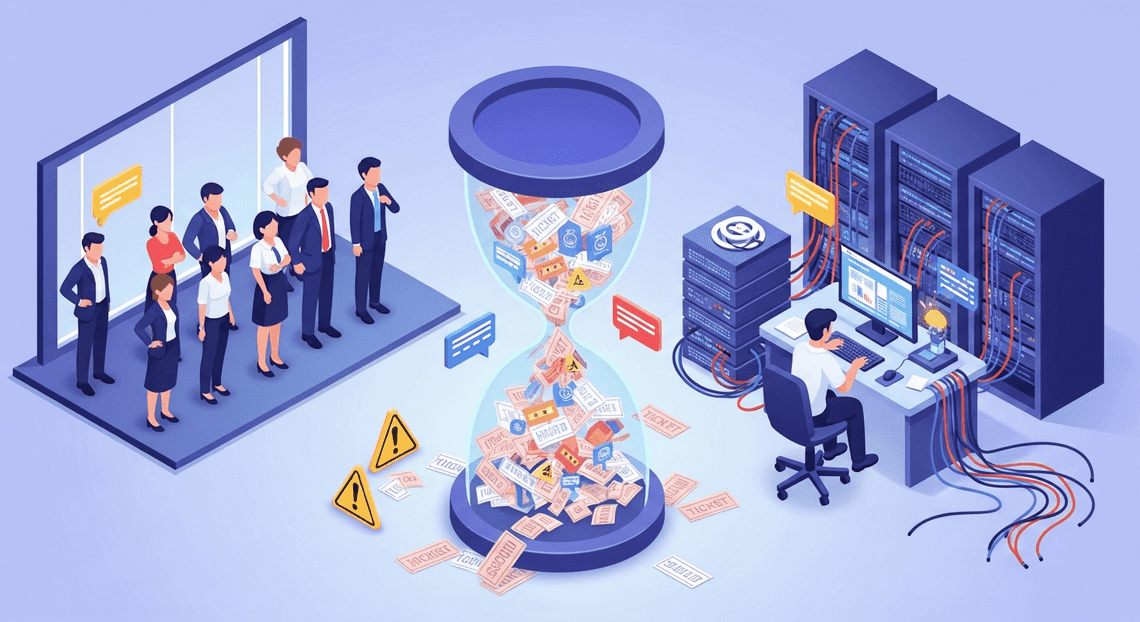
- The “TicketOps” Anti-Pattern: Operations teams file a Jira ticket or send a Slack message asking an engineer to run a script. This creates a severe bottleneck, drains expensive engineering resources, and introduces unacceptable latency into business operations.
-
Over-Privileged Access: In a misguided attempt to enable self-service, non-technical users are granted IAM permissions to the Google Cloud Console. This violates the principle of least privilege, risks accidental infrastructure modification, and forces users to navigate an intimidating, complex UI.
-
Custom Internal Tooling: Engineering teams spend months building, securing, and maintaining custom web dashboards just to give operations teams a button to click. While effective, this creates a heavy maintenance burden and diverts engineering focus away from core product development.
The core challenge lies in finding a mechanism that allows operations teams to self-serve and trigger complex backend processes safely, using interfaces they already understand, while maintaining strict auditability and access control.
Defining the Workspace as a Service Paradigm
To solve this operational bottleneck, we can look toward a concept we’ll call Workspace as a Service (WaaS). In this context, WaaS does not refer to virtual desktop infrastructure; rather, it is the architectural paradigm of leveraging the Automatically create new folders in Google Drive, generate templates in new folders, fill out text automatically in new files, and save info in Google Sheets ecosystem—tools like Google Sheets, Google Forms, and Google Chat—as the primary frontend control plane for enterprise cloud infrastructure.
By utilizing AC2F Streamline Your Google Drive Workflow as the interface layer, we meet non-technical users exactly where they already spend their day. The WaaS paradigm relies on a few core principles:
-
Familiarity as a Feature: Instead of a custom React dashboard, the UI is a Google Sheet. A user can input parameters into specific cells and click a custom menu item (powered by AI Powered Cover Letter Automation Engine) to execute a task. The learning curve is effectively zero.
-
Seamless Identity and Security: Because the user is already authenticated into Automated Client Onboarding with Google Forms and Google Drive., we can leverage Google’s robust identity fabric. Apps Script can securely generate OIDC (OpenID Connect) tokens to authenticate against Google Cloud IAM, ensuring that the Cloud Run Job is only invoked by authorized personnel.
-
Decoupled Complexity: The heavy lifting remains in the cloud. The Workspace environment acts purely as an orchestration trigger and a status dashboard. The actual data processing, memory-intensive calculations, and third-party API interactions are handled by the containerized Cloud Run Job.
-
Asynchronous Feedback Loops: Once a Cloud Run Job is triggered via Workspace, the architecture can utilize services like Pub/Sub or direct API calls to write the results—or execution status—back into the Workspace environment (e.g., updating a cell in Sheets to say “Job Complete” or sending a Google Chat webhook).
By adopting the Workspace as a Service paradigm, cloud engineering teams can rapidly deploy powerful, self-serve automation. It transforms Automated Discount Code Management System from a simple suite of productivity apps into a highly accessible, secure, and dynamic command center for Google Cloud infrastructure.
Designing the Architectural Logic and Data Flow
Before writing a single line of code, it is crucial to establish a robust architectural blueprint. The goal of our “Workspace as a Service” (WaaS) model is to bridge the gap between business users operating in familiar productivity tools and the heavy-lifting computational power of Google Cloud. To achieve this, we need a seamless, event-driven data flow that moves from user input to backend execution, and finally to observability, without requiring the user to ever leave their Automated Email Journey with Google Sheets and Google Analytics environment.
The architecture relies on four distinct pillars: input capture, middleware orchestration, compute execution, and audit logging. Let’s break down how these components interact to form a cohesive, serverless pipeline.
Capturing User Intent with Google Docs Request Forms
The biggest hurdle in deploying internal developer platforms or cloud automation is often the user interface. Building and maintaining a custom React or Angular frontend simply to trigger backend jobs is often engineering overkill. Instead, we meet the users where they already are: Google Docs.
By utilizing templated Google Docs as “Request Forms,” we create an intuitive, zero-friction entry point. We can design a standardized document template containing structured tables, drop-down chips, and designated input fields where users specify the parameters of their workload (e.g., data processing dates, target environments, or specific configuration flags).
When the user is ready, they interact with a custom menu item—injected directly into the Google Docs UI via Apps Script—to submit their request. This approach not only eliminates the need for a standalone frontend but also leverages Workspace’s native version control, collaboration features, and document-level access controls (IAM) right out of the box.
Leveraging Apps Script as the Orchestration Middleware
Once the user clicks “Submit” in their Google Doc, Genesis Engine AI Powered Content to Video Production Pipeline steps in as the serverless orchestration middleware. As a Cloud Engineer, you can think of Apps Script as the lightweight, event-driven glue binding the Workspace ecosystem to Google Cloud Platform (GCP).
The Apps Script runtime performs several critical functions in milliseconds:
-
Data Extraction: It parses the active Google Doc, reading the structured tables or tagged elements to extract the user’s key-value pairs and job parameters.
-
Validation: It performs basic sanitization and logic checks to ensure the provided parameters meet the backend requirements.
-
Authentication: Utilizing
ScriptApp.getOAuthToken(), the script dynamically generates a bearer token scoped for Google Cloud APIs, inheriting the execution permissions defined in your GCP project. -
Payload Construction: It packages the extracted parameters into a JSON payload formatted specifically for the Google Cloud REST API.
By handling these steps natively within Workspace, Apps Script completely removes the need to deploy and maintain an intermediate API gateway or a dedicated microservice just to route requests.
Executing Complex Workloads via the Cloud Run API
With the payload prepared and authenticated, Apps Script initiates a secure HTTP POST request via UrlFetchApp directly to the Cloud Run API. Because we are dealing with batch processes, data transformations, or asynchronous tasks, we specifically target Cloud Run Jobs rather than Cloud Run Services.
The orchestration script calls the projects.locations.jobs.run endpoint (https://run.googleapis.com/v2/projects/{project}/locations/{location}/jobs/{job}:run). The true power of this integration lies in the overrides object of the API payload. Apps Script takes the parameters extracted from the Google Doc and passes them as environment variable overrides or container arguments.
This means a single, generic Cloud Run Job container can dynamically adapt its execution logic based on the specific intent captured in the user’s Workspace document. Whether the container is running a heavy JSON-to-Video Automated Rendering Engine data pipeline, a Go-based infrastructure deployment, or a complex FFmpeg video rendering task, Cloud Run spins up the necessary infrastructure, executes the container to completion, and scales back down to zero—all triggered seamlessly from a text document.
Maintaining Audit Trails with Google Sheets Logging
In any enterprise-grade architecture, execution without observability is a non-starter. We need a reliable way to track who ran what, when they ran it, and what parameters were used. While Google Cloud Logging captures the backend container metrics, we need a business-facing audit trail. Enter Google Sheets.
Immediately after Apps Script successfully triggers the Cloud Run Job and receives the execution ID from the API response, it opens a connection to a centralized, locked-down Google Sheet. Using the SpreadsheetApp service, the middleware appends a new row containing:
-
Timestamp: The exact moment the job was triggered.
-
User Identity: The email address of the user who initiated the request (captured via
Session.getActiveUser().getEmail()). -
Document Link: A direct URL back to the specific Google Doc Request Form for historical context.
-
Job Parameters: A stringified JSON representation of the variables passed to Cloud Run.
-
Execution ID: The unique identifier returned by the Cloud Run API, allowing engineers to cross-reference the Workspace request with GCP logs if debugging is required.
This Google Sheets log acts as a highly accessible, zero-cost database for governance and auditing. It allows project managers and compliance teams to monitor system usage without requiring IAM access to the Google Cloud Console, perfectly rounding out our Workspace-native orchestration architecture.
Deep Dive into the Technology Stack
To build a robust “Workspace as a Service” (WaaS) architecture, we need to seamlessly bridge the collaborative frontend of Automated Google Slides Generation with Text Replacement with the scalable, serverless backend of Google Cloud. This requires a deep understanding of how our three primary components—Google Docs, Architecting Multi Tenant AI Workflows in Google Apps Script, and Cloud Run Jobs—interact to form a secure, event-driven pipeline. Let’s break down the technical mechanics of each layer.
DocsApp Integration Capabilities
In this architecture, Google Docs acts as the user interface (UI) and the data input layer. Rather than forcing users to navigate the Google Cloud Console or a custom-built web app, we bring the execution environment directly to where they are already working. This is achieved using the DocumentApp service in Google Apps Script.
The integration capabilities of DocumentApp allow us to transform a static document into an interactive control panel. First, we utilize DocumentApp.getUi().createMenu() to inject custom menus directly into the Docs toolbar. This provides a frictionless way for users to trigger backend processes, such as “Run Data Pipeline” or “Generate Report,” without leaving the document.
Beyond simple triggers, the document itself serves as the configuration payload. Using methods like getBody().getTables() or getBody().getText(), our script can parse structured data—such as configuration parameters, target URLs, or processing flags—directly from the document’s content. Once the user initiates the job, the script reads this data, sanitizes it, and prepares it for the backend. Furthermore, DocumentApp allows for a bidirectional feedback loop. After the Cloud Run Job is triggered, the script can dynamically append status updates, execution IDs, or timestamps back into the document, keeping the user informed of the asynchronous process state.
Apps Script Authentication and API Handling
Google Apps Script serves as the critical middleware in our WaaS model, responsible for securely routing user intent from Google Docs to Google Cloud. The most complex hurdle in this layer is managing authentication and authorization.
To allow Apps Script to invoke a Cloud Run Job, the Apps Script project must be linked to a Standard Google Cloud Project, rather than the default hidden project. This enables us to manage Identity and Access Management (IAM) policies effectively. The user executing the script must have the roles/run.invoker role granted in the GCP project.
In the Apps Script manifest (appsscript.json), we explicitly declare the required OAuth scopes, specifically "https://www.googleapis.com/auth/cloud-platform". At runtime, we dynamically generate a bearer token using ScriptApp.getOAuthToken().
With authentication secured, we handle the API communication using UrlFetchApp. Cloud Run Jobs are triggered via the Cloud Run Admin API (v2). The script constructs an HTTP POST request targeting the specific job’s execution endpoint. Here is an example of how that API handling is structured:
function triggerCloudRunJob(payload) {

const projectId = 'your-gcp-project-id';

const location = 'us-central1';

const jobName = 'workspace-orchestrator-job';

const url = `https://${location}-run.googleapis.com/v2/projects/${projectId}/locations/${location}/jobs/${jobName}:run`;

const token = ScriptApp.getOAuthToken();

const options = {

method: 'post',

contentType: 'application/json',

headers: {

Authorization: `Bearer ${token}`

},

// Overriding container arguments to pass document-specific data

payload: JSON.stringify({

overrides: {

containerOverrides: [{

args: [JSON.stringify(payload)]

}]

}

}),

muteHttpExceptions: true

};

const response = UrlFetchApp.fetch(url, options);

return JSON.parse(response.getContentText());

}
This approach not only triggers the job but also securely passes the contextual data extracted from the Google Doc directly into the container’s execution arguments.
Cloud Run Job Configuration and Deployment
While Cloud Run Services are designed to listen for web requests and respond quickly, Cloud Run Jobs are purpose-built for run-to-completion tasks—making them the perfect backend for asynchronous Workspace workflows like batch processing, database migrations, or heavy document generation.
The backend logic is first packaged into a Docker container. Because Cloud Run Jobs execute a container until it exits (successfully or with an error), your code simply needs to execute its primary function and terminate. There is no need to spin up an Express server or Flask app to listen on a port.
When configuring the Cloud Run Job, several critical parameters must be defined to ensure reliability and security:
-
**Service Account: The job should be configured to run as a dedicated, least-privilege custom Service Account (e.g.,
[email protected]). This is distinct from the user’s identity that invoked the job. This service account dictates what GCP resources (like Cloud Storage or BigQuery) the container can access during execution. -
Task Timeouts and Retries: Unlike Apps Script, which has a strict 6-minute execution limit, Cloud Run Jobs can be configured to run for up to 24 hours. You can also configure task retries to handle transient failures gracefully.
-
Parallelism: If your Workspace workflow requires processing multiple independent chunks of data, Cloud Run Jobs can be configured to execute multiple tasks in parallel within a single job execution.
Deployment is handled seamlessly via the Google Cloud CLI. A standard deployment command looks like this:
gcloud run jobs create workspace-orchestrator-job \

--image gcr.io/your-gcp-project-id/waas-processor:latest \

--tasks 1 \

--max-retries 3 \

--region us-central1 \

--service-account [email protected]
Once deployed, the job sits idle, incurring zero compute costs, until an authorized user clicks the custom menu in their Google Doc, firing the Apps Script trigger, passing the OAuth token, and spinning the container into action.
Security Scalability and Best Practices
When building a “Workspace as a Service” (WaaS) platform, orchestrating Cloud Run Jobs is only half the battle. Because this architecture sits at the intersection of your Google Cloud infrastructure and your Automated Order Processing Wordpress to Gmail to Google Sheets to Jobber environment, it inherently handles highly sensitive administrative actions and data. To ensure your platform is enterprise-ready, you must architect it with a security-first mindset while anticipating the scaling bottlenecks unique to distributed systems and third-party APIs.
Implementing Principle of Least Privilege with IAM
In a WaaS architecture, your Cloud Run Jobs act as automated administrators. Granting broad permissions is a critical security risk. Implementing the Principle of Least Privilege (PoLP) requires a dual-layered approach: securing the Google Cloud environment via IAM and securing the Workspace environment via OAuth scopes.
-
Custom Service Accounts: Never use the default Compute Engine service account for your Cloud Run Jobs. Create dedicated, purpose-built service accounts for each specific type of job. For example, a job responsible for onboarding users should run under a
waas-user-onboarding@<project>.iam.gserviceaccount.comservice account. -
Granular GCP IAM Roles: Assign only the exact roles required for the job to execute. If the job needs to read configuration files from Cloud Storage, grant
roles/storage.objectVieweron that specific bucket, rather than project-wide storage permissions. -
Scoped Domain-Wide Delegation (DWD): To interact with Workspace APIs, your service account will likely use Domain-Wide Delegation to impersonate a Workspace admin. It is vital to restrict the OAuth scopes authorized in the Automated Payment Transaction Ledger with Google Sheets and PayPal Admin console. If a Cloud Run Job only needs to manage Google Groups, authorize the
https://www.googleapis.com/auth/admin.directory.groupscope exclusively. Avoid using broad scopes likehttps://www.googleapis.com/auth/admin.directory.userunless absolutely necessary. -
Secret Manager Integration: Do not hardcode API keys, webhook URLs, or sensitive configuration data. Store these in Google Cloud Secret Manager and grant your Cloud Run Job’s service account the
roles/secretmanager.secretAccessorrole only for the specific secrets it requires.
Managing Concurrency and API Rate Limits
Cloud Run Jobs are designed for high-performance parallel execution, allowing you to spin up thousands of array tasks simultaneously. However, Google Docs to Web APIs (like the Directory API, Drive API, or Gmail API) enforce strict quota limits. If your WaaS platform scales up without rate limiting, you will quickly exhaust your Workspace quotas and trigger cascading failures.
-
Controlling Cloud Run Parallelism: Use the
--parallelismflag when executing a Cloud Run Job to throttle how many array tasks run concurrently. Align this number with your Workspace API quota limits. For example, if the Workspace Directory API allows 1,500 requests per 100 seconds, capping your parallelism ensures you do not overwhelm the API endpoint. -
Client-Side Throttling: Implement token bucket or leaky bucket algorithms within your application code. This ensures that even if multiple Cloud Run tasks are executing concurrently, the aggregate API calls across your WaaS platform remain within safe thresholds.
-
API Batching: The SocialSheet Streamline Your Social Media Posting APIs support batch requests, allowing you to bundle up to 1,000 API calls into a single HTTP request. Whenever your Cloud Run Job needs to perform bulk operations—such as adding multiple members to a Workspace Group—use batching to drastically reduce HTTP overhead and conserve your API quota.
-
Monitoring and Alerts: Utilize Google Cloud Monitoring to track both your Cloud Run task execution metrics and your API consumption. Set up alerting policies for
429 Too Many RequestsHTTP responses so your engineering team is notified before rate limits severely impact your WaaS orchestration.
Error Handling and Retry Mechanisms
In any distributed architecture, transient failures—such as momentary network blips or temporary API unavailability—are inevitable. A robust WaaS platform must handle these gracefully without leaving your Workspace environment in an inconsistent state.
-
Idempotent Operations: This is the golden rule of WaaS orchestration. Design your Cloud Run Jobs to be strictly idempotent, meaning they can be executed multiple times without changing the result beyond the initial application. Before creating a Workspace user, the job should check if the user already exists. If a job fails halfway through and is retried, idempotency ensures you do not create duplicate resources or trigger unintended side effects.
-
Exponential Backoff with Jitter: When your Cloud Run Job encounters a
429 Too Many Requestsor503 Service Unavailableerror from a Workspace API, it should not retry immediately. Implement an exponential backoff strategy (e.g., waiting 1s, 2s, 4s, 8s) combined with “jitter” (adding a random millisecond variance to the wait time). Jitter prevents the “thundering herd” problem where multiple failed concurrent tasks retry at the exact same millisecond. -
Configuring Cloud Run Task Retries: Cloud Run Jobs natively support task retries. You can configure the
--max-retriesflag to automatically re-execute a failed array task. Combine this native infrastructure retry with your application-level idempotency to seamlessly recover from transient infrastructure faults. -
Dead Letter Queues (DLQ): For permanent failures (e.g., a
400 Bad Requestdue to invalid user input, or a task that exhausts its maximum retries), the job should fail gracefully and route the error payload to a Dead Letter Queue, such as a dedicated Pub/Sub topic. This allows your operations team to inspect the failed WaaS request, debug the payload, and manually re-trigger the orchestration once the underlying issue is resolved.
Transforming Business Operations with Cloud Automation
When you bridge the gap between Speech-to-Text Transcription Tool with Google Workspace and Google Cloud, you aren’t just building a technical integration; you are fundamentally transforming how business operations function. By orchestrating Cloud Run jobs directly from familiar Workspace applications—such as Google Sheets, Forms, or Google Chat—you create a powerful “Workspace as a Service” (WaaS) model. This event-driven architecture leverages the serverless, containerized power of Cloud Run to execute complex workloads on demand, without requiring business users to ever touch the Google Cloud Console or understand the underlying infrastructure. The result is a seamless, automated ecosystem where business logic and cloud engineering work in perfect tandem.
Reducing IT Bottlenecks and Support Tickets
In traditional enterprise environments, Cloud Engineering and IT teams are frequently bogged down by repetitive, operational requests. Whether it’s triggering a data pipeline, generating a complex monthly report, running a heavy batch processing job, or provisioning temporary resources, these tasks usually require a support ticket, a context switch for the engineer, and manual execution. This creates a frustrating bottleneck for both the requester and the IT department.
By implementing a WaaS architecture, we effectively decentralize these operations through secure self-service. Using Google Apps Script or custom Workspace Add-ons as the frontend trigger, business users can invoke Cloud Run jobs via authenticated REST APIs using OAuth 2.0. Because Cloud Run scales to zero, handles the underlying infrastructure, and executes jobs concurrently, IT teams no longer need to manage server uptime, monitor script timeouts, or manually intervene. This self-service model drastically reduces the influx of operational support tickets. End-users get immediate, reliable results directly within their daily workflows, and Cloud Engineers reclaim valuable hours to focus on strategic infrastructure improvements, security, and core platform architecture.
Accelerating Time to Market for Internal Processes
Agility isn’t just a metric for customer-facing products; it is equally critical for internal business operations. When internal processes rely on manual hand-offs between departments or clunky legacy scripts, the time to market for rolling out new internal tools, data insights, or operational workflows grinds to a halt.
Orchestrating Cloud Run jobs through Google Workspace accelerates this lifecycle exponentially. Because Cloud Run allows you to deploy any containerized language or system library, developers can rapidly build and update backend services using their preferred tech stack (Go, Python, Node.js, etc.) rather than being constrained by the execution limits of Apps Script.
When these robust backend services are exposed to Workspace, the impact is immediate. For example, a complex machine learning model built in Python can be containerized, deployed to Cloud Run, and instantly made available to the marketing team via a custom button in Google Sheets. This seamless integration—backed by standard CI/CD pipelines pushing updates directly to Cloud Run—means internal processes can be iterated on in minutes rather than weeks. The business moves faster, makes data-driven decisions sooner, and adapts to operational demands with unprecedented speed.
Scale Your Architecture with Expert Guidance
Building a custom Workspace as a Service (WaaS) platform to orchestrate Cloud Run jobs is a significant engineering milestone. However, deploying the initial architecture is only the beginning of the journey. As your user base grows, the volume of automated tasks increases, and the complexity of your workflows deepens, your infrastructure must be able to scale seamlessly. Orchestrating thousands of concurrent Cloud Run jobs, managing strict Automating Retail Portal Security Audits Using Google Workspace API quotas, and ensuring fault-tolerant state management require a highly strategic approach. When navigating these advanced scaling challenges, pairing your team’s internal domain knowledge with specialized, external cloud expertise is often the most effective path forward.
Evaluating Your Current Cloud Infrastructure
Before you can effectively scale your WaaS platform, you must establish a clear, data-driven baseline of your current environment. A comprehensive evaluation of your Google Cloud and Google Workspace infrastructure involves looking critically at several key pillars of cloud engineering:
-
Compute and Orchestration Efficiency: Are your Cloud Run services optimized for concurrency, memory allocation, and minimal cold starts? You need to ensure that your orchestration layer—whether utilizing Google Cloud Workflows, Pub/Sub, or Eventarc—is effectively managing state, handling asynchronous callbacks, and executing exponential backoffs for long-running Workspace API operations.
-
Security and Identity Management: As your service footprint expands, adhering to the principle of least privilege becomes paramount. This means rigorously auditing your Identity and Access Management (IAM) policies. Are your Cloud Run service accounts properly scoped? Is your Workspace domain-wide delegation secure, tightly controlled, and restricted to only the absolute necessary OAuth scopes?
-
Observability and Reliability: You cannot safely scale what you cannot measure. A robust architecture requires comprehensive logging, monitoring, and alerting configured via the Google Cloud Operations Suite. This ensures you can proactively catch Workspace API rate limits, identify latency bottlenecks, or detect job failures before they impact your end users.
-
Cost Optimization: Scaling your architecture should not result in exponential or unpredictable cost growth. A thorough review of your network egress, Cloud Run execution times, and event-driven invocation costs can reveal significant opportunities to optimize your monthly cloud spend without sacrificing performance.
Book a GDE Discovery Call with Vo Tu Duc
Navigating the intricate nuances of Google Cloud Platform and Google Workspace integration can be challenging, even for highly experienced engineering teams. If you are looking to validate your architectural decisions, overcome specific scaling bottlenecks, or accelerate your WaaS deployment, gaining insights from a recognized industry expert can save your team hundreds of hours of trial and error.
Take the next step by booking a discovery call with Vo Tu Duc, a recognized Google Developer Expert (GDE) in Cloud. With profound, hands-on expertise in cloud-native architecture, serverless orchestration, and the broader Google Workspace ecosystem, Vo Tu Duc can provide the targeted guidance your team needs. During a discovery call, you can expect to:
-
Conduct an Architecture Review: Get a professional assessment of your current Cloud Run and Workspace integration to ensure it aligns with Google’s well-architected framework.
-
Identify and Resolve Bottlenecks: Pinpoint architectural anti-patterns, API quota limitations, or concurrency issues, and receive actionable, cloud-native recommendations to resolve them.
-
Future-Proof Your Platform: Discuss advanced strategies for Infrastructure as Code (IaC), CI/CD pipeline optimization, and multi-region deployment to ensure high availability.
Don’t leave the scalability and reliability of your infrastructure to chance. Book a GDE Discovery Call with Vo Tu Duc today to ensure your Workspace as a Service platform is built on a resilient, highly optimized, and future-proof foundation.


Stop Doing Manual Work. Scale with AI.
Want to turn these blog concepts into production-ready reality for your team?
Table Of Contents
Portfolios
Related Posts
Quick Links
Legal Stuff