

Automate Meeting Briefing Docs with Google Calendar and Gemini


The frantic scramble to prepare for meetings is more than just stressful—it’s a hidden tax on your team’s productivity that stifles momentum and drains your most valuable resources.
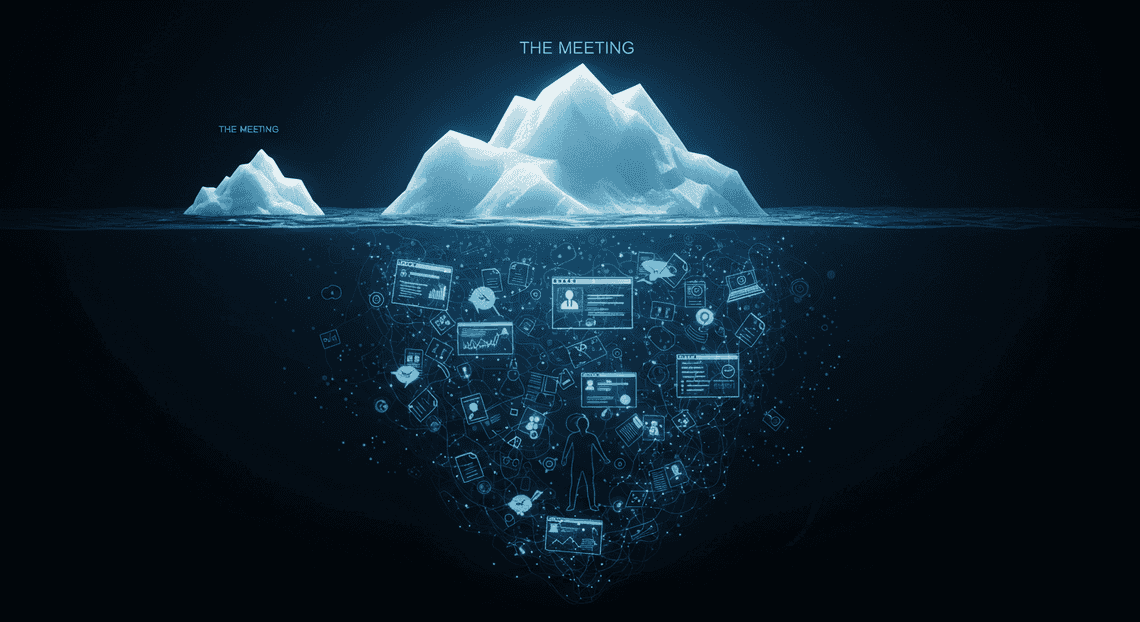
The Hidden Cost of Manual Meeting Prep
In the relentless pace of modern business, the time between meetings is often a frantic scramble. We jump from one video call to the next, armed with little more than a calendar notification and a vague agenda. The critical work of preparing—understanding who you’re meeting, why it matters, and what success looks like—is often compressed or skipped entirely. This isn’t a minor oversight; it’s a significant, unmeasured tax on productivity and strategic effectiveness. The manual effort required to be truly prepared for every important interaction represents a hidden cost that drains resources, stifles momentum, and keeps high-value team members buried in low-value work.
Why Pre-Meeting Briefings are a Strategic Advantage
Walking into a high-stakes meeting unprepared is the equivalent of a pilot taking off without a flight plan.

A well-crafted briefing ensures every participant arrives with a shared understanding of:
-
The Players: Who are the attendees? What are their roles, recent accomplishments, and professional histories?
-
The Context: What is the history of your relationship with their organization? What were the outcomes of previous interactions?
-
The Landscape: What’s new with their company? Have they been in the news, launched new products, or undergone recent leadership changes?
-
The Objective: What is the explicit goal of this meeting? What decisions need to be made, and what are the ideal outcomes for your organization?
By arming stakeholders with this information beforehand, you fundamentally change the dynamic of the meeting. Conversations start on page ten, not page one. Time is spent on strategy and decision-making, not on basic discovery. This level of preparation projects competence, builds stronger relationships, and directly correlates with more successful business outcomes.
The Non-Billable Time Sink EAs Can’t Afford
The responsibility for creating these critical briefing documents often falls on Executive Assistants (EAs) and administrative professionals. While they are exceptionally skilled at this work, the manual process is a grueling, non-billable time sink. Consider the typical workflow for a single important meeting:
-
Attendee Research: Scouring LinkedIn to identify the correct profiles, titles, and backgrounds for each external participant.
-
Company Intelligence: Searching Google News, press releases, and financial reports for recent, relevant information about the organization.
-
Internal History: Digging through the CRM, past email threads, and shared documents to uncover the history of the relationship and previous touchpoints.
-
Synthesis & Formatting: Compiling all this disparate information into a clean, readable, and consistent document format.
This process can easily consume 30 to 60 minutes per meeting. For an executive with five to six significant meetings a week, that’s an entire workday spent on manual prep. This is a profound misallocation of resources. The modern EA is a strategic partner, a force multiplier for the executive team. Every hour they spend on copy-pasting from LinkedIn is an hour not spent on project management, stakeholder communication, or other high-impact initiatives that drive the business forward.
Introducing an Automated Solution with [Automatically create new folders in Google Drive, generate templates in new folders, fill out text automatically in new files, and save info in [Automated Web Scraping with [Multilingual Text-to-Speech Tool with SocialSheet Streamline Your Social Media Posting 123](https://votuduc.com/Multilingual-Text-to-Speech-Tool-with-Google-Workspace-p809282)](https://votuduc.com/Automated-Web-Scraping-with-Google-Sheets-p292968)](https://workspace.google.com/marketplace/app/auto_create_folder_and_files/430076014869) and AI
What if you could reclaim those lost hours and guarantee a perfect briefing document for every single meeting, without any manual effort? This is no longer a hypothetical. By combining the ubiquitous tools of AC2F Streamline Your Google Drive Workflow with the power of generative AI, we can transform this entire workflow.
Imagine a system where simply creating an event in Google Calendar triggers an intelligent, automated process. This process, orchestrated by a simple [AI Powered Cover Letter [Automated Job Creation in Real Time Jobber and Google Sheets Integration from Gmail](https://votuduc.com/Automated-Job-Creation-in-Jobber-from-Gmail-p115606) Engine](https://votuduc.com/AI-Powered-Cover-Letter-Automated Quote Generation and Delivery System for Jobber-Engine-p111092), would:
-
Identify the meeting details and attendees from the Calendar event.
-
Gather rich, real-time data on the people and companies involved.
-
Instruct a powerful AI model like Gemini to analyze, synthesize, and structure this information into a comprehensive briefing.
-
Deliver a perfectly formatted document directly to the stakeholders’ inboxes or a shared Drive folder, hours before the meeting.
This isn’t just about saving time; it’s about upgrading your operational intelligence. It’s about turning a reactive, manual chore into a proactive, automated system that empowers your entire team to be more prepared, strategic, and effective. The rest of this article will show you exactly how to build it.
The Architecture of Automated Meeting Orchestration
Before we dive into the code, let’s zoom out and look at the blueprint for our Automated Work Order Processing for UPS. A robust system isn’t just a single script; it’s a well-defined pipeline where each component has a clear responsibility. Think of it as a digital assembly line for intelligence. Our assembly line has four key stations: the Trigger, the Engine, the Brain, and the Output. Each stage takes the work of the previous one, refines it, and passes it along until we have a finished product.
The Trigger: How Google Calendar Kicks Off the Process
Every automated workflow needs a starting pistol, an event that says, “Go!” In our system, that trigger is Google Calendar. This is the source of truth for our meetings and the catalyst for the entire briefing generation process.
We leverage Genesis Engine AI Powered Content to Video Production Pipeline’s powerful trigger system. While you could use an onEventUpdate trigger to fire the script every time a calendar event is created or modified, this can be “chatty” and inefficient. A more elegant and controlled approach is a time-driven trigger.
Here’s how it works:
-
We’ll configure a script to run automatically on a set schedule—for instance, every morning at 7 AM.
-
When the trigger fires, its sole job is to scan your calendar for all meetings scheduled within the next 24 hours.
-
For each upcoming meeting, it grabs the initial, essential payload of data: the event title, the list of attendees’ email addresses, the start and end times, and any notes or links in the event description.
This payload is the raw material that gets passed down to the next stage of our assembly line. The trigger’s job is simple but crucial: identify the work to be done and kick off the process at the right time.
The Engine: Using Apps Script to Aggregate Data
If the calendar is the trigger, [Architecting Multi Tenant AI Workflows in Building Modular Agentic Apps Script with Gemini Function Calling](https://votuduc.com/architecting-multi-tenant-ai-workflows-in-google-apps-script-p-20260321290501) is the engine and the central nervous system of our operation. It’s the “connective tissue” that receives the signal from the trigger and orchestrates the entire workflow. Its primary role in this stage is to act as a data aggregator.
The initial payload from the calendar is a good start, but it’s often not enough context for a truly useful briefing. The engine’s job is to enrich this data:
-
Parsing the Payload: The script takes the event data and begins to dissect it. It identifies the key players (attendees) and the stated purpose (from the title and description).
-
Contextual Fetching (Optional but Powerful): This is where Apps Script shines. It can use its native integrations with other Automated Client Onboarding with Google Forms and Google Drive. services to gather more context. For example, it could:
-
Query the Gmail API for recent email threads with the meeting attendees.
-
Use the People API to pull job titles or contact details for attendees.
-
Search Google Drive for documents mentioned in the event description.
- Structuring the Data: After gathering all this raw information—attendee lists, email snippets, document links, meeting notes—the engine’s final task is to bundle it all into a clean, structured format, like a JSON object. This organized bundle is the comprehensive dossier that will be handed off to our intelligence layer.
The Brain: Leveraging Gemini for Intelligent Synthesis
This is where raw data is transformed into actionable intelligence. We send our meticulously prepared data bundle to the Gemini API, which acts as the “brain” of our operation. This step is far more than simple data formatting; it’s about synthesis and narrative creation.
The process is governed by a carefully constructed prompt. This is our instruction set for the AI. The Apps Script engine makes an API call to Gemini, sending along the structured data and a prompt that might look something like this:
“You are an executive assistant creating a pre-meeting briefing document. Based on the following data: [structured data bundle here], generate a concise briefing. The briefing must include:
- A one-sentence summary of the meeting’s primary objective.
- A list of key attendees with their roles, if known.
- A bulleted list of potential discussion points derived from the meeting description and related context.
- A summary of any key takeaways from recent email conversations.”
Gemini doesn’t just regurgitate the data. It analyzes the relationships between the pieces of information—the people, the topics, the schedule—and generates a coherent, human-readable summary. It infers objectives, identifies key themes, and structures the information in a way that’s immediately useful. The text it returns is the core content of our final briefing document.
The Output: Generating Polished Briefings in Google Docs
The final station on our assembly line is delivery. Once Gemini returns the synthesized text, our Apps Script engine takes over one last time to produce the final, polished artifact: a Google Doc.
Using Apps Script’s built-in DocumentApp service, the engine performs the final steps with precision:
-
Create from Template: To ensure consistency in branding and layout, the script first creates a new Google Doc by copying a pre-designed template. This template might already have our company logo, standard headings, and a specific font style.
-
Programmatic Population: The script then opens this new document and programmatically inserts the content generated by Gemini. It can set the document title (e.g., “Briefing: Project Phoenix Sync - [Date]”), insert paragraphs, create bulleted lists, and apply heading styles.
-
Filing and Linking: Finally, the script saves the newly created doc into a designated “Meeting Briefings” folder in Google Drive. For a truly integrated workflow, it can even grab the URL of the new Google Doc and add it directly back to the original Google Calendar event’s description, closing the loop and making the briefing accessible with a single click from the calendar.
Building Your Automated Briefing Doc Generator Step-by-Step
Alright, the conceptual overview is done. It’s time to roll up our sleeves and get our hands dirty with some code. This section is the core of our project, where we’ll walk through the entire build process, from setting up the cloud environment to generating the final document. Don’t worry, I’ll break it down into manageable chunks with clear explanations and code snippets. Let’s get building.
Prerequisites: Setting Up Your Google Cloud Project
Before we can write a single line of Apps Script, we need a proper foundation. Our script needs to be authorized to use Google services like the Calendar, Docs, and crucially, the [Building Self Correcting Agentic Workflows with Building Self-Correcting Agentic Workflows with Vertex AI](https://votuduc.com/building-self-correcting-agentic-workflows-with-vertex-ai-p-20260321542526) API (which powers Gemini). This is all managed through a Google Cloud Platform (GCP) project.
Think of the GCP project as the central hub that grants our script the necessary permissions and tracks its API usage.
- Create or Select a GCP Project:
-
Navigate to the Google Cloud Console.
-
If you don’t have a project, create a new one. Give it a memorable name like
Gemini-Meeting-Automator. -
Important: Make sure billing is enabled for your project. While the usage for this project will likely fall within the free tier, the Vertex AI API requires a billing-enabled project to function.
- Enable the Necessary APIs:
In your project’s dashboard, go to the navigation menu (☰) and select* APIs & Services > Library**.
Search for and* Enable** the following three APIs one by one:
-
Google Calendar API -
Google Docs API -
Vertex AI API
- Link Your Apps Script to the GCP Project:
- Head over to Google Apps Script and create a new project. Give it a name like “Meeting Briefing Generator”.
In the Apps Script editor, click on the* Project Settings** (⚙️) icon in the left-hand menu.
Scroll down to the* Google Cloud Platform (GCP) Project** section.
Click* Change project** and paste in your GCP Project Number (you can find this on your GCP Console dashboard).
This last step is critical. It tells Google that your humble Apps Script is officially associated with your powerful GCP project, inheriting the API permissions you just enabled.
Step 1: Creating the Google Calendar Trigger
Our script needs a way to run automatically. We don’t want to manually trigger it for every meeting. The “when” of our automation is handled by a trigger. For this project, a time-driven trigger is perfect—it will run on a schedule, scan for upcoming meetings, and act accordingly.
We’ll set up a trigger to run our main function every 15 minutes.
-
In your Apps Script editor, click the Triggers (⏰) icon on the left.
-
Click the + Add Trigger button in the bottom-right corner.
-
Configure the trigger with the following settings:
-
Choose which function to run:
checkForUpcomingMeetings(we’ll create this function next). -
Choose which deployment should run:
Head -
Select event source:
Time-driven -
Select type of time-based trigger:
Minutes timer -
Select minute interval:
Every 15 minutes
- Click Save.
You’ll be asked to authorize the script’s permissions. Go ahead and grant them. Now, every 15 minutes, Google will automatically run our checkForUpcomingMeetings function.
Step 2: Scripting Data Retrieval for Attendees and Context
Now, let’s write the function our trigger will call. Its job is to look at your calendar, find meetings that are starting soon, and pull out all the relevant information we need to feed to Gemini.
Paste the following code into your Code.gs file in the Apps Script editor.
// Global constants for configuration

const CALENDAR_ID = 'primary'; // Use 'primary' for your main calendar, or the specific calendar ID.

const MINUTES_BEFORE_MEETING = 60; // How many minutes before a meeting to generate the doc.

const CHECK_INTERVAL_MINUTES = 15; // Should match your trigger interval.

const BRIEFING_DOC_TAG = 'Briefing Doc Link:'; // A tag to prevent creating duplicate docs.

function checkForUpcomingMeetings() {

const now = new Date();

// Define the time window to check for meetings.

// We check for meetings starting between NOW and NOW + the buffer time.

const startTime = now;

const endTime = new Date(now.getTime() + (MINUTES_BEFORE_MEETING  *60*  1000));

try {

const calendar = CalendarApp.getCalendarById(CALENDAR_ID);

const events = calendar.getEvents(startTime, endTime);

for (const event of events) {

const title = event.getTitle();

const description = event.getDescription();

// Check if a briefing doc has already been created for this event.

if (description.includes(BRIEFING_DOC_TAG)) {

console.log(`Briefing doc already exists for meeting: "${title}". Skipping.`);

continue;

}

console.log(`Found upcoming meeting: "${title}". Preparing to generate briefing.`);

// Gather all the necessary context from the event.

const eventData = {

title: title,

startTime: event.getStartTime().toLocaleString(),

endTime: event.getEndTime().toLocaleString(),

attendees: event.getGuestList().map(guest => guest.getEmail()),

agenda: description || 'No agenda provided.' // Handle cases with no description.

};

// 1. Craft the prompt for Gemini

const prompt = createGeminiPrompt(eventData);

// 2. Call the Gemini API (we will define this function later)

// const geminiResponse = callGeminiAPI(prompt);

// 3. Create the Google Doc and update the event (we will define this function later)

// createBriefingDoc(event, geminiResponse);

// For now, let's just log the data we've collected.

console.log(JSON.stringify(eventData, null, 2));

console.log('--- PROMPT PREVIEW ---');

console.log(prompt);

}

} catch (e) {

console.error(`Error checking for meetings: ${e.toString()}`);

}

}
What’s happening here?
-
Constants: We define some configuration variables at the top to make the script easy to tweak.
-
Time Window: We calculate a specific window (
startTimetoendTime) to search for events. This ensures we only process meetings that are about to start. -
Fetching Events:
CalendarApp.getEvents()does the heavy lifting, returning an array of all calendar events within our defined window. -
Duplicate Check: This is a crucial step. Before doing any work, we check if the event’s description already contains our
BRIEFING_DOC_TAG. If it does, we skip it to avoid creating multiple documents for the same meeting. -
Data Aggregation: We pull the title, times, attendees, and agenda into a clean
eventDataobject. This makes it easy to pass the information to our next function. -
Function Placeholders: Notice the commented-out calls to
callGeminiAPIandcreateBriefingDoc. We’re building this step-by-step. For now, we just log the data and the prompt we’re about to build.
Step 3: Crafting the Perfect Prompt for Gemini
The quality of your briefing document depends almost entirely on the quality of your prompt. A well-structured prompt guides the AI to produce exactly the output you need. We want to be specific about the role, the task, the context, and the desired format.
Let’s create the createGeminiPrompt function. Add this to your Code.gs file.
function createGeminiPrompt(eventData) {

// Destructure the event data for easier access

const { title, attendees, agenda } = eventData;

// Convert the attendees array into a clean, comma-separated string.

const attendeeList = attendees.join(', ');

// The prompt is a template literal, allowing us to inject our variables easily.

const prompt = `

**ROLE:** You are an expert executive assistant.

**TASK:** Generate a concise, one-page meeting briefing document based on the provided calendar event details. The goal is to prepare a meeting participant with all necessary context.

**MEETING DETAILS:**

- **Title:** ${title}

- **Attendees:** ${attendeeList}

- **Provided Agenda/Description:** ${agenda}

**INSTRUCTIONS:**

Based on the details above, create the briefing document with the following sections. Be insightful and proactive. If the agenda is sparse, infer potential topics based on the title and attendees.

1.  **Primary Objective:** (A single sentence summarizing the main goal of this meeting).

2.  **Key Talking Points:** (3-5 bullet points outlining the most important topics to discuss. These should be actionable and forward-looking).

3.  **Attendee Rundown:** (For each attendee, provide a very brief, one-line inferred role or reason for their attendance. For example: "[email protected] - Likely representing the marketing team's perspective.").

4.  **Desired Outcomes:** (2-3 bullet points describing what a successful conclusion to this meeting looks like. e.g., "Decision made on Q3 budget," "Alignment on project timeline," "Action items assigned for next steps.").

**FORMAT:**

- Use clear headings for each section.

- Use bullet points for lists.

- The entire output should be plain text, ready to be pasted into a document. Do not use Markdown formatting like '#' or '**'.

`;

return prompt;

}
Dissecting the Prompt:
-
Role-Playing:
**ROLE:** You are an expert executive assistant.This immediately puts the AI in the right mindset. -
Clear Task:
**TASK:** Generate a concise, one-page meeting briefing...There’s no ambiguity about what we want it to do. -
Context Injection: We use
${title},${attendeeList}, and${agenda}to dynamically insert the data we retrieved from the calendar event. -
**Structured Instructions: We explicitly tell Gemini exactly what sections to create (
Primary Objective,Key Talking Points, etc.). This is the key to getting consistent, well-organized output every time. -
Format Constraint: We explicitly ask for plain text. This is important because Google Docs doesn’t natively interpret Markdown from a simple text paste. Requesting plain text with clear headings makes populating our document in the next step trivial.
Step 4: Writing the Function to Create and Populate the Google Doc
We’ve gathered the data and crafted the prompt. The final step in our workflow is to call the Gemini API, get the response, create a new Google Doc, and paste the content into it. We also need to “close the loop” by adding a link to this new document back into the original calendar event.
This section will contain the functions to call the API and create the doc. You’ll need your GCP Project ID.
Add the final two functions to your Code.gs file.
// This function is a placeholder for the real implementation in the next article part.

// For now, it returns a hardcoded sample response for testing.

function callGeminiAPI(prompt) {

// In the full implementation, this is where you'd make the UrlFetchApp call to the Vertex AI endpoint.

// For this step, we'll return a sample string to test our document creation logic.

console.log("Simulating Gemini API call...");

const sampleResponse = `

PRIMARY OBJECTIVE:

To align on the final project scope and secure budget approval for the "Project Phoenix" initiative.

KEY TALKING POINTS:

- Review the proposed feature list and confirm the MVP requirements.

- Present the final budget breakdown and justification for resource allocation.

- Discuss the projected timeline and identify any potential roadblocks.

- Define the roles and responsibilities for the project's core team.

ATTENDEE RUNDOWN:

- [email protected] - Likely the project sponsor or budget holder.

- [email protected] - Represents the lead engineering perspective.

- [email protected] - Represents the product management and user requirements side.

DESIRED OUTCOMES:

- Formal sign-off on the project budget.

- Agreement on the Q3 launch timeline.

- A clear list of action items for the next two weeks.

`;

return sampleResponse;

}

function createBriefingDoc(event, geminiContent) {

try {

const eventTitle = event.getTitle();

const docTitle = `Meeting Briefing: ${eventTitle}`;

// Create the new Google Doc

const doc = DocumentApp.create(docTitle);

const body = doc.getBody();

// The Gemini response is plain text, so we can append it directly.

body.appendParagraph(geminiContent);

doc.saveAndClose();

const docUrl = doc.getUrl();

console.log(`Successfully created document: ${docUrl}`);

// Update the calendar event description with the link to our new doc.

const originalDescription = event.getDescription();

const newDescription = `${originalDescription}\n\n---\n${BRIEFING_DOC_TAG} ${docUrl}`;

event.setDescription(newDescription);

console.log(`Updated calendar event "${eventTitle}" with briefing doc link.`);

} catch (e) {

console.error(`Failed to create or update document for event "${event.getTitle()}". Error: ${e.toString()}`);

}

}
Finally, uncomment the lines in your checkForUpcomingMeetings function:
// ... inside the for loop of checkForUpcomingMeetings ...

// 1. Craft the prompt for Gemini

const prompt = createGeminiPrompt(eventData);

// 2. Call the Gemini API

const geminiResponse = callGeminiAPI(prompt);

// 3. Create the Google Doc and update the event

createBriefingDoc(event, geminiResponse);
How it Works:
-
callGeminiAPI(prompt): For now, this is a placeholder function. In a real-world scenario (which we’ll detail later), this function would useUrlFetchAppto make a POST request to the Vertex AI API endpoint, sending our prompt and receiving the AI-generated text. Our placeholder returns a sample response so we can test the rest of our logic. -
createBriefingDoc(event, geminiContent):
-
It takes the original calendar
eventobject and the text from Gemini as input. -
DocumentApp.create()generates a new, blank Google Doc with a formatted title. -
body.appendParagraph(geminiContent)takes the entire text block from Gemini and puts it into the document. Since we asked for plain text, this works perfectly. -
doc.getUrl()gives us the shareable link to our new briefing. -
Finally,
event.setDescription()is the magic that closes the loop. It appends ourBRIEFING_DOC_TAGand the new doc’s URL to the calendar event, ensuring we don’t process it again and making the brief easily accessible to you right from your calendar.
Beyond Time Savings: The Strategic Impact for Executive Assistants
Automating meeting briefings isn’t just about clawing back a few hours in your week; it’s about fundamentally redefining the value and impact of the Executive Assistant role. By offloading the repetitive, time-consuming task of information gathering and synthesis to Gemini, you unlock the bandwidth to operate on a more strategic plane. This isn’t just an efficiency gain—it’s a career accelerant. Let’s break down how this shift transforms your daily reality and professional trajectory.
From Reactive Coordinator to Proactive Strategic Partner
For too long, the EA role has been caught in a logistical whirlwind—a reactive cycle of scheduling, confirming, and chasing down information. You’re the master of a complex calendar, but much of that mastery is spent firefighting and managing the immediate now.
Automating the briefing process shatters this cycle. When you no longer have to manually dig through email chains for agendas, search LinkedIn for attendee bios, or summarize previous meeting notes, your focus elevates. The time you save is immediately reinvested into higher-value activities:
-
**Anticipating Needs: Instead of just compiling what was discussed, you can now analyze the automated brief to anticipate what should be discussed. You can identify potential roadblocks, flag unresolved action items from past conversations, and suggest key talking points for your executive.
-
Connecting the Dots: With a clear overview of upcoming meetings, you can see the bigger picture. You can spot thematic overlaps between a morning marketing sync and an afternoon product review, enabling you to provide your executive with a more holistic, cross-functional perspective.
-
Strategic Gatekeeping: You move from simply managing the calendar to curating it. By understanding the substance of each meeting (thanks to the instant briefs), you can more effectively prioritize, delegate, or even question the necessity of certain appointments, protecting your executive’s most valuable asset: their time and focus.
You stop being the person who just prepares the map; you become the navigator who helps chart the course.
Ensuring Every Executive is Perfectly Prepared Every Time
Consistency is the hallmark of a world-class support professional. However, when you’re manually preparing multiple briefs a day under tight deadlines, consistency can suffer. An urgent call or an unexpected task can lead to a rushed, incomplete document.
An automated system powered by Gemini eradicates this variability. It establishes a new gold standard of preparation that is executed flawlessly, every single time.
-
Eliminating Human Error: The system doesn’t have an “off” day. It won’t forget to include the link to the presentation, miss a key attendee’s recent job change, or fail to attach the minutes from the last meeting. It follows the defined process with machine-like precision.
-
Standardized for Scannability: Executives thrive on predictability. An automated brief always follows the same structure. Key objectives are always in the same place. Attendee bios are formatted identically. This consistency allows your executive to absorb critical information in seconds, rather than spending minutes deciphering a new document layout each time.
-
Comprehensive by Default: Gemini can be configured to pull information from a vast array of sources simultaneously—past calendar events, Google Drive documents, email history, and even public data sources. The resulting brief is often more thorough than what could be manually compiled under pressure, ensuring no critical piece of context is ever missed.
The result is an executive who walks into every single engagement—from an informal coffee chat to a high-stakes board meeting—feeling confident, informed, and fully equipped to lead. That level of reliability becomes your signature.
Scaling Your Support Across Multiple Stakeholders
One of the greatest challenges for a senior EA is providing the same high level of detailed, personalized support to more than one executive. The manual effort required for deep preparation simply doesn’t scale. As you take on more responsibility, the quality of support can become diluted.
This is where automation becomes a true force multiplier. By creating a robust briefing workflow, you are essentially codifying your best work and making it infinitely replicable.
-
Support One, Support Many: The same powerful, automated process used for your primary executive can be deployed for other leaders on the team with minimal additional effort. You can provide C-suite-level preparation to multiple stakeholders without cloning yourself or working 80-hour weeks.
-
Fostering Team Alignment: When multiple leaders are receiving briefs of the same high caliber, it creates a shared context and raises the bar for preparation across the entire organization. Everyone comes to the table with a common, comprehensive understanding of the topic at hand, leading to more efficient and effective meetings.
-
Focus on People, Not Paperwork: By automating the mechanics of preparation, you free yourself up to focus on the uniquely human aspects of your role. You have more time to build relationships with each stakeholder, understand their individual communication styles, and manage the complex interpersonal dynamics that AI can’t handle.
You transition from a bottleneck of manual work to a central hub of operational excellence, enabling the entire leadership team you support to operate at peak performance.
Your Next Step in AI-Powered Executive Support
You’ve seen the potential. By connecting the dots between your daily scheduling tool and a powerful generative AI, you can fundamentally change how you prepare for every single meeting. This isn’t just about saving a few minutes; it’s about creating a system of proactive, intelligent support that scales. Now, let’s talk about how to take this concept from a blog post tutorial to a core business advantage.
Recap: The Power of an Integrated Google Ecosystem
The solution we’ve built demonstrates the incredible synergy within the Automated Discount Code Management System ecosystem. By leveraging Google Calendar as the trigger, Google Apps Script as the automation engine, and the Gemini API as the intelligence layer, we’ve created a seamless pipeline that transforms raw event data into a polished, insightful briefing document.
This integration is powerful because it:
-
Eliminates Manual Work: No more copy-pasting attendee names or scrambling to find context.
-
Ensures Consistency: Every meeting gets a high-quality, uniformly structured brief.
-
Leverages Existing Data: It works with the tools your team already uses every day.
-
Frees Up Human Capital: It allows executive assistants and team members to focus on strategic preparation and follow-up, rather than administrative data gathering.
Ready to Implement a Custom Solution for Your Business?
The script we’ve outlined is a robust foundation, but every organization has a unique fingerprint. Your workflow, data sources, and strategic priorities demand a solution that is tailored, not just templated.
Consider the next level of integration for your business:
-
What if your briefing documents could automatically pull the latest sales figures from a Google Sheet or a CRM like Salesforce?
-
How would your preparation change if the AI could summarize relevant email threads from Gmail or conversations from Google Chat?
-
Do you need different briefing templates for internal strategy sessions versus external client meetings?
-
What about integrating with third-party project management tools to include status updates on key initiatives?
A generic script is a starting point. A bespoke solution, designed around your specific operational needs, is a competitive edge.
Book a GDE Discovery Call with Vo Tu Duc
This is where expert guidance can accelerate your journey from concept to reality. As a Google Developer Expert (GDE) specializing in Automated Email Journey with Google Sheets and Google Analytics and AI integration, I help businesses architect and deploy these exact types of custom automation solutions.
If you’re ready to explore how a tailored AI-powered briefing system can transform your team’s productivity, I invite you to schedule a complimentary discovery call. In this no-obligation session, we will:
-
Assess your current workflow and identify key pain points.
-
Discuss your specific data sources and integration requirements.
-
Outline a strategic roadmap for building a bespoke AI assistant that fits your business like a glove.
Don’t just automate a task—build an intelligent system that enhances your entire operational rhythm.
Click Here to Book Your Complimentary GDE Discovery Call


Stop Doing Manual Work. Scale with AI.
Want to turn these blog concepts into production-ready reality for your team?
Table Of Contents
Portfolios
Related Posts
Quick Links
Legal Stuff