

Automated RFI Tracking System with Google Chat and Gemini AI


An unanswered RFI is more than a simple question; it’s a ticking time bomb of cost overruns and schedule delays that quietly drains a project’s profitability.

The High Cost of Unanswered RFIs in Construction
In the complex ballet of a construction project, communication is the choreographer. When it falters, the entire production grinds to a halt. The Request for Information (RFI) is a fundamental tool in this communication chain, serving as the formal mechanism for clarifying plans, specifications, and on-site conditions. Yet, for a process so critical, its management is often archaic, inefficient, and astonishingly expensive. An unanswered or delayed RFI isn’t just a pending question; it’s a ticking time bomb of cost overruns, schedule delays, and potential disputes that can erode profit margins and damage reputations.
Identifying the Communication Bottleneck in Project Schedules
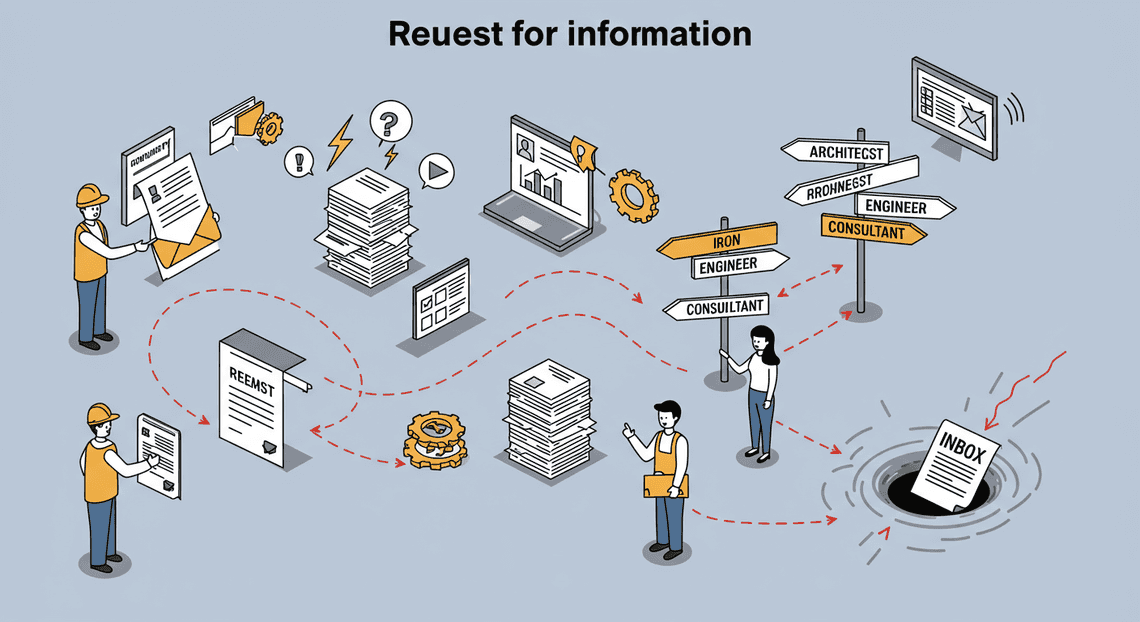
The traditional RFI lifecycle is a masterclass in manual inefficiency. It’s a journey fraught with potential failure points, each one adding latency and risk to the project timeline. Consider the typical, frustrating path of a single RFI:
-
Origination: A subcontractor on-site discovers a discrepancy between the architectural drawings and the structural plans for a beam placement.
-
Manual Capture: They communicate this to their foreman, who then drafts an email to the General Contractor’s (GC) Project Manager (PM). The subject line might be vague, and crucial details could be buried in the body text.
-
Manual Triage: The PM, who receives dozens of similar emails daily, must first recognize this as a formal RFI. They then manually log it into a sprawling Excel spreadsheet—a document that quickly becomes the project’s single point of failure.
-
Manual Routing: The PM must now become a detective, determining whether this is a question for the architect, the structural engineer, or the MEP consultant. They forward the email, hoping they’ve chosen the correct recipient.
-
The Black Hole: The RFI now sits in an engineer’s or architect’s inbox, competing for attention with hundreds of other messages. There is no automated tracking. No one knows its status without a manual follow-up.
-
Delayed Resolution: Days, or even weeks, can pass. Meanwhile, work on that section of the project is either stopped completely—creating a costly delay for crews and equipment—or proceeds based on an assumption, risking expensive rework later.
This manual, email-and-spreadsheet-driven process is the bottleneck.
Introducing an Automated RFI Dispatcher Solution
What if we could dismantle this bottleneck? What if we could transform the RFI process from a reactive, manual chase into a proactive, automated workflow? This is precisely the promise of an intelligent RFI dispatcher built on modern, collaborative platforms and powered by generative AI.
Imagine a new workflow:
The same subcontractor on-site opens a dedicated Google Chat space for the project. They snap a photo of the beam placement issue with their phone and post a message: “RFI: The structural drawing S-201 shows beam B-45 flush with column C-9, but the architectural A-503 implies a 2-inch recess for facade paneling. Please clarify the required placement.”
Instantly, the system springs into action:
-
Intelligent Ingestion: An automated system, listening to the Chat space, immediately recognizes the “RFI:” prefix. It captures the message, the user who sent it, the timestamp, and any attached images.
-
AI-Powered Analysis: The text is sent to a large language model like Google’s Gemini. The AI analyzes the content, understanding keywords like “structural drawing,” “beam,” “column,” and “facade.” It correctly categorizes the RFI as a “Structural/Architectural” conflict.
-
Automated Dispatch: Based on the AI’s categorization, the system looks up the designated structural engineer and architect in a project directory. It sends them a direct, actionable notification in Google Chat with all the relevant information and a link back to the original query.
-
Closed-Loop Tracking: Simultaneously, the system logs the RFI in a centralized database (like a Google Sheet or Firestore), marks its status as “Open,” and assigns it to the dispatched experts. It then posts a confirmation message back in the main Chat space: “RFI #2023-087 has been logged and routed to [Structural Engineer] and [Architect]. Status: Open.”
This automated dispatcher eliminates the manual triage, routing, and logging steps entirely. It shortens the RFI lifecycle from days to minutes, ensuring the right information gets to the right people, right away.
High-Level System Architecture Overview
This solution isn’t science fiction; it’s an achievable integration of existing, powerful cloud services. The architecture is designed for reliability, scalability, and ease of use, leveraging the Google Cloud and Workspace ecosystem.
Here’s a high-level breakdown of the core components:
-
User Interface (Google Chat): This is the entry point. Project team members use a familiar, real-time messaging app to submit RFIs. No special software or training is required.
-
Webhook Trigger (Google Chat API): When a message is posted in the designated RFI space, Google Chat sends a secure HTTP request (a webhook) to a predefined endpoint. This is the event that kicks off the entire workflow.
-
Orchestration Layer (Google Cloud Functions): A serverless function acts as the system’s brain. It receives the webhook from Google Chat, processes the payload (the message content), and orchestrates the calls to other services. Being serverless, it’s cost-effective and scales automatically.
-
Intelligence Engine (Gemini API): The Cloud Function sends the raw text of the RFI to the Gemini API. A carefully crafted prompt instructs the model to analyze the text, extract key entities (like drawing numbers), determine the relevant construction discipline (Structural, Electrical, Mechanical, etc.), and summarize the core question. The API returns a structured JSON object, for example:
{

"rfi_id": "2023-087",

"discipline": "Structural",

"urgency": "High",

"summary": "Clarification needed on beam B-45 placement relative to column C-9 due to conflict between structural and architectural drawings.",

"mentioned_drawings": ["S-201", "A-503"]

}
-
Data Persistence ([Automated Web Scraping with [Multilingual Text-to-Speech Tool with SocialSheet Streamline Your Social Media Posting 123](https://votuduc.com/Multilingual-Text-to-Speech-Tool-with-Google-Workspace-p809282)](https://votuduc.com/Automated-Web-Scraping-with-Google-Sheets-p292968) or Firestore): The structured data from Gemini, along with the original message and metadata, is logged as a new record in a database. A Google Sheet can serve as a simple, accessible database for initial versions, while Firestore offers a more robust, scalable NoSQL solution for larger projects.
-
Notification & Dispatch (Google Chat API): Using the
disciplinefield returned by Gemini, the Cloud Function queries a project contact list to find the right expert. It then uses the Google Chat API to send a formatted, direct message to that person, ensuring immediate visibility. It also posts the confirmation and status update back to the main channel, closing the communication loop.
This architecture creates a seamless, event-driven flow that transforms a chaotic, manual process into a streamlined, intelligent, and fully auditable system.
Prerequisites: Setting Up Your Google Cloud Environment
Before we can start writing code and orchestrating our AI-powered workflow, we need to lay the foundational groundwork within Google Cloud. This involves creating a project, enabling the necessary APIs that act as the digital plumbing for our system, and preparing the destinations for our data and notifications. Think of this as building the workshop before you start assembling the machine.
Enabling Gmail, Google Chat, and Google Sheets APIs
Our application needs explicit permission to interact with Google’s services on our behalf. We’ll grant this permission by enabling the specific APIs for each service we intend to use. This is a critical security and configuration step.
-
Navigate to the Google Cloud Console: Head over to
console.cloud.google.comand sign in with your Google account. -
Create or Select a Project:
-
If you don’t have a project, create one by clicking the project selector at the top of the page and choosing “New Project”. Give it a descriptive name like
rfi-gemini-tracker. -
If you have an existing project you’d like to use, simply select it from the dropdown.
-
Go to the API Library: In the navigation menu (the “hamburger” icon ☰), go to APIs & Services > Library. This is the marketplace where you can find and enable all of Google’s powerful APIs.
-
Enable the APIs: Use the search bar to find and enable each of the following APIs one by one. For each one, click on the result and then click the blue “Enable” button.
-
Gmail API: This will allow our application to read incoming emails that are potential RFIs.
-
Google Chat API: This is essential for sending formatted notifications directly to our designated Chat space.
-
Google Sheets API: This grants us the ability to programmatically write new RFI entries into our tracking spreadsheet.
Once enabled, your project is now authorized to use these services. We’ll handle the specific authentication (how our code proves its identity) in a later step.
Configuring a Google Chat Space for RFI Notifications
This is where the magic happens in real-time. We’ll set up a dedicated Google Chat “Space” that will serve as the notification hub for all new RFIs. When Gemini identifies an RFI, a message will be instantly posted here.
- Create a New Space in Google Chat:
-
Open Google Chat (
chat.google.com). -
In the “Spaces” section on the left, click the
+icon and select “Create a space”. -
Give your space a clear, unambiguous name. Something like
RFI AlertsorNew RFI Submissionsworks perfectly. -
You can add an optional description and invite relevant team members who need to see these alerts.
-
Click “Create”.
- Get the Space ID:
- Once the space is created, click on it. Look at the URL in your browser’s address bar. It will look something like this:
https://chat.google.com/room/AAAAxxxx1234.
The string of characters after /room/ is your* Space ID** (e.g., AAAAxxxx1234).
- Copy this ID and save it somewhere safe. We will need this exact ID in our code to tell the API where to send the messages.
This space is now ready to receive notifications from the application we’ll build.
Structuring Your RFI Tracker in Google Sheets
This Google Sheet will be our structured database—the single source of truth for every RFI that our system processes. A well-organized sheet is crucial for easy tracking, reporting, and future analysis.
- Create a New Google Sheet:
-
Go to
sheets.google.comand create a new, blank spreadsheet. -
Give it a descriptive title, such as
Automated RFI Tracking Log.
- Define the Column Headers:
-
In the very first row, set up the column headers. These headers are the data fields our script will populate. It’s important to get them right, as our code will reference them directly.
-
Here is a recommended structure. You can customize it, but this provides a robust starting point:
| Column | Header Name | Purpose |
| :--- | :--- | :--- |
| A | RFI_ID | A unique identifier generated by our script for each RFI. |
| B | Received_Timestamp | The exact date and time the RFI email was processed. |
| C | Sender_Email | The email address of the person who sent the RFI. |
| D | Sender_Name | The sender’s name, extracted from the email. |
| E | Email_Subject | The subject line of the original RFI email. |
| F | Status | The current state of the RFI (e.g., New, In Progress, Responded). |
| G | Assigned_To | The team member responsible for handling the RFI. |
| H | Due_Date | The deadline for the RFI response, if any. |
| I | Notes | A field for manual notes or comments. |
| J | Email_Link | A direct hyperlink to the original Gmail thread for quick access. |
- Format the Sheet for Usability:
- Select the entire first row (Row 1).
Make the text* Bold** to clearly distinguish the headers.
Go to the menu and select* View > Freeze > 1 row**. This keeps your headers visible as you scroll down through hundreds of RFI entries.
Your Google Sheet is now perfectly structured and ready to serve as the database for our automated system.
Step 1 Building the RFI Detection and Processing Engine
This is where the magic begins. The engine is the heart of our [Automated Job Creation in Real Time Jobber and Google Sheets Integration from Gmail](https://votuduc.com/Automated-Job-Creation-in-Jobber-from-Gmail-p115606), responsible for proactively identifying potential RFIs as they arrive, using AI to understand their content, and structuring the information for downstream processing. We’ll build this entire component within [AI Powered Cover Letter Automated Quote Generation and Delivery System for Jobber Engine](https://votuduc.com/AI-Powered-Cover-Letter-Automated Work Order Processing for UPS-Engine-p111092), leveraging its native integration with Gmail and its ability to make external API calls.
Using Apps Script to Scan Incoming Gmail Messages
Before we can process an RFI, we have to find it. Relying on manual forwarding is slow and prone to error. Instead, we’ll create a script that programmatically scans our inbox for messages that look like RFIs. The perfect tool for this job is Genesis Engine AI Powered Content to Video Production Pipeline, a serverless JavaScript platform deeply integrated into the Automatically create new folders in Google Drive, generate templates in new folders, fill out text automatically in new files, and save info in Google Sheets ecosystem.
Our strategy is to set up a time-driven trigger (e.g., running every 5 minutes) that executes a function to search Gmail. This function will look for unread emails matching specific criteria, such as “RFI” or “Request for Information” in the subject line.
Here’s the foundational code to get this running. You would place this in a new Apps Script project bound to your Google Sheet or as a standalone project.
// Function to be triggered on a schedule (e.g., every 5 minutes)

function scanForRFIs() {

// Define the search query. This finds unread emails with "RFI" in the subject.

// You can make this more complex, e.g., 'is:unread subject:("RFI" OR "Request for Information")'

const query = 'is:unread subject:"RFI"';

// Search for threads that match the query

const threads = GmailApp.search(query);

// Loop through each matching thread

for (const thread of threads) {

// Get all messages in the thread (often an RFI is a single message thread)

const messages = thread.getMessages();

for (const message of messages) {

// We only want to process unread messages to avoid duplicates

if (message.isUnread()) {

const emailBody = message.getPlainBody(); // Get the text content

const emailSubject = message.getSubject();

const sender = message.getFrom();

// In the next steps, we'll pass this data to Gemini

console.log(`Found potential RFI from ${sender}: ${emailSubject}`);

// --- Placeholder for AI processing ---

processWithGemini(emailBody, emailSubject, sender);

// IMPORTANT: Mark the message as read to prevent reprocessing in the next run

message.markRead();

}

}

}

}

// Dummy function for now, will be built out later

function processWithGemini(body, subject, sender) {

// This is where the magic will happen.

console.log("Sending to Gemini for analysis...");

}
This script establishes a robust detection loop. By searching for unread messages and then immediately marking them as read after processing, we ensure that each RFI is handled exactly once.
Leveraging Gemini 3.5 for Intelligent RFI Summarization
Simply finding an email with “RFI” in the subject isn’t enough. We need to understand its contents. Is it actually an RFI? What is the deadline? Who is the primary contact? What is the core question? This is a perfect task for a powerful Large Language Model like Gemini.
We will call the Gemini API from our Apps Script function, passing the email’s content within a carefully engineered prompt. The prompt will instruct Gemini to act as a specialized RFI analysis agent, extracting key details and providing a summary. Crucially, we will demand the output in a structured JSON format, which is essential for reliable parsing later.
First, you’ll need your Gemini API key. Store this securely using Apps Script’s PropertiesService.
Now, let’s build the prompt and the function to call the API.
The System Prompt:
This is the instruction manual we give to Gemini. A well-defined prompt is the difference between a chaotic response and a perfectly structured one.
You are an expert administrative assistant specializing in processing Request for Information (RFI) documents for a technical consulting firm. Your task is to analyze the provided email content and extract key information into a structured JSON format.

Follow these rules strictly:

1.  First, determine if the email is a genuine RFI. If it is not, respond with: {"isRFI": false}.

2.  If it is a genuine RFI, extract the following fields:

- "projectName": The name of the project, if mentioned. If not found, use "Not Specified".

- "dueDate": The submission deadline. Extract the date and time if possible. If not found, use null.

- "primaryContact": The name and email of the main person to contact. If not found, use null.

- "coreQuestion": A concise, one-sentence summary of the main question or request being asked in the RFI.

- "summary": A brief, one-paragraph summary of the entire RFI's context and request.

3.  Your entire output MUST be a single, valid JSON object. Do not include any text or explanations outside of the JSON structure.
The Apps Script Function:
This function replaces the processWithGemini placeholder from our previous script. It takes the email content, combines it with our prompt, and calls the Gemini API.
function processWithGemini(emailBody, emailSubject, sender) {

const API_KEY = PropertiesService.getScriptProperties().getProperty('GEMINI_API_KEY');

const API_URL = `https://generativelanguage.googleapis.com/v1beta/models/gemini-1.5-flash-latest:generateContent?key=${API_KEY}`;

// The prompt is a combination of our system instructions and the specific email data

const prompt = `

System Prompt:

You are an expert administrative assistant specializing in processing Request for Information (RFI) documents for a technical consulting firm. Your task is to analyze the provided email content and extract key information into a structured JSON format.

Follow these rules strictly:

1.  First, determine if the email is a genuine RFI. If it is not, respond with: {"isRFI": false}.

2.  If it is a genuine RFI, extract the following fields:

- "projectName": The name of the project, if mentioned. If not found, use "Not Specified".

- "dueDate": The submission deadline. Extract the date and time if possible. If not found, use null.

- "primaryContact": The name and email of the main person to contact. If not found, use the sender's email ('${sender}').

- "coreQuestion": A concise, one-sentence summary of the main question or request being asked in the RFI.

- "summary": A brief, one-paragraph summary of the entire RFI's context and request.

3.  Your entire output MUST be a single, valid JSON object. Do not include any text or explanations outside of the JSON structure.

Email Content to Analyze:

Subject: ${emailSubject}

From: ${sender}

Body:

${emailBody}

`;

const payload = {

"contents": [{

"parts": [{

"text": prompt

}]

}]

};

const options = {

'method': 'post',

'contentType': 'application/json',

'payload': JSON.stringify(payload),

'muteHttpExceptions': true // Important for error handling

};

const response = UrlFetchApp.fetch(API_URL, options);

const responseText = response.getContentText();

// In the next step, we'll parse this responseText

parseAndRouteRFI(responseText);

}

// Dummy function for the next step

function parseAndRouteRFI(geminiResponse) {

console.log("Received from Gemini:", geminiResponse);

}
By instructing Gemini to return JSON, we’ve turned an unstructured email into a predictable, machine-readable data source.
Parsing and Structuring Key RFI Data
The final piece of our engine is to parse the JSON response from Gemini and turn it into a usable JavaScript object. This step is straightforward but critical, as it validates the AI’s output and prepares the data for the final step: sending a notification to Google Chat.
We’ll add error handling here using a try...catch block. This is crucial because, despite our best prompting, an API can occasionally fail or the LLM might return a malformed response. Our script needs to be resilient to these edge cases.
Let’s build out the parseAndRouteRFI function.
function parseAndRouteRFI(geminiResponse) {

try {

// The raw response from Gemini is nested. We need to extract the actual text content.

const jsonResponse = JSON.parse(geminiResponse);

const contentText = jsonResponse.candidates[0].content.parts[0].text;

// Now parse the text content, which should be our structured RFI data

const rfiData = JSON.parse(contentText);

// First, check if Gemini identified this as a valid RFI

if (!rfiData.isRFI) {

console.log("Gemini determined this was not a valid RFI. Skipping.");

return; // Exit the function

}

// At this point, we have a clean JavaScript object with our RFI data

console.log("Successfully parsed RFI data:");

console.log(`Project: ${rfiData.projectName}`);

console.log(`Due Date: ${rfiData.dueDate}`);

console.log(`Contact: ${rfiData.primaryContact}`);

// --- Placeholder for the next major step in our project ---

// sendToGoogleChat(rfiData);

} catch (e) {

// If anything goes wrong with parsing, log the error and the raw response

console.error("Failed to parse Gemini response.");

console.error("Error: ", e);

console.error("Raw Response: ", geminiResponse);

// Optionally, send an error notification to an admin

// sendErrorNotification("Failed to process an RFI email.");

}

}
With this final function, our engine is complete. It can now reliably:
-
Detect potential RFI emails in Gmail.
-
Analyze them using Gemini to extract structured data.
-
Parse that data into a clean, usable object, ready for the next stage of our workflow.
Step 2 Dispatching Actionable RFI Cards to Google Chat
With Gemini’s structured summary in hand, our next task is to move this information out of the backend and into the hands of the project team. Simply dropping a block of text into a chat room isn’t enough; we need to present the RFI in a way that is immediately understandable and actionable. This is where Google Chat’s Card V2 framework becomes invaluable. We’ll design and dispatch an interactive card that not only displays the RFI summary but also allows team members to take ownership and respond directly from the chat interface.
Designing an Effective Google Chat Card Layout
A Google Chat Card is a UI element defined by a JSON object that you can include in a message. It allows for rich formatting, interactive widgets like buttons, and a much more organized presentation of information than plain text.
Our goal is to create a card that is dense with information but remains highly scannable. A user should be able to glance at it and immediately grasp the RFI’s context, status, and importance.
Here are the key components we’ll include in our RFI card design:
-
Header: Contains the RFI title and a relevant icon to make it visually distinct.
-
Sections: We’ll use separate sections to group related information.
-
Key-Value Widgets: Perfect for displaying structured data like Project, RFI Number, and Sender.
-
Text Paragraphs: To display the AI-generated summary.
-
Button List: For our interactive elements: “Assign to Me” and “Reply”.
Let’s translate this design into a JSON structure. This JSON will serve as the template for every RFI we post.
{

"cardsV2": [

{

"cardId": "rfi_card_12345",

"card": {

"header": {

"title": "New RFI Received: Structural Beam Sizing",

"subtitle": "Project: Northwind Tower",

"imageUrl": "https://img.icons8.com/office/16/000000/new-document.png",

"imageType": "CIRCLE"

},

"sections": [

{

"header": "RFI Details",

"collapsible": false,

"widgets": [

{

"keyValue": {

"topLabel": "RFI Number",

"content": "ST-07-A4"

}

},

{

"keyValue": {

"topLabel": "From",

"content": "[email protected]"

}

},

{

"keyValue": {

"topLabel": "Status",

"content": "🔴 New / Unassigned",

"icon": "TICKET"

}

}

]

},

{

"header": "AI Summary",

"collapsible": true,

"widgets": [

{

"textParagraph": {

"text": "The contractor is requesting clarification on the required size for the primary support beam on the 3rd floor, referencing drawing S-102. They note a discrepancy between the architectural and structural plans and need a definitive specification before proceeding with fabrication."

}

}

]

},

{

"widgets": [

{

"buttonList": {

"buttons": [

{

"text": "Assign to Me",

"onClick": {

"action": {

"function": "assign_rfi",

"parameters": [

{

"key": "rfi_id",

"value": "ST-07-A4"

}

]

}

}

},

{

"text": "Reply",

"onClick": {

"action": {

"function": "reply_rfi_dialog",

"parameters": [

{

"key": "rfi_id",

"value": "ST-07-A4"

}

]

}

}

}

]

}

}

]

}

]

}

}

]

}
In this JSON, notice how we use keyValue widgets for structured data and a textParagraph for the free-form summary generated by Gemini. The buttonList contains two buttons, each with an onClick action that calls a specific function in our backend application (which we’ll configure to listen for these events).
Posting RFI Summaries via the Google Chat API
With the card’s JSON template defined, posting it to a Google Chat space is a straightforward HTTP POST request. You’ll first need to configure an incoming webhook for the specific chat space where you want the RFIs to appear.
-
Navigate to the Google Chat space.
-
Click the space name at the top, and select “Apps & integrations”.
-
Click “Manage webhooks”.
-
Give your webhook a name (e.g., “RFI Bot”) and an optional avatar.
-
Copy the generated Webhook URL. Treat this URL like a secret!
Now, you can use this URL to post messages. Here’s a JSON-to-Video Automated Rendering Engine example using the requests library to send the card we designed above. This code would typically run in your cloud function or server after Gemini has finished processing the email.
import requests

import json

def post_rfi_to_chat(webhook_url, rfi_data):

"""

Posts a formatted RFI card to a Google Chat space via a webhook.

Args:

webhook_url (str): The incoming webhook URL for the Google Chat space.

rfi_data (dict): A dictionary containing the RFI details.

"""

card_payload = {

"cardsV2": [

{

"cardId": f"rfi_card_{rfi_data['rfi_number']}",

"card": {

"header": {

"title": f"New RFI Received: {rfi_data['title']}",

"subtitle": f"Project: {rfi_data['project_name']}",

"imageUrl": "https://img.icons8.com/office/16/000000/new-document.png",

"imageType": "CIRCLE"

},

"sections": [

{

"header": "RFI Details",

"widgets": [

{"keyValue": {"topLabel": "RFI Number", "content": rfi_data['rfi_number']}},

{"keyValue": {"topLabel": "From", "content": rfi_data['sender']}},

{"keyValue": {"topLabel": "Status", "content": "🔴 New / Unassigned", "icon": "TICKET"}}

]

},

{

"header": "AI Summary",

"collapsible": True,

"widgets": [{"textParagraph": {"text": rfi_data['summary']}}]

},

{

"widgets": [

{

"buttonList": {

"buttons": [

{

"text": "Assign to Me",

"onClick": {

"action": {

"function": "assign_rfi",

"parameters": [{"key": "rfi_id", "value": rfi_data['rfi_number']}]

}

}

},

{

"text": "Reply",

"onClick": {

"action": {

"function": "reply_rfi_dialog",

"parameters": [{"key": "rfi_id", "value": rfi_data['rfi_number']}]

}

}

}

]

}

}

]

}

]

}

}

]

}

headers = {'Content-Type': 'application/json; charset=UTF-8'}

try:

response = requests.post(url=webhook_url, data=json.dumps(card_payload), headers=headers)

response.raise_for_status()  # Raises an exception for bad status codes (4xx or 5xx)

print(f"Successfully posted RFI {rfi_data['rfi_number']} to Google Chat.")

except requests.exceptions.RequestException as e:

print(f"Error posting to Google Chat: {e}")

# Example Usage:

# rfi_info = {

#     "rfi_number": "ST-07-A4",

#     "title": "Structural Beam Sizing",

#     "project_name": "Northwind Tower",

#     "sender": "[email protected]",

#     "summary": "The contractor needs clarification on beam size S-102 due to a plan discrepancy."

# }

# CHAT_WEBHOOK_URL = "https://chat.googleapis.com/v1/spaces/..."

# post_rfi_to_chat(CHAT_WEBHOOK_URL, rfi_info)
Implementing Assign and Reply Actions on the Card
A static card is useful, but an interactive one transforms Google Chat into a true work hub. The onClick actions we defined on our buttons are the key to this interactivity. When a user clicks a button, Google Chat sends a JSON payload (an Interaction event) to our backend service.
To handle these events, you must configure your application in the Google Cloud Console to receive interactions. This typically involves providing a URL to a service, like a Google Cloud Function, that is set up to process these specific POST requests from Google Chat.
Handling the “Assign to Me” Action
When a user clicks “Assign to Me”, our backend receives an event payload that includes the function name (assign_rfi), the parameters ({"rfi_id": "ST-07-A4"}), and information about the user who clicked the button.
Our backend logic should then:
-
Parse the incoming event to get the RFI ID and the user’s name (e.g.,
event['user']['displayName']). -
Update our central tracking database (e.g., a Google Sheet, Firestore, etc.) to mark the RFI as assigned to this user.
-
Re-render the original card with updated information. The status should change to ”🟡 Assigned”, the assignee’s name should be displayed, and the “Assign to Me” button should be disabled or removed to prevent reassignment.
-
Use the Google Chat API’s
spaces.messages.updatemethod to replace the original card in the chat with the new, updated version. This provides immediate visual feedback to the entire team.
The response from your function to the interaction event should specify that you are updating the message.
// JSON Response from your backend to Google Chat

{

"actionResponse": {

"type": "UPDATE_MESSAGE"

},

// ... include the full, updated cardV2 payload here

}
Handling the “Reply” Action
The “Reply” action is slightly different. Instead of just updating the card, we want to open a modal dialog where the user can compose their response. This is achieved by responding to the interaction event with a Dialog action.
-
When the user clicks “Reply”, our backend receives the
reply_rfi_dialogfunction call. -
Instead of updating the message, the backend responds with a new JSON payload that defines a dialog card. This dialog would contain a
textInputwidget for the response and a “Submit” button.
Here’s what the JSON response to open a dialog would look like:
// JSON Response from your backend to open a dialog

{

"actionResponse": {

"type": "DIALOG",

"dialogAction": {

"dialog": {

"body": {

"cardWithId": {

"cardId": "reply_dialog",

"card": {

"header": {

"title": "Reply to RFI: ST-07-A4"

},

"sections": [

{

"widgets": [

{

"textInput": {

"label": "Your Response",

"type": "MULTIPLE_LINE",

"name": "rfi_response_text"

}

},

{

"buttonList": {

"buttons": [

{

"text": "Submit Reply",

"onClick": {

"action": {

"function": "submit_rfi_reply",

"parameters": [{"key": "rfi_id", "value": "ST-07-A4"}]

}

}

}

]

}

}

]

}

]

}

}

}

}

}

}

}
When the user fills out this dialog and clicks “Submit Reply”, it triggers another interaction event (submit_rfi_reply). Your backend would then capture the text from the textInput, format it into an email, send it, and finally update the original RFI card in the chat to a ”✅ Answered” status.
Step 3 Closing the Loop with Google Sheets
With our system now capable of identifying and triaging RFIs directly within Google Chat, the next critical step is to create a persistent, auditable record. Google Sheets serves as the perfect, lightweight database for this purpose. It acts as our single source of truth, providing a structured log that’s accessible to both our automated script and human stakeholders for reporting and oversight.
Logging New RFIs and Their Status to the Tracker Sheet
First, we need a place to store the data. Create a new Google Sheet and name the first tab “RFI Tracker”. This sheet will be the raw log where every new RFI lands.
Set up the following headers in the first row:
| A | B | C | D | E | F | G | H | I |
| :--- | :--- | :--- | :--- | :--- | :--- | :--- | :--- | :--- |
| RFI_ID | Timestamp_Created | RFI_Question | Source_Message_Link | Status | Assigned_Engineer | Timestamp_Assigned | Timestamp_Closed | Resolution_Notes |
Now, let’s enhance our Apps Script. We’ll create a function that takes the parsed RFI data from Gemini and appends it as a new row in this sheet. The key is to generate a unique RFI_ID for each entry, which we’ll use later to reference and update the record. A combination of the date and a simple counter works well.
// Add this function to your [Architecting Multi Tenant AI Workflows in [Building Modular Agentic Apps Script with Gemini Function Calling](https://votuduc.com/building-modular-agentic-apps-script-with-gemini-function-calling-p-20260322917321)](https://votuduc.com/architecting-multi-tenant-ai-workflows-in-google-apps-script-p-20260321290501) project

const SPREADSHEET_ID = 'YOUR_SPREADSHEET_ID_HERE';

const TRACKER_SHEET_NAME = 'RFI Tracker';

/**

* Logs a new RFI to the Google Sheet tracker.

* @param {string} rfiQuestion - The text of the RFI.

* @param {string} messageLink - A direct link to the Google Chat message.

* @returns {string} The newly generated RFI ID.

*/

function logRfiToSheet(rfiQuestion, messageLink) {

try {

const sheet = SpreadsheetApp.openById(SPREADSHEET_ID).getSheetByName(TRACKER_SHEET_NAME);

// Generate a unique RFI ID (e.g., RFI-20231026-1)

const today = new Date();

const dateString = today.getFullYear().toString() +

('0' + (today.getMonth() + 1)).slice(-2) +

('0' + today.getDate()).slice(-2);

const lastRow = sheet.getLastRow();

const lastRfiId = lastRow > 1 ? sheet.getRange(lastRow, 1).getValue() : '';

let newIndex = 1;

if (lastRfiId.startsWith(`RFI-${dateString}`)) {

newIndex = parseInt(lastRfiId.split('-')[2]) + 1;

}

const newRfiId = `RFI-${dateString}-${newIndex}`;

const newRow = [

newRfiId,             // RFI_ID

new Date(),           // Timestamp_Created

rfiQuestion,          // RFI_Question

messageLink,          // Source_Message_Link

'New',                // Status (initial status)

'',                   // Assigned_Engineer (initially empty)

'',                   // Timestamp_Assigned (initially empty)

'',                   // Timestamp_Closed (initially empty)

''                    // Resolution_Notes (initially empty)

];

sheet.appendRow(newRow);

Logger.log(`Successfully logged new RFI: ${newRfiId}`);

return newRfiId;

} catch (e) {

Logger.log(`Error in logRfiToSheet: ${e}`);

// It's crucial to handle this error, perhaps by posting a failure message back to the Chat space.

return null;

}

}
You would call this logRfiToSheet function from your main onMessage event handler right after Gemini confirms a message is an RFI. The RFI_ID it returns is crucial—you’ll include it in the bot’s reply card in Google Chat so it’s always associated with the conversation.
Updating Engineer Assignments and Timestamps from Chat
An RFI sitting in a “New” state isn’t helpful. We need a mechanism to assign it to an engineer and track its progress. We’ll empower users to do this directly from the Google Chat thread where the RFI was created.
The workflow is as follows:
-
A project manager or lead replies in the RFI’s thread, tagging the bot and an engineer. For example:
@RFI-Bot assign @JaneDoe. -
Our Apps Script
onMessagefunction detects this command. -
It parses the message to find the
RFI_ID(from the original bot card), the command (“assign”), and the mentioned user’s name. -
It then calls a new function to update the corresponding row in our Google Sheet.
Here’s the Apps Script function to handle the sheet update:
/**

* Updates an existing RFI record with an assigned engineer.

* @param {string} rfiIdToUpdate - The ID of the RFI to find and update.

* @param {string} engineerName - The name of the engineer being assigned.

*/

function updateRfiAssignment(rfiIdToUpdate, engineerName) {

try {

const sheet = SpreadsheetApp.openById(SPREADSHEET_ID).getSheetByName(TRACKER_SHEET_NAME);

const dataRange = sheet.getDataRange();

const values = dataRange.getValues();

// Find the row corresponding to the RFI ID. Start from 1 to skip header.

for (let i = 1; i < values.length; i++) {

if (values[i][0] === rfiIdToUpdate) { // Column A is RFI_ID

// Found the row, now update the cells

const targetRow = i + 1;

sheet.getRange(targetRow, 5).setValue('Assigned'); // Update Status to 'Assigned'

sheet.getRange(targetRow, 6).setValue(engineerName); // Set Assigned_Engineer

sheet.getRange(targetRow, 7).setValue(new Date()); // Set Timestamp_Assigned

Logger.log(`Successfully assigned RFI ${rfiIdToUpdate} to ${engineerName}.`);

// Post a confirmation message back to the Google Chat thread

// ... (code for chat reply)

return;

}

}

Logger.log(`Could not find RFI with ID: ${rfiIdToUpdate}`);

// Post an error message back to the chat thread if the ID wasn't found

// ... (code for chat reply)

} catch (e) {

Logger.log(`Error in updateRfiAssignment: ${e}`);

}

}
This function systematically searches for the RFI by its unique ID and, upon finding it, populates the assignment details and updates the status. This creates a clear, timestamped audit trail of when the RFI was picked up and by whom. A similar function could be created for a close command to update the Timestamp_Closed and Resolution_Notes fields.
Creating a Simple Dashboard for RFI Oversight
The true power of logging data is the ability to derive insights from it. With all our RFI data neatly structured in the “RFI Tracker” sheet, we can create a high-level dashboard for managers and team leads without any additional code.
Create a second tab in your Google Sheet and name it “Dashboard”. Here, you can use standard spreadsheet formulas to summarize the data from your tracker.
1. Key Performance Indicators (KPIs):
Create a small area for at-a-glance metrics.
| Metric | Value | Formula Used |
| :--- | :--- | :--- |
| Total Open RFIs | =COUNTIF('RFI Tracker'!E:E, "<>Closed") | Counts all RFIs where the status is not “Closed”. |
| New / Unassigned | =COUNTIF('RFI Tracker'!E:E, "New") | Counts RFIs that need immediate attention. |
| Total Closed RFIs | =COUNTIF('RFI Tracker'!E:E, "Closed") | Counts completed RFIs. |
2. Open RFI Summary Table:
Use the powerful QUERY function to create a live, filtered view of all RFIs that are not yet closed. In cell A5 (or wherever you want the table), enter this formula:
=QUERY('RFI Tracker'!A:I, "SELECT A, B, C, E, F WHERE E <> 'Closed' ORDER BY B asc", 1)
This formula does the following:
-
'RFI Tracker'!A:I: Specifies the source data range. -
"SELECT A, B, C, E, F ...": Selects the specific columns we want to see on the dashboard (ID, Created Date, Question, Status, Assignee). -
"... WHERE E <> 'Closed'": Filters the data to only show rows where the status in column E is not “Closed”. -
"... ORDER BY B asc": Sorts the results by the creation date, showing the oldest RFIs first. -
1: Indicates that our source data has one header row.
3. Visualizations:
You can now use Google Sheets’ built-in charting tools to visualize this data. For example:
-
Pie Chart: Create a chart based on the KPI values to show the proportion of Open vs. Closed RFIs.
-
Bar Chart: Use a Pivot Table to count RFIs per engineer and then create a bar chart to visualize workload distribution.
This dashboard provides immediate, real-time visibility into the RFI process, transforming a simple log into a powerful project management tool—all with a few simple formulas.
Conclusion: From Manual Chaos to Intelligent Automation
We’ve journeyed from the disjointed reality of manual RFI tracking—a world of copy-pasting, missed notifications, and siloed information—to a streamlined, intelligent, and automated system. By weaving together the collaborative power of Google Chat, the organizational simplicity of Google Sheets, and the analytical prowess of the Gemini API, we’ve built more than just a workflow; we’ve engineered a single source of truth that actively works for us. This transition represents a fundamental shift from reactive problem-solving to proactive, data-driven management, liberating teams to focus on what truly matters: providing accurate and timely information.
Recap: The Tangible Benefits of an Automated Workflow
The solution we’ve constructed isn’t just a technical exercise; it delivers concrete advantages that can be felt across any team grappling with RFI management. Let’s distill the core benefits:
-
Drastic Efficiency Gains: The most immediate impact is the elimination of manual data entry. No more toggling between windows to copy a message from Chat to a spreadsheet. This reclamation of time and focus is a massive productivity booster.
-
Unwavering Accuracy: Automation removes the element of human error inherent in manual transcription. Details, timestamps, and user information are captured perfectly every time, ensuring data integrity from the moment an RFI is submitted.
-
Centralized Visibility: The Google Sheet becomes a dynamic, real-time dashboard accessible to all stakeholders. Everyone, from project managers to engineers, can see the status of every RFI without having to interrupt a conversation or search through chat history.
-
AI-Powered Intelligence: This is the game-changer. Gemini AI elevates the system from simple automation to intelligent augmentation. By summarizing complex queries, categorizing requests, and extracting key entities, it provides immediate context and accelerates the path to resolution.
-
Seamless Collaboration: By operating within Google Chat, the system meets your team where they already work. Notifications, updates, and confirmations are delivered directly into the conversational flow, keeping everyone aligned without adding another tool to their stack.
Potential Enhancements and Customizations
The architecture we’ve built is a powerful foundation, but its true beauty lies in its extensibility. Here are several ways you can adapt and enhance this system to meet even more sophisticated needs:
-
Advanced AI-Driven Actions: Supercharge your Gemini integration by prompting it to perform [How to build a Custom Sentiment Analysis System for Operations Feedback Using Google Forms OSD App Clinical Trial Management and [Building Self Correcting Agentic Workflows with Building Self-Correcting Agentic Workflows with Vertex AI](https://votuduc.com/building-self-correcting-agentic-workflows-with-vertex-ai-p-20260321542526)](https://votuduc.com/How-to-build-a-Custom-Sentiment-Analysis-System-for-Operations-Feedback-Using-Google-Forms-AppSheet-and-Vertex-AI-p428528) to flag urgent or frustrated RFIs. You could also have it generate a draft response based on historical data or a knowledge base, which a team member can then review and send.
-
Deeper Project Management Integration: Extend the Cloud Function to interact with APIs for tools like Jira, Asana, or ClickUp. A validated RFI could automatically generate a ticket or task, assign it to the appropriate team, and include a link back to the Google Chat thread for context.
-
Multi-Channel RFI Ingestion: Don’t limit your intake to Google Chat. Create additional triggers for your Cloud Function, such as a dedicated email inbox (using the SendGrid Inbound Parse webhook or a similar service) or a public-facing Google Form, to centralize RFIs from various sources into your one tracking system.
-
Comprehensive Analytics and Reporting: Connect your Google Sheet to Google Looker Studio to build interactive dashboards. Visualize key metrics like RFI volume by category, average resolution time, and peak request periods to identify trends and optimize resource allocation.
-
Sophisticated Notification Logic: Implement more granular notification rules. For example, automatically ping a channel or a specific manager if an RFI remains in an “Open” state for more than 48 hours, or send a daily digest of all new RFIs to team leads.
Scaling Your Architecture for Enterprise Needs
While our current setup is perfect for many teams, large-scale enterprise deployment requires a greater focus on robustness, security, and maintainability. As your RFI volume grows, consider evolving the architecture in the following ways:
-
Decouple Services with Pub/Sub: To handle high throughput and increase resilience, introduce Google Cloud Pub/Sub as a messaging middleware. Instead of the Google Chat webhook directly invoking your Cloud Function, it could publish a message to a Pub/Sub topic. A separate, subscribed Cloud Function would then process the message. This decouples the services, enabling features like automatic retries for transient errors and a dead-letter queue for failed messages, ensuring no RFI is ever lost.
-
Migrate to an Enterprise-Grade Database: Google Sheets is fantastic for its accessibility, but for thousands of records and complex querying, a dedicated database is superior. Migrating the data store to Firestore (for a flexible, NoSQL approach) or Cloud SQL (for relational data integrity) will provide better performance, scalability, and advanced query capabilities.
-
Implement Robust Security and IAM: In an enterprise context, you’ll need stricter access controls. Leverage Google Cloud’s Identity and Access Management (IAM) to define granular permissions for who can trigger the functions and access the data. Secure your Cloud Function endpoints using IAM invoker roles instead of allowing unauthenticated invocations.
-
Adopt CI/CD and Observability Practices: Move beyond manual deployments. Implement a CI/CD pipeline using Cloud Build to automate testing and deployment, ensuring that changes are rolled out safely and consistently. Integrate deeply with Google Cloud’s operations suite (formerly Stackdriver) for structured logging, performance monitoring, and proactive alerting to catch issues before they impact users.


Stop Doing Manual Work. Scale with AI.
Want to turn these blog concepts into production-ready reality for your team?
Table Of Contents
Portfolios
Related Posts
Quick Links
Legal Stuff