

Bypass the Apps Script 6 Minute Limit for Gemini AI Workflows


Every Apps Script developer has faced the dreaded 6-minute execution limit. Learn the essential strategies to overcome this famous gatekeeper and unlock your script’s true potential.

The Challenge: The Apps Script 6-Minute Execution Limit
If you’ve spent any significant time building on [AI Powered Cover Letter [Automated Job Creation in Real Time Jobber and Google Sheets Integration from Gmail](https://votuduc.com/Automated-Job-Creation-in-Jobber-from-Gmail-p115606) Engine](https://votuduc.com/AI-Powered-Cover-Letter-Automated Quote Generation and Delivery System for Jobber-Engine-p111092), you’ve inevitably met its most famous gatekeeper: the 6-minute execution limit. For most consumer and [Automatically create new folders in Google Drive, generate templates in new folders, fill out text automatically in new files, and save info in [Automated Web Scraping with [Multilingual Text-to-Speech Tool with SocialSheet Streamline Your Social Media Posting 123](https://votuduc.com/Multilingual-Text-to-Speech-Tool-with-Google-Workspace-p809282)](https://votuduc.com/Automated-Web-Scraping-with-Google-Sheets-p292968)](https://workspace.google.com/marketplace/app/auto_create_folder_and_files/430076014869) accounts, a single script execution cannot run for more than six minutes. For years, this has been a reasonable, if sometimes inconvenient, guardrail. It ensures that server resources are used efficiently for the platform’s intended purpose: lightweight, event-driven automations that connect AC2F Streamline Your Google Drive Workflow services.
This limit is a feature, not a bug. It prevents runaway scripts from bogging down the shared infrastructure. It encourages developers to write efficient, focused code for tasks like sending a quick email notification, formatting a new row in a Sheet, or creating a calendar event.
But when you introduce the power—and the corresponding processing demands—of a large language model like Gemini, this 6-minute ceiling transforms from a guardrail into a hard wall. The quick, synchronous automations that Apps Script excels at are fundamentally different from the often long-running, deliberative processes required by generative AI.
Why Heavy AI Workflows Hit This Hard Ceiling
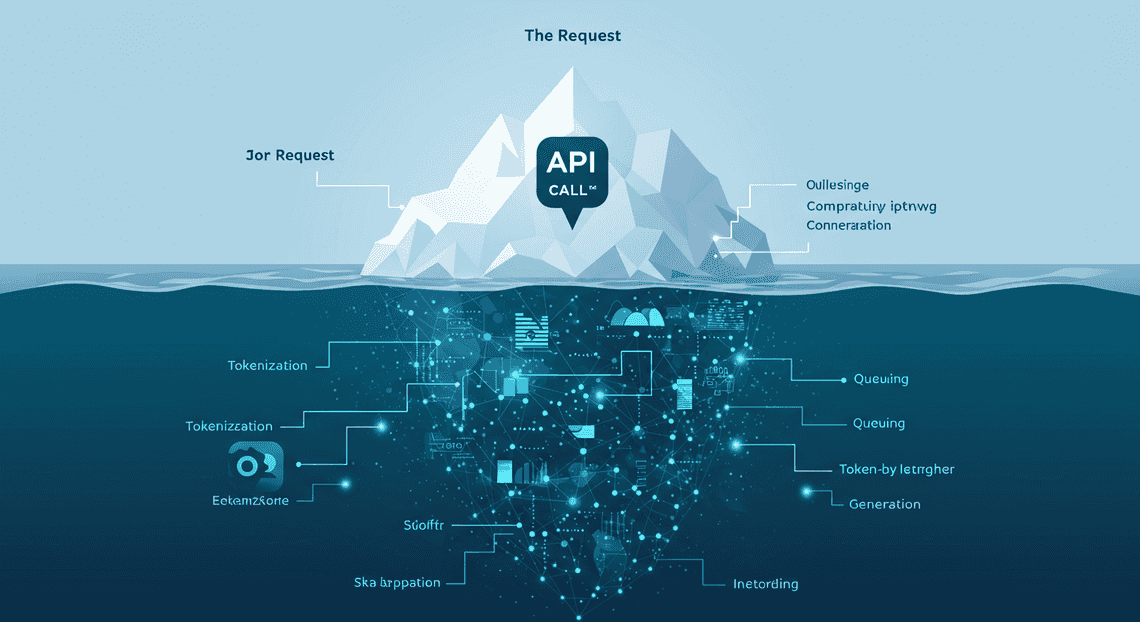
At first glance, an API call seems instantaneous.
-
API Latency and Tokenization: Every call involves network overhead, authentication, and potential queuing on Google’s side. More importantly, the model doesn’t just “read” your prompt. It breaks your input down into tokens and then generates the response one token at a time. A complex prompt analyzing a 50,000-token context window (e.g., a very long Google Doc) and generating a detailed 4,000-token response can take a significant amount of time—often minutes, not seconds.
-
Chain-of-Thought and Complex Reasoning: The most valuable AI workflows aren’t simple Q&A. They involve complex reasoning, where you instruct the model to “think step-by-step.” This forces the model to perform more internal computation before producing a final answer, dramatically increasing the time-to-first-token and overall generation time.
-
Sequential API Calls: A truly powerful workflow rarely consists of a single AI call. Consider a script designed to process customer feedback from a Google Form. The workflow might look like this:
-
Call Gemini: Summarize the raw feedback. (30-60 seconds)
-
Call Gemini: Based on the summary, extract key action items. (30-60 seconds)
-
Call Gemini: Perform a [How to build a Custom Sentiment Analysis System for Operations Feedback Using Google Forms OSD App Clinical Trial Management and Vertex AI](https://votuduc.com/How-to-build-a-Custom-Sentiment-Analysis-System-for-Operations-Feedback-Using-Google-Forms-AppSheet-and-Vertex-AI-p428528) on the original text. (20-40 seconds)
-
Call Gemini: Draft a personalized follow-up email based on the summary, action items, and sentiment. (40-90 seconds)
Even with optimistic timings, this sequence alone consumes 2-4 minutes of pure AI processing time. Add in the Apps Script overhead for reading data from Sheets, writing to Docs, and sending emails, and you are dangerously close to, or well over, the 6-minute limit.
The Inadequacy of Standard Scripting for Agentic Tasks
The problem becomes even more pronounced when we move from simple, linear workflows to “agentic” tasks. An AI agent is a system that uses a model like Gemini to reason, plan, and execute a series of actions to achieve a complex goal. It might need to use tools (like other APIs), maintain a state or “memory” of what it has done, and make decisions based on intermediate results.
This is where the architectural model of Apps Script shows its limitations:
-
Stateless by Design: Apps Script executions are stateless. Each time a trigger fires, the script starts from a clean slate. An agent, however, needs to be stateful. It needs to remember that it has already summarized a document so that its next step can be to draft an email based on that summary. While you can jury-rig state management with
PropertiesServiceor a backing Google Sheet, it’s a clumsy workaround for a platform not designed for long-running, stateful processes. -
The Inability to “Wait”: A huge portion of an agent’s lifecycle is spent waiting. Waiting for a long API call to return, waiting for a file to be processed, or even waiting for human-in-the-loop feedback. In Apps Script, this “waiting” is active execution time. The clock is always ticking. A proper orchestration platform would enter a dormant state while waiting for an external process to complete and then resume when a callback is received. Apps Script simply burns through its 6-minute budget.
-
No Concept of Orchestration: An agent is an orchestrator. It might decide, based on an initial prompt, that it needs to call the Google Drive API, then the Gemini API, and then the Gmail API. This multi-step, dynamic process is fundamentally at odds with a simple, single-context script execution.
Trying to build a true AI agent directly within a single Apps Script execution is like trying to run a marathon inside a sprinter’s starting block. The environment is built for a short, powerful burst, but the task requires endurance and a fundamentally different architecture. This mismatch is the core challenge we need to solve.
The Architectural Solution: Asynchronous Processing with Recursive Triggers
The 6-minute execution limit is a hard boundary for synchronous operations within a single Apps Script run. To bypass it, we must fundamentally shift our thinking from a single, long-running task to a series of short, interconnected tasks. The solution is an asynchronous architecture that uses self-replicating triggers to create a processing chain, with a persistent state manager to ensure continuity. This model effectively distributes the workload over time, allowing each individual execution to complete well within the platform’s limits.
Core Concept: Breaking a Single Task into Chained Executions
The foundation of this architecture is task chunking. Instead of attempting to process, for example, 1,000 Google Sheet rows in one go, we break the job into smaller, digestible batches. A single function execution will be responsible for processing only one chunk—say, 20 rows.
The logic for each execution in the chain follows a precise, repeatable pattern:
-
**Initialize & Read State: The function starts and immediately queries a state manager (
PropertiesService) to determine its starting point. For instance, it retrieves the index of the last row processed by the previous execution. -
Process a Chunk: It processes the next batch of items (e.g., rows 21-40). This is where your core logic, such as calling the Gemini API for each row, resides. This operation must be sized to reliably complete in under 5 minutes to provide a safe buffer.
-
Update State: Upon successful completion of its chunk, the function writes its progress back to the state manager. It updates the last processed row index to 40.
-
Trigger the Next Execution: Before terminating, the function programmatically creates a new trigger that will invoke this same function again after a short delay (e.g., one minute).
-
Terminate: The function finishes its execution, releasing all resources. The newly created trigger now waits to start the next link in the chain.
This transforms a monolithic, 60-minute task into twelve discrete, 5-minute executions, all orchestrated to run sequentially.
How Self-Replicating Triggers Create a Continuous Workflow
The “chain” is forged by what can be described as self-replicating, or recursive, triggers. Apps Script’s ScriptApp service provides the necessary tools to manage triggers programmatically. The key is that an executing script has the authority to create the trigger for its successor.
The mechanism relies on creating a time-driven trigger that is set to fire only once. Here is the workflow:
-
Function
processBatch()is invoked, either manually for the first run or by a trigger from a previous run. -
It processes its assigned chunk of data.
-
It checks if there is more data to process. If the
lastProcessedRowis less thantotalRows, it proceeds. -
It then executes the following command:
ScriptApp.newTrigger('processBatch')

.timeBased()

.after(60 * 1000) // 1 minute from now

.create();
-
This code creates a new, one-time trigger. In 60 seconds, the Apps Script infrastructure will automatically invoke the
processBatch()function again. -
The current execution completes and terminates.
This cycle repeats itself. Each execution is an independent entity that runs for a few minutes, updates the state, and then “passes the baton” to the next execution by creating a trigger. The workflow only stops when the function’s logic determines the entire dataset has been processed and therefore refrains from creating a new trigger. This creates a robust, continuous, and serverless processing pipeline directly within the Automated Client Onboarding with Google Forms and Google Drive. environment.
Using PropertiesService to Maintain State Between Runs
The entire asynchronous model would fail without a mechanism to maintain state between executions. Each run is stateless and has no memory of the one that came before it. This is where PropertiesService becomes the critical backbone of the architecture.
PropertiesService is a simple key-value store built into Apps Script, perfect for persisting small amounts of data. We use ScriptProperties, which are scoped to the script itself, ensuring all users running the script share the same state.
Here’s how it integrates into the workflow:
At the start of an execution: The function must read from PropertiesService to orient itself.
// Get a handle to the script's property store

const scriptProperties = PropertiesService.getScriptProperties();

// Retrieve the last processed row. Default to 0 if it's the very first run.

const lastProcessedRow = parseInt(scriptProperties.getProperty('lastProcessedRow')) || 0;

const totalRows = parseInt(scriptProperties.getProperty('totalRows')); // Assumes this was set at the start

// The starting point for this run

const startRow = lastProcessedRow + 1;
At the end of an execution: After a chunk is successfully processed, the function must persist its new state before it terminates.
// Assume this run processed 20 rows, ending at 'newLastRow'

const newLastRow = startRow + 19;

// Save the new progress back to the property store

scriptProperties.setProperty('lastProcessedRow', newLastRow);

// Check if we are done

if (newLastRow >= totalRows) {

// Task is complete, clean up properties and do not create a new trigger

scriptProperties.deleteAllProperties();

console.log('Processing complete.');

} else {

// Not done, create the trigger for the next run

createNextTrigger();

}
By using PropertiesService as the “single source of truth,” the chained executions behave like a single, cohesive task. This also adds a layer of resilience. If a single execution fails due to a temporary network issue or API error, the state is not updated. When the next trigger runs (or you restart it manually), it will pick up from the last known successful position, preventing data loss and ensuring the job can eventually run to completion.
Step-by-Step Implementation Guide
Alright, let’s get our hands dirty. We’re going to architect a solution that is both robust and resilient. The core principle is simple: do a chunk of work, save your progress, and then schedule yourself to wake up and do the next chunk. We’ll use PropertiesService to maintain state between executions and ScriptApp to create the time-based triggers that chain the executions together.
For our example, let’s imagine we have a Google Sheet named “Customer Feedback” with hundreds of rows of user comments. Our goal is to use the Gemini API to analyze the sentiment of each comment and write the result (“Positive”, “Negative”, “Neutral”) into an adjacent column.
Step 1: Initializing the Workflow and Setting State
Every long-running process needs a starting point. This initial function, which you’ll run manually once, is responsible for setting up the environment. It’s the “mission control” that prepares everything for launch. Its primary jobs are to clean up any old data from a previous run, read the total scope of work, and store this initial state.
Here’s how we set the stage:
-
Clean Slate: We use
PropertiesService.getUserProperties().deleteAllProperties()to ensure no leftover data from a failed or previous run interferes with our new workflow. -
Define Scope: We access our Google Sheet, grab all the data, and determine the total number of rows we need to process.
-
Store Initial State: We save key pieces of information to
PropertiesService. This includes the total number of rows to process (totalRows) and a “pointer” orcurrentIndexthat tracks our progress, which we initialize to0. -
First Push: We make a direct call to our main processing function to kick things off immediately.
// The main entry point to start the entire workflow.

// Run this function manually from the Apps Script editor.

function startGeminiWorkflow() {

const properties = PropertiesService.getUserProperties();

// 1. Clean Slate: Clear any properties from previous runs.

properties.deleteAllProperties();

Logger.log('Cleared old properties.');

// 2. Define Scope: Get data from the Google Sheet.

const ss = SpreadsheetApp.getActiveSpreadsheet();

const sheet = ss.getSheetByName('Customer Feedback'); // Change to your sheet name

const range = sheet.getDataRange();

const values = range.getValues();

// Assuming the first row is a header.

const totalRows = values.length - 1;

if (totalRows <= 0) {

Logger.log('No data to process.');

return;

}

// 3. Store Initial State: Save the starting configuration.

properties.setProperty('totalRows', totalRows);

properties.setProperty('currentIndex', '0'); // Properties are stored as strings.

Logger.log(`Initialization complete. Total rows to process: ${totalRows}`);

// 4. First Push: Call the main processing function to start the first batch.

processBatch();

}
Step 2: Crafting the Batch Processing Function for Gemini API Calls
This is the workhorse of our operation. The processBatch() function is designed to be re-entrant, meaning it can be stopped and restarted without losing its place. It reads the current state, processes a “batch” of rows, and crucially, keeps an eye on the clock.
The key to avoiding the 6-minute timeout is to not try to do everything at once. We process a manageable number of rows and then gracefully stop before our time is up.
-
Start the Clock: The very first thing we do is record the start time. This lets us calculate elapsed time throughout the execution.
-
Load State: Retrieve
currentIndexandtotalRowsfromPropertiesService. -
Process in Batches: We loop from the
currentIndex. Inside the loop:
-
We construct a prompt for the Gemini API using the data from the current row.
-
We call a helper function,
callGeminiAPI(), to get the sentiment analysis. (The implementation of this helper is outside the scope of this guide, but it would contain your standardUrlFetchAppcall to the Gemini API endpoint). -
We write the result back to the sheet.
-
The Critical Time Check: After each API call, we check how much time has elapsed. If we’re approaching the 5.5-minute mark, we break the loop, save our progress, and live to fight another day.
// This is the core, re-entrant function that processes data in batches.
function processBatch() {
const startTime = new Date();
const properties = PropertiesService.getUserProperties();
// 2. Load State
let currentIndex = parseInt(properties.getProperty('currentIndex'), 10);
const totalRows = parseInt(properties.getProperty('totalRows'), 10);
const ss = SpreadsheetApp.getActiveSpreadsheet();
const sheet = ss.getSheetByName('Customer Feedback');
const values = sheet.getDataRange().getValues();
Logger.log(`Starting batch processing from index: ${currentIndex}`);
// 3. Process in Batches
// We loop from the current index until we run out of time or data.
for (let i = currentIndex; i < totalRows; i++) {
const currentRowIndex = i + 1; // +1 to account for header row
const feedbackText = values[currentRowIndex][0]; // Assuming feedback is in column A
// Simple check to skip empty rows or already processed rows
const sentimentResult = values[currentRowIndex][1]; // Assuming sentiment is in column B
if (sentimentResult || !feedbackText) {
continue;
}
try {
const prompt = `Analyze the sentiment of the following customer feedback and return only one word: "Positive", "Negative", or "Neutral". Feedback: "${feedbackText}"`;
const sentiment = callGeminiAPI(prompt); // Placeholder for your actual API call
// Write result back to the sheet
sheet.getRange(currentRowIndex + 1, 2).setValue(sentiment);
} catch (e) {
Logger.log(`Error processing row ${currentRowIndex + 1}: ${e.toString()}`);
// Optional: Write "Error" to the cell to mark it for later review
sheet.getRange(currentRowIndex + 1, 2).setValue('Error');
}
// Update the index for the next iteration
currentIndex = i + 1;
// 4. The Critical Time Check
const currentTime = new Date();
const elapsedSeconds = (currentTime.getTime() - startTime.getTime()) / 1000;
// Stop if we are approaching the 6-minute limit (330 seconds = 5.5 minutes)
if (elapsedSeconds > 330) {
Logger.log('Approaching execution time limit. Pausing and scheduling next run.');
break; // Exit the loop gracefully
}
}
// Save the final index processed in this run
properties.setProperty('currentIndex', currentIndex.toString());
Logger.log(`Batch finished. New index is: ${currentIndex}`);
// This is where we decide whether to continue or stop.
// We'll add the logic for this in the next steps.
handleNextStep(currentIndex, totalRows);
}
// A placeholder for your actual Gemini API call function.
function callGeminiAPI(prompt) {
// Your code to call the Gemini API via UrlFetchApp would go here.
// For demonstration, we'll return a random value.
const sentiments = ['Positive', 'Negative', 'Neutral'];
return sentiments[Math.floor(Math.random() * sentiments.length)];
}
Step 3: Writing the Logic to Create the Next Trigger
Once a batch is complete (either by finishing its allotted work or by hitting the time limit), the script needs to decide what to do next. If there are still rows left to process, it must schedule itself to run again in the near future.
This is handled by a self-creating trigger. The script literally builds its own alarm clock to wake itself up for the next shift.
-
Check for Remaining Work: We compare the
currentIndexwithtotalRows. IfcurrentIndexis less thantotalRows, our job isn’t done. -
Delete Existing Triggers: It’s a best practice to clean up any triggers that might be associated with this function to prevent duplicate executions. We’ll create a helper function to do this.
-
Create a New Trigger: We use
ScriptApp.newTrigger()to schedule a new execution of ourprocessBatchfunction. We set it to runafter()a short delay (e.g., 1-2 minutes). This gives the system a moment to breathe and ensures all state changes are properly saved.
We’ll encapsulate this logic in a handleNextStep function that gets called at the end of processBatch.
// This function decides what to do after a batch completes.

function handleNextStep(currentIndex, totalRows) {

// 1. Check for Remaining Work

if (currentIndex < totalRows) {

// There's more work to do. Schedule the next run.

// 2. Delete Existing Triggers for this function to be safe.

deleteTriggersFor('processBatch');

// 3. Create a new trigger to run again in ~1 minute.

ScriptApp.newTrigger('processBatch')

.timeBased()

.after(1  *60*  1000) // 1 minute from now

.create();

Logger.log('Trigger created for the next batch.');

} else {

// All work is done! We'll handle this in the next step.

terminateWorkflow();

}

}

// Helper function to clean up triggers.

function deleteTriggersFor(functionName) {

const allTriggers = ScriptApp.getProjectTriggers();

for (const trigger of allTriggers) {

if (trigger.getHandlerFunction() === functionName) {

ScriptApp.deleteTrigger(trigger);

}

}

}
Step 4: Ensuring a Graceful Exit: The Termination Condition
A process that never ends is a bug. Once all the rows have been processed (currentIndex >= totalRows), our workflow needs to perform a clean shutdown. This prevents it from creating unnecessary triggers and leaves the environment tidy for the next time you want to run a job.
-
The “Else” Condition: This is the final branch in our
handleNextStepfunction. -
Clean Up State: The most important step is to delete the properties we stored (
currentIndex,totalRows). This is crucial for ensuring thestartGeminiWorkflowfunction works correctly next time. -
Delete Triggers: As a final safety measure, we ensure no lingering triggers are left behind.
-
Notify User (Optional but Recommended): The job is done! It’s good practice to send a confirmation, like an email, to let the user know their long-running task has successfully completed.
Here is the final piece of the puzzle, the terminateWorkflow function.
// This function handles the final cleanup when the workflow is complete.

function terminateWorkflow() {

const properties = PropertiesService.getUserProperties();

// 2. Clean Up State

properties.deleteAllProperties();

// 3. Delete Triggers

deleteTriggersFor('processBatch');

Logger.log('Workflow complete. All properties and triggers have been cleaned up.');

// 4. Notify User

const recipient = Session.getActiveUser().getEmail();

const subject = 'Google Sheet Processing Complete!';

const body = 'The Gemini AI sentiment analysis on your "Customer Feedback" sheet has finished successfully.';

MailApp.sendEmail(recipient, subject, body);

}
Code Deep Dive: A Practical Example
Alright, let’s get our hands dirty. Theory is great, but code is where the magic happens. We’ll build a system with three core components: a main controller to kick things off, a batch processor that does the heavy lifting with Gemini, and a few utility functions to manage the whole operation.
For this example, imagine we have a Google Sheet named InputData with a list of long text passages in column A that we want Gemini to summarize. The results will be placed in a sheet named Output.
The Main Controller Function
The controller function is our mission control. It doesn’t perform any API calls itself. Its sole purpose is to set the stage, initialize the state of our long-running task, and create the very first trigger to start the process. This ensures the setup itself is fast and won’t ever time out.
Key Responsibilities:
-
Read the Data: It figures out how many items (rows in our sheet) need to be processed.
-
Initialize State: It uses
PropertiesServiceto store the total item count and reset the current progress index to zero.PropertiesServiceis perfect for this because it persists data between script executions. -
Clean Up: It proactively deletes any old triggers to prevent multiple processing chains from running simultaneously.
-
Launch: It creates a new time-based trigger that will call our batch processor function in a few seconds.
Here’s what it looks like:
/**

* The main controller function.

* This is the function you run manually to start the entire process.

*/

function startGeminiProcessing() {

const ui = SpreadsheetApp.getUi();

// 1. Initial Setup: Get data from our source sheet.

const sheet = SpreadsheetApp.getActiveSpreadsheet().getSheetByName('InputData');

if (!sheet) {

ui.alert('Error: "InputData" sheet not found.');

return;

}

const lastRow = sheet.getLastRow();

// We assume data starts at A2, with A1 being a header.

if (lastRow < 2) {

ui.alert('No data to process in "InputData" sheet.');

return;

}

const totalItems = lastRow - 1;

// 2. Initialize State: Use script properties to track progress.

const scriptProperties = PropertiesService.getScriptProperties();

scriptProperties.setProperty('totalItems', totalItems.toString());

scriptProperties.setProperty('currentIndex', '0'); // Start from the first item (index 0)

scriptProperties.setProperty('status', 'RUNNING');

// 3. Clean Up: Always delete old triggers before starting a new run.

deleteAllTriggers();

// 4. Launch: Create a trigger to call the batch processor almost immediately.

ScriptApp.newTrigger('processBatch')

.timeBased()

.after(1000) // 1 second from now

.create();

ui.alert(`Processing started for ${totalItems} items. Results will appear in the "Output" sheet.`);

}
The Batch Processor with UrlFetchApp
This is the workhorse. It’s designed to be called repeatedly by our triggers. Each time it runs, it processes as many items as it can within a safe time window (e.g., 4-5 minutes) before gracefully stopping and, if necessary, scheduling the next run.
The Execution Flow:
-
Get State: It wakes up and immediately reads the
currentIndexfromPropertiesServiceto know where it left off. -
Start a Timer: It records its start time to keep an eye on the clock.
-
Process Loop: It enters a
whileloop that continues as long as two conditions are met: there are still items left to process, AND the elapsed time is less than our self-imposed limit (e.g., 270 seconds). -
Call Gemini: Inside the loop, it constructs the prompt, calls the Gemini API using
UrlFetchApp, parses the result, and writes it to ourOutputsheet. -
**Save State & Reschedule: When the loop terminates (either by finishing all items or hitting the time limit), it saves the new
currentIndex. If work remains, it creates a new trigger to call itself again. If the work is done, it cleans up the final trigger and updates the status to ‘COMPLETE’.
/**

* Processes a batch of items.

* This function is called by a time-based trigger, not manually.

*/

function processBatch() {

const scriptProperties = PropertiesService.getScriptProperties();

const startTime = new Date().getTime();

const TIME_LIMIT_MS = 5  *60*  1000; // 5 minutes, leaving a 1-minute buffer.

// Get current state

let currentIndex = parseInt(scriptProperties.getProperty('currentIndex'));

const totalItems = parseInt(scriptProperties.getProperty('totalItems'));

// Get sheet objects

const inputSheet = SpreadsheetApp.getActiveSpreadsheet().getSheetByName('InputData');

const outputSheet = SpreadsheetApp.getActiveSpreadsheet().getSheetByName('Output');

// Ensure the output sheet has a header

if (outputSheet.getLastRow() < 1) {

outputSheet.getRange('A1:B1').setValues([['Original Text', 'Gemini Summary']]);

}

// The main processing loop

while (currentIndex < totalItems && (new Date().getTime() - startTime) < TIME_LIMIT_MS) {

const sourceRow = currentIndex + 2; // +2 because data starts at row 2

const promptText = inputSheet.getRange(sourceRow, 1).getValue();

// Call our helper to interact with the Gemini API

const summary = callGeminiAPI(promptText);

// Write the result to the output sheet

outputSheet.getRange(sourceRow, 1).setValue(promptText);

outputSheet.getRange(sourceRow, 2).setValue(summary);

currentIndex++; // Move to the next item

}

// Save the state for the next execution

scriptProperties.setProperty('currentIndex', currentIndex.toString());

// Check if we are done

if (currentIndex < totalItems) {

// Not done yet, schedule the next run

deleteAllTriggers(); // Clean up the trigger that just ran

ScriptApp.newTrigger('processBatch')

.timeBased()

.after(1000) // Schedule the next batch

.create();

} else {

// We're finished!

scriptProperties.setProperty('status', 'COMPLETE');

deleteAllTriggers(); // Clean up the final trigger

Logger.log('All items processed successfully!');

}

}

/**

* Helper function to make the actual API call to Gemini.

* @param {string} text The text to be summarized.

* @return {string} The summary from Gemini or an error message.

*/

function callGeminiAPI(text) {

// IMPORTANT: Store your API key securely, e.g., in Script Properties.

const API_KEY = PropertiesService.getScriptProperties().getProperty('GEMINI_API_KEY');

const url = `https://generativelanguage.googleapis.com/v1beta/models/gemini-pro:generateContent?key=${API_KEY}`;

const payload = {

"contents": [{

"parts": [{

"text": `Please provide a concise, one-paragraph summary of the following text: "${text}"`

}]

}],

"generationConfig": {

"temperature": 0.4,

"topK": 32,

"topP": 1,

"maxOutputTokens": 256,

}

};

const options = {

'method': 'post',

'contentType': 'application/json',

'payload': JSON.stringify(payload),

'muteHttpExceptions': true // Important for custom error handling

};

try {

const response = UrlFetchApp.fetch(url, options);

const responseCode = response.getResponseCode();

const responseBody = response.getContentText();

if (responseCode === 200) {

const jsonResponse = JSON.parse(responseBody);

return jsonResponse.candidates[0].content.parts[0].text.trim();

} else {

Logger.log(`API Error: ${responseCode} - ${responseBody}`);

return `Error: API returned status ${responseCode}`;

}

} catch (e) {

Logger.log(`Network Error: ${e.toString()}`);

return `Error: Could not connect to API. ${e.toString()}`;

}

}
Utility Functions for State Management
Good code is clean code. These helper functions handle the repetitive tasks of managing triggers and checking the status, keeping our main logic focused and readable. You could even add these to a custom menu in your spreadsheet for easy access.
/**

* Deletes all script triggers for the current project.

* Crucial for preventing duplicate or orphaned triggers.

*/

function deleteAllTriggers() {

const allTriggers = ScriptApp.getProjectTriggers();

for (const trigger of allTriggers) {

ScriptApp.deleteTrigger(trigger);

}

}

/**

* A user-facing function to check the current progress of the job.

*/

function checkStatus() {

const scriptProperties = PropertiesService.getScriptProperties();

const currentIndex = scriptProperties.getProperty('currentIndex') || '0';

const totalItems = scriptProperties.getProperty('totalItems') || '0';

const status = scriptProperties.getProperty('status') || 'IDLE';

const message = `Status: ${status}\nProgress: ${currentIndex} of ${totalItems} items processed.`;

SpreadsheetApp.getUi().alert(message);

}

/**

* A hard reset function to clear all state and triggers.

* Useful for debugging or starting a fresh run.

*/

function resetState() {

deleteAllTriggers();

PropertiesService.getScriptProperties().deleteAllProperties();

SpreadsheetApp.getUi().alert('Process state and all triggers have been reset.');

}
Production-Ready Best Practices and Considerations
Moving from a clever proof-of-concept to a reliable, production-grade workflow requires shifting your mindset. The self-triggering pattern is powerful, but it introduces complexities that a simple, single-run script doesn’t have. A production system must be resilient to failure, easy to debug when things go wrong, and respectful of the platform’s limitations. This section covers the essential engineering practices to make your automated Gemini workflow robust and dependable.
Calculating Optimal Batch Sizes to Avoid Timeouts
The entire premise of this architecture is to process data in chunks that fit within the Apps Script 6-minute execution limit. Choosing the right “batch size”—the number of items (e.g., Sheet rows, emails) you process in a single run—is the most critical tuning parameter.
-
Too large, and your script will time out, potentially leaving your data in an inconsistent state.
-
Too small, and you’ll waste execution time on the overhead of starting the script and re-establishing state, leading to inefficient use of your daily quota.
The optimal size is not a fixed number; it depends on several factors:
-
Gemini API Latency: This is your biggest variable. The time it takes for the API to respond depends on the model you’re using, the complexity of your prompt, the size of the input/output, and the current load on Google’s infrastructure.
-
**Apps Script Overhead: This includes the time your script spends on tasks other than waiting for the API, such as reading from a Google Sheet, parsing data, and writing results back.
-
A Healthy Safety Margin: Never aim to finish in 5 minutes and 59 seconds. Network hiccups and API latency spikes are inevitable. A good rule of thumb is to target a maximum execution time of 4 to 4.5 minutes (240-270 seconds), giving you a crucial buffer.
A Practical Methodology for Finding Your Batch Size:
- **Benchmark a Single Item: Instrument your core processing function with
console.time()andconsole.timeEnd()to measure the wall-clock time it takes to process one item completely.
function processSingleRow(rowNumber) {

console.time(`processRow_${rowNumber}`);

// ... read data from sheet

// ... call Gemini API

// ... write data back to sheet

console.timeEnd(`processRow_${rowNumber}`);

}
-
Gather Data: Run this benchmark for 10-20 representative items to get an average processing time. Don’t just test with simple inputs; use data that reflects the real-world complexity your script will face.
-
Calculate: Use this simple formula to determine a safe starting point:
Batch Size = (Target Execution Time in Seconds) / (Average Time Per Item * Safety Factor)
-
Target Execution Time: 270 seconds (4.5 minutes) is a safe target.
-
Safety Factor: Start with
1.5(a 50% buffer). You can increase this to2.0if your API calls have highly variable latency.
Example:
-
Your average time to process one row is 12 seconds.
-
Your target execution time is 270 seconds.
-
Your safety factor is 1.5.
Batch Size = 270 / (12 * 1.5) = 270 / 18 = 15
In this scenario, a batch size of 15 rows is a robust starting point. You can test and adjust from there.
Robust Error Handling and Retries
In a distributed system where your script calls an external API, failures are not an “if” but a “when.” The Gemini API might be temporarily unavailable, a network issue could occur, or another Google service might hiccup. Your script must be built to handle these transient errors gracefully.
1. Wrap Critical Operations in try...catch:
Every external call, especially your UrlFetchApp.fetch() to the Gemini API, must be enclosed in a try...catch block. This prevents a single failed API call from crashing your entire batch process.
2. Implement Exponential Backoff with Jitter:
When an API call fails with a retriable error (like a 500-series server error), don’t just retry immediately. This can overwhelm a service that is already struggling. The best practice is “exponential backoff with jitter.”
-
Exponential Backoff: Wait for a progressively longer duration before each retry (e.g., 1s, then 2s, then 4s…).
-
Jitter: Add a small, random amount of time to each delay to prevent multiple instances of your script from retrying in perfect sync (the “thundering herd” problem).
Here is a sample implementation:
function callGeminiWithRetries(prompt) {

const MAX_RETRIES = 4;

let lastError;

for (let i = 0; i < MAX_RETRIES; i++) {

try {

// Your actual UrlFetchApp.fetch() call to Gemini API goes here

const response = makeGeminiApiCall(prompt);

return response; // Success! Exit the loop and return the result.

} catch (e) {

lastError = e;

if (e.toString().includes('500') || e.toString().includes('503')) {

// Retriable error

const delay = Math.pow(2, i) * 1000 + Math.random() * 1000; // Exponential backoff with jitter

console.warn(`API call failed. Retrying in ${delay}ms... (Attempt ${i + 1}/${MAX_RETRIES})`);

Utilities.sleep(delay);

} else {

// Non-retriable error (e.g., 400 Bad Request), break the loop immediately

console.error("Non-retriable error:", e);

throw e;

}

}

}

// If all retries failed

console.error("API call failed after all retries.");

throw lastError;

}
3. Handle Unrecoverable Errors:
If an item fails even after all retries, your script should:
-
Log the failure in detail (see next section).
-
Mark the item as “FAILED” in your data source (e.g., write “ERROR: [error message]” into a status column in your Google Sheet).
-
Continue processing the rest of the items in the batch. Do not let one bad apple spoil the whole bunch.
Monitoring and Debugging a Trigger-Based System
When your script runs on a trigger, you lose the immediate feedback of the Apps Script editor’s log. Debugging becomes an exercise in forensic analysis. You need to create a persistent audit trail.
The Best Practice: Log to a Google Sheet
For most Workspace Automated Work Order Processing for UPS, a dedicated “Log” sheet is the most accessible and effective monitoring tool.
-
Create a Log Sheet: In your spreadsheet, create a new tab named
Logs. -
Define Headers: Use columns like
Timestamp,LogLevel(e.g., INFO, WARN, ERROR),FunctionName, andMessage. -
Create a Logging Function: Write a simple helper function to append rows to this sheet.
function writeLog(level, message) {

const logSheet = SpreadsheetApp.getActiveSpreadsheet().getSheetByName('Logs');

// Prepend is often better for logs so the newest is at the top

logSheet.insertRowBefore(1).getRange('A1:C1').setValues([[

new Date(),

level,

message

]]);

}

// Usage:

writeLog('INFO', `Starting batch process. Processing rows ${startRow} to ${endRow}.`);

// ...

try {

// ...

} catch (e) {

writeLog('ERROR', `Failed to process row ${rowNum}. Error: ${e.message}`);

}
Advanced Monitoring with Google Cloud Logging:
If your project is associated with a Google Cloud Platform (GCP) project, any console.log(), console.warn(), and console.error() statements are automatically sent to Cloud Logging (formerly Stackdriver). This provides a much more powerful solution with:
-
Centralized, searchable logs.
-
Log-based metrics and alerting (e.g., “send me an email if the ERROR count exceeds 10 in an hour”).
-
Longer retention periods.
To use it, simply link your Apps Script project to a GCP project under “Project Settings”.
Navigating Automated Discount Code Management System Quotas
The trigger-based architecture is a workaround for the execution time limit, but it does not bypass other fundamental Automated Email Journey with Google Sheets and Google Analytics quotas. Being aware of these is crucial for a production system.
| Service | Quota (Consumer/Free) | Quota (Workspace Business/Ent) | Implication for this Architecture |
| :--- | :--- | :--- | :--- |
| Trigger Total Runtime | 90 minutes / day | 6 hours / day | This is your total daily processing budget. Efficient batching is key to maximizing what you can do within this time. |
| UrlFetchApp Calls | 20,000 / day | 100,000 / day | Each item you process is at least one API call. If you need to process more than 100,000 items, you’ll need a different architecture (e.g., Cloud Functions). |
| PropertiesService Writes | 10,000 / day | 10,000 / day | You typically perform one write per batch execution to save the next starting index. This quota is very generous and unlikely to be an issue. |
| PropertiesService Storage | 500 KB / store | 500 KB / store | Ample for storing simple state like a row index. Avoid storing large JSON objects or data blobs here. |
Key Takeaways:
-
Know your account type, as quotas differ significantly.
-
Your primary bottleneck after execution time will likely be the number of
UrlFetchAppcalls. -
Use your logging system to track progress and estimate your daily consumption. You can periodically log the output of methods like
UrlFetchApp.getRemainingDailyQuota()to monitor your burn rate.
Conclusion: Unlocking Scalable AI in Automated Google Slides Generation with Text Replacement
We’ve journeyed far beyond a simple “hack” to bypass a platform limitation. What we’ve truly architected is a fundamental shift in how we approach complex automation within Automated Order Processing Wordpress to Gmail to Google Sheets to Jobber. By bridging the declarative simplicity of Apps Script with the elastic power of Google Cloud, we’ve transformed our simple script into a robust, scalable orchestration engine. This pattern isn’t just about avoiding a timeout; it’s about building enterprise-grade solutions that are resilient, efficient, and capable of handling workloads that were previously impossible within the confines of a single script execution. You’ve now unlocked the next level of Workspace automation.
Recap: The Power of Asynchronous Apps Script Patterns
The core challenge was the immovable 6-minute execution limit, a barrier that makes long-running, synchronous calls to powerful models like Gemini a non-starter. Our solution was to stop fighting the limit and instead embrace an asynchronous, event-driven architecture.
Let’s distill the pattern’s strength into its key components:
-
Decoupling the Trigger from the Task: The user-facing Apps Script function does one thing: it validates the request, packages the job, and immediately hands it off. This provides an instantaneous response to the user, dramatically improving the user experience.
-
Offloading the Heavy Lifting: We delegate the time-consuming, resource-intensive AI processing to a dedicated, scalable environment—Google Cloud Functions. This service is purpose-built for such tasks, free from the constraints of the Apps Script runtime.
-
Stateful Orchestration: Using tools like the Properties Service or Firestore, we create a persistent “state” for our job. The Apps Script environment can now poll this state using a time-driven trigger, asking “Is it done yet?” without having to stay active for the entire duration.
-
Resilient Completion: Once the Cloud Function completes its work and updates the state, the polling trigger detects the change, retrieves the result, and performs the final actions in the user’s Workspace (e.g., writing to a Google Doc, sending an email). This separation ensures that even if one part of the process fails, the entire workflow isn’t necessarily lost.
This asynchronous model replaces a fragile, monolithic script with a resilient, distributed system that scales gracefully and respects the user’s time.
Beyond Gemini: Applying this Pattern to Other Long-Running Tasks
While our focus was on integrating the Gemini API, the true value of this architectural pattern lies in its versatility. The moment you internalize this “offload and poll” methodology, you’ll start seeing its applications everywhere in your Automated Payment Transaction Ledger with Google Sheets and PayPal development.
Consider this pattern your go-to solution for any Apps Script task that threatens to hit the execution limit, including:
-
Bulk Data Processing: Imagine iterating through 50,000 rows in a Google Sheet, calling an external API for each one to enrich the data. A synchronous script would fail; an asynchronous one can process them in manageable batches orchestrated by Cloud Functions.
-
Large-Scale Document Generation: Need to generate 500 personalized invoices or reports from a template and a Sheets data source? Offload the document creation loop to a Cloud Function and have Apps Script simply kick off the job and wait for the link to the generated folder.
-
Complex Reporting and Aggregation: Pulling data from Google Analytics, BigQuery, and a third-party CRM to build a comprehensive report in a Google Sheet is a classic timeout candidate. This pattern allows you to perform the heavy data fetching and processing in the cloud, delivering only the final, polished result back to the Sheet.
-
Media Processing: Use Apps Script to identify new video files in a Google Drive folder, but trigger a Cloud Function to handle the actual transcoding, thumbnail generation, or running it through the Video Intelligence API.
-
Third-Party API Integrations with Rate Limiting: When dealing with slow or heavily rate-limited external APIs, you can build a more sophisticated Cloud Function that intelligently manages backoff and retry logic over a long period, something a single Apps Script execution could never handle.
By adopting this mindset, you are no longer just a scriptwriter. You are a cloud solutions architect, using Google Docs to Web as the user-friendly frontend for the immense power of Google Cloud.


Stop Doing Manual Work. Scale with AI.
Want to turn these blog concepts into production-ready reality for your team?
Table Of Contents
Portfolios
Related Posts
Quick Links
Legal Stuff