

Full Stack Workspace Architecting SaaS with Firebase and Apps Script


The standard blueprint for a SaaS app is so ingrained it feels like law, but this frontend-first orthodoxy is often a strategic liability laden with hidden cognitive, financial, and temporal taxes.

The Challenge with Traditional SaaS UI Development
We, as developers, often operate on autopilot. The blueprint for a new SaaS application is so deeply ingrained it feels like an immutable law of physics: a backend API (perhaps Firebase Functions), a database (Firestore), and a frontend single-page application (SPA) built with the framework du jour. We spin up create-react-app or npx nuxi init, wire up state management, configure a build pipeline, and deploy it to a specialized hosting provider. This is the way.
But is it?
This well-trodden path is laden with hidden taxes—cognitive, financial, and temporal. For many applications, particularly internal tools, admin dashboards, and MVPs, this frontend-first orthodoxy is not just overkill; it’s a strategic liability. Before we can architect a new solution, we must first dissect the unquestioned assumptions of the old one.
Deconstructing the Overhead of Frontend Hosting and Maintenance
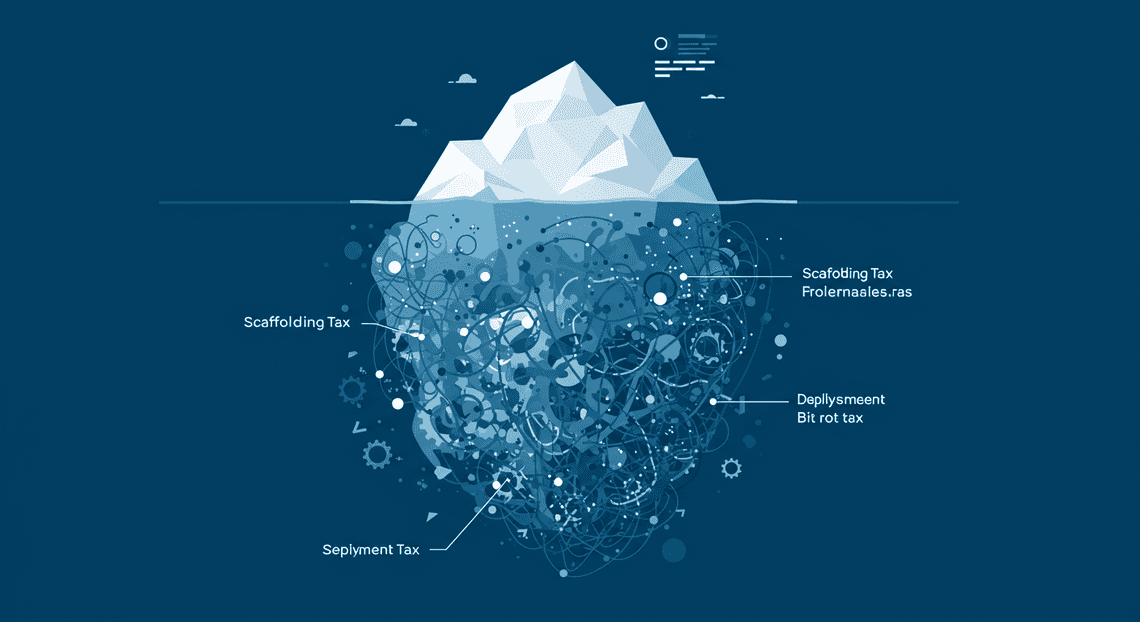
The decision to build a custom web interface triggers a cascade of non-trivial work that has little to do with the core business logic of your application.
-
The Scaffolding Tax: You don’t just write UI code. You select and configure a universe of tooling. A framework (React, Vue, Svelte), a bundler (Vite, Webpack), a CSS solution (Tailwind, Styled Components), a state manager (Redux, Pinia, Zustand), a data-fetching library (TanStack Query, SWR). Each choice is a new dependency, a new learning curve, and a new point of potential failure.
-
The Deployment Tax: Your code must be built and hosted. This means setting up and maintaining a CI/CD pipeline. You configure environments, manage secrets, and pay for a service like Vercel, Netlify, or an AWS S3/CloudFront distribution. While these services have made deployment dramatically easier, they are still another layer of abstraction, another account to manage, and another monthly bill.
-
The Bit Rot Tax: The JavaScript ecosystem moves at a blistering pace. The dependencies you install today will have security vulnerabilities tomorrow. Your chosen framework will release a new major version with breaking changes, forcing you to choose between a costly migration or languishing on an unsupported version. A UI built today feels dated in three years, not because the functionality is wrong, but because the patterns and libraries it was built upon have been superseded. Maintenance isn’t a task; it’s a constant, low-grade battle against entropy.
For a public-facing, pixel-perfect product, these costs are often the necessary price of admission. But for an internal dashboard meant to manage users or process data? You are, in effect, spending 80% of your effort rebuilding functionality that already exists in a more robust and mature form elsewhere.
Introducing the ‘Workspace-as-a-UI’ Paradigm
What if we could sidestep this entire ceremony? What if, instead of building a user interface from scratch, we could script one that already exists? This is the core premise of the “Workspace-as-a-UI” paradigm.
This approach reframes common productivity tools—spreadsheets, documents, forms—not as mere data sources or integration points, but as the primary, interactive user interface for your backend services. You stop thinking about building buttons, tables, and forms in HTML and CSS. Instead, you think about manipulating cells, creating custom menus, and triggering backend logic from an environment your users already inhabit and understand: their digital workspace.
The philosophical shift is profound:
-
From Creation to [Automated Job Creation in Real Time Jobber and Google Sheets Integration from Gmail](https://votuduc.com/Automated-Job-Creation-in-Jobber-from-Gmail-p115606): Your job is no longer to create a UI, but to automate a pre-existing, world-class one.
-
Zero Frontend Deployment: The UI is already deployed globally, secured, and maintained by a team of thousands of engineers at Google. Your deployment pipeline for the frontend simply vanishes.
-
Inherent Collaboration and Identity: Features like real-time multi-user editing, commenting, version history, and role-based permissions are not features you have to build; they are native properties of the platform.
By adopting this paradigm, you surgically remove the entire frontend stack and its associated overhead. Your development focus shifts entirely to the core value proposition: the business logic that powers your service, orchestrated via APIs.
Why [Automated Web Scraping with [Multilingual Text-to-Speech Tool with SocialSheet Streamline Your Social Media Posting 123](https://votuduc.com/Multilingual-Text-to-Speech-Tool-with-Google-Workspace-p809282)](https://votuduc.com/Automated-Web-Scraping-with-Google-Sheets-p292968) Excels as a Rapid-Development Admin Interface
While the “Workspace-as-a-UI” concept can apply to various tools, Google Sheets stands out as a uniquely powerful canvas for building sophisticated admin interfaces and internal tools. It is far more than a simple grid of cells; it’s a programmable, event-driven application environment.
Here’s why it’s the perfect partner for a Firebase backend:
-
A World-Class Data Grid, For Free: Building a robust, performant data table in a web app is a notorious challenge. You need sorting, filtering, pagination, inline editing, and perhaps even charting. Google Sheets provides all of this out of the box with a level of polish and performance that would take a dedicated frontend team months to replicate.
-
A Natural, Event-Driven Core: Through Apps Script, a Sheet becomes a reactive surface. The
onEdit(e)trigger, for example, is a powerful primitive. A user changes a “status” dropdown from “pending” to “approved,” and this single event can trigger an Apps Script function. That function can then useUrlFetchAppto call a Firebase Cloud Function, update a Firestore document, and send a notification, effectively turning a cell into a command-line interface for your entire backend. -
Extensible UI Primitives: You are not limited to the grid. Apps Script allows you to create custom menus in the main Sheet UI, as well as complex dialogs and sidebars using HTML Service. This means you can build rich forms for creating new data or present detailed information from Firestore without ever leaving the familiar Sheet interface.
-
Seamless Backend Communication: The bridge between the Sheet (your UI) and Firebase (your backend) is Apps Script’s built-in services.
UrlFetchAppcan make authenticated requests to the Firebase REST API or your own Cloud Functions. This allows for a clean separation of concerns: the Sheet handles presentation and user input, while Firebase handles data persistence, business logic, and security rules. -
Implicit Authentication and Authorization: The most complex and critical part of any application is user management. By using a Google Sheet as your UI, you piggyback on Google’s enterprise-grade authentication system. Access to the application is controlled by a simple “Share” button. If a user has permission to view or edit the Sheet, they have permission to use the interface. This dramatically simplifies the security model for internal tools.
Architectural Blueprint: The Firebase and Apps Script Synergy
At the heart of our full-stack workspace architecture lies a deliberate and powerful synergy between Google’s Firebase platform and [AI Powered Cover Letter Automated Quote Generation and Delivery System for Jobber Engine](https://votuduc.com/AI-Powered-Cover-Letter-Automated Work Order Processing for UPS-Engine-p111092). This is not merely a combination of convenient tools; it’s a strategic design pattern that leverages a Backend-as-a-Service (BaaS) for state management and a serverless middleware for secure, privileged operations. This decoupled model provides immense scalability, security, and unparalleled integration with the Automatically create new folders in Google Drive, generate templates in new folders, fill out text automatically in new files, and save info in Google Sheets ecosystem. The client remains lean, focused on user experience, while the heavy lifting and sensitive operations are offloaded to managed, serverless infrastructure.
Core Components of the Full-Stack Workspace Model
The architecture can be deconstructed into four primary, interoperating layers. Each component has a distinct responsibility, minimizing complexity and maximizing maintainability.
-
Client-Side Application (The Frontend): This is the user-facing interface, built with any modern web framework (e.g., React, Vue, Angular, Svelte). Its primary role is rendering the UI and managing local application state. It communicates directly with Firebase services for authentication (Firebase Auth) and real-time data persistence (Firestore). For complex business logic or operations requiring elevated permissions, it makes authenticated HTTP requests to the Apps Script middleware.
-
Firebase (The BaaS Layer): Firebase provides the foundational, serverless backend infrastructure.
-
Authentication: Manages user identity, sign-in, and session persistence.
-
Firestore: Acts as the primary NoSQL database for application data.
-
Cloud Storage: Handles storage for user-uploaded assets like files and images.
-
Security Rules: A critical declarative security layer that governs access to Firestore and Cloud Storage resources.
-
Genesis Engine AI Powered Content to Video Production Pipeline (The Secure Middleware): This is the architectural linchpin connecting the application to the AC2F Streamline Your Google Drive Workflow ecosystem. Deployed as a web app, it exposes a secure RESTful API. Its core function is to execute server-side logic that would be insecure or impossible to run on the client. This includes interacting with Automated Client Onboarding with Google Forms and Google Drive. services (Drive, Sheets, Docs, Calendar) using its native, pre-authorized service bindings.
-
Automated Discount Code Management System APIs (The Target Services): These are the ultimate endpoints for many of the middleware’s operations. Apps Script acts as a trusted intermediary, leveraging its native integration with services like
DriveApp,SpreadsheetApp, and the Admin SDK to perform actions on behalf of the user or the system.
Firebase Firestore as the Scalable NoSQL Persistence Layer
Firestore is selected as the persistence layer for several strategic reasons that are critical to the success of a modern SaaS application. It is not just a database; it is a comprehensive data management solution.
-
Document-Oriented Data Model: Firestore’s NoSQL, document-collection structure provides schema flexibility. This is invaluable in an evolving SaaS product, allowing for iterative development and the introduction of new features without disruptive database migrations. Data for complex entities can be nested and stored logically within a single document, aligning well with object-oriented application state.
-
Real-Time Synchronization: The platform’s core strength is its ability to push real-time data updates to connected clients using snapshot listeners. This enables the development of highly collaborative features out-of-the-box, without the engineering overhead of managing WebSockets or implementing long-polling mechanisms. The client simply subscribes to a query, and Firestore handles the real-time data synchronization.
-
Massive Scalability & Serverless Operation: As a managed Google Cloud service, Firestore scales automatically to meet demand. There are no servers to provision, manage, or patch. Its querying capabilities are designed to scale with the size of the result set, not the size of the data set, ensuring consistently fast read operations even with billions of documents.
-
Declarative Security: Firestore Security Rules are a cornerstone of this architecture’s security posture. They are server-side expressions that define granular access control based on user authentication, roles, and data properties. This allows us to enforce who can read, write, or update specific documents directly at the database layer, preventing unauthorized client-side operations before they can even be attempted.
[Architecting Multi Tenant AI Workflows in Building Modular Agentic Apps Script with Gemini Function Calling](https://votuduc.com/architecting-multi-tenant-ai-workflows-in-google-apps-script-p-20260321290501) as the Secure Serverless Middleware
While Firestore manages application state, Google Apps Script serves as the trusted, server-side execution environment. It bridges the gap between our custom application and the powerful, proprietary services within Automated Email Journey with Google Sheets and Google Analytics.
-
Secure, Privileged Execution Context: This is the most critical function of Apps Script in this model. The script executes on Google’s servers, not in the user’s browser. When deployed as a web app set to “execute as me” (the developer) or using a service account, it can perform operations with elevated privileges. For example, it can programmatically create a Google Sheet from a template, populate it with data from an external API, and place it in a specific folder in the user’s Google Drive—all in a single, atomic, server-side transaction. Attempting such a multi-step, cross-service operation from the client would be a security and complexity nightmare.
-
**Native Workspace Integration: Apps Script is not just calling Automated Google Slides Generation with Text Replacement APIs; it has first-class, native service objects (
DriveApp,SpreadsheetApp,GmailApp, etc.). This simplifies development immensely, abstracting away the complexities of raw HTTP requests, OAuth 2.0 flows, and token management that would be required if calling these APIs from a different environment like AWS Lambda or Cloud Functions. -
Serverless and Event-Driven: Like Firebase, Apps Script is entirely serverless. It can be invoked via HTTP triggers (acting as a REST API for our frontend), time-based triggers (for cron jobs like nightly reports), or event-driven triggers from within Automated Order Processing Wordpress to Gmail to Google Sheets to Jobber itself (e.g., an
onFormSubmittrigger for a Google Form). This provides a flexible, low-maintenance, and cost-effective compute layer.
The Role of the V8 Runtime in High-Performance Operations
Historically, a key criticism of Google Apps Script was its reliance on the older, slower Mozilla Rhino JavaScript interpreter. The migration to the modern V8 runtime—the same high-performance engine that powers Google Chrome and Node.js—has been a transformative event for the platform, making it a viable choice for serious application backends.
-
Drastic Performance Improvements: The V8 engine employs advanced techniques like just-in-time (JIT) compilation, which translates JavaScript into highly optimized machine code. For the middleware layer, this means significantly faster execution of complex data manipulation, algorithmic logic, and iterative API calls. Operations that previously took seconds now often complete in milliseconds, directly improving the application’s responsiveness and user experience.
-
Modern JavaScript (ECMAScript) Support: The V8 runtime enables the use of modern JavaScript syntax and features (ES6 and beyond). This includes
let/const, arrow functions, classes, destructuring, promises, andasync/await. This not only improves developer productivity and code maintainability but also allows for the implementation of more sophisticated and robust asynchronous logic, which is essential when orchestrating calls to multiple external services. This alignment with mainstream JavaScript development makes the platform more accessible and powerful for professional developers.
Implementation Deep Dive: Building the Connection
Alright, let’s roll up our sleeves and bridge the gap between the structured world of Google Sheets and the flexible, powerful backend of Firebase. This section is all about the “how.” We’ll move from initial setup to a fully functional, data-synchronized user dashboard, piece by piece.
Prerequisites and Environment Setup
Before we write a single line of code, we need to lay the groundwork. A solid foundation prevents a world of debugging pain later.
1. Firebase & Google Cloud Project:
-
Create a Firebase Project: If you haven’t already, head over to the Firebase Console and create a new project. Every Firebase project is secretly a Google Cloud Platform (GCP) project, which gives us access to powerful services.
-
Enable Firestore: Within your new project’s console, navigate to the “Build” section and select “Firestore Database.” Create a new database. Start in test mode for now to simplify our initial rules; you can (and absolutely should) lock this down later with proper security rules.
-
Generate a Service Account Key: This is the golden ticket that allows our Apps Script to act on behalf of our application with admin privileges.
Go to* Project Settings** (click the gear icon next to “Project Overview”).
Select the* Service Accounts** tab.
Click the* “Generate new private key”** button. A JSON file will download. Guard this file! It contains credentials with admin access to your Firebase project. Treat it like a password.
2. Google Apps Script Environment:
-
Create a Bound Script: Open a new Google Sheet that will serve as our dashboard. Go to Extensions > Apps Script. This creates a new script project that is “bound” to this specific sheet, making it easy to interact with its data.
-
Enable the V8 Runtime: For modern JavaScript syntax (like
const,let, and arrow functions), ensure the V8 runtime is enabled. Go to Project Settings (gear icon in the Apps Script editor) and check the box for “Enable Chrome V8 runtime.” -
Install the Firebase Library: We don’t need to reinvent the wheel for Firebase authentication and communication. We’ll use a community-maintained library.
In the Apps Script editor, click the* +** icon next to “Libraries.”
-
Paste in the following Script ID for the Firestore library:
1VUSl4b1r1NsHs_h5p2eB3O2X9sA_M5U-tS_t217i9Anj_d7LoL6f_A-a -
Click “Look up.” Select the latest version, use
FirestoreAppas the identifier, and click “Add.” This library will provide the necessary methods to connect to and interact with Firestore.
With our environment configured, we’re ready to handle authentication.
Authenticating the Firebase Admin SDK within Apps Script
We have the service account’s JSON key, but where do we put it? Hardcoding it into our script is a massive security risk. Anyone with read access to the script could see it. The correct approach is to use Apps Script’s built-in PropertiesService.
PropertiesService lets you store simple key-value pairs scoped to your script, user, or document. It’s the perfect place to safely store our credentials.
1. Storing the Credentials:
First, we’ll create a one-time setup function to store the necessary values from our downloaded JSON file.
Open the JSON file in a text editor. You’ll need three values: project_id, client_email, and private_key.
Now, add this function to your Apps Script project.
// A one-time setup function to store your Firebase credentials securely.

function storeFirebaseCredentials() {

const scriptProperties = PropertiesService.getScriptProperties();

// IMPORTANT: Replace these placeholder values with the actual values

// from the JSON service account key file you downloaded.

const projectId = "your-firebase-project-id";

const clientEmail = "[email protected]";

// The private key needs special formatting to be stored correctly.

// Copy everything from "-----BEGIN PRIVATE KEY-----" to "-----END PRIVATE KEY-----"

const privateKey = "-----BEGIN PRIVATE KEY-----\nYOUR_PRIVATE_KEY_CONTENT_HERE\n-----END PRIVATE KEY-----\n";

scriptProperties.setProperty('FIREBASE_PROJECT_ID', projectId);

scriptProperties.setProperty('FIREBASE_CLIENT_EMAIL', clientEmail);

scriptProperties.setProperty('FIREBASE_PRIVATE_KEY', privateKey);

Logger.log('Firebase credentials have been stored in Script Properties.');

}
How to use this:
-
Copy and paste the function into your script.
-
Replace the placeholder values with the actual credentials from your JSON file.
-
From the Apps Script editor toolbar, select
storeFirebaseCredentialsfrom the function dropdown and click Run. -
Authorize the script when prompted.
-
Once it runs, you can and should delete this function from your script to prevent the raw credentials from being exposed in your code history. The values are now safely stored.
2. Initializing the Connection:
Now, we can create a reusable helper function to retrieve these stored properties and establish a connection to Firestore.
/**

* Retrieves a Firestore instance authenticated with the service account.

* @returns {Firestore} An authenticated Firestore instance.

*/

function getFirestoreInstance() {

const scriptProperties = PropertiesService.getScriptProperties();

const projectId = scriptProperties.getProperty('FIREBASE_PROJECT_ID');

const clientEmail = scriptProperties.getProperty('FIREBASE_CLIENT_EMAIL');

const privateKey = scriptProperties.getProperty('FIREBASE_PRIVATE_KEY');

return FirestoreApp.getFirestore(clientEmail, privateKey, projectId);

}
This getFirestoreInstance() function is now our gateway to all Firestore operations. It neatly encapsulates the authentication logic, keeping the rest of our code clean.
Implementing the SheetApp Pattern for CRUD Operations
Let’s define a simple but powerful pattern for our application. We’ll call it the SheetApp Pattern.
-
Model: Firebase Firestore is our single source of truth. It holds the data.
-
View: The Google Sheet is our user interface. It displays the data and provides a familiar grid for interaction.
-
Controller: Google Apps Script is the engine in the middle. It listens for user actions in the Sheet (the View), performs the corresponding CRUD (Create, Read, Update, Delete) operations on Firestore (the Model), and then updates the Sheet to reflect the new state.
This creates a clear separation of concerns. The Sheet doesn’t know about Firebase, and Firebase doesn’t know about the Sheet. Apps Script orchestrates everything.
Mapping Rows to Documents:
The core convention is simple: One row in our Sheet corresponds to one document in our Firestore collection.
To make this work, we need a way to link them. We’ll dedicate the first column of our Sheet (Column A) to store the unique Firestore Document ID. When we create a new record, Firestore generates an ID, and our script will write it back to this column. When we update or delete a row, our script will read the ID from this column to know which document to target in Firestore.
Code Walkthrough: Building a User Management Dashboard in Sheets
Let’s put it all together and build a simple user management tool.
1. Set Up the Sheet:
In your Google Sheet, create the following headers in the first row:
| A | B | C | D | E |
| ----------------- | ---- | ----- | ---- | ------ |
| UserID (from DB) | Name | Email | Role | Status |
The UserID column will be managed by our script. Users will edit the Name, Email, Role, and Status columns.
2. Create a Custom Menu with onOpen():
To make our app user-friendly, let’s add a custom menu that appears when the sheet is opened. This is done with a simple trigger called onOpen().
/**

* Creates a custom menu in the spreadsheet UI when the file is opened.

*/

function onOpen() {

SpreadsheetApp.getUi()

.createMenu('🚀 Firebase Dashboard')

.addItem('Fetch All Users', 'syncSheetWithFirestore')

.addToUi();

}
Add this to your script. Now, when you refresh the Sheet, you’ll see a new menu named ”🚀 Firebase Dashboard.”
3. Implementing the “Read” Operation:
Let’s write the syncSheetWithFirestore function that our menu calls. This function will fetch all documents from a users collection in Firestore and populate the sheet.
const SHEET_NAME = "Sheet1"; // Or whatever you named your sheet

const COLLECTION_NAME = "users";

/**

* Fetches all documents from the 'users' collection in Firestore

* and populates the active sheet with the data.

*/

function syncSheetWithFirestore() {

const firestore = getFirestoreInstance();

const sheet = SpreadsheetApp.getActiveSpreadsheet().getSheetByName(SHEET_NAME);

try {

const allUsers = firestore.getDocuments(COLLECTION_NAME);

// Clear existing data (but keep headers)

const lastRow = sheet.getLastRow();

if (lastRow > 1) {

sheet.getRange(2, 1, lastRow - 1, sheet.getLastColumn()).clearContent();

}

if (allUsers.length === 0) {

SpreadsheetApp.getUi().alert('No users found in Firestore.');

return;

}

// Prepare data for the sheet in a 2D array format

const userData = allUsers.map(user => {

// The document name is its full path, so we extract the ID

const docId = user.name.split('/').pop();

const fields = user.fields;

// The order here MUST match the column order in your sheet

return [

docId,

fields.Name ? fields.Name.stringValue : '',

fields.Email ? fields.Email.stringValue : '',

fields.Role ? fields.Role.stringValue : '',

fields.Status ? fields.Status.stringValue : ''

];

});

// Write the data to the sheet in one go

sheet.getRange(2, 1, userData.length, userData[0].length).setValues(userData);

SpreadsheetApp.getUi().alert('Sync complete!');

} catch (e) {

Logger.log(e);

SpreadsheetApp.getUi().alert('Error syncing with Firestore: ' + e.message);

}

}
4. Implementing “Create” and “Update” with an onEdit Trigger:
This is where the real-time magic happens. We’ll use an installable onEdit trigger to automatically sync changes from the Sheet back to Firestore. An installable trigger is required because simple triggers cannot perform actions that require authorization, like calling external services.
First, write the function that will handle the edit event.
/**

* An event handler that fires when a user edits a cell in the spreadsheet.

* Handles both creating new users and updating existing ones.

* @param {Object} e The event object.

*/

function handleEdit(e) {

const range = e.range;

const sheet = range.getSheet();

const editedRow = range.getRow();

// Ignore edits to the header row or in other sheets

if (editedRow <= 1 || sheet.getName() !== SHEET_NAME) {

return;

}

// Get the headers to dynamically map columns to field names

const headers = sheet.getRange(1, 1, 1, sheet.getLastColumn()).getValues()[0];

const rowData = sheet.getRange(editedRow, 1, 1, headers.length).getValues()[0];

// Create a data object from the row using headers as keys

const dataObject = {};

headers.forEach((header, i) => {

// Skip the UserID column when creating the data payload

if (i > 0 && rowData[i]) {

dataObject[header] = rowData[i];

}

});

// If the data object is empty (e.g., user just cleared a row), do nothing.

if (Object.keys(dataObject).length === 0) {

return;

}

const firestore = getFirestoreInstance();

const userId = rowData[0]; // UserID is in the first column

try {

if (userId) {

// UPDATE: If a UserID exists, update the existing document.

const docPath = `${COLLECTION_NAME}/${userId}`;

firestore.updateDocument(docPath, dataObject);

// Optional: Flash a color to indicate success

range.setBackground('#c9ead5').clearFormat();

} else {

// CREATE: If no UserID, create a new document.

const newDoc = firestore.createDocument(COLLECTION_NAME, dataObject);

const newId = newDoc.name.split('/').pop();

// Write the new ID back to the sheet. This is crucial!

sheet.getRange(editedRow, 1).setValue(newId);

sheet.getRange(editedRow, 1).setBackground('#c9ead5').clearFormat();

}

} catch (err) {

Logger.log(err);

SpreadsheetApp.getUi().alert('Failed to sync change to Firestore: ' + err.message);

}

}
To install this trigger:
-
In the Apps Script editor, click the Triggers icon (looks like a clock) on the left sidebar.
-
Click + Add Trigger.
-
Choose
handleEditas the function to run. -
Select “From spreadsheet” as the event source.
-
Select “On edit” as the event type.
-
Click Save. You’ll be asked to authorize the script again.
Now, go back to your sheet. Add a new user on a blank row (leave UserID empty). The script will create a new document in Firestore and automatically populate the UserID cell. If you then change that user’s role, the onEdit trigger will fire again, this time updating the existing document. You’ve just created a real-time admin dashboard.
Advanced Considerations for Production Environments
Transitioning your Firebase and Apps Script integration from a prototype to a production-grade SaaS necessitates a fundamental shift in focus. While the core patterns remain valid, production environments demand rigorous attention to security, performance, scalability, and reliability. This section delves into the advanced strategies required to build a robust and maintainable system capable of handling real-world operational demands.
Managing Firebase Security Rules and IAM from the Workspace
In a multi-tenant SaaS, security cannot be an afterthought; it must be automated and centrally managed. Hardcoding user roles or manually adjusting permissions in the Firebase console is untenable. The Automated Payment Transaction Ledger with Google Sheets and PayPal environment, often the source of truth for your users and their organizational roles, should be leveraged to programmatically control access.
Dynamic Security Rules with Custom Claims
The most powerful mechanism for enforcing per-user and per-tenant data access within Firestore and Cloud Storage is through Firebase Authentication’s custom claims. The workflow is as follows:
-
Source of Truth: A Google Sheet or a similar Workspace tool acts as your admin panel. You might have a sheet listing tenants and another listing users with their assigned
tenantIdandrole(e.g.,admin,editor,viewer). -
Apps Script Trigger: An
onEditor time-based trigger in your Apps Script project monitors changes to these user role assignments. -
Privileged Backend: When a role changes, the Apps Script does not directly set claims. Instead, it authenticates as a service account and calls a secure backend, typically a Google Cloud Function, passing the
userIdand the new claims payload. -
Setting Claims: The Cloud Function uses the Firebase Admin SDK, which has elevated privileges, to validate the request and set the custom claims on the target user’s authentication token.
// Example Cloud Function to set custom claims

const admin = require('firebase-admin');

admin.initializeApp();

exports.setUserRole = functions.https.onCall(async (data, context) => {

// Authentication & permission check for the calling service account or user

if (!context.auth.token.isAdmin) { // Example check

throw new functions.https.HttpsError('permission-denied', 'Must be an admin to set roles.');

}

const { uid, tenantId, role } = data;

await admin.auth().setCustomUserClaims(uid, { tenantId, role });

return { message: `Success! Custom claims set for user ${uid}.` };

});
Your Firestore security rules can then become elegantly simple and incredibly secure, enforcing data isolation at the database layer.
// rules.firestore

rules_version = '2';

service cloud.firestore {

match /databases/{database}/documents {

// Each tenant's data is in a collection named after their tenantId

match /tenants/{tenantId}/{document=**} {

allow read, write: if request.auth.token.tenantId == tenantId;

}

// Admins can write to their tenant's documents

match /tenants/{tenantId}/invoices/{invoiceId} {

allow write: if request.auth.token.tenantId == tenantId && request.auth.token.role == 'admin';

}

}

}
Managing Service-Level IAM
For scripts and services that need to interact with Firebase (e.g., an Apps Script project that needs to read from a specific Firestore collection), use dedicated Google Cloud IAM service accounts. Follow the principle of least privilege: create a service account, grant it only the specific roles it needs (e.g., Cloud Datastore User for Firestore access), generate a JSON key, and store this key securely within Apps Script’s PropertiesService for server-to-server authentication.
Performance Optimization for Large Datasets
Apps Script’s execution time limits (6 minutes for consumer accounts, 30 for Workspace) and Google Sheets’ performance degradation with large data volumes are critical constraints. Naive data fetching will inevitably lead to timeouts and unresponsive user interfaces.
-
Server-Side Pagination: Never attempt to fetch an entire collection from Firestore into Apps Script. Implement pagination directly in your Firestore queries. Use
limit()to define a page size andstartAfter()with the last document snapshot from the previous query to fetch the next page. Store the cursor for the next page inCacheServiceorPropertiesServicebetween executions. -
Offload Aggregations to Cloud Functions: If your Workspace UI needs to display summary data (e.g., total sales, average response time), do not pull all the raw documents into Apps Script to perform the calculation. This is grossly inefficient. Instead, create a Cloud Function that performs the aggregation on the server side and returns only the final result. For more complex scenarios, you can even maintain aggregated counters in separate Firestore documents that are updated via Cloud Function triggers.
-
Strategic Indexing: While Firestore automatically indexes single fields, any query that filters on one field and sorts by another requires a manual composite index. Without it, the query will fail. Proactively analyze your data access patterns and create the necessary composite indexes in the Firebase console. This is one of the most critical and often overlooked performance optimizations.
-
Intelligent Caching: Utilize Apps Script’s
CacheServiceto store frequently accessed but infrequently changing data. This could include user permissions, application settings, or dropdown list values. A cache hit avoids a round trip to Firebase, reducing both latency and your read-operation costs. Implement a sensible cache invalidation strategy, setting expirations from a few minutes to several hours depending on the data’s volatility.
Robust Error Handling and Logging Strategies
In a production system, you must assume failure will occur. The key is to handle it gracefully and have the necessary visibility to diagnose and resolve it quickly. The default Logger.log in Apps Script is insufficient as its logs are ephemeral and not centrally searchable.
-
Embrace
try...catch: Every external call—whether toFirestore.get()orUrlFetchApp.fetch()—must be wrapped in atry...catchblock. This prevents a single failed API call from halting your entire script execution. -
Structured, Centralized Logging: Implement a dedicated logging utility within your Apps Script project. Instead of logging plain strings, log structured JSON objects. This allows for powerful filtering and analysis later.
// In Apps Script

function logError(error, functionName, context) {

const logEntry = {

timestamp: new Date().toISOString(),

level: 'ERROR',

message: error.message,

stack: error.stack,

scriptFunction: functionName,

user: Session.getActiveUser().getEmail(),

...context // e.g., { tenantId: 'abc', documentId: 'xyz' }

};

// Send to a centralized logging service

sendToCloudLogging(logEntry);

}
-
Route Logs to Google Cloud’s Operations Suite: The most robust solution is to send these structured logs to Google Cloud Logging (formerly Stackdriver). Create a simple HTTP-triggered Cloud Function that accepts a log payload from your Apps Script (
UrlFetchApp.fetch) and uses the official Cloud Logging Node.js library to ingest it. This unlocks powerful search, monitoring dashboards, and the ability to create alerts for specific error patterns (e.g., “alert me if the error rate forprocessInvoiceexceeds 5% in 5 minutes”). -
User-Friendly Error Feedback: Never expose raw stack traces or technical error messages to the end-user in the Google Sheet or Doc UI. In your
catchblock, after logging the detailed error for your own team, useSpreadsheetApp.getUi().alert()or a custom sidebar to display a generic, helpful message like, “An error occurred while processing your request. The technical team has been notified.”
Extending the Pattern Beyond CRUD to Complex Workflows
Many SaaS features go beyond simple Create, Read, Update, Delete (CRUD) operations. They involve multi-step, potentially long-running, asynchronous processes like generating a report, processing a large file upload, or running an approval workflow. Forcing these into a single, synchronous Apps Script execution is a recipe for failure.
The solution is to orchestrate these workflows using Firebase as the state machine and Cloud Functions as the workers.
Example Workflow: Asynchronous Report Generation
- Initiation (Apps Script): A user clicks a “Generate Monthly Report” button in a Google Sheet menu. The Apps Script function does not generate the report itself. Instead, it creates a “job” document in a
/reportJobscollection in Firestore.
-
firestore.createDocument('reportJobs', { userId: '...', tenantId: '...', status: 'PENDING', createdAt: new Date() }); -
It then immediately provides feedback to the user: “Your report is being generated and will be emailed to you shortly.”
- Execution (Cloud Function): A Cloud Function is configured to trigger on the
onCreateevent for the/reportJobscollection.
-
When the new job document appears, the function fires. It updates the document’s status to
PROCESSING. -
It then performs the heavy lifting: querying multiple data sources, performing complex calculations, generating a PDF, and saving the final artifact to Cloud Storage. This can safely take much longer than the Apps Script execution limit.
- Completion & Notification:
-
Upon successful completion, the Cloud Function updates the job document again:
{ status: 'COMPLETED', reportUrl: 'gs://...', completedAt: new Date() }. -
It can then use an email service API (like SendGrid or Mailgun) or even the Gmail API with a service account to send an email to the initiating user with a link to the generated report in Cloud Storage.
-
If an error occurs, it updates the status to
FAILEDand logs the detailed error to Cloud Logging.
This event-driven, decoupled architecture is highly scalable and resilient. It keeps the Google Docs to Web interface snappy and responsive while offloading intensive tasks to a more suitable serverless environment, allowing you to build complex, enterprise-grade features on top of your core CRUD foundation.
Conclusion: The Future of Workspace-Driven SaaS
We’ve journeyed through the intricate process of architecting a full-stack SaaS application by weaving together the capabilities of SocialSheet Streamline Your Social Media Posting, the agility of Apps Script, and the robust backend power of Firebase. This isn’t just a novel technical exercise; it represents a fundamental shift in how we conceive, build, and deliver software. The future of SaaS isn’t about pulling users into yet another disparate platform, but about meeting them precisely where their work happens. By embedding logic, data, and user interfaces directly within the familiar context of documents, spreadsheets, and inboxes, we create applications that feel less like tools and more like intelligent extensions of the workspace itself.
Recapping the Strategic Advantages of this Architecture
The synergy between Firebase and Apps Script offers a compelling set of advantages that go beyond mere technical convenience. Let’s distill the core strategic benefits of this architectural choice:
-
Unparalleled User Adoption and Reduced Friction: By building directly into Speech-to-Text Transcription Tool with Google Workspace, you eliminate the steepest part of the learning curve. Users interact with your application through familiar interfaces (Google Docs, Sheets, Gmail), dramatically reducing context-switching and boosting productivity. This native feel is a powerful driver of adoption and retention.
-
Accelerated Time-to-Market: This stack is built for speed. Firebase provides a production-ready, scalable backend-as-a-service (BaaS) with authentication, a real-time database, and serverless functions out of the box. Apps Script acts as the perfect serverless “glue,” requiring zero infrastructure management to connect your backend to Workspace APIs. This combination allows small teams to build and launch a feature-rich MVP in a fraction of the time required by traditional stacks.
-
Seamless and Secure Identity Management: Leveraging Google Identity is a game-changer. You bypass the complexity of building and maintaining a separate user authentication system. Users sign in with the Google account they already trust, and Apps Script handles the complex OAuth 2.0 flows for accessing Workspace APIs securely on their behalf.
-
Powerful, Context-Aware Automation: The true magic of this architecture lies in its automation potential. Apps Script provides direct, authenticated access to the entire suite of Workspace services. You can trigger workflows from a Firebase database change, generate a Google Doc from a template, analyze data in a Google Sheet, and send a formatted email via Gmail—all as part of a single, cohesive serverless process.
-
Scalable and Cost-Effective Infrastructure: By embracing a serverless-first model with Firebase and Apps Script, you offload the vast majority of infrastructure management. You benefit from Google’s global, reliable infrastructure that scales automatically with your usage, and you often pay only for the resources you consume, making it an incredibly cost-effective model for startups and established products alike.
Ideal Use Cases and When to Consider Alternatives
While powerful, this architecture is not a universal solution. Understanding its sweet spots—and its limitations—is key to making sound architectural decisions.
This architecture excels for:
-
B2B Productivity and Collaboration Tools: Any SaaS that enhances or automates workflows within Google Workspace is a prime candidate. Think custom CRMs built on Google Sheets, contract generation tools inside Google Docs, or advanced email campaign managers in Gmail.
-
Internal Enterprise Applications: It’s a perfect fit for building internal tools like employee onboarding workflows, financial approval systems, custom reporting dashboards, and IT support ticket management, where the entire user base operates within a corporate Google Workspace environment.
-
Data-Driven Reporting and Analysis: Applications that need to pull data from various sources (via Firebase Functions), process it, and then present it within the powerful analytical environment of Google Sheets or the presentation capabilities of Google Slides.
-
Rapid Prototyping and MVPs: When you need to validate a SaaS idea quickly with minimal upfront investment, this stack allows you to build a functional, secure, and scalable prototype that can evolve into a full-fledged product.
Consider alternatives or an augmented architecture when:
-
Your Target Audience is Outside the Google Ecosystem: If your primary user base lives in the Microsoft 365 world, a parallel architecture using Azure Functions and the Office Add-ins platform would be a more logical and effective choice.
-
You Require Intense, Long-Running Computations: Apps Script has execution time limits (typically 6-30 minutes). For heavy, long-running backend processes like video transcoding or complex machine learning model training, you should offload these tasks to a more suitable service like Google Cloud Run or Compute Engine, which can still be triggered and managed by your Firebase backend.
-
You Have Extreme Low-Latency Requirements: For applications like real-time multiplayer gaming or high-frequency trading systems, where every millisecond counts, a custom-built backend using high-performance languages like Go, Rust, or C++ on dedicated infrastructure will likely outperform a serverless BaaS model.
-
You Face Complex Data Sovereignty Constraints: While Google Cloud offers extensive regional controls, projects with highly specific or unusual data residency requirements might necessitate a different cloud provider or a hybrid-cloud approach.
Elevating Your Architecture with Expert Guidance
The foundation we’ve laid out is a launchpad, not a final destination. As your application grows in complexity and user base, your architecture must evolve with it. The journey from a simple script to a sophisticated, enterprise-grade SaaS is one of continuous improvement and strategic enhancement.
Consider this your starting point. Begin by mastering the core patterns: securing your Firebase data with robust security rules, managing state between your web app and the Workspace add-on, and designing idempotent Apps Script functions that can be safely retried. As you scale, look for opportunities to refactor. Perhaps a performance-critical piece of Apps Script logic could be migrated to a Google Cloud Function written in Go for superior speed. Maybe you’ll introduce Pub/Sub to create a more resilient, event-driven system between your services.
The key is to remain a perpetual student of the ecosystem. Engage with the developer communities, immerse yourself in the official documentation for Firebase, Google Cloud, and the Google Workspace Platform, and never stop asking, “How can this be more efficient, more secure, more resilient?” The future of workspace-driven SaaS is bright, and with this powerful architectural pattern in your toolkit, you are well-equipped to build the next generation of truly integrated applications.


Stop Doing Manual Work. Scale with AI.
Want to turn these blog concepts into production-ready reality for your team?
Table Of Contents
Portfolios
Related Posts
Quick Links
Legal Stuff