

Resolve Content Version Conflicts in Workspace Using Gemini Pro and Apps Script


Real-time collaboration accelerates teamwork, but it hides a unique risk where simultaneous edits unintentionally erase vital ideas and context. Discover the hidden mechanics of collaborative data loss and how to protect your team’s most critical work.

The Challenge of Data Loss in Collaborative Writing
Automatically create new folders in Google Drive, generate templates in new folders, fill out text automatically in new files, and save info in Google Sheets has fundamentally transformed how teams operate, turning document creation from a solitary, siloed task into a dynamic, real-time collaborative experience. However, this frictionless concurrency introduces a unique, often overlooked engineering challenge: collaborative data loss.
In this context, “data loss” does not refer to a server failure or an unsaved file. Rather, it is the unintentional erasure of valuable ideas, critical context, or nuanced arguments when multiple authors, editors, and stakeholders simultaneously overwrite, delete, and restructure a document. When a team is moving fast to finalize a technical design document, a complex legal contract, or a high-stakes project proposal, the “last writer wins” dynamic can inadvertently strip away vital information. The sheer speed of collaboration becomes a double-edged sword, where the friction removed from the writing process is replaced by the friction of managing conflicting ideas.
Understanding Semantic Drift Across Document Versions
To truly grasp the impact of collaborative data loss, we have to look beyond simple character deletions and understand the concept of semantic drift.
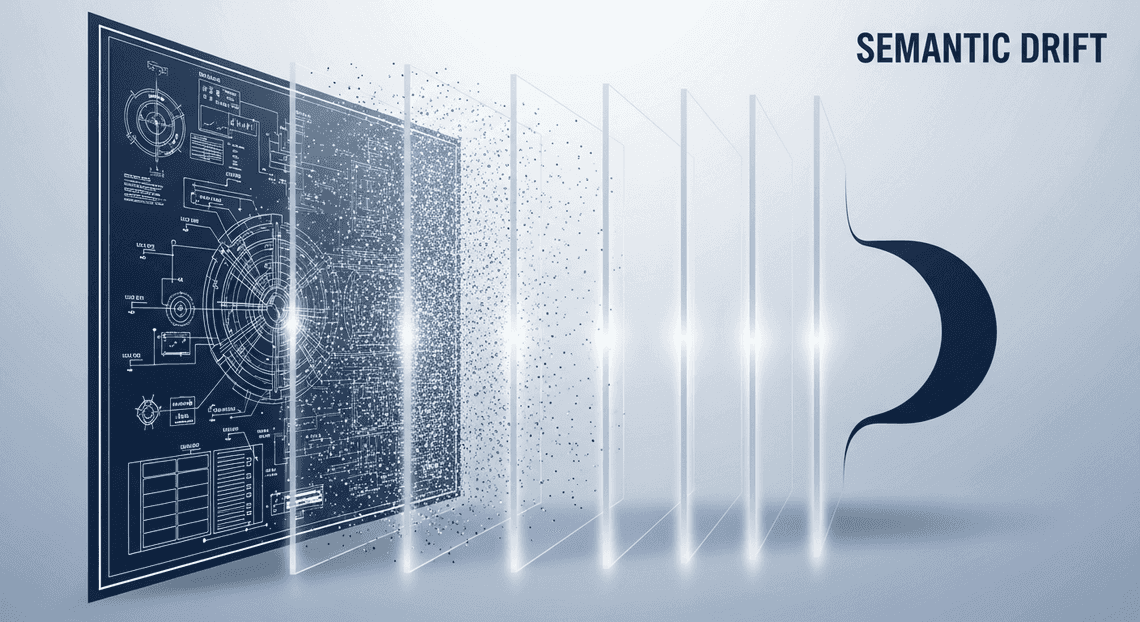
Semantic drift occurs when the core meaning, intent, or technical accuracy of a piece of text gradually degrades or shifts as it passes through multiple hands. Imagine a cloud architect drafting a section on identity and access management (IAM) constraints. A project manager might later edit that section to make it more digestible for business stakeholders, inadvertently removing a crucial warning about service account permissions. Later, a copywriter might polish the paragraph for flow, further abstracting the original technical constraint.
By the time the document reaches its final version, the text reads beautifully, but the original technical warning is gone. The words changed incrementally, but the meaning drifted entirely. This is the most insidious form of data loss in collaborative environments.
Limitations of Native Version History Tools
Google Docs provides a robust, built-in Version History feature that meticulously logs keystrokes and user sessions. As a foundational tool, it is exceptional for disaster recovery—like restoring a document after someone accidentally deletes three pages. However, when it comes to resolving semantic drift and complex content conflicts, native version history falls short.
The primary limitation is that native version tracking is strictly chronological and diff-based. It highlights what was added (in green) and what was removed (with a strikethrough), but it lacks contextual awareness. It cannot tell you why a change was made, nor can it evaluate if a deletion removed a critical piece of logic.
Relying on native tools to resolve content conflicts introduces several severe bottlenecks:
-
Manual Scrubbing: Finding a specific lost idea requires a user to manually click through dozens of timestamped versions, visually scanning for the exact moment a paragraph was altered.
-
Context Switching: Comparing the current state of a document with a version from three days ago requires toggling back and forth, making it incredibly difficult to synthesize how the old ideas fit into the newly restructured document.
-
Granular Restoration Failures: If you find a brilliant paragraph in Version 3 that was deleted in Version 10, you cannot simply click a button to intelligently merge it into the current flow of Version 25. You are forced into a manual, error-prone copy-and-paste process.
Ultimately, native version history treats a document as a string of characters rather than a collection of ideas. To solve the problem of collaborative data loss and semantic drift, we need a mechanism that understands the content of the changes, not just the coordinates of the edits.
Architectural Overview of the Conflict Resolution System
To effectively resolve version conflicts within AC2F Streamline Your Google Drive Workflow, we need an architecture that bridges the gap between static file storage and advanced natural language processing. The solution relies on a serverless, event-driven architecture orchestrated entirely within AI Powered Cover Letter Automation Engine. At a high level, the system operates in three distinct phases: ingestion, semantic analysis, and resolution generation.
Genesis Engine AI Powered Content to Video Production Pipeline acts as the central orchestration layer, binding Automated Client Onboarding with Google Forms and Google Drive. (specifically Google Drive and Google Docs) with Google Cloud’s generative AI capabilities. When a version conflict is detected—such as when two users make divergent edits to offline copies of a document—the script triggers a pipeline that extracts the raw data, feeds it into a large language model, and outputs a clean, reconciled document.
Leveraging DriveApp for Blob and Text Extraction
The first technical hurdle in our architecture is retrieving the conflicting content in a format suitable for AI analysis. This is where Google Apps Script’s DriveApp service becomes indispensable. DriveApp provides the necessary bindings to traverse the Drive file system, locate the conflicting file iterations, and pull their underlying data payloads.
When dealing with Automated Discount Code Management System documents, we cannot simply pass a file URL to an external API and expect it to understand the proprietary formatting. Instead, we must extract the raw, unformatted text. The architecture handles this by fetching the conflicting files using DriveApp.getFileById().
Once the file objects are instantiated, the system leverages Blob extraction. For standard text files or PDFs, we use the .getBlob() method, followed by .getDataAsString() or .getAs('text/plain') to strip away metadata and retrieve the raw string payload. If the conflicting files are native Google Docs, the architecture dynamically routes the extraction through DocumentApp.openById(id).getBody().getText().
This extraction layer is critical. By reducing complex, formatted documents down to clean, UTF-8 text blobs, we ensure that the subsequent AI analysis is focused entirely on the content rather than being confused by underlying XML, HTML, or proprietary styling tags. This clean text extraction forms the foundational data pipeline that feeds our intelligence layer.
The Role of Gemini Pro in Semantic Comparison
While traditional version control systems (like Git) rely on lexical diffing algorithms—such as the Myers diff algorithm—to identify changes line-by-line, these methods fall short in collaborative word processing. A lexical diff cannot understand context; it only knows that words were added or removed. This is where Gemini Pro fundamentally transforms the architecture.
Gemini Pro serves as the cognitive engine of our conflict resolution system. Instead of merely identifying where the text differs, Gemini Pro performs a semantic comparison. It understands the intent behind the changes in “Version A” versus “Version B.”
Through Apps Script’s UrlFetchApp, we construct a secure REST API call to the Gemini Pro endpoint (via Google AI Studio or Vertex AI). We package the extracted text blobs from both document versions into a structured JSON payload, accompanied by a meticulously engineered system prompt. The prompt instructs Gemini Pro to act as an expert editor and conflict resolution engine.
Because of its massive context window and deep semantic understanding, Gemini Pro can execute several complex tasks simultaneously:
-
Intelligent Merging: It seamlessly integrates non-overlapping additions from both users without duplicating text.
-
Intent Recognition: If User A rewrites a paragraph for clarity and User B adds a new statistic to the same paragraph, Gemini Pro understands both intents and generates a merged paragraph that is both clear and includes the new data.
-
Contradiction Flagging: When direct contradictions occur (e.g., User A changes a project deadline to “Friday,” while User B changes it to “Monday”), Gemini Pro isolates the conceptual collision, allowing the system to present a targeted choice to the end-user rather than a broken document state.
By offloading the comparison logic to Gemini Pro, the architecture moves beyond simple string matching and achieves true, context-aware content reconciliation.
Building the Apps Script Foundation
To effectively resolve content version conflicts, we need a robust mechanism to bridge the gap between your Automated Email Journey with Google Sheets and Google Analytics data and the Gemini Pro API. Google Apps Script serves as the perfect serverless orchestration layer for this task. Native integration with Workspace services means we can securely access Google Drive and Google Docs without dealing with complex OAuth flows or external infrastructure.
In this foundational phase, our objective is twofold: programmatically locate the conflicting document versions within Google Drive, and extract their contents into a structured format that Gemini Pro can easily digest and analyze.
Scanning Folders for Document Versions
The first step in our automation pipeline is identifying the files we need to compare. Often, when teams collaborate asynchronously or offline, multiple versions of the same document end up sitting in a shared Google Drive folder. We will use the DriveApp service to target a specific folder, iterate through its contents, and isolate only the Google Docs.
Here is how you can build a function to scan a designated folder and retrieve the necessary file metadata:
/**
* Scans a specific Google Drive folder for Google Docs.
* @param {string} folderId - The ID of the Drive folder to scan.
* @return {Array<Object>} An array of objects containing file IDs and names.
*/
function getDocumentVersions(folderId) {
const folder = DriveApp.getFolderById(folderId);
// Filter specifically for Google Docs to ignore PDFs, Sheets, or images
const files = folder.getFilesByType(MimeType.GOOGLE_DOCS);
const documentList = [];
while (files.hasNext()) {
const file = files.next();
documentList.push({
id: file.getId(),
name: file.getName()
});
}
if (documentList.length < 2) {
throw new Error("Not enough document versions found to perform a conflict resolution.");
}
Logger.log(`Found ${documentList.length} documents for comparison.`);
return documentList;
}
By utilizing MimeType.GOOGLE_DOCS, we ensure our script doesn’t break if a user accidentally drops a spreadsheet or an image into the versioning folder. The function returns an array of lightweight objects containing just the id and name of each file, which is exactly what we need for the next step.
Extracting and Formatting Content for the LLM
Once we have the IDs of the conflicting documents, we must extract the raw text. However, simply dumping raw text from multiple documents into an LLM will lead to hallucinations or poor conflict resolution. Gemini Pro needs clear boundaries to understand where “Version A” ends and “Version B” begins.
We will use the DocumentApp service to read the text and wrap the content of each document in clear, structured delimiters (like XML tags). This structural framing acts as a strong contextual cue for the LLM.
/**

* Extracts text from a list of documents and formats it for Gemini Pro.

* @param {Array<Object>} documentList - Array of document metadata (id, name).

* @return {string} A single formatted string containing all document contents.

*/

function extractAndFormatContent(documentList) {

let formattedPromptContext = "Here are the different versions of the document. Please analyze them for conflicts:\n\n";

documentList.forEach((doc, index) => {

try {

const document = DocumentApp.openById(doc.id);

const bodyText = document.getBody().getText();

// Using XML-style tags helps the LLM distinguish between different sources

formattedPromptContext += `<document_version index="${index + 1}" name="${doc.name}">\n`;

formattedPromptContext += `${bodyText}\n`;

formattedPromptContext += `</document_version>\n\n`;

} catch (error) {

Logger.log(`Error extracting text from document ${doc.name}: ${error.message}`);

}

});

return formattedPromptContext;

}
In this snippet, we iterate through the documentList array, opening each file via DocumentApp.openById(). We then extract the text using .getBody().getText().
Notice the formatting strategy: we wrap the extracted text in <document_version> tags and inject the document’s name as an attribute. This is a highly effective Prompt Engineering for Reliable Autonomous Workspace Agents technique. When we eventually pass this payload to Gemini Pro, the model will be able to accurately cite which specific document contains which conflicting paragraph, making the final resolution output highly actionable and easy to trace.
Integrating Gemini Pro to Detect Conflicting Data
When multiple collaborators edit Automated Google Slides Generation with Text Replacement documents or spreadsheets asynchronously, standard diffing tools often fall short. They can highlight inserted or deleted characters, but they completely miss the context of the changes. This is where Gemini Pro shines. By integrating Gemini Pro into your Google Apps Script workflow, you transition from simple text comparison to intelligent conflict resolution. Gemini doesn’t just look at what changed; it understands why it changed, allowing it to detect nuanced discrepancies and overlapping ideas across different document versions.
To achieve this, we will use Google Apps Script’s native UrlFetchApp service to communicate with the Gemini API, passing our conflicting data payloads directly to the model for analysis.
Crafting the Prompt for Semantic Drift Detection
The secret to successfully leveraging Gemini Pro for version control lies in how you structure your prompt. In collaborative environments, “semantic drift” occurs when two users alter the core meaning or intent of a paragraph in incompatible ways. To detect this, your prompt must explicitly instruct the model to look beyond grammatical edits and focus on the underlying logic and intent.
A robust prompt for semantic drift detection should include a clear persona, the specific task, the raw data (Version A and Version B), and strict instructions on the desired output format. Because we want to programmatically handle the result in Apps Script, we must instruct Gemini to return a structured JSON object.
Here is how you can construct this prompt within Apps Script:
function buildConflictDetectionPrompt(versionA, versionB) {

const promptText = `

You are an expert technical editor and data reconciliation specialist.

Your task is to analyze two versions of a document snippet and detect semantic drift, conflicting facts, and overlapping intents.

Version A:

"""${versionA}"""

Version B:

"""${versionB}"""

Analyze the two versions and provide a strictly formatted JSON response with the following structure. Do not include any markdown formatting or outside text.

{

"hasConflict": boolean,

"conflictType": "factual" | "semantic" | "formatting" | "none",

"explanation": "A brief explanation of how the versions differ in meaning",

"suggestedMerge": "A newly written version that harmonizes both intents, if possible"

}

`;

return {

"contents": [{

"parts": [{

"text": promptText

}]

}],

"generationConfig": {

"temperature": 0.1, // Low temperature for analytical consistency

"responseMimeType": "application/json" // Supported in newer Gemini API versions

}

};

}
Notice the use of a low temperature setting (0.1). When detecting conflicts, we want the model to be highly analytical and deterministic, rather than creative.
Parsing the Output from Gemini
Once Gemini Pro processes the prompt, it returns a response payload. Getting the response is only half the battle; extracting the actionable data and making it usable within your Workspace environment is where the real cloud engineering happens.
Even when instructed to return JSON, LLMs will sometimes wrap their output in Markdown code blocks (e.g., ```json ... ```). If you are using an older API version that doesn’t strictly enforce responseMimeType, you must sanitize the output before passing it to JSON.parse(). Failing to do so will result in script-breaking syntax errors.
Here is the Apps Script logic to call the API, extract the text, sanitize it, and parse it into a usable JavaScript object:
function analyzeVersionsWithGemini(versionA, versionB) {

const apiKey = PropertiesService.getScriptProperties().getProperty('GEMINI_API_KEY');

const endpoint = `https://generativelanguage.googleapis.com/v1beta/models/gemini-pro:generateContent?key=${apiKey}`;

const payload = buildConflictDetectionPrompt(versionA, versionB);

const options = {

'method': 'post',

'contentType': 'application/json',

'payload': JSON.stringify(payload),

'muteHttpExceptions': true

};

try {

const response = UrlFetchApp.fetch(endpoint, options);

const jsonResponse = JSON.parse(response.getContentText());

if (response.getResponseCode() !== 200) {

Logger.log(`API Error: ${jsonResponse.error.message}`);

return null;

}

// Navigate the Gemini API response structure

let rawText = jsonResponse.candidates[0].content.parts[0].text;

// Sanitize the output: Remove markdown code block wrappers if present

rawText = rawText.replace(/^```json\s*/i, '').replace(/\s*```$/i, '').trim();

// Parse the sanitized string into a JSON object

const conflictData = JSON.parse(rawText);

Logger.log(`Conflict Detected: ${conflictData.hasConflict}`);

Logger.log(`Suggested Merge: ${conflictData.suggestedMerge}`);

return conflictData;

} catch (error) {

Logger.log(`Failed to parse Gemini response: ${error.message}`);

return null;

}

}
By parsing the output into a structured conflictData object, your Apps Script can now make intelligent, programmatic decisions. For instance, if hasConflict is true, the script could automatically append the suggestedMerge text into a Google Doc as a comment, or highlight the conflicting cells in a Google Sheet in red, alerting the users to the semantic drift.
Generating the Conflict Resolution Report
With Gemini Pro having successfully analyzed the conflicting document versions and generated its intelligent recommendations, the next critical phase in our pipeline is surfacing these insights. Raw JSON responses from an API are perfect for machines, but human reviewers need a clean, readable, and structured format to make final decisions. To achieve this, we will leverage Google Apps Script to dynamically generate a comprehensive Conflict Resolution Report directly within Google Docs.
Automating the Creation of the Resolution Document
To automate the creation of our report, we will utilize the DocumentApp and DriveApp services built into Google Apps Script. The goal is to instantiate a new Google Doc, assign it a dynamic, easily identifiable title, and place it in the appropriate Google Drive folder alongside the original conflicting files.
By generating a standalone document, we ensure that the original files remain untouched until a human reviewer explicitly approves the AI’s suggested merges. Here is how you can programmatically generate the foundational structure of the report:
function createResolutionReport(originalFileName, targetFolderId) {

// Generate a timestamp for version control

const timeZone = Session.getScriptTimeZone();

const dateStamp = Utilities.formatDate(new Date(), timeZone, "yyyy-MM-dd HH:mm");

const reportTitle = `[Conflict Resolution] ${originalFileName} - ${dateStamp}`;

// Create the document

const doc = DocumentApp.create(reportTitle);

const docId = doc.getId();

// Move the document to the specific project folder

const file = DriveApp.getFileById(docId);

const targetFolder = DriveApp.getFolderById(targetFolderId);

targetFolder.addFile(file);

DriveApp.getRootFolder().removeFile(file); // Remove from root

// Initialize the document body

const body = doc.getBody();

body.insertParagraph(0, "AI Conflict Resolution Report")

.setHeading(DocumentApp.ParagraphHeading.HEADING1)

.setAlignment(DocumentApp.HorizontalAlignment.CENTER);

body.appendParagraph(`Generated by Gemini Pro on ${dateStamp}`)

.setItalic(true)

.setAlignment(DocumentApp.HorizontalAlignment.CENTER);

body.appendHorizontalRule();

return doc;

}
This script creates the document, handles the Drive routing to keep your workspace organized, and sets up the primary headers. Returning the doc object allows us to pass it directly into our formatting function in the next step.
Formatting Discrepancies and Suggested Fixes
The true value of this automated workflow lies in how the discrepancies are presented. A human reviewer needs to quickly see what changed, what Gemini Pro suggests as the fix, and why it made that suggestion.
To achieve this, we will parse the structured JSON output returned by Gemini Pro and map it into Google Docs tables. Tables provide an excellent side-by-side comparison matrix. We will also apply conditional formatting—such as background colors and text styles—to draw the reviewer’s eye directly to the suggested resolutions.
Here is the Apps Script implementation to populate the report with the AI’s findings:
function populateReportData(doc, geminiResponseJson) {

const body = doc.getBody();

const conflicts = JSON.parse(geminiResponseJson).conflicts;

if (!conflicts || conflicts.length === 0) {

body.appendParagraph("No content conflicts detected between the versions.");

doc.saveAndClose();

return doc.getUrl();

}

conflicts.forEach((conflict, index) => {

// Add a section header for each conflict

body.appendParagraph(`Conflict #${index + 1}: ${conflict.sectionName}`)

.setHeading(DocumentApp.ParagraphHeading.HEADING2);

// Create a 3-column table for side-by-side comparison

const table = body.appendTable();

const headerRow = table.appendTableRow();

// Define Headers

headerRow.appendTableCell("Version A (Base)").editAsText().setBold(true);

headerRow.appendTableCell("Version B (Modified)").editAsText().setBold(true);

headerRow.appendTableCell("Gemini's Suggested Fix").editAsText().setBold(true);

headerRow.setBackgroundColor("#f3f3f3"); // Light gray header

// Populate Data

const dataRow = table.appendTableRow();

dataRow.appendTableCell(conflict.textVersionA);

dataRow.appendTableCell(conflict.textVersionB);

// Highlight the AI's suggestion in a subtle green

const suggestionCell = dataRow.appendTableCell(conflict.suggestedText);

suggestionCell.setBackgroundColor("#e6f4ea");

// Append the AI's reasoning below the table

const reasoningPara = body.appendParagraph("AI Reasoning: ");

reasoningPara.editAsText().setBold(true);

reasoningPara.appendText(conflict.reasoning).setBold(false).setItalic(true);

body.appendParagraph(""); // Add spacing between conflict blocks

});

// Ensure all changes are flushed and saved

doc.saveAndClose();

return doc.getUrl();

}
In this code block, we iterate through the conflicts array provided by Gemini Pro. By placing “Version A” and “Version B” adjacent to the “Suggested Fix”, the cognitive load on the reviewer is drastically reduced. The addition of the #e6f4ea (light green) background color acts as a visual anchor for the resolution. Furthermore, appending the conflict.reasoning directly beneath the table is a crucial Cloud Engineering best practice when working with LLMs; it provides transparency, allowing the user to audit the AI’s logic before accepting the merged text.
Next Steps in Workspace Automation
Now that we have successfully demonstrated how to leverage Gemini Pro and Google Apps Script to intelligently resolve content version conflicts, it is time to look ahead. A functional proof-of-concept is just the beginning of the journey. To truly harness the power of AI-driven automation within the Google ecosystem, cloud engineers and Workspace administrators must think beyond the script editor and focus on architecture, scalability, and continuous iteration.
Scaling the Solution for Enterprise Content Operations
While a standalone Apps Script bound to a specific Google Doc or Drive folder works perfectly for small teams or isolated projects, enterprise content operations demand a significantly more robust architecture. When your organization is processing thousands of documents, managing concurrent editors across global teams, and adhering to strict compliance standards, you must design for scale, reliability, and security.
To elevate this conflict-resolution solution for an enterprise environment, consider the following architectural upgrades:
-
Transition to Vertex AI: Move from the public Gemini API to Vertex AI on Google Cloud. This shift is critical for enterprise-grade data privacy and compliance, ensuring your proprietary document data is not used to train public models. Furthermore, Vertex AI allows you to leverage Google Cloud IAM (Identity and Access Management) for fine-grained access control and enables you to ground the Gemini model with your organization’s specific editorial guidelines using Vertex AI Search.
-
Implement Event-Driven Architecture: Instead of relying on Apps Script’s time-driven triggers, build an event-driven pipeline. By integrating the Google Drive Activity API with Google Cloud Pub/Sub, you can trigger conflict-resolution workflows in near real-time the exact moment a version divergence or conflicting branch is detected.
-
Offload Compute to Cloud Run: Apps Script is incredibly versatile, but it is bound by strict execution time limits (typically 6 minutes per execution). For massive documents or complex, multi-layered conflict resolutions requiring extensive token generation, you should offload the heavy lifting. Use Apps Script merely as the lightweight trigger mechanism to pass the document payload to a containerized microservice running on Google Cloud Run.
-
Centralized State Management and Auditing: Implement Firestore or Cloud SQL to track version histories, resolution logs, and user approvals. This creates an immutable audit trail of every AI-mediated merge—a mandatory requirement for content operations in highly regulated industries like finance and healthcare.
Join the Discussion on Code Optimization
Building cloud-native automation is a collaborative engineering effort, and there is always room to refine and optimize our codebases. When bridging Automated Order Processing Wordpress to Gmail to Google Sheets to Jobber with Large Language Models, optimization is not just about execution speed; it is about efficiently managing token limits, reducing API latency, and handling quota restrictions gracefully.
I want to hear how you are tackling these specific engineering challenges in your own environments. Consider the following questions:
-
How are you implementing exponential backoff and jitter strategies to handle Gemini API rate limits during peak operational hours?
-
Are you batching your Gemini Pro prompts to minimize HTTP requests during bulk document merges?
-
Have you experimented with utilizing the Apps Script Cache Service to store intermediate document states or frequent LLM responses to reduce redundant processing?
Let’s keep the engineering momentum going. Drop your thoughts, refactored code snippets, or GitHub Gists in the comments section below. Whether you have discovered a clever way to optimize the Apps Script V8 runtime execution, or you have developed a superior prompt engineering technique to reduce token overhead during the merge process, your insights will help the community push the boundaries of what is possible in Automated Payment Transaction Ledger with Google Sheets and PayPal automation.


Stop Doing Manual Work. Scale with AI.
Want to turn these blog concepts into production-ready reality for your team?
Table Of Contents
Portfolios
Related Posts
Quick Links
Legal Stuff