

Architecting a Gemini Agent for Automated Project Handovers


That “Closed-Won” deal isn’t a victory if the manual handover that follows is a chaotic relay race that costs you revenue and frustrates new clients.

The Disconnect: The High Cost of Manual Sales-to-Ops Handovers
The moment a deal is marked “Closed-Won” should be a moment of celebration and seamless transition. Instead, for many organizations, it’s the starting pistol for a chaotic, manual, and error-prone relay race. The baton—critical project information—is passed from the sales team to the operations or project management team, and it’s frequently dropped. This isn’t just an operational headache; it’s a tangible drag on revenue, client satisfaction, and team morale. Every hour spent manually collating notes, clarifying scope in frantic Slack messages, or re-creating project plans from scattered emails is an hour not spent delivering value to the new client.
Why Traditional Handovers Create Friction and Data Silos
The root of the problem lies in a fundamental disconnect between systems and people. The sales process lives and breathes in a CRM like Salesforce or HubSpot, a world of deals, contacts, and activity logs. The project delivery world operates in tools like Jira, Asana, or a custom internal dashboard, a universe of tasks, epics, and sprints. The bridge between these two worlds is often nothing more than a combination of a hurried email, a shared spreadsheet, and a “kickoff” meeting that’s half discovery, half damage control.
This manual bridge creates two primary failure points:
-
Process Friction: Human-led handovers are inherently inconsistent. Key details from a discovery call six weeks ago might be buried in a sales rep’s personal notes. The final negotiated Scope of Work (SOW) might be a PDF attachment in one of a dozen email threads. This ambiguity forces the delivery team to become forensic accountants, piecing together the “single source of truth” from disparate sources. The result is a delayed project start, a frustrated client asking “Didn’t I already tell this to your sales team?”, and an operations team starting on the back foot.
-
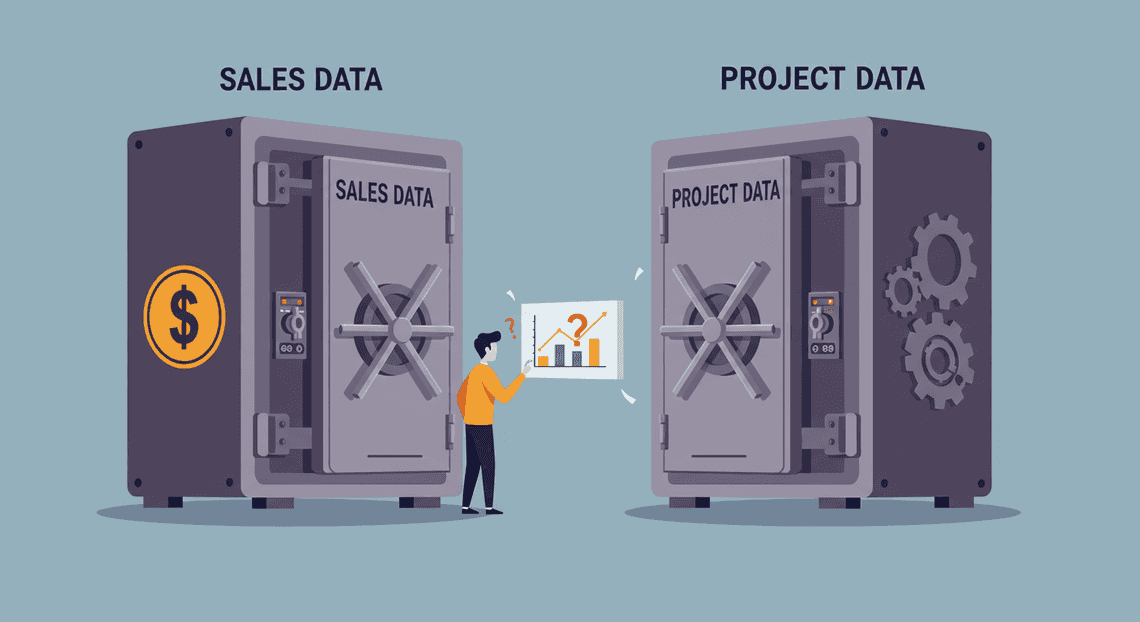
Data Silos: Each manual transfer of information is a degradation of data quality. Nuance is lost, context is stripped away, and there’s no persistent, queryable link between the “why” of the sale and the “how” of the delivery. The CRM knows the commercial drivers, while the project management tool knows the execution details. Without a systemic link, you can’t answer critical business questions like, “Which sales promises are hardest for us to deliver on?” or “Do projects with X feature in the SOW consistently go over budget?” The data exists, but it’s locked in separate vaults, rendering it inert.
Introducing an Autonomous Agent for Seamless Integration
What if we could dissolve the bridge and simply merge the two territories? This is the promise of an autonomous agent. We’re not talking about a simple “if this, then that” [Automated Job Creation in Real Time Jobber and Google Sheets Integration from Gmail](https://votuduc.com/Automated-Job-Creation-in-Jobber-from-Gmail-p115606) script. We’re talking about a cognitive system that can understand, reason, and act upon the rich, unstructured data that defines a customer engagement.
An autonomous agent, powered by a large language model like Gemini, acts as the digital connective tissue for the organization. It’s an always-on, perfectly consistent team member whose sole job is to understand the complete context of a closed deal and translate it into a perfectly provisioned project.
-
It reads everything: Call transcripts, email chains, SOWs, CRM notes.
-
It understands context: It identifies key stakeholders, extracts technical requirements, summarizes deliverables, and even flags potential risks mentioned in passing.
-
It takes action: It doesn’t just present a summary; it executes the setup. It creates the project in Jira, drafts the kickoff agenda in Google Docs, builds the standardized folder structure in Google Drive, and posts a comprehensive summary in a new Slack channel, tagging the assigned team.
This shifts the paradigm from a multi-step, human-gated process to a single, event-driven system. The handover becomes instantaneous, complete, and perfectly consistent, every single time.
The Architectural Blueprint: [Automatically create new folders in Google Drive, generate templates in new folders, fill out text automatically in new files, and save info in [Automated Web Scraping with [Multilingual Text-to-Speech Tool with SocialSheet Streamline Your Social Media Posting 123](https://votuduc.com/Multilingual-Text-to-Speech-Tool-with-Google-Workspace-p809282)](https://votuduc.com/Automated-Web-Scraping-with-Google-Sheets-p292968)](https://workspace.google.com/marketplace/app/auto_create_folder_and_files/430076014869) Meets Gemini
To build this agent, we don’t need to rip and replace our existing tools. We can orchestrate them intelligently. The architecture leverages the ubiquity of AC2F Streamline Your Google Drive Workflow as a central hub and the advanced reasoning capabilities of the Gemini API as the brain.
Here’s the high-level flow:
-
The Trigger: The process begins with a business event. A webhook from your CRM fires the moment a deal stage is updated to “Closed-Won”. This is our starting signal.
-
The Orchestrator (Google Cloud Functions): This webhook triggers a lightweight, serverless function. This function acts as the conductor, managing the flow of data and API calls.
-
The Context Collector: The function first gathers all relevant artifacts. Using APIs, it pulls the SOW from the CRM, finds related email threads using the Gmail API, and locates call transcripts or recordings stored in Google Drive.
-
The Brain (Gemini API): This is where the magic happens. The orchestrator passes all this collected raw data—text from emails, transcripts, PDFs—to the Gemini API with a carefully crafted prompt. The prompt instructs the model to act as an expert project manager, asking it to:
-
Synthesize all information into a definitive project summary.
-
Extract a structured list of key deliverables, technical specifications, and stakeholders (with contact info).
-
Generate a list of recommended initial tasks for the project plan.
-
Draft a welcome message for the project’s Slack channel.
- The Action Engine (Google & Third-Party APIs): The structured JSON output from Gemini is returned to the Cloud Function. The function then parses this output and uses it to perform a series of actions via APIs:
-
Google Drive API: Create a new project folder from a standardized template.
-
Google Docs API: Create a new “Project Brief” document and populate it with the Gemini-generated summary.
-
Jira/Asana API: Create a new project, populate the description, and use the extracted deliverables to create initial epics or tasks.
-
Slack API: Create a new channel, invite the stakeholders identified by Gemini, and post the generated welcome message and a link to the new Google Drive folder.
This architecture creates a robust, scalable, and intelligent system that transforms the handover from a point of friction into a powerful competitive advantage.
Designing the Automated Handover Workflow
With the strategic goals defined, we can now roll up our sleeves and architect the system. This is where we translate the high-level “what” into a concrete “how.” A robust workflow is more than just a sequence of API calls; it’s a carefully orchestrated dance of data, logic, and services designed for reliability and clarity. We’ll map out the entire process, from the initial trigger to the final deliverable, and define the role each component plays.
System Overview: From ‘Closed Won’ to Actionable Project Brief
Let’s start with a 10,000-foot view. The entire workflow is initiated by a single, critical event: a sales deal being marked as “Closed Won.” This is our starting pistol. The finish line is a complete, well-structured project handover package, ready for the delivery team to hit the ground running.
The journey between these two points looks like this:
-
Trigger: A project’s status in a Google Sheet (our stand-in for a CRM) is updated to “Closed Won”. This action is the catalyst for the entire Automated Quote Generation and Delivery System for Jobber.
-
Data Aggregation: An Automated Work Order Processing for UPS script wakes up, reads all the relevant data associated with that project from the Sheet—client details, raw scope notes, budget, timelines, and any other custom fields.
-
AI Transformation: The aggregated raw data is sent to the Gemini API. This is the core intelligence step. Gemini’s role is not just to copy the data but to understand, synthesize, and restructure it into a coherent, professional project brief. It extracts key objectives, identifies stakeholders, and formulates initial action items from unstructured sales notes.
-
Artifact Generation: The structured output from Gemini is used to programmatically generate the necessary project assets. This includes:
-
Creating a new, standardized project folder in Google Drive.
-
Generating a new Google Doc from a predefined template and populating it with the AI-crafted brief.
- Finalization & Notification: The system places the new project brief into the corresponding Drive folder, updates the original Google Sheet with links to these new assets for traceability, and sends out a notification to the project management team, signaling that a new project is ready for kickoff.
Visually, the flow is a straight line from raw data to refined intelligence:
[Google Sheet: Status Change] -> [Apps Script Trigger] -> [Data Collection] -> [Gemini API: Prompt & Process] -> [Google Drive API: Create Folder] -> [Google Docs API: Create & Populate Brief] -> [Notification]
This model ensures that every “Closed Won” deal consistently and instantly produces a high-quality starting point for the project team, eliminating manual data entry and interpretation errors.
The Core Components: Sheets, Gemini, Docs, and Drive
Our architecture is built on the robust and interconnected Automated Client Onboarding with Google Forms and Google Drive. ecosystem, with Gemini as the intelligent engine. Each component has a distinct and vital role.
-
Google Sheets: The Data Source
Role: Single Source of Truth for incoming project data.
For this implementation, Sheets serves as our lightweight CRM. It’s the repository where sales-related information is captured. An onEdit trigger monitors a specific “Status” column, making Sheets the active starting point of our workflow. We’ll structure it with clear columns like ClientName, ProjectTitle, RawScopeNotes, PrimaryContact, Budget, ProposedTimeline, and our trigger column, Status.
-
Gemini API: The Intelligence Layer
Role: The brain of the operation.
This is where the real transformation occurs. We don’t just pipe data from one place to another; we refine it. The Gemini API receives the unstructured text and disparate data points from Sheets. Through carefully crafted prompts, we instruct it to perform several tasks:
-
Summarize: Condense lengthy scope documents and call notes into a concise executive summary.
-
Structure: Organize the information under clear headings like “Objectives,” “Deliverables,” “Stakeholders,” and “Potential Risks.”
-
Extract: Identify and list key entities like personnel, deadlines, and technical requirements.
-
Infer: Generate a list of logical next steps or “Initial Action Items” based on the project scope, providing the delivery team with immediate momentum.
-
Google Docs: The Output Medium
Role: The final, human-readable project brief.
A raw text file or email isn’t enough. We need a professional, collaborative document. The Google Docs API allows us to create a new document, apply a corporate template for consistent branding, and programmatically insert the structured content generated by Gemini. This results in a polished, shareable brief that becomes the central artifact for the project kickoff.
-
Google Drive: The Organizational Hub
Role: The project’s digital filing cabinet.
Consistency is key to managing multiple projects. Before the brief is even created, our workflow uses the Google Drive API to create a standardized folder structure, for example: /Projects/[Client Name]/[Project Title]. This ensures that from day one, every project has a predictable home for all its related documents, designs, and assets. The newly generated Google Doc is then automatically saved in its rightful place.
Defining the Data Flow and Transformation Logic
Now, let’s connect these components with a step-by-step logical flow. This is the blueprint our code will follow.
- Trigger and Ingest:
-
The process begins with a user changing a cell in the
Statuscolumn of our master Google Sheet to “Closed Won”. -
An
onEdit(e)trigger in AI Powered Cover Letter Automation Engine fires, capturing the event objecte, which contains the range and value of the edited cell. -
The script validates that the new value is indeed “Closed Won” and that this row hasn’t been processed before (we’ll add a “Handover Status” column for this). It then reads the entire row of data into memory.
- Data Preparation and [Prompt Engineering for Reliable Autonomous Workspace Agents for Reliable Autonomous Workspace Agents](https://votuduc.com/prompt-engineering-for-reliable-autonomous-workspace-agents-p-20260319404106):
-
The script gathers the values from the relevant columns (
ClientName,RawScopeNotes, etc.) into variables. -
It then constructs a detailed, multi-part prompt for the Gemini API. This is the most critical step for getting a high-quality output. The prompt is not just a question; it’s a set of instructions that guides the model.
Pseudo-code for the prompt:
"You are an expert project manager responsible for creating clear, concise project briefs.

Based on the following raw data from our CRM:

- Client: {client_name_from_sheet}

- Project Title: {project_title_from_sheet}

- Raw Scope & Sales Notes: {raw_scope_notes_from_sheet}

- Budget: {budget_from_sheet}

- Timeline: {timeline_from_sheet}

Generate a project brief in Markdown format. The brief MUST include the following sections:

1.  **Project Summary:** A 2-3 sentence overview.

2.  **Key Objectives:** A bulleted list of 3-5 primary goals.

3.  **Core Deliverables:** A bulleted list of tangible outputs.

4.  **Key Stakeholders:** Identify the client contact and internal team roles needed.

5.  **Initial Action Items:** A numbered list of the first 3 steps the project team should take.

6.  **Potential Risks & Mitigations:** Identify one or two potential risks based on the scope and suggest a mitigation."
- AI-Powered Transformation:
-
The script makes a synchronous API call to the Gemini endpoint, sending the fully constructed prompt.
-
It awaits the response, which will contain the project brief as a Markdown-formatted string. Error handling is crucial here to manage API timeouts or unexpected responses.
- Artifact Generation and Population:
-
Drive: The script calls the
DriveAppservice to create the main project folder/Projects/[Client Name]/(if it doesn’t exist) and the specific subfolder/[Project Title]/. -
Docs: It uses
DocumentAppto create a new Google Doc. It then parses the Markdown response from Gemini. For each heading (e.g.,**Project Summary**), it appends a paragraph with a “Heading 2” style. For each bulleted list, it iterates through the items and appends them as list items. This converts the structured text into a richly formatted document.
- Finalization and Traceability:
-
The newly created Google Doc is moved from the root of Drive into the specific project folder created in the previous step.
-
The script writes back to the source Google Sheet. It populates the “Handover Status” column with “Complete” and fills two new columns, “Project Brief Link” and “Drive Folder Link,” with the URLs of the newly created assets. This closes the loop, providing a direct link from the original sales data to the live project artifacts.
Building the Agent: A Technical Deep Dive with Apps Script
Alright, let’s roll up our sleeves and get into the code. This is where the magic happens. We’ll use Genesis Engine AI Powered Content to Video Production Pipeline, the powerful JavaScript-based platform that lives inside Automated Discount Code Management System. Its native integration with Sheets, Docs, and Drive makes it the perfect tool for our agent, eliminating the need for complex external servers or authentication hoops.
Step 1: Setting Up the Google Sheet Trigger
Our entire automation hinges on a single event: a salesperson updating a status column in our Google Sheet. We need a trigger that listens for this specific change and kicks off our workflow. Apps Script provides simple triggers that are perfect for this.
The onEdit(e) trigger is a special function that automatically runs whenever any cell in the spreadsheet is edited by a user. The e parameter is an event object that contains a wealth of information about the edit—what cell was changed, its new value, its old value, and more.
Our first task is to filter this trigger. We don’t want our agent to fire on every single edit; that would be chaotic and inefficient. We only care when the “Status” column (let’s say it’s column 8) is changed to the specific value “Ready for Handoff”.
Here’s how we set up that initial logic:
// The main trigger function that runs on any edit in the sheet.

function onEdit(e) {

const sheet = e.source.getActiveSheet();

const range = e.range;

const editedRow = range.getRow();

const editedCol = range.getColumn();

const newValue = e.value;

// Define our trigger conditions

const TRIGGER_COLUMN = 8; // Column H for "Status"

const TRIGGER_VALUE = "Ready for Handoff";

const SHEET_NAME = "Sales Pipeline"; // Only run on this specific sheet

// Check if the edit happened on the correct sheet, column, and has the correct value

if (sheet.getName() === SHEET_NAME && editedCol === TRIGGER_COLUMN && newValue === TRIGGER_VALUE) {

// If conditions are met, start the handover process

Logger.log(`Trigger activated for row ${editedRow}. Starting project handover...`);

initiateProjectHandoff(editedRow);

}

}

// A placeholder for our main logic function

function initiateProjectHandoff(row) {

// We'll build this function out in the next steps.

const sheet = SpreadsheetApp.getActiveSpreadsheet().getSheetByName("Sales Pipeline");

const salesData = sheet.getRange(row, 1, 1, 7).getValues()[0]; // Get data from columns A-G for the triggered row

Logger.log('Collected Sales Data:', salesData);

// Next steps: Call Gemini API, create doc, etc.

}
To use this, simply open your Google Sheet, go to Extensions > Apps Script, and paste this code into the Code.gs file. Save the project, and your trigger is live.
Step 2: Calling the Gemini API to Interpret Sales Data
With our trigger in place, we now need to communicate with our AI brain: the Gemini API. This involves gathering the relevant data from our sheet, packaging it into an API request, and sending it off for processing.
We’ll use Apps Script’s built-in UrlFetchApp service to make the HTTP POST request. Before you run this, you need two things:
-
Your Gemini API Key: Get this from Google AI Studio.
-
Your Project ID: The ID of your Google Cloud project where the API is enabled.
Security Note: Never hardcode your API key directly in your script. Use the PropertiesService to store it securely as a script property. Go to Project Settings (the gear icon) in the Apps Script editor and add a new Script Property named GEMINI_API_KEY with your key as the value.
Here’s the function that handles the API call:
/**

* Calls the Gemini API with the provided sales data.

* @param {string} prompt The fully constructed prompt for the AI.

* @returns {string} The text response from the Gemini model.

*/

function callGeminiAPI(prompt) {

const API_KEY = PropertiesService.getScriptProperties().getProperty('GEMINI_API_KEY');

const API_URL = "https://generativelanguage.googleapis.com/v1beta/models/gemini-1.5-pro-latest:generateContent?key=" + API_KEY;

const requestBody = {

"contents": [{

"parts": [{

"text": prompt

}]

}],

"generationConfig": {

"temperature": 0.4,

"topK": 32,

"topP": 1,

"maxOutputTokens": 8192,

}

};

const options = {

'method': 'post',

'contentType': 'application/json',

'payload': JSON.stringify(requestBody),

'muteHttpExceptions': true // Important for debugging API errors

};

try {

const response = UrlFetchApp.fetch(API_URL, options);

const responseCode = response.getResponseCode();

const responseBody = response.getContentText();

if (responseCode === 200) {

const jsonResponse = JSON.parse(responseBody);

// Navigate through the JSON structure to get the actual text content

const generatedText = jsonResponse.candidates[0].content.parts[0].text;

return generatedText;

} else {

Logger.log(`API Error: ${responseCode} - ${responseBody}`);

return `Error: Failed to call Gemini API. Status code: ${responseCode}.`;

}

} catch (error) {

Logger.log(`Exception during API call: ${error.toString()}`);

return `Error: An exception occurred while contacting the Gemini API.`;

}

}
This function is robust. It securely retrieves the API key, builds the request payload, sends it, and includes error handling to log any issues that might occur during the call.
Step 3: Crafting the Perfect Prompt for Project Brief Generation
This is arguably the most critical step. The quality of our generated project brief is directly proportional to the quality of our prompt. A poorly written prompt will yield generic, unhelpful results. A well-structured prompt will give the project team exactly what they need.
Prompt engineering is both an art and a science. For this task, our prompt needs to include several key components:
-
Role and Goal: Tell the AI what it is and what its objective is.
-
Context: Provide all the raw data from the sales process.
-
Task: Give explicit, step-by-step instructions on what to do with the data.
-
Format: Define the exact structure and format of the desired output.
Let’s build a function that assembles this prompt dynamically using the data from our sheet.
/**

* Crafts a detailed prompt for Gemini based on sales data.

* @param {Array} salesData An array of values from the sheet row.

* @returns {string} The complete prompt string.

*/

function generatePrompt(salesData) {

// Assuming salesData is an array: [ClientName, ContactEmail, ServicesSold, DealValue, SalesNotes, ...]

const clientName = salesData[0];

const servicesSold = salesData[2];

const salesNotes = salesData[4];

const proposedTimeline = salesData[5];

// Using a template literal for a clean, multi-line prompt string.

const prompt = `

**ROLE AND GOAL:**

You are an expert Senior Project Manager. Your task is to analyze raw sales data and unstructured notes from a recently closed deal and transform them into a clear, concise, and actionable internal Project Brief document. This brief will be used by the delivery team (engineers, designers, project managers) to kick off the project successfully.

**CONTEXT (RAW SALES DATA):**

- Client Name: ${clientName}

- Services Sold: ${servicesSold}

- Raw Sales Notes: """${salesNotes}"""

- Proposed Timeline: ${proposedTimeline}

**TASK AND INSTRUCTIONS:**

1.  Read and comprehend all the provided sales data and notes.

2.  Synthesize this information to extract the core components of the project.

3.  Identify key stakeholders mentioned in the notes.

4.  Infer the primary business objectives the client is trying to achieve.

5.  Define a clear, in-scope list of deliverables based on the "Services Sold" and notes.

6.  Identify and list any potential risks, ambiguities, or questions that the project team needs to clarify during the kickoff meeting.

**OUTPUT FORMAT:**

Generate the brief using Markdown. The final output must strictly follow this structure:

# Project Brief: ${clientName}

## 1. Project Overview

A one-paragraph summary of the project's purpose and the client's main goal.

## 2. Key Objectives

A bulleted list of 2-4 primary, measurable business objectives for the project.

## 3. Scope of Work (SOW)

A clear, bulleted list of the key deliverables and services we are committed to providing.

## 4. Key Stakeholders

A list of known stakeholders (both client-side and internal, if mentioned) and their roles.

## 5. Potential Risks & Questions for Kickoff

A bulleted list of any potential challenges, unclear requirements, or specific questions the delivery team should ask the client.

`;

return prompt;

}
This prompt is specific, provides context, and dictates the exact output format, giving the AI a clear blueprint to follow.
Step 4: Using Apps Script to Create and Log the Final Document
The final piece of the puzzle is to take the beautifully formatted Markdown from Gemini and turn it into a tangible asset: a new Google Doc. We also need to close the loop by linking this new document back to our original Google Sheet for easy access and record-keeping.
For this, we’ll use the DocumentApp and DriveApp services to create the document and manage its location, and then write the document’s URL back into the sheet.
/**

* Creates a Google Doc from the Gemini content and logs the URL back to the sheet.

* @param {string} content The Markdown content generated by Gemini.

* @param {string} clientName The name of the client for the document title.

* @param {number} row The row number in the sheet to write the log back to.

*/

function createAndLogDocument(content, clientName, row) {

const sheet = SpreadsheetApp.getActiveSpreadsheet().getSheetByName("Sales Pipeline");

const FOLDER_ID = "YOUR_GOOGLE_DRIVE_FOLDER_ID_HERE"; // IMPORTANT: Replace with your target folder ID

const LOG_COLUMN = 9; // Column I for "Project Brief Link"

try {

// Format the document title

const date = new Date();

const formattedDate = `${date.getFullYear()}-${(date.getMonth() + 1).toString().padStart(2, '0')}-${date.getDate().toString().padStart(2, '0')}`;

const docTitle = `Project Brief - ${clientName} - ${formattedDate}`;

// Create the Google Doc

const newDoc = DocumentApp.create(docTitle);

const body = newDoc.getBody();

// Append the content from Gemini

// While DocumentApp doesn't natively render Markdown, appending it as plain text is often sufficient and readable.

// For advanced formatting, you would need a Markdown parser library.

body.setText(content);

newDoc.saveAndClose();

// Move the new document to the specified project folder

const file = DriveApp.getFileById(newDoc.getId());

const folder = DriveApp.getFolderById(FOLDER_ID);

folder.addFile(file);

DriveApp.getRootFolder().removeFile(file); // Remove it from the root folder

// Get the URL and log it back to the sheet

const docUrl = newDoc.getUrl();

sheet.getRange(row, LOG_COLUMN).setValue(docUrl);

Logger.log(`Successfully created document: ${docUrl}`);

} catch (error) {

Logger.log(`Error creating document: ${error.toString()}`);

// Optionally, write an error status back to the sheet

sheet.getRange(row, LOG_COLUMN).setValue(`Error: ${error.message}`);

}

}
Now, we just need to tie all these functions together in our main initiateProjectHandoff function:
// The complete main logic function

function initiateProjectHandoff(row) {

const sheet = SpreadsheetApp.getActiveSpreadsheet().getSheetByName("Sales Pipeline");

// Get data from columns A-G (Client Name to Timeline)

const salesData = sheet.getRange(row, 1, 1, 7).getValues()[0];

const clientName = salesData[0];

// Step 1: Generate the prompt

Logger.log('Generating prompt...');

const prompt = generatePrompt(salesData);

// Step 2: Call the Gemini API

Logger.log('Calling Gemini API...');

const generatedBrief = callGeminiAPI(prompt);

// Step 3: Create the document and log it

if (!generatedBrief.startsWith("Error:")) {

Logger.log('Creating Google Doc...');

createAndLogDocument(generatedBrief, clientName, row);

sheet.getRange(row, 8).setValue("Handoff Complete"); // Update status

} else {

Logger.log(`Failed to generate brief: ${generatedBrief}`);

sheet.getRange(row, 9).setValue(generatedBrief); // Log the error in the link column

}

}
And there you have it. A complete, end-to-end workflow within Apps Script that listens for a trigger, queries a powerful AI model, and creates a valuable project asset, all automatically.
Enhancing and Scaling Your Handover Architecture
You’ve built the V1. The core logic works: it pulls data, gets a summary from Gemini, and creates a document. It’s a fantastic proof-of-concept. But moving from a clever script to a production-grade, reliable system requires thinking about what happens when things go wrong, how to adapt to new requirements, and how to break free from the constraints of your initial data source. This is where we harden the architecture, making it resilient, flexible, and truly integrated into your business workflows.
Implementing Robust Error Handling and Notifications
The “happy path” is a beautiful, serene place where APIs are always available, data is perfectly formatted, and LLMs behave exactly as you expect. Reality is a far more chaotic environment. Your agent will inevitably encounter network glitches, malformed inputs, and unexpected API responses. Without a strategy for this, your silent automation will become a silent failure.
Key Failure Points to Anticipate:
-
API Unavailability: The Google Drive, Sheets, or Gemini APIs might be temporarily down or return a
5xxserver error. -
Rate Limiting: Making too many calls in a short period can get your agent temporarily blocked.
-
Permission Errors: A service account’s permissions might change, revoking its access to a critical folder or file.
-
Data Validation Failures: The source sheet might have a missing “Project Manager” column, or a key value might be incorrectly formatted.
-
Unexpected LLM Output: Gemini might not return the perfectly structured JSON you requested, especially if the input data is ambiguous.
Strategies for a Resilient System:
- Retry with Exponential Backoff: For transient issues like network errors or rate limiting, don’t just fail immediately. Implement a retry mechanism. A common strategy is exponential backoff: wait 1 second after the first failure, 2 seconds after the second, 4 after the third, and so on. This prevents overwhelming a struggling service.
# Using the 'tenacity' library in Python makes this trivial

from tenacity import retry, stop_after_attempt, wait_exponential

@retry(wait=wait_exponential(multiplier=1, min=2, max=60), stop=stop_after_attempt(5))

def call_gemini_with_retry(prompt):

"""

This function will be retried up to 5 times with exponential backoff

if it raises an exception.

"""

print("Attempting to call Gemini API...")

# Your actual Gemini API call logic here

response = model.generate_content(prompt)

# Add validation to ensure response is valid before returning

if not response.text:

raise ValueError("Received empty response from Gemini.")

return response.text
-
Dead-Letter Queues (DLQ): What happens if a handover request fails even after all retries? You don’t want a single problematic project to halt the entire system. If your architecture is event-driven (e.g., a Cloud Function triggered by a Pub/Sub message), you can configure a DLQ. After a set number of failed processing attempts, the triggering message is automatically moved to a separate “dead-letter” topic. This isolates the problematic event and allows you to inspect it manually without losing the data or blocking other handovers.
-
Proactive Notifications: When things do go permanently wrong, silence is your enemy. The system needs to tell someone.
-
Logging and Alerting: Use structured logging (e.g., JSON-formatted logs in Google Cloud Logging) to record errors with rich context. Set up alerts in your monitoring system (like Google Cloud Monitoring) to trigger on a high rate of errors or specific log messages (e.g., “Permission Denied on Drive folder X”).
-
Direct Notifications: For critical failures, send an automated, detailed message to a dedicated Slack channel or a PagerDuty service. This allows the on-call team to react immediately.
# A simple example of posting to a Slack webhook

import requests

import json

def notify_slack_of_failure(project_name, error_message, log_url):

slack_webhook_url = "YOUR_SLACK_WEBHOOK_URL" # Store this in a secret manager!

payload = {

"text": f":x: **Project Handover Failed for `{project_name}`**",

"blocks": [

{

"type": "section",

"text": {

"type": "mrkdwn",

"text": f":x: *Project Handover Failed for `{project_name}`*"

}

},

{

"type": "section",

"fields": [

{"type": "mrkdwn", "text": f"*Error:*\n```{error_message}```"},

{"type": "mrkdwn", "text": f"*Logs:*\n<{log_url}|View Logs>"}

]

}

]

}

requests.post(slack_webhook_url, data=json.dumps(payload))
Expanding the Agent for Different Project Types or Departments
Your first agent was built for one specific workflow: let’s say, handing over a “Standard Enterprise Project” from Sales to Implementation. But what happens when the Marketing department wants to use it for campaign handovers, or the “SMB” sales team has a completely different set of required documents? Hardcoding the logic, prompts, and document templates for a single use case will quickly create a maintenance nightmare.
The solution is to move from a hardcoded script to a configuration-driven architecture.
Instead of embedding logic in your code, you externalize it into configuration files (e.g., YAML or JSON). Your agent’s main function becomes a generic orchestrator that reads a configuration based on the project type and then acts accordingly.
Example Configuration File (smb_project_config.yaml):
project_type_id: "smb_sales_to_support"

description: "Handover process for Small-to-Medium Business clients from Sales to the Support team."

source_config:

type: "google_sheet"

# Mapping of sheet columns to standardized internal names

field_mappings:

customer_name: "Client Name"

account_id: "Account ID"

project_scope: "Deal Summary"

contract_value: "ARR"

# List of keywords to identify required documents in the project folder

required_documents:

- "contract"

- "order form"

- "final proposal"

# The heart of the customization

gemini_prompt_template: |

You are an expert project handover assistant.

Summarize the following project information for a smooth handover to our Support team.

Focus on the key support requirements, contract value, and immediate next steps.

Format the output as a JSON object with the keys: "client_summary", "key_personnel", "contract_highlights", and "onboarding_tasks".

Customer: {customer_name}

Account ID: {account_id}

Scope: {project_scope}

Contract Value: ${contract_value}

Contents of relevant documents:

{document_contents}

# Where to put the final output

target_config:

destination_folder_id: "abc123_smb_support_handovers_folder"

document_template_id: "xyz789_smb_handover_template"

output_filename_format: "{customer_name} - Handover Summary - {date}"
With this approach, your orchestration logic becomes:
-
Identify Project Type: Determine the type of handover from the incoming data (e.g., a “Project Type” column in the sheet, the name of the source folder).
-
Load Configuration: Load the corresponding YAML file (e.g.,
smb_project_config.yaml). -
Execute Steps Dynamically:
-
Use
source_config.field_mappingsto pull the correct data. -
Use
required_documentsto search for the right files. -
Use
gemini_prompt_templateto dynamically build the prompt with the fetched data. -
Use
target_configto save the final document in the correct location with the right naming convention.
Onboarding a new department is now a matter of creating a new configuration file, not a multi-day coding effort.
Integrating with External CRMs Beyond Google Sheets
Google Sheets is a fantastic, accessible starting point, but the source of truth for project and customer data in most organizations is a CRM like Salesforce, HubSpot, or a project management tool like Jira. To make your agent truly powerful, it needs to meet users where they work. This means moving beyond Sheets and integrating directly with these platforms.
This requires a shift in two areas: the trigger and the data source adapter.
-
Decouple the Trigger: Instead of triggering your Cloud Function from a change in a Google Sheet, expose it as a generic HTTP endpoint. This turns your agent into a webhook that any external system can call. For even greater resilience, use a message queue like Google Pub/Sub as an intermediary. The external system publishes an event (e.g.,
{"projectId": "001Abc...", "source": "Salesforce"}), and your function subscribes to that topic. -
Implement the Adapter Pattern: Don’t litter your main logic with
if source == 'salesforce'statements. Create a clean separation of concerns using the Adapter pattern. You’ll have a common interface that your orchestrator understands, and a concrete implementation for each CRM.
# Define the common interface (conceptual)

class CrmAdapter:

def get_project_data(self, project_id):

# Must return a standardized dictionary of project data

raise NotImplementedError

def post_handover_summary(self, project_id, summary_url):

# Must post the link to the generated summary back to the CRM

raise NotImplementedError

# Implementation for Salesforce

class SalesforceAdapter(CrmAdapter):

def __init__(self, credentials):

# Initialize Salesforce API client (e.g., simple-salesforce)

self.sf = Salesforce(username=..., password=..., security_token=...)

def get_project_data(self, opportunity_id):

# Query Salesforce API for Opportunity, Account, and related file data

# ...

# Transform the SFDC data into your standard format

return {"customer_name": sf_data['Account']['Name'], ...}

def post_handover_summary(self, opportunity_id, summary_url):

# Update a custom field on the Opportunity or create a new Task

self.sf.Opportunity.update(opportunity_id, {'Handover_Summary_URL__c': summary_url})

# Implementation for Google Sheets (your original logic)

class GoogleSheetsAdapter(CrmAdapter):

# ... your existing logic to read a row from a sheet
Your main orchestrator now looks much cleaner and is completely agnostic to the data source:
def main_orchestrator(event):

# 1. Determine the source and project ID from the event

source = event['source'] # e.g., 'Salesforce'

project_id = event['projectId'] # e.g., '001Abc...'

# 2. Get the right adapter

if source == 'Salesforce':

adapter = SalesforceAdapter(get_salesforce_credentials())

elif source == 'GoogleSheets':

adapter = GoogleSheetsAdapter(get_gcp_credentials())

else:

raise ValueError(f"Unknown source: {source}")

# 3. Use the adapter to fetch data

project_data = adapter.get_project_data(project_id)

# 4. ... (The rest of your logic: call Gemini, create doc) ...

summary_doc_url = create_summary_document(...)

# 5. Use the adapter to post the result back

adapter.post_handover_summary(project_id, summary_doc_url)
By abstracting the data source, you’ve created a plug-and-play architecture. Integrating with HubSpot, Jira, or any other platform with an API becomes a matter of writing a new adapter, not re-architecting your entire solution.
Conclusion: From Fragmented Data to a Unified Project Pipeline
We’ve journeyed from the familiar chaos of manual project handovers—a landscape defined by scattered documentation, tribal knowledge, and last-minute scrambles—to the blueprint of an intelligent, automated system. The architecture we’ve outlined isn’t just a theoretical exercise; it’s a practical framework for transforming one of the most error-prone processes in the software development lifecycle. By leveraging a Gemini-powered agent, we move beyond simple data aggregation. We enable genuine knowledge synthesis, creating a cohesive, context-aware narrative from the disparate signals buried within our Git commits, Jira tickets, and Slack channels. This is the shift from a fragmented past to a unified, intelligent future for project delivery.
The Transformative Impact of an Automated Handover System
The true value of this architecture extends far beyond saving a few hours on documentation. It represents a fundamental change in how teams collaborate and preserve institutional knowledge.
-
From Toil to Automation: The most immediate impact is the drastic reduction in manual, repetitive work. Engineers and project managers are liberated from the tedious task of hunting down information and formatting documents. This frees up high-value cognitive cycles for what they do best: solving complex problems and building innovative products. Handovers that once consumed days of coordinated effort can be initiated and largely completed in minutes.
-
From Ambiguity to Clarity: The Gemini agent acts as the ultimate source of truth, enforcing consistency and completeness. By programmatically analyzing project artifacts against a defined template, it eliminates the “it depends on who wrote it” factor. Every handover package—from API documentation and environment variable lists to architectural decision records—is generated with the same high standard of quality, dramatically reducing the risk of misconfiguration, failed deployments, and post-handover support escalations.
-
From Reactive to Proactive: A truly intelligent system doesn’t just report what’s there; it identifies what’s missing. The agent can be trained to flag inconsistencies, such as undocumented API endpoints mentioned in commit messages or missing test coverage for a new feature described in a Jira ticket. This transforms the handover from a reactive, historical report into a proactive quality gate, ensuring projects are truly “done” before they are passed on.
-
From Silos to Synthesis: Perhaps the most profound impact is cultural. This system breaks down information silos by design. Knowledge is no longer trapped in a single developer’s head or a forgotten Slack thread. It is continuously captured, synthesized, and made accessible. This fosters a culture of shared ownership and builds a living, evolving knowledge base that becomes more valuable with every project.
Your Next Steps in Building a Smarter Workflow
Embarking on this journey doesn’t require a complete organizational overhaul. The path to an intelligent handover pipeline is an iterative one, built on strategic, incremental steps.
-
Identify Your Biggest Pain Point: Don’t try to boil the ocean. Start by pinpointing the single most frustrating and time-consuming part of your current handover process. Is it collating release notes? Documenting environment configurations? Summarizing the business context of a new feature set? Focus your initial efforts there. A small, decisive win will build momentum and demonstrate immediate value.
-
Build a Proof of Concept (PoC): Scope a small project to tackle that one pain point. Connect your Gemini agent to a single, high-signal data source (e.g., your Git repository’s commit history for the last release). Work on crafting a robust prompt that reliably extracts and formats the specific information you need. The goal here is learning, not perfection.
-
Master the Art of the Prompt: Your agent is only as smart as the instructions you give it. Treat your prompts like code. Version them, test them against various inputs, and refine them iteratively. Invest time in mastering techniques like few-shot prompting (providing examples of the desired output) and chain-of-thought reasoning to guide the model toward more accurate and structured results. The quality of your output is directly proportional to the quality of your prompt engineering.
-
Integrate and Automate: Once your PoC is delivering consistent results, the next step is to embed it into your existing workflows. Use webhooks from GitHub, GitLab, or Jira to trigger your agent automatically. Integrate its execution into your CI/CD pipeline, making the generation of handover documentation a standard, non-negotiable step for every release. This is where the system transitions from a helpful tool to a core component of your development practice.
By starting small and building incrementally, you can steadily move your organization away from the friction of manual processes and toward the fluid efficiency of an AI-augmented workflow. The future isn’t about replacing human expertise but amplifying it, ensuring that every project handover is a seamless transfer of knowledge, not a source of risk.


Stop Doing Manual Work. Scale with AI.
Want to turn these blog concepts into production-ready reality for your team?
Table Of Contents
Portfolios
Related Posts
Quick Links
Legal Stuff