

Build a Smart Inbox Agent with Apps Script and Gemini


Your inbox isn’t just full; it’s complex. Stop letting sprawling email threads kill your productivity and learn how to distill them into actionable intelligence.

The Problem: Information Overload in Your Inbox
The modern inbox is less of a communication tool and more of a battleground for our attention. It’s a relentless stream of notifications, newsletters, and, most critically, complex conversations that demand significant cognitive overhead. The core challenge isn’t just the volume of email; it’s the density and complexity of the information locked within them. Our goal is to move from being reactive custodians of a cluttered inbox to proactive consumers of distilled, actionable intelligence.
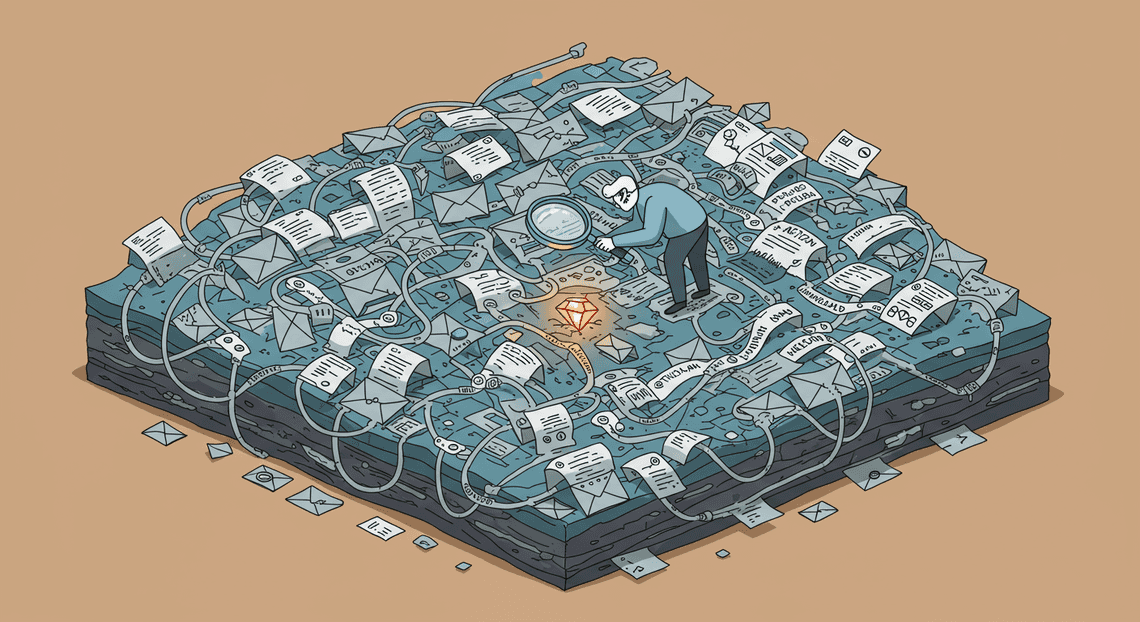
Why High-Context Email Threads Are a Productivity Killer
Single, direct emails are easy to process. The real productivity drain comes from long, high-context email threads—the sprawling conversations involving multiple participants, replies, forwards, and inline comments. These threads are productivity killers for several key reasons:
-
Time-Consuming Reconstruction: To understand the current state of a conversation, you’re forced to act like a digital archaeologist. You have to scroll through a dozen replies, mentally filter out signatures and pleasantries, and piece together the timeline of decisions and action items. A five-minute task can easily balloon into a thirty-minute deep dive.
-
High Cognitive Load: Each time you re-engage with a long thread, your brain has to reload the entire context. Who said what? What was the last decision made? Is this attachment the most recent version? This constant context-switching fragments your focus and drains mental energy that could be better spent on deep work.
-
Buried Action Items: Critical tasks and responsibilities are often buried deep within the body of a reply-to-all. Without a system to systematically excavate them, they are easily missed, leading to dropped balls, project delays, and miscommunication. The signal-to-noise ratio is punishingly low.
Simply put, manually parsing these threads is an inefficient, error-prone process that doesn’t scale.
The Goal: An Automated Daily Briefing Agent
Instead of manually wading through this digital deluge each morning, imagine a different reality. You start your day with a single, concise document waiting for you. This document is your personalized daily briefing, automatically generated by an intelligent agent.
This agent will be designed to:
-
Identify important, lengthy, and unread email threads from the previous day.
-
Extract the entire conversation context from each identified thread.
-
Analyze the text using a powerful language model to understand the discussion.
-
Summarize the key points, distill the final decisions made, and explicitly list any action items and who they are assigned to.
-
Compile these summaries into a clean, well-formatted Google Doc, delivered to you and ready for review.
The objective is to transform raw, unstructured email data into a structured, high-signal intelligence report. This agent will do the heavy lifting of context reconstruction, allowing you to grasp the state of key projects in minutes, not hours.
Our Technical Blueprint: GmailApp, Gemini, and DocumentApp
To build this agent, we don’t need external servers or complex infrastructure. We can construct the entire solution using the powerful, integrated services available directly within [Automatically create new folders in Google Drive, generate templates in new folders, fill out text automatically in new files, and save info in [Automated Web Scraping with [Multilingual Text-to-Speech Tool with SocialSheet Streamline Your Social Media Posting 123](https://votuduc.com/Multilingual-Text-to-Speech-Tool-with-Google-Workspace-p809282)](https://votuduc.com/Automated-Web-Scraping-with-Google-Sheets-p292968)](https://workspace.google.com/marketplace/app/auto_create_folder_and_files/430076014869), orchestrated by [AI Powered Cover Letter [Automated Job Creation in Real Time Jobber and Google Sheets Integration from Gmail](https://votuduc.com/Automated-Job-Creation-in-Jobber-from-Gmail-p115606) Engine](https://votuduc.com/AI-Powered-Cover-Letter-Automated Quote Generation and Delivery System for Jobber-Engine-p111092).
Our technical stack will consist of three core components:
-
GmailApp: This is our gateway to the inbox. TheGmailAppservice in Apps Script provides the essential methods to programmatically search for, access, and read email threads and messages. We will use it to fetch the raw content that our agent needs to process. -
Gemini API: This is the intelligence layer of our application. We will make API calls to a Google Gemini model to perform the sophisticated natural language understanding tasks. Gemini will take the raw text of an email thread as input and, based on our carefully crafted prompts, return a structured summary, key decisions, and a list of action items.
-
DocumentApp: This is our output and presentation layer. Once we have the processed intelligence from Gemini, we’ll use theDocumentAppservice to programmatically create a new Google Doc, format it with headings and bullet points, and populate it with the daily briefing. This provides a persistent, shareable, and easily readable artifact of the agent’s work.
Together, these three services form a robust and elegant stack. Apps Script acts as the serverless glue, GmailApp provides the data, and Gemini provides the analytical power to create our Smart Inbox Agent.
Prerequisites and Environment Setup
Before we dive into the code, let’s lay the groundwork. A solid foundation is key to a smooth development process. This section will walk you through setting up your Google Cloud and Apps Script environments, ensuring they can communicate with each other and have the necessary permissions to operate.
Configuring Your Google Cloud Project for Gemini
While Apps Script is a fantastic serverless environment, accessing powerful services like the Gemini API requires a standard Google Cloud Platform (GCP) project. This project handles billing, authentication, and API management. Don’t worry, the Building Self Correcting Agentic Workflows with Vertex AI free tier is quite generous, and you’re unlikely to incur costs for a personal project like this.
- Create or Select a GCP Project:
- Navigate to the Google Cloud Console.
If you have an existing project you’d like to use, select it. Otherwise, click the project dropdown at the top of the page and select* “New Project”**. Give it a descriptive name like Gemini Inbox Agent.
- Enable Billing:
- APIs that connect to external services, including Vertex AI (which hosts Gemini), require a billing account to be enabled.
From the navigation menu (☰), select* “Billing”**.
- If your project isn’t linked to an account, you’ll be prompted to link or create one. This step is mandatory, but again, you’ll likely stay within the free tier.
- Enable the Vertex AI API:
-
This is the crucial step that grants your project access to Gemini.
-
Use the search bar at the top of the console and search for “Vertex AI API”.
Select it from the results and click the* “Enable”** button. If it’s already enabled, you’re all set.
- Get Your Project Number:
- We need to link this GCP project to our Apps Script project. The easiest way is with the Project Number.
In the Google Cloud Console, go to your* Dashboard**.
Find the* “Project info” card. Copy the Project number**—we’ll need it in the next step.
Step 1: Fetching and Preparing Gmail Data
Before we can ask our AI to do anything smart, we need to give it something to work with. The first and most critical step is to programmatically access our Gmail inbox, pinpoint the emails we care about, and transform their raw, messy content into a clean, structured format that the Gemini API can easily understand. This process is all about data preparation—turning unstructured email conversations into a pristine dataset ready for analysis.
Fortunately, Genesis Engine AI Powered Content to Video Production Pipeline provides a powerful, native service called GmailApp that makes this surprisingly straightforward. Let’s dive in and write the code to pull this data.
Using GmailApp to Target Unread Threads
Our goal is to build an agent that processes new emails, so our first task is to fetch only the unread conversations. The GmailApp service integrates seamlessly with Gmail’s powerful search functionality. This means we can use the same search operators you’d type into the Gmail search bar directly in our code.
We’ll use the search query is:unread to grab all unread threads. A “thread” in Gmail is a single conversation, which can contain multiple messages (the initial email and all its replies). Working with threads is crucial because it gives our AI the full context of a conversation, not just an isolated, out-of-context reply.
Here’s how we can fetch the 5 most recent unread threads:
// The main function that will orchestrate our agent's tasks.

function processInbox() {

// Use the same search operators as in the Gmail search bar.

const query = 'is:unread';

// GmailApp.search() returns an array of GmailThread objects.

// We limit it to 5 threads to stay within execution limits and manage API costs.

// You can adjust this number as needed.

const threads = GmailApp.search(query, 0, 5);

// Now, we'll iterate over these threads to process them.

threads.forEach(thread => {

// We will add the processing logic in the next steps.

Logger.log(`Processing thread with subject: "${thread.getFirstMessageSubject()}"`);

});

}
This snippet is our foundation. It finds the relevant threads and prepares us to loop through each one. We limit the pull to 5 threads for now—this is a good practice during development to avoid hitting Google’s script execution time limits and to keep our API calls predictable.
Extracting and Cleaning Conversation Content
Now that we have our target threads, we need to extract the actual content from each message within them. An email isn’t just a block of text; it’s a collection of metadata (sender, recipient, date) and a body that can be filled with HTML, CSS, signatures, and quoted replies from previous messages. Our job is to strip all of that away, leaving only the pure, conversational text.
For each GmailThread, we’ll iterate through its GmailMessage objects. For each message, we’ll grab three key pieces of information:
-
Sender: Using
message.getFrom() -
Date: Using
message.getDate() -
Body: Using
message.getPlainBody()
Using getPlainBody() instead of getBody() is a critical choice. getBody() returns the full HTML content, which is full of “noise” (like <div>, <span>, and style attributes) that provides no semantic value to the language model. getPlainBody() gives us just the text, which is exactly what we need.
We also need to perform some basic cleaning. Email replies often include the entire previous message, prefixed with characters like >. We can use a simple regular expression to remove these quoted lines and other common email clutter.
/**

* Extracts, cleans, and formats the content of a single Gmail thread.

* @param {GoogleAppsScript.Gmail.GmailThread} thread The Gmail thread to process.

* @return {string} A formatted string containing the entire conversation.

*/

function getFormattedConversation(thread) {

let conversationContent = '';

const messages = thread.getMessages();

messages.forEach(message => {

const sender = message.getFrom();

const date = message.getDate().toUTCString(); // Standardize the date format

let body = message.getPlainBody();

// --- Basic Cleaning ---

// Remove quoted reply lines (lines starting with '>')

body = body.replace(/^>.*$/gm, '');

// A more aggressive clean to remove common reply headers like "On [Date], [Name] wrote:"

body = body.replace(/On\s.*wrote:/g, '');

// Trim whitespace from the start and end of the body

body = body.trim();

// Only add non-empty messages to the conversation

if (body) {

conversationContent += `From: ${sender}\nDate: ${date}\n---\n${body}\n\n===\n\n`;

}

});

return conversationContent;

}
This function takes a GmailThread object and returns a single, clean string representing the entire conversation, with each message clearly demarcated.
Consolidating Thread Data for API Payload
The final step in our data preparation phase is to structure the cleaned conversation into a format that we can easily send to the Gemini API. The API expects a clear, coherent prompt. By consolidating all messages from a thread into a single, well-formatted string, we create a perfect, self-contained context for the AI.
Our getFormattedConversation function already does most of the work. It creates a “transcript” of the conversation, separating each message with a clear === marker. This format is highly readable for both humans and language models.
Let’s integrate this function into our main processing loop. We’ll create an array of objects, where each object contains the original thread ID (so we can act on it later, like marking it as read) and the clean, consolidated conversation payload.
// The main function that will orchestrate our agent's tasks.

function processInbox() {

const query = 'is:unread';

const threads = GmailApp.search(query, 0, 5);

// This array will hold the data we'll eventually send to the Gemini API.

const apiPayloads = [];

threads.forEach(thread => {

const conversation = getFormattedConversation(thread);

// We only want to process threads that have actual content.

if (conversation) {

apiPayloads.push({

threadId: thread.getId(),

subject: thread.getFirstMessageSubject(),

content: conversation

});

}

});

// At this point, apiPayloads contains everything we need for the next step.

// We can log it to see the result.

Logger.log(JSON.stringify(apiPayloads, null, 2));

}

/**

* Extracts, cleans, and formats the content of a single Gmail thread.

* (This is the same function from the previous section)

* @param {GoogleAppsScript.Gmail.GmailThread} thread The Gmail thread to process.

* @return {string} A formatted string containing the entire conversation.

*/

function getFormattedConversation(thread) {

// ... function content from above ...

let conversationContent = '';

const messages = thread.getMessages();

messages.forEach(message => {

const sender = message.getFrom();

const date = message.getDate().toUTCString();

let body = message.getPlainBody().replace(/^>.*$/gm, '').replace(/On\s.*wrote:/g, '').trim();

if (body) {

conversationContent += `From: ${sender}\nDate: ${date}\n---\n${body}\n\n===\n\n`;

}

});

return conversationContent;

}
After running this code, the apiPayloads array will hold a collection of neatly structured objects. Each object is a self-contained package with all the information Gemini needs to understand a specific email conversation. We have successfully transformed raw inbox data into a clean, API-ready payload. Now, we’re ready for the exciting part: sending this data to Gemini for analysis.
Step 2: Synthesizing Context with Gemini 2.5 Pro
With the raw text of our email in hand, it’s time for the magic. We’re moving beyond simple keyword matching and into the realm of true comprehension. In this step, we’ll send the email content to Google’s Gemini 2.5 Pro model to analyze, summarize, and categorize it. This model is a powerhouse, capable of understanding nuance, context, and intent, making it the perfect brain for our smart inbox agent.
Designing an Effective Prompt for Summarization and Categorization
The quality of the output from a large language model is directly proportional to the quality of the input prompt. A lazy prompt gets a lazy answer. A specific, well-structured prompt gets a specific, well-structured answer. Since our goal is Automated Work Order Processing for UPS, we need a predictable, machine-readable format. JSON is the perfect candidate.
Our [Prompt Engineering for Reliable Autonomous Workspace Agents for Reliable Autonomous Workspace Agents](https://votuduc.com/prompt-engineering-for-reliable-autonomous-workspace-agents-p-20260319404106) goal is twofold:
-
Instruct the model on its role and task.
-
Demand a specific JSON structure for the output.
Let’s build a robust prompt that accomplishes this. We’ll use a “zero-shot” approach, meaning we’ll describe what we want without providing explicit examples, relying on the model’s powerful reasoning capabilities.
Here’s a look at the prompt template we’ll use. Notice how it defines a persona, outlines the tasks, and provides a strict schema for the JSON output.
/**

* Creates a structured prompt for the Gemini API to analyze an email.

* @param {string} emailBody - The plain text content of the email.

* @return {string} The complete prompt string.

*/

function createGeminiPrompt(emailBody) {

// We define our categories and actions here to ensure consistency.

const categories = ['URGENT_ACTION_REQUIRED', 'IMPORTANT_INQUIRY', 'PROMOTION_MARKETING', 'GENERAL_UPDATE', 'PERSONAL', 'SPAM_JUNK'];

const actions = ['NEEDS_IMMEDIATE_REPLY', 'REPLY_WHEN_POSSIBLE', 'REVIEW_LATER', 'ARCHIVE', 'DELETE'];

// The core prompt structure. Using a template literal makes it easy to read and inject variables.

return `

You are an expert executive assistant responsible for managing a high-volume inbox.

Your task is to process an email and return a structured JSON object with your analysis.

Analyze the following email content:

--- EMAIL CONTENT START ---

${emailBody}

--- EMAIL CONTENT END ---

Based on the content, provide the following analysis in a valid JSON format.

Do NOT include any text or markdown formatting before or after the JSON object.

The JSON object must conform to the following schema:

{

"summary": "A concise, one-sentence summary of the email's primary purpose.",

"category": "Classify the email into ONE of the following categories: ${categories.join(', ')}.",

"suggested_action": "Suggest the most logical next step from this list: ${actions.join(', ')}.",

"sentiment": "Analyze the overall tone of the email. Must be one of: POSITIVE, NEUTRAL, or NEGATIVE.",

"key_entities": ["An array of up to 5 key entities (people, organizations, dates, or topics) mentioned in the email."]

}

`;

}
This prompt is effective because:
-
Role-Playing: “You are an expert executive assistant…” puts the model in the correct mindset.
-
Clear Delimiters: Using
--- EMAIL CONTENT START ---and--- EMAIL CONTENT END ---helps the model distinguish the instructions from the data it needs to analyze. -
Strict Output Formatting: We explicitly demand a JSON object and nothing else. This is critical for reliable parsing later.
-
Constrained Choices: By providing a list of valid
categoriesandsuggested_actions, we force the model to give us predictable outputs that our script can easily handle with aswitchstatement orif/elselogic.
Executing the API Call via UrlFetchApp
Now that we have our prompt, we need to send it to the Gemini API. In [Architecting Multi Tenant AI Workflows in Building Modular Agentic Apps Script with Gemini Function Calling](https://votuduc.com/architecting-multi-tenant-ai-workflows-in-google-apps-script-p-20260321290501), the go-to service for any external HTTP request is UrlFetchApp. It’s a robust and simple way to interact with web services.
First, ensure you have your Gemini API key. For security, you should never hardcode secrets directly in your script. Use Apps Script’s PropertiesService to store it securely.
-
Go to Project Settings (the gear icon ⚙️).
-
Scroll down to Script Properties and add a new property.
-
Name it
GEMINI_API_KEYand paste your key as the value.
Now, we can write the function to call the API. This function will construct the request body, set the necessary headers, and handle the API call itself.
/**

* Calls the Gemini API with a given prompt.

* @param {string} prompt - The prompt to send to the Gemini API.

* @return {GoogleAppsScript.URL_Fetch.HTTPResponse | null} The raw HTTP response from the API, or null on failure.

*/

function callGeminiApi(prompt) {

// Retrieve the API key securely from Script Properties.

const API_KEY = PropertiesService.getScriptProperties().getProperty('GEMINI_API_KEY');

if (!API_KEY) {

Logger.log('Error: GEMINI_API_KEY not found in Script Properties.');

return null;

}

// The Gemini 2.5 Pro API endpoint.

const API_URL = `https://generativelanguage.googleapis.com/v2/models/gemini-2.5-pro:generateContent?key=${API_KEY}`;

// The payload must match the structure expected by the Gemini API.

const payload = {

"contents": [{

"parts": [{

"text": prompt

}]

}]

};

// The options for the UrlFetchApp call.

const options = {

'method': 'post',

'contentType': 'application/json',

'payload': JSON.stringify(payload),

'muteHttpExceptions': true // IMPORTANT: This prevents the script from crashing on API errors (e.g., 400, 500).

};

try {

const response = UrlFetchApp.fetch(API_URL, options);

Logger.log(`API Response Code: ${response.getResponseCode()}`);

return response;

} catch (e) {

Logger.log(`Error calling Gemini API: ${e.toString()}`);

return null;

}

}
Key things to note here:
-
muteHttpExceptions: true: This is a crucial setting. By default, Apps Script will throw an error and halt execution if it receives an HTTP status code like 404 or 503. Setting this totrueallows our script to receive the error response, inspect the status code withgetResponseCode(), and handle it gracefully without crashing. -
Payload Structure: The Gemini API expects a specific JSON structure with
contentsandpartsarrays. Our prompt text goes inside thetextfield.
Parsing the JSON Response for Actionable Insights
The raw response from UrlFetchApp isn’t our final, clean JSON object. It’s an HTTPResponse object containing the status code, headers, and the body as a string. We need to parse this string to get to the good stuff.
The process involves a couple of layers:
-
Parse the main API response to access the model’s output.
-
The model’s output itself is a JSON string, so we need to parse it a second time to get our final, structured JavaScript object.
This function handles that entire process, including robust error checking.
/**

* Parses the raw HTTP response from the Gemini API to extract the structured data.

* @param {GoogleAppsScript.URL_Fetch.HTTPResponse} httpResponse - The response object from the callGeminiApi function.

* @return {Object | null} A JavaScript object with the email analysis, or null if parsing fails.

*/

function parseGeminiResponse(httpResponse) {

if (!httpResponse) {

Logger.log('Parsing failed: HTTP response was null.');

return null;

}

const responseCode = httpResponse.getResponseCode();

const responseBody = httpResponse.getContentText();

if (responseCode !== 200) {

Logger.log(`Error from API: Code ${responseCode}, Body: ${responseBody}`);

return null;

}

try {

// First parse: Get the main API response body.

const apiResponse = JSON.parse(responseBody);

// The model's text output is nested deep inside the response structure.

// We add checks at each level to prevent errors if the structure is unexpected.

const modelOutputText = apiResponse?.candidates?.[0]?.content?.parts?.[0]?.text;

if (!modelOutputText) {

Logger.log('Parsing failed: Could not find model output text in the API response.');

Logger.log(`Full Response: ${responseBody}`);

return null;

}

// Second parse: The model's output is our structured JSON string.

// This converts it into a usable JavaScript object.

const structuredData = JSON.parse(modelOutputText);

return structuredData;

} catch (e) {

Logger.log(`Error parsing JSON response: ${e.toString()}`);

Logger.log(`Raw response body was: ${responseBody}`);

return null;

}

}
With these three functions—createGeminiPrompt, callGeminiApi, and parseGeminiResponse—we have a complete, resilient pipeline. We can now feed raw email text into this system and get back a clean, structured object containing a summary, category, suggested action, and more. This is the actionable intelligence we’ll use in the next step to actually organize our inbox.
Step 3: Generating the Google Doc Briefing
With our synthesized email summary in hand, the next logical step is to present it in a clean, accessible format. Sending another email seems counterproductive; we’re trying to reduce inbox noise. Instead, we’ll generate a Google Doc that serves as a persistent, daily briefing dashboard. This is where Apps Script’s DocumentApp service shines, allowing us to programmatically create, edit, and format Google Docs with precision.
Creating or Accessing the Target Document with DocumentApp
First, we need a document to write to. We could create a new one every time the script runs, but that would quickly clutter your Google Drive. A much cleaner approach is to use a single, dedicated document. Our script will find this document, wipe it clean, and then populate it with the latest briefing.
To do this without hardcoding a document ID (which is brittle and bad practice), we’ll use the PropertiesService. This service lets us store simple key-value pairs associated with our script. We’ll use it to remember the ID of our briefing document after we create it for the first time.
Here’s the function to handle this logic. It either finds the existing doc using a stored ID or creates a new one if it’s the first run.
/**

* Gets the Google Doc for the briefing, creating it if it doesn't exist.

* The Document ID is stored in Script Properties to be reused.

* @returns {GoogleAppsScript.Document.Document} The briefing Google Doc.

*/

function getOrCreateBriefingDoc() {

const scriptProperties = PropertiesService.getScriptProperties();

const docId = scriptProperties.getProperty('briefingDocId');

if (docId) {

try {

const doc = DocumentApp.openById(docId);

// Clear the document to prepare for new content

doc.getBody().clear();

return doc;

} catch (e) {

// The stored ID is invalid or we lost access.

// We'll proceed to create a new one.

console.warn('Could not open document with stored ID. Creating a new one. Error: ' + e.message);

}

}

// If we're here, no valid docId was found. Let's create one.

const doc = DocumentApp.create('My Daily Email Briefing');

const docIdNew = doc.getId();

scriptProperties.setProperty('briefingDocId', docIdNew);

// Optional: Add a note to the new doc's header for context

doc.addHeader().appendParagraph('This document is auto-generated by the Smart Inbox Agent.');

console.log('Created new briefing document with ID: ' + docIdNew);

return doc;

}
This function is robust. It retrieves the doc, clears its content for a fresh start, and even handles edge cases where the previously stored ID might no longer be valid.
Appending and Formatting Synthesized Content
Now that we have a blank canvas, it’s time to paint it with our data. The DocumentApp service provides a rich API for adding and styling content. We aren’t just going to dump a wall of text; we’ll add structure like titles, headings, and lists to make the briefing scannable.
Let’s assume our geminiSummary variable is a string containing the AI-generated content, potentially with simple Markdown-like cues (e.g., lines starting with * for list items or **text** for bold). Our script will parse this string and translate it into proper Google Doc formatting.
The function below takes the summary text and the document object and handles the formatting.
/**

* Writes the synthesized summary to the Google Doc with proper formatting.

* @param {GoogleAppsScript.Document.Document} doc The target Google Doc.

* @param {string} summaryText The AI-generated summary.

*/

function populateDocWithBriefing(doc, summaryText) {

const body = doc.getBody();

// 1. Add the main title and a timestamp

body.appendParagraph('Daily Email Briefing')

.setHeading(DocumentApp.ParagraphHeading.TITLE);

const timestamp = new Date().toLocaleString();

body.appendParagraph('Generated on: ' + timestamp)

.setHeading(DocumentApp.ParagraphHeading.SUBTITLE);

body.appendHorizontalRule();

// 2. Process and append the summary content

const lines = summaryText.split('\n');

for (const line of lines) {

const trimmedLine = line.trim();

if (trimmedLine === '') {

continue; // Skip empty lines

}

// Check for headings (e.g., "### Key Takeaways")

if (trimmedLine.startsWith('### ')) {

body.appendParagraph(trimmedLine.substring(4))

.setHeading(DocumentApp.ParagraphHeading.HEADING2);

}

// Check for list items (e.g., "* Review the new proposal")

else if (trimmedLine.startsWith('* ')) {

// appendListItem automatically adds the bullet point

body.appendListItem(trimmedLine.substring(2))

.setGlyphType(DocumentApp.GlyphType.BULLET);

}

// Treat everything else as a normal paragraph

else {

body.appendParagraph(trimmedLine);

}

}

console.log('Successfully populated the briefing document.');

}
This code intelligently loops through each line of the summary. It identifies headings and list items based on simple prefixes and applies the corresponding DocumentApp formatting, converting our raw text into a structured, professional-looking report.
Finalizing the Document Structure for Readability
The final touches are what separate a good automated report from a great one. We’ve already added a title, timestamp, and a horizontal rule. Let’s complete the structure.
A key best practice is to ensure the document is properly saved. While Apps Script auto-saves frequently, explicitly calling doc.saveAndClose() is a good way to signal the end of your modifications and release any locks on the file.
We can also add a footer for persistent information, like a reminder of what generated this document.
Let’s wrap all our logic into a single, master function for this step. This function will be the main entry point that you call from your primary script file.
/**

* Main function to generate the Google Doc briefing.

* It gets the doc, populates it, and saves it.

* @param {string} geminiSummary The complete summary text from Gemini.

*/

function generateBriefingDocument(geminiSummary) {

if (!geminiSummary || geminiSummary.trim() === '') {

console.log('Summary is empty. Skipping document generation.');

return;

}

// Step 1: Get or create the document

const briefingDoc = getOrCreateBriefingDoc();

// Step 2: Add the content and format it

populateDocWithBriefing(briefingDoc, geminiSummary);

// Step 3: Finalize and save

// Add a footer for good measure

let footer = briefingDoc.getFooter();

if (!footer) {

footer = briefingDoc.addFooter();

}

footer.clear().appendParagraph('Generated by the Apps Script Smart Inbox Agent');

briefingDoc.saveAndClose();

const docUrl = briefingDoc.getUrl();

console.log(`Briefing generation complete. View it here: ${docUrl}`);

// You could return the URL to use in a notification step later

return docUrl;

}
By calling generateBriefingDocument(yourSummaryText), you execute the entire workflow for this step: acquiring the document, clearing it, populating it with a beautifully formatted summary, and saving it. The result is a consistently updated, easy-to-read briefing, ready for your review.
Step 4: Automation with Time-Driven Triggers
Our Smart Inbox Agent is functional, but it’s not yet smart in its execution. Manually running a script every day is tedious and defeats the purpose of automation. This is where Apps Script’s built-in triggers come into play. We’ll set up our agent to run automatically on a daily schedule, processing your inbox while you focus on more important things.
Creating the Main Execution Function
First, we need a single, top-level function that orchestrates our entire workflow. This function will act as the main entry point that the trigger will call. It will sequentially execute the steps we’ve built: fetching emails, sending them to Gemini for analysis, and applying the appropriate labels based on the result.
Think of this as the conductor of our orchestra, ensuring each instrument plays its part in the correct order.
Let’s create a function called processInbox(). This function will bring together the other functions you’ve (theoretically) already created, like getUnprocessedEmails(), analyzeEmailContentWithGemini(), and applyEmailLabels().
/**

* The main execution function to be called by the time-driven trigger.

* It fetches unprocessed emails, analyzes them with Gemini, and applies labels.

*/

function processInbox() {

const start = new Date();

console.log('Starting Smart Inbox Agent execution...');

try {

// Step 1: Fetch all emails that need processing.

// Assumes you have a function that gets threads with a specific label, e.g., "Needs-Processing".

const threads = getUnprocessedEmails();

if (threads.length === 0) {

console.log('No new emails to process. Execution complete.');

return; // Exit gracefully if there's nothing to do.

}

console.log(`Found ${threads.length} email threads to process.`);

// Step 2: Loop through each thread and process it.

for (const thread of threads) {

const subject = thread.getFirstMessageSubject();

console.log(`Processing thread: "${subject}"`);

// Assumes you have a function to get the email body.

const emailBody = getEmailBody(thread);

// Step 3: Call the Gemini API for analysis.

// Assumes a function that returns a structured object, e.g., { category: 'PROMOTION', priority: 'LOW' }

const analysis = analyzeEmailContentWithGemini(emailBody);

// Step 4: Apply labels based on the analysis.

// Assumes a function that takes the thread and the analysis result to apply labels.

applyEmailLabels(thread, analysis);

}

const end = new Date();

const executionTime = (end.getTime() - start.getTime()) / 1000;

console.log(`Successfully processed ${threads.length} threads in ${executionTime} seconds.`);

} catch (e) {

// Centralized error handling (more on this below).

console.error(`An error occurred during execution: ${e.message}`);

console.error(`Stack Trace: ${e.stack}`);

// Optional: Send an email notification on failure.

MailApp.sendEmail(

Session.getEffectiveUser().getEmail(),

'Smart Inbox Agent - Execution Failed!',

`The script failed with the following error:\n\n${e.message}\n\nStack Trace:\n${e.stack}`

);

}

}
This processInbox function is now our complete, self-contained workflow. When called, it will run the entire process from start to finish.
Configuring a Daily Trigger in the Apps Script Editor
With our main function ready, let’s tell Google to run it for us every day. We’ll use the Apps Script editor’s graphical interface to create a time-driven trigger.
-
Open the Triggers Page: In your Apps Script editor, look at the left-hand sidebar and click on the Triggers icon (it looks like an alarm clock).
-
Add a New Trigger: In the bottom-right corner, click the + Add Trigger button. This will open a configuration dialog.
-
Configure the Trigger: Now, you’ll set the rules for when your script should run. Fill out the form with the following settings:
-
Choose which function to run: Select your main function,
processInbox. -
Choose which deployment should run: Leave this as
Head. This means it will always run the latest saved version of your code. -
Select event source: Change this from the default
From spreadsheettoTime-driven. -
Select type of time-based trigger: Choose
Day timer. This allows you to set a daily schedule. -
Select time of day: Pick a time when you’re least likely to be actively using your inbox, for example,
1am - 2am. This gives the script a one-hour window to start its execution, helping Google distribute server load.
- Save the Trigger: Click the Save button.
Google will now ask you to authorize the script one more time. This is because you are granting it permission to run on your behalf, even when you are not present. Go through the authorization flow.
That’s it! Your Smart Inbox Agent is now fully automated and will run every day at the time you specified.
Best Practices for Logging and Error Handling
When a script runs in the background, you lose the immediate feedback of the execution log. If something goes wrong, you won’t know unless you build in ways to find out. This is why robust logging and error handling are not optional—they are essential.
Effective Logging
We’ve already used console.log() in our main function. When a trigger runs your script, these logs are not lost. You can view them by going to the Executions page (the play button with a list icon in the left sidebar).
-
Click on any past execution to see its details, including the start time, duration, and status.
-
Most importantly, you can view the full
console.logoutput for that run.
Best Practice: Log key milestones in your script. Don’t just log errors. Log successes, too. Good things to log include:
-
Script start and end times.
-
The number of items being processed (e.g., “Found 15 emails to process.”).
-
The result of critical operations (e.g., “Successfully applied label ‘Finance’ to thread X.”).
This creates a clear audit trail, making it much easier to debug when things go wrong.
Robust Error Handling with try...catch
A single uncaught error can halt your entire script’s execution. If the fifth email in a batch of 50 has an unexpected format, you don’t want the entire process to fail.
The try...catch block is your best friend here. By wrapping your core logic in a try block, you can “catch” any errors that occur and handle them gracefully without crashing.
Notice in our processInbox function, the entire workflow is wrapped:
function processInbox() {

try {

// ... all the core logic ...

// ... fetching, analyzing, labeling ...

} catch (e) {

// This block only runs if an error occurs in the 'try' block.

console.error(`An error occurred: ${e.message}`);

// Send yourself an email notification.

const recipient = Session.getEffectiveUser().getEmail();

const subject = 'ERROR: Smart Inbox Agent Failed';

const body = `The Smart Inbox Agent encountered a critical error and stopped execution.\n\n` +

`Error Message: ${e.message}\n\n` +

`Stack Trace:\n${e.stack}`;

MailApp.sendEmail(recipient, subject, body);

}

}
This pattern is incredibly powerful. If the script fails, you’re not left in the dark. Instead, you get a direct email notification with the exact error message and a stack trace, giving you all the information you need to start debugging. This transforms your script from a fragile black box into a resilient, maintainable automation tool.
Conclusion and Expanding Your Agent
Congratulations! You’ve successfully built a powerful, autonomous agent that lives right inside your AC2F Streamline Your Google Drive Workflow. By combining the accessibility of Google Apps Script with the advanced reasoning of the Gemini API, you’ve transformed your inbox from a passive repository of messages into an active, intelligent assistant. This project is a fantastic starting point, demonstrating how modern AI can be seamlessly integrated into everyday tools to create massive efficiency gains.
Reviewing the Final Automated Workflow
Let’s take a moment to appreciate the elegant, serverless workflow you’ve created. It’s a testament to the power of connecting services through APIs.
Here’s a high-level look at the journey an email takes:
-
Arrival & Trigger: An email lands in your inbox. A time-based Apps Script trigger executes periodically, scanning for emails you’ve labeled (e.g.,
process-with-gemini). -
Data Extraction: For each new email, the script securely accesses its content—the sender, subject, and body.
-
AI Analysis: The script packages this content into a carefully constructed prompt and sends it to the Gemini API. This is where the magic happens. Gemini reads, understands, and analyzes the email’s intent, sentiment, and key information.
-
Structured Response: Gemini doesn’t just send back a text summary; it returns a clean, structured JSON object containing the categorization, priority, key action items, and a concise summary you defined in your prompt.
-
Action & Organization: Back in Apps Script, your code parses this JSON and acts on it. It applies labels like
UrgentorFollow-Up, stars important messages, and archives non-critical ones. -
Cleanup: Finally, the script removes the initial
process-with-geminilabel and marks the email as read, completing the cycle and preparing for the next one.
You’ve built a closed-loop system that intelligently triages your digital communication, allowing you to focus your energy where it matters most.
Ideas for Future Enhancements
What you’ve built is a solid foundation, but the journey doesn’t have to end here. This agent is a launchpad for even more sophisticated automations. Here are a few ideas to get you started:
-
Deeper Workspace Integration:
-
Calendar Events: If Gemini identifies a clear meeting request with a date and time, have your script parse those details and automatically create a draft event in Google Calendar, inviting the relevant participants.
-
Task Management: When an email contains a clear action item (e.g., “Could you send me the report?”), use the Tasks API or Sheets API to automatically add a new to-do item to your Google Tasks list or a new row in a “Master To-Do” Google Sheet.
-
Drive & Docs: For emails with attachments, have the script save the file to a specific Google Drive folder. For an advanced step, if it’s a text-based file, you could even feed its contents to Gemini for summarization.
-
Dynamic Prompting from a Google Sheet:
-
Instead of hard-coding your prompt in the
.gsfile, store multiple prompt templates in a Google Sheet. Your script could then select the most appropriate prompt based on the sender’s email address or keywords in the subject line. For example, use a “financial” prompt for invoices and a “customer support” prompt for help requests. -
Multi-Step AI Chains:
Implement more complex logic. The first Gemini call could be for initial triage (e.g., “Is this a sales lead, a support ticket, or an invoice?”). Based on the category, your script could then make a second*, more specialized Gemini call. If it’s a sales lead, the second call could be: “Based on the previous summary, draft a friendly, professional response to this sales lead.”
-
Robust Error Handling and Notifications:
-
What happens if the Gemini API is temporarily down or returns an unexpected response? Build out your
try...catchblocks to handle these errors gracefully. You could have the script apply anerror-processinglabel to the email and send you a notification in Google Chat or a summary email so you can investigate manually.
Explore the ContentDriveapp Ecosystem
While Google Apps Script is unparalleled for rapid prototyping and powerful personal automation within the Google ecosystem, you may eventually find yourself needing more. As you look to scale your agent, share it with a team, or connect it to services outside of Automated Client Onboarding with Google Forms and Google Drive., you’ll want to explore platforms designed for building production-grade, content-aware applications.
This is where the ContentDriveapp ecosystem comes in. Think of it as the next logical step for graduating your project from a personal script to a robust, manageable solution.
By leveraging ContentDriveapp, you can:
-
Move Beyond Quotas: Escape the execution time limits and API quotas inherent to the standard Apps Script environment, allowing your agent to process higher volumes of data without interruption.
-
Utilize Pre-Built Connectors: Seamlessly integrate your agent with hundreds of other applications like Salesforce, Slack, Trello, or Stripe without writing complex, bespoke API clients. Imagine your agent not only categorizing an email but also creating a new lead in your CRM automatically.
-
Gain Advanced Observability: Get access to sophisticated logging, monitoring, and performance dashboards out-of-the-box. Understand exactly how your agent is performing, track API costs, and debug issues with ease.
-
Enable Team Collaboration: Work on your agent with colleagues using built-in version control, environment management (dev/staging/prod), and secure credential storage.
Building this smart inbox agent has given you the foundational skills. Now, consider exploring the ContentDriveapp platform to see how you can take these concepts and build truly enterprise-grade automations.


Stop Doing Manual Work. Scale with AI.
Want to turn these blog concepts into production-ready reality for your team?
Table Of Contents
Portfolios
Related Posts
Quick Links
Legal Stuff