

Build an Automated Project Brief Workflow with AppSheet and Gemini


Manual project scoping is a massive bottleneck that traps teams in scattered communications and repetitive drafting. Discover how to eliminate tedious administrative work, prevent scope creep, and streamline your next project kickoff.
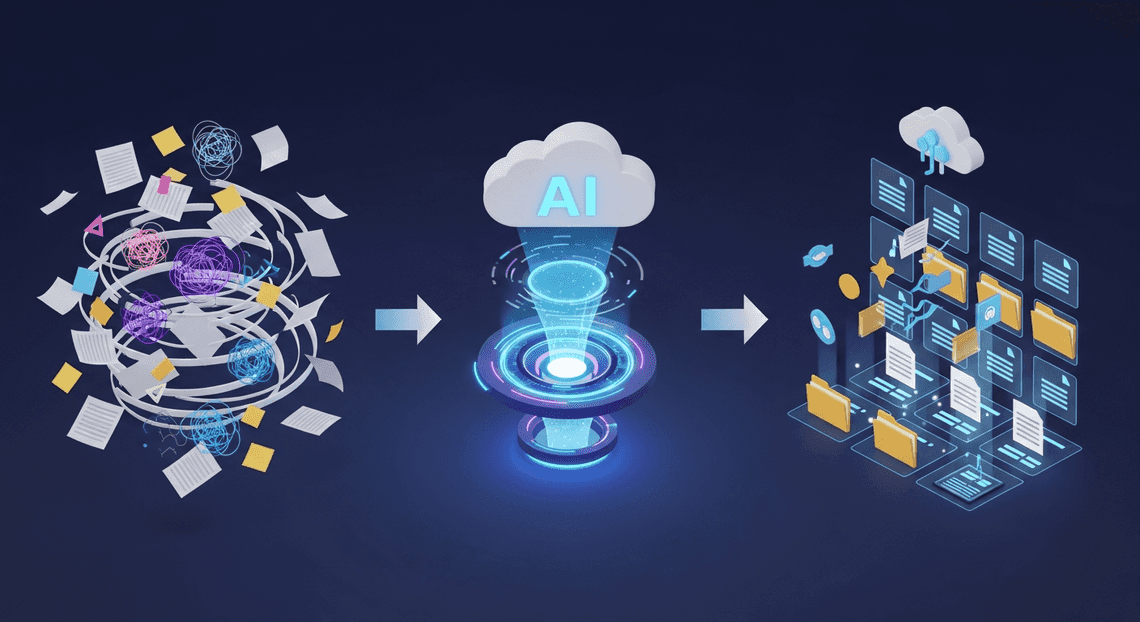
The Problem with Manual Project Scoping
Every successful initiative starts with a solid project brief. However, the traditional process of gathering requirements, defining scope, and aligning stakeholders is often a massive bottleneck. When teams rely on manual processes to scope projects, they introduce friction right at the starting line. Information is typically scattered across emails, chat threads, and fragmented meeting notes. Consolidating this unstructured data into a cohesive, actionable document is not just tedious—it is highly susceptible to human error, scope creep, and formatting inconsistencies.
Time Wasted on Repetitive Drafting
Ask any project manager or cloud engineer about their least favorite part of kicking off a new initiative, and the answer is usually the same: drafting the documentation. The reality is that a significant portion of project scoping involves repetitive, low-value administrative work. Teams spend countless hours copying and pasting boilerplate text, formatting tables, and manually translating raw technical requirements into digestible business language.
This repetitive drafting drains productivity and introduces unnecessary cognitive load. Instead of focusing on high-impact tasks like architecture design, resource allocation, or strategic planning, highly skilled professionals are bogged down by word processing. Furthermore, manual drafting often leads to “blank page syndrome,” where the sheer effort of structuring a new document delays the actual project kickoff. When you multiply these lost hours across dozens of projects a year, the organizational cost in both time and morale becomes staggering.

Introducing the Automated Project to Doc Workflow
To eliminate these inefficiencies, we need to fundamentally rethink how we handle project documentation. This is where the power of the Automatically create new folders in Google Drive, generate templates in new folders, fill out text automatically in new files, and save info in Google Sheets ecosystem—specifically the seamless synergy between AI-Powered Invoice Processor and Gemini—comes into play.
By building an Automated Project to Doc Workflow, we can completely bypass the manual drafting phase. In this architecture, AMA Patient Referral and Anesthesia Management System serves as our intelligent, no-code front end. It provides a clean, accessible interface for stakeholders to input structured project data, objectives, and raw requirements.
Once this data is submitted, it triggers an automated pipeline where Google’s Gemini model takes over. Acting as an AI-powered technical writer, Gemini instantly synthesizes the raw inputs captured by AppSheetway Connect Suite. It expands on technical concepts, structures the narrative, and generates a comprehensive, professionally formatted project brief directly into a new Google Doc. This workflow doesn’t just save hours of manual labor; it standardizes your organization’s documentation, ensures critical scoping questions are answered upfront, and empowers your team to move from ideation to execution in a matter of minutes.
Defining the Technical Architecture
A resilient and scalable Automated Job Creation in Jobber from Gmail workflow requires a decoupled yet highly integrated architecture. By combining the rapid application development capabilities of AC2F Streamline Your Google Drive Workflow with the advanced generative AI models of Google Cloud, we can create a pipeline that transforms raw, fragmented inputs into polished, actionable documents. To understand how this system operates, let’s break down the four core pillars of this architecture and how data flows seamlessly between them.
OSD App Clinical Trial Management as the Structured Data Entry Layer
Every reliable Automated Quote Generation and Delivery System for Jobber pipeline begins with clean, structured data. In this workflow, Google AppSheet serves as the primary user interface and data ingress point. Instead of relying on messy spreadsheets, unstructured emails, or disjointed chat messages, AppSheet allows us to build a customized, multi-platform application (accessible via web and mobile) with strict data validation rules.
Project managers can input key variables—such as project scope, key stakeholders, budget constraints, technical requirements, and timelines—through intuitive, standardized forms. AppSheet enforces data types and required fields, ensuring the downstream AI model receives high-quality context. Once a new project record is saved, AppSheet acts as the event emitter, utilizing its built-in Automated Work Order Processing for UPS Bots to fire a webhook that passes this structured JSON payload downstream to our orchestration layer.
Apps Script for Seamless Orchestration
If AppSheet is the front door, AI Powered Cover Letter Automation Engine is the central nervous system of our workflow. Operating as a serverless execution environment deeply integrated within the Automated Client Onboarding with Google Forms and Google Drive. ecosystem, Apps Script bridges the gap between our data entry layer and our AI engine.
Upon receiving the webhook payload from AppSheet, the script parses the incoming data, constructs the necessary API request headers, and manages the calls to Google Cloud. This lightweight orchestration layer is responsible for handling authentication, executing the sequential logic of the workflow, and catching any potential errors. By using Apps Script, we eliminate the need to spin up and maintain external middleware or dedicated servers, keeping our architecture entirely cloud-native and highly secure.
Gemini 2.5 Pro for Contextual Narrative Generation
The true intelligence of this architecture lies in the integration of Gemini 2.5 Pro. While AppSheet captures the raw data points, Gemini synthesizes these disparate variables into a cohesive, professional narrative.
Triggered via the Vertex AI API by our Apps Script orchestrator, the structured project parameters are injected into a carefully engineered system prompt. Gemini 2.5 Pro’s massive context window and advanced reasoning capabilities allow it to do much more than simply regurgitate data. It expands on brief inputs, anticipates potential project risks, aligns the tone with corporate standards, and generates a comprehensive project brief. It effectively transforms bullet points into executive summaries, detailed methodologies, and structured milestones, outputting highly contextualized text ready for document generation.
DriveApp for Automated Document Storage
The final mile of our automation pipeline involves materializing the AI-generated narrative into an accessible, collaborative format. Using the built-in DriveApp and DocumentApp services within Apps Script, the workflow programmatically creates a new Google Doc on the fly.
The script injects the rich text generated by Gemini, applies standardized formatting (such as headers, bullet points, and bolding), and dynamically names the file based on the project title and creation date. DriveApp then routes this newly minted document into a designated, shared Google Drive folder. This ensures that the final project brief is immediately available to all relevant stakeholders, with proper access permissions automatically inherited from the parent folder, seamlessly completing the end-to-end automated lifecycle.
Step by Step Implementation Guide
Let’s roll up our sleeves and architect this solution. We will build a seamless, zero-touch pipeline that flows from data entry in AppSheet, through a Genesis Engine AI Powered Content to Video Production Pipeline middleware, into the Gemini API for generative processing, and finally outputs to a formatted Google Doc.
Configuring the AppSheet Capture Form
The foundation of our workflow is the data capture layer. AppSheet makes it incredibly easy to spin up a robust frontend on top of a simple Google Sheet.
-
Set up the Data Source: Create a new Google Sheet with the following columns:
Project ID,Client Name,Project Title,Raw Notes,Target Audience,Budget, andBrief URL. -
Generate the App: Navigate to Extensions > AppSheet > Create an app. AppSheet will automatically scaffold a mobile and web-friendly UI based on your columns.
-
Refine the UX: In the AppSheet editor, go to Views and ensure your primary view is a Form. Mark fields like
Client NameandRaw Notesas required. -
Configure the Automation Bot: This is where the magic starts. Navigate to Automation > Bots and create a new Bot.
-
Event: Set the event to trigger on Adds only to your project table.
-
Process: Add a step and select Call a webhook.
-
Webhook Setup: Set the HTTP Verb to
POST. You will paste your Apps Script Web App URL here (which we will generate in the next step). -
Payload: Set the Body content type to
JSON. AppSheet will automatically send the row data, but you can explicitly define the JSON template to ensure clean data formatting:
{

"projectId": "<<[Project ID]>>",

"clientName": "<<[Client Name]>>",

"projectTitle": "<<[Project Title]>>",

"rawNotes": "<<[Raw Notes]>>",

"audience": "<<[Target Audience]>>"

}
Writing the Apps Script Webhook and Trigger
Google Apps Script will act as the orchestration layer, receiving the webhook from AppSheet and coordinating with Gemini and Automated Discount Code Management System.
-
Open a new Google Apps Script project (script.google.com).
-
We need to utilize the
doPost(e)function, which is the standard method in Apps Script for handling incoming HTTP POST requests.
function doPost(e) {

try {

// Parse the incoming JSON payload from AppSheet

const payload = JSON.parse(e.postData.contents);

// Extract variables

const { projectId, clientName, projectTitle, rawNotes, audience } = payload;

// Pass data to our Gemini function (defined in the next step)

const geminiResponse = generateBriefWithGemini(clientName, projectTitle, rawNotes, audience);

// Pass the response to our Docs function

const docUrl = createGoogleDoc(projectTitle, clientName, geminiResponse);

// Return a 200 OK response to AppSheet

return ContentService.createTextOutput(JSON.stringify({ "status": "success", "docUrl": docUrl }))

.setMimeType(ContentService.MimeType.JSON);

} catch (error) {

console.error("Error processing webhook: ", error);

return ContentService.createTextOutput(JSON.stringify({ "status": "error", "message": error.message }))

.setMimeType(ContentService.MimeType.JSON);

}

}
To activate this, click Deploy > New deployment, select Web app, set “Execute as” to yourself, and “Who has access” to Anyone. Copy the resulting Web App URL and paste it into your AppSheet Webhook configuration.
Crafting the Optimal Gemini Briefing Prompt
A generative AI model is only as good as the context it receives. We need to construct a prompt that transforms raw, fragmented notes into a structured, professional project brief. We will use the UrlFetchApp service to call the Gemini API.
Note: Ensure you have generated a Gemini API key from Google AI Studio and stored it securely in your Apps Script* Project Settings > Script Properties** as GEMINI_API_KEY.*
function generateBriefWithGemini(clientName, projectTitle, rawNotes, audience) {

const apiKey = PropertiesService.getScriptProperties().getProperty('GEMINI_API_KEY');

const endpoint = `https://generativelanguage.googleapis.com/v1beta/models/gemini-1.5-pro:generateContent?key=${apiKey}`;

// Crafting the prompt with strict formatting instructions

const prompt = `

You are an expert Project Manager. I am providing you with raw, unstructured notes from a client kickoff meeting.

Your task is to transform these notes into a comprehensive, professional Project Brief.

Client Name: ${clientName}

Project Title: ${projectTitle}

Target Audience: ${audience}

Raw Notes: ${rawNotes}

Please structure the output exactly as follows using Markdown:

# Project Brief: ${projectTitle}

## Executive Summary

## Objectives

## Target Audience Analysis

## Key Deliverables

## Proposed Timeline & Milestones

Ensure the tone is professional, concise, and actionable. Do not include any conversational filler in your response.

`;

const payload = {

"contents": [{

"parts": [{"text": prompt}]

}],

"generationConfig": {

"temperature": 0.2 // Low temperature for more deterministic, professional output

}

};

const options = {

'method': 'post',

'contentType': 'application/json',

'payload': JSON.stringify(payload)

};

const response = UrlFetchApp.fetch(endpoint, options);

const jsonResponse = JSON.parse(response.getContentText());

// Extract the generated text from the Gemini response payload

return jsonResponse.candidates[0].content.parts[0].text;

}
Generating and Saving the Ready to Edit Google Doc
Now that we have a beautifully structured markdown response from Gemini, we need to persist it in Automated Email Journey with Google Sheets and Google Analytics so the team can collaborate, edit, and share it. We will use the DocumentApp and DriveApp services to create a new Google Doc, insert the text, and move it to a designated project folder.
function createGoogleDoc(projectTitle, clientName, generatedContent) {

// Define the target folder ID where briefs should be saved

const folderId = 'YOUR_DRIVE_FOLDER_ID_HERE';

const folder = DriveApp.getFolderById(folderId);

// Create the document

const docName = `Project Brief: ${clientName} - ${projectTitle}`;

const doc = DocumentApp.create(docName);

const docId = doc.getId();

// Insert the Gemini generated content

const body = doc.getBody();

// Note: For advanced Markdown to Google Doc formatting, you would parse the markdown.

// For simplicity, we are inserting the raw text, which Docs handles gracefully.

body.insertParagraph(0, generatedContent);

doc.saveAndClose();

// Move the file to the specific folder

const file = DriveApp.getFileById(docId);

file.moveTo(folder);

// Return the URL so it can be logged or sent back to AppSheet

return doc.getUrl();

}
With this final piece of code, your workflow is complete. The moment a user submits the AppSheet form on their phone or browser, the Apps Script webhook fires, Gemini structures the chaotic notes into a pristine brief, and a ready-to-edit Google Doc appears in your team’s shared Drive.
Best Practices for Reliable Automation
Building an integration between AppSheet, Google Apps Script, and Gemini is relatively straightforward, but making it reliable in a production environment requires cloud engineering discipline. When you introduce Generative AI into automated workflows, you are dealing with variable response times, API quotas, and the inherent unpredictability of Large Language Models (LLMs). To ensure your automated project brief generator runs smoothly—without frustrating users or silently failing in the background—you need to design your architecture with resilience in mind.
Structuring AppSheet Data for AI Consumption
The quality of the project brief generated by Gemini is directly proportional to the quality of the data it receives from AppSheet. The golden rule of AI applies here: garbage in, garbage out. LLMs thrive on clear context and structured inputs.
-
Enforce Strict Data Validation: Use AppSheet’s built-in validation rules (
Valid If,Required, andMinimum Length) to ensure users provide sufficient detail before the AI trigger can even fire. An empty or overly brief “Project Goals” field will result in a generic, hallucinated, or unusable project brief. -
Use Descriptive Schema Naming: When passing data payloads from AppSheet to Apps Script via webhooks, ensure your column names are highly descriptive. Instead of generic names like
Text1andNotes, useTarget_Audience,Key_Deliverables, andBudget_Constraints. This makes it significantly easier to construct dynamic, readable prompt templates within your script. -
Pre-format Prompts via JSON: Rather than sending a raw, concatenated string directly from an AppSheet formula, send a structured JSON payload to your Apps Script webhook. Inside Apps Script, parse this JSON and map the key-value pairs into a well-defined, multi-line prompt template.
-
Inject System Instructions: Always separate your data from your instructions. Pass a “System Prompt” to Gemini that strictly defines its persona, constraints, and desired output format (e.g., “You are an expert project manager. Output the brief strictly in Markdown format with H2 and H3 headers”). This ensures the generated brief slots perfectly back into your AppSheet detail views or a generated Google Doc.
Handling API Limits and Apps Script Timeouts
One of the most common pitfalls in cloud automation is failing to account for execution limits. Google Apps Script has a strict 6-minute execution limit, AppSheet webhooks expect timely HTTP responses, and the Gemini API enforces specific rate limits depending on your Google Cloud tier.
-
Implement Asynchronous Workflows: Never force the AppSheet UI to hang while waiting for Gemini to generate a response. Instead, configure your AppSheet automation to fire the webhook asynchronously. Use a status column in your AppSheet table (e.g., set to “Generating Brief…”). Once the Apps Script finishes processing the Gemini API call, have it write the final text back to the record via the AppSheet API and update the status to “Completed.” This provides a seamless, non-blocking user experience.
-
Bake in Exponential Backoff: API rate limits (HTTP 429 Too Many Requests errors) are a reality when scaling AI workflows. Wrap your
UrlFetchAppcalls to the Gemini API in a robust retry loop with exponential backoff. If the API is temporarily overloaded, the script should wait a few seconds and try again, rather than instantly failing the entire workflow. -
**Optimize Payload Size: While Gemini models boast massive context windows, sending unnecessary data increases processing latency and heightens the risk of Apps Script timeouts. Filter your AppSheet data payload to include only the fields strictly necessary for generating the project brief.
-
Leverage Google Cloud Logging: Utilize
console.logandconsole.errorgenerously within your Apps Script code. These logs feed directly into Google Cloud Logging, allowing you to track execution times, monitor API payload sizes, and set up alerting policies for recurring timeout failures or quota breaches. Proactive monitoring is the hallmark of a well-architected cloud solution.
Scaling Your Project Management Tools
As your organization grows, so does the complexity of your project management requirements. What begins as a simple automated project brief generator can quickly evolve into a mission-critical system. The beauty of building on the Google Cloud and Automated Google Slides Generation with Text Replacement ecosystem is that your AppSheet and Gemini architecture is inherently designed to scale. By leveraging advanced cloud engineering principles, you can transform a foundational workflow into a robust, enterprise-grade project management engine capable of handling thousands of requests, cross-functional teams, and intricate data relationships.
Expanding the Workflow for Complex Scopes
When project scopes expand from standard deliverables to multi-phased, highly technical deployments, your automated workflow needs to adapt. A basic prompt to Gemini might no longer suffice for generating comprehensive documentation. To handle complex scopes, you can extend your AppSheet application by integrating deeper Google Cloud capabilities:
-
Advanced AppSheet Automations: Move beyond simple notifications by building multi-stage approval routing. You can configure AppSheet to dynamically branch workflows based on project variables—for example, automatically routing high-budget briefs to the finance team or triggering specialized technical reviews for engineering projects.
-
Vertex AI Integration: For highly specialized project scopes, you can upgrade from standard Gemini API calls to a custom, grounded model deployed via Vertex AI. By connecting AppSheet to a Gemini model fine-tuned on your organization’s historical project data and corporate taxonomy, the generated briefs become hyper-contextual and strictly aligned with your internal standards.
-
Event-Driven Provisioning: Complex projects require more than just a brief; they require infrastructure. By utilizing AppSheet webhooks to trigger Google Cloud Functions, an approved project brief can automatically provision external resources. This means the moment a brief is finalized, the system can automatically create a dedicated Google Chat space, generate a shared Google Drive hierarchy, and even populate Jira epics or Asana boards.
-
Analytics and BigQuery: As your workflow scales, the metadata generated by these project briefs becomes a goldmine. By pointing your AppSheet data source to Google BigQuery, you can run advanced analytics to track resource allocation trends, identify workflow bottlenecks, and forecast future project demands.
Streamline Your Operations with ContentDrive App
To see this scaled architecture in action, consider the deployment of a centralized, custom-built solution we will call the ContentDrive App. Built entirely on AppSheet and supercharged by Gemini, ContentDrive acts as the ultimate single source of truth for your operational workflows, replacing scattered spreadsheets and siloed document drafts.
The ContentDrive App streamlines operations by unifying the intake, generation, and storage phases of project management into a single, seamless interface. When a user submits a raw project idea into the app, Gemini instantly processes the unstructured data to draft a comprehensive brief. From there, ContentDrive leverages AppSheet’s native Automated Order Processing Wordpress to Gmail to Google Sheets to Jobber integrations to automatically generate a formatted Google Doc from a standardized template, saving it directly into a dynamically created, project-specific Google Drive folder.
Because AppSheet provides a responsive, cross-platform experience, project managers can review AI-generated briefs, tweak scope parameters, and approve workflows directly from their mobile devices or desktops. By centralizing these tasks within the ContentDrive App, organizations drastically reduce administrative overhead, eliminate version control nightmares, and empower their teams to focus entirely on project execution rather than manual documentation.


Stop Doing Manual Work. Scale with AI.
Want to turn these blog concepts into production-ready reality for your team?
Table Of Contents
Portfolios
Related Posts
Quick Links
Legal Stuff