

Build a Gemini Agentic Workflow to Automate Google Slides from Docs


Transforming comprehensive Google Docs into stakeholder presentations doesn’t have to be a tedious, manual chore. Discover how AI-powered agentic workflows can automate this process and cure your presentation fatigue for good.
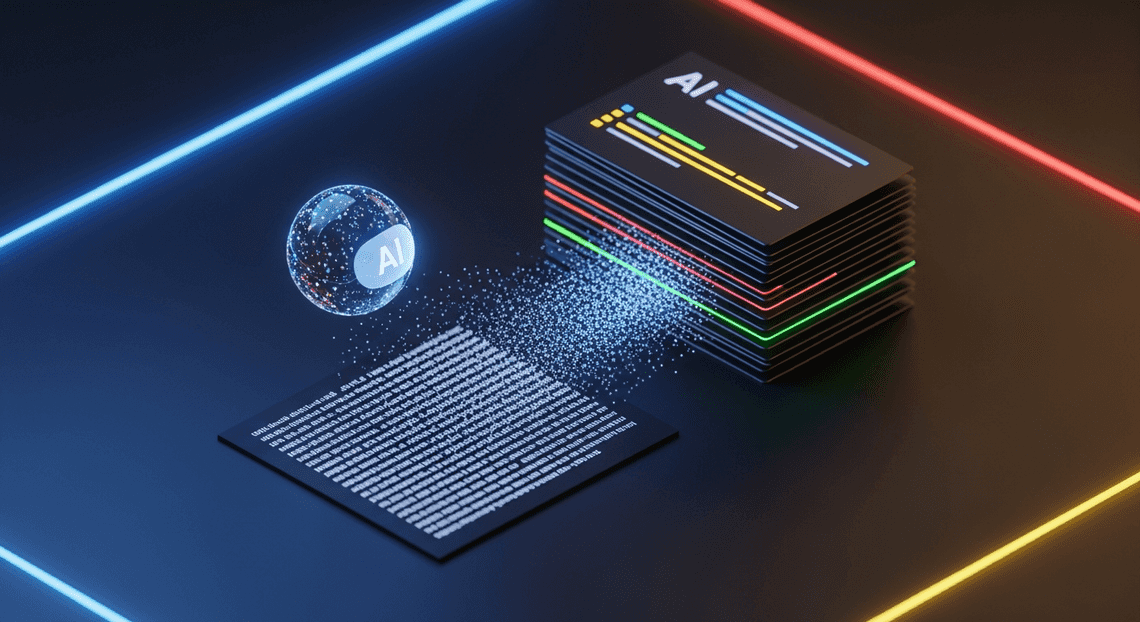
Overcoming Presentation Fatigue with Agentic Workflows
If you work in a modern enterprise, you are likely intimately familiar with the lifecycle of a project: it begins as a comprehensive Google Doc—perhaps a technical design document, a quarterly business review, or an incident post-mortem—and inevitably must be transformed into a Google Slides presentation for stakeholders. This translation process is tedious, repetitive, and a prime contributor to what we call “presentation fatigue.”
However, the advent of Large Language Models (LLMs) and, more specifically, agentic workflows, is fundamentally changing how we interact with the Automatically create new folders in Google Drive, generate templates in new folders, fill out text automatically in new files, and save info in Google Sheets ecosystem. Instead of merely using AI as a glorified autocomplete, we can now orchestrate Gemini-powered agents to autonomously read, reason about, summarize, and visually structure our documents into ready-to-present slide decks.
The Cost of Manual Reporting
To understand the value of an agentic workflow, we first have to look at the hidden tax of manual reporting. For cloud engineers, product managers, and business leaders alike, time is the most valuable resource. Yet, countless hours are burned every week performing the mechanical task of translating long-form text into presentation formats.
The cost of this manual process manifests in several ways:
- Cognitive Drain and Context Switching: Moving from the deep, analytical thinking required to write a Google Doc to the spatial, design-oriented thinking required for Google Slides breaks focus. Distilling a 10-page technical architecture document into five digestible slides requires heavy cognitive lifting.

-
Loss of Productivity: Every hour spent copy-pasting text, resizing text boxes, and summarizing bullet points is an hour taken away from core engineering, strategic planning, or actual problem-solving.
-
Information Degradation: When humans rush to build slide decks at the last minute, crucial context is often lost or poorly summarized. The alignment between the source of truth (the Doc) and the presentation (the Slides) degrades.
In a fast-paced Google Cloud environment where agility is paramount, treating highly-paid professionals as manual data-entry clerks for presentation software is a massive operational inefficiency.
Why Standard Automated Job Creation in Jobber from Gmail Falls Short
You might be thinking, “Can’t we just automate this with a script?”
As Cloud Engineers and Workspace administrators, our first instinct is often to reach for AI Powered Cover Letter Automation Engine or a third-party integration tool. We write scripts that pull text from a Doc and push it into placeholder tags (like \{\{Heading\}\} or \{\{Summary\}\}) in a Slides template.
While this traditional, deterministic automation has its place, it falls completely short when dealing with unstructured, human-readable documents. Here is why standard automation fails to solve presentation fatigue:
-
Lack of Semantic Understanding: A standard script cannot read a five-paragraph executive summary and distill it into three concise bullet points. It can only move data from Point A to Point B. If you push a massive block of text into a Google Slide via a standard API call, you end up with an unreadable wall of text that overflows the boundaries of the slide.
-
Rigid Rule Dependency: Traditional automation relies on strict formatting rules. If the author of the Google Doc forgets to use a specific H2 tag, or formats a table slightly differently, the regular expressions and parsing logic in your script will break.
-
Zero Contextual Adaptation: Standard automation cannot adjust its output based on the target audience. It doesn’t know the difference between a high-level slide meant for a C-suite executive and a deep-dive slide meant for a DevOps team.
This is exactly where agentic workflows step in. By integrating Gemini into the pipeline, we aren’t just moving text; we are deploying an intelligent agent capable of reasoning. A Gemini agent can read the source Doc, understand the overarching narrative, identify the key takeaways, summarize them to fit the spatial constraints of a slide deck, and then execute the Google Slides API calls to build the presentation. It bridges the gap between rigid code and human-like synthesis.
Architecting the Solution
To build a truly agentic workflow that seamlessly bridges Google Docs and Google Slides, we need a robust orchestration layer. Rather than relying on manual copy-pasting or rigid, rule-based scripts, our architecture leverages Genesis Engine AI Powered Content to Video Production Pipeline as the execution environment, acting as the connective tissue between AC2F Streamline Your Google Drive Workflow services and Google Cloud’s generative AI capabilities.
The pipeline is elegantly simple but highly effective: ingest the source context, intelligently process and structure that context, and finally, render it into a visual format. Let’s break down the three core pillars of this architecture.
The Role of DriveApp in Document Access
Every automated workflow begins with data ingestion. In the Automated Client Onboarding with Google Forms and Google Drive. ecosystem, DriveApp and its sibling service DocumentApp serve as our secure gateways to the source material.
To kick off the agentic process, the script needs to locate the specific Google Doc containing the raw information—whether that’s a project proposal, a technical design document, or meeting transcripts. Using DriveApp.getFileById(), we can programmatically verify file metadata and ensure the execution environment has the correct OAuth scopes and permissions to access the file.
Once the file is located, we hand the execution over to DocumentApp to parse the Document Object Model (DOM). A simple call to DocumentApp.openById(docId).getBody().getText() extracts the entirety of the document’s text. For more advanced workflows, you might iterate through specific paragraph elements or headings to preserve the hierarchical context of the document, but for our Gemini agent, a clean, raw text extraction provides the perfect context window payload. This extraction phase ensures that our AI agent has a comprehensive, unadulterated view of the source material before it begins its analysis.
Leveraging Gemini API for Entity Extraction
This is where the workflow transitions from standard automation to an “agentic” system. Raw text is unstructured and unsuitable for a presentation. We need a cognitive engine to read the document, understand its core themes, and extract the most salient points. Enter the Gemini API.
Instead of simply asking Gemini to “summarize this document,” we engineer our prompt to enforce Structured Outputs. By utilizing the Gemini API (via Vertex AI or Google AI Studio), we instruct the model to act as an expert presentation designer. We pass the extracted document text alongside a strict JSON schema definition.
The prompt directs Gemini to perform entity extraction and logical chunking. It identifies the main title, breaks the content down into logical slide topics, and distills verbose paragraphs into concise bullet points. By setting the response_mime_type to application/json in the API configuration, we guarantee that Gemini returns a deterministic, machine-readable payload.
A conceptual output from Gemini looks like this:
{

"presentationTitle": "Q3 Cloud Migration Strategy",

"slides": [

{

"title": "Current Infrastructure Bottlenecks",

"bullets": ["High latency in US-East", "Legacy database scaling limits"],

"speakerNotes": "Emphasize that the legacy DB is costing us $10k/month in maintenance."

}

]

}
This structured JSON is the lifeblood of the workflow. It transforms Gemini from a simple text generator into a deterministic data extraction agent, bridging the gap between unstructured prose and structured presentation data.
Structuring Output with SlidesApp
The final mile of our architecture involves translating the AI-generated JSON payload into a tangible Google Slides deck. This is executed using SlidesApp, Google Apps Script’s native service for programmatic presentation manipulation.
Once the script parses the JSON response from Gemini, it initializes a new presentation using SlidesApp.create("Generated Deck: " + title). From here, the script iterates through the slides array provided by the AI. For every object in the array, the script dynamically appends a new slide—typically using a pre-defined layout like SlidesApp.PredefinedLayout.TITLE_AND_BODY.
The orchestration here is highly methodical:
-
Targeting Elements: The script selects the title placeholder and injects the
titlestring. -
Formatting Content: It targets the body shape, inserts the array of
bullets, and applies aListPresetto format them as a proper bulleted list. -
Injecting Context: Finally, it accesses the slide’s underlying notes page to inject the
speakerNotes, ensuring the presenter has the deeper context that was stripped away during the bullet-point summarization.
By mapping the structured keys of the Gemini JSON directly to the methods of SlidesApp, we create a resilient, hands-off pipeline. The result is a fully formatted, logically structured presentation generated entirely from a text document in a matter of seconds.
Extracting Unstructured Data Using Gemini
The leap from a sprawling, comprehensive text document to a crisp, paginated slide deck requires a fundamental transformation: converting unstructured data into a highly structured format. A Google Doc is essentially a continuous flow of paragraphs, headings, and lists. A Google Slide presentation, however, demands discrete objects—titles, bullet points, images, and speaker notes—mapped to specific coordinates on individual slides.
To bridge this gap, we leverage the reasoning capabilities of Gemini. By feeding the raw document text into a Large Language Model (LLM), we can intelligently summarize, chunk, and format the content into a structured blueprint ready for the Google Slides API.
Parsing Google Docs Content
Before Gemini can work its magic, we need to programmatically extract the text from our source Google Doc. The Google Docs API provides a robust way to read documents, but the response payload is notoriously deeply nested. A document is composed of StructuralElements, which contain Paragraphs, which in turn contain Elements like TextRuns.
To get a clean string of text that we can pass to Gemini, we must iterate through this structure. Here is a JSON-to-Video Automated Rendering Engine snippet using the Google API Client Library that demonstrates how to extract the raw text from a document’s body:
def extract_text_from_doc(docs_service, document_id):

doc = docs_service.documents().get(documentId=document_id).execute()

content = doc.get('body').get('content')

extracted_text = ""

for element in content:

if 'paragraph' in element:

elements = element.get('paragraph').get('elements')

for elem in elements:

if 'textRun' in elem:

extracted_text += elem.get('textRun').get('content')

return extracted_text.strip()
This function traverses the document tree, ignoring complex formatting like bolding or italics, and concatenates the raw text. This plain text payload is exactly what we need for the next step: feeding the context to our Gemini agent.
Designing Prompts for Structured JSON Output
With the raw text in hand, the next challenge is instructing Gemini to act as an expert presentation designer. We don’t just want a summary; we need a predictable, machine-readable data structure—specifically, JSON—that our downstream code can iterate over to build the slides.
To achieve this, we rely on precise Prompt Engineering for Reliable Autonomous Workspace Agents and Gemini’s native JSON mode. Your prompt must explicitly define the persona, the task, and the exact JSON schema you expect in return.
Here is an example of an effective prompt design for this workflow:
You are an expert presentation designer. Your task is to convert the following document text into a structured presentation outline.

Analyze the text and break it down into logical slides. For each slide, provide a title, 3-5 concise bullet points, and detailed speaker notes based on the original text.

You MUST return the output strictly as a JSON array of objects matching this exact schema:

[

{

"slide_number": 1,

"title": "String",

"bullet_points": ["String", "String"],

"speaker_notes": "String"

}

]

Document Text:

{INSERT_EXTRACTED_TEXT_HERE}
To guarantee that Gemini adheres strictly to this format without wrapping the response in Markdown code blocks (like json ... ), you should configure the Gemini API call to enforce a JSON response type. If you are using the Vertex AI SDK or the Google GenAI SDK, you can pass a GenerationConfig object:
import vertexai

from vertexai.generative_models import GenerativeModel, GenerationConfig

# Initialize Vertex AI and the Gemini model

model = GenerativeModel("gemini-1.5-pro-preview-0409")

# Enforce JSON output

generation_config = GenerationConfig(

response_mime_type="application/json",

temperature=0.2 # Lower temperature for more deterministic, structured output

)

response = model.generate_content(

prompt_text,

generation_config=generation_config

)

# The response.text is now guaranteed to be a parseable JSON string

slide_data = json.loads(response.text)
By keeping the temperature low, we instruct Gemini to prioritize accuracy and adherence to the prompt over creative flair. The resulting slide_data variable now holds a perfectly structured Python list of dictionaries, serving as the exact blueprint we need to start dynamically generating our Google Slides.
Mapping Extracted Data to Slide Templates
With Gemini having successfully parsed your Google Doc and outputted a structured JSON payload, your agentic workflow now possesses the “brain” of the presentation. The next critical phase is giving it a “body.” This is where we bridge the gap between raw, structured data and a polished, visual format.
Rather than programmatically drawing shapes, text boxes, and formatting from scratch—which is highly inefficient and difficult to maintain—the most robust cloud engineering approach is to use a template-based architecture. By mapping Gemini’s extracted data to predefined placeholders, we ensure consistent branding, effortless styling, and a highly scalable workflow.
Creating a Dynamic Google Slides Template
The foundation of this automation relies on a well-structured Google Slides template. Think of this template as the “view” layer in an MVC architecture. Your goal is to design a standard presentation where the static design elements (logos, background colors, fonts) are fixed, but the dynamic content is represented by easily identifiable variable tags.
To create an effective dynamic template:
-
Design the Master Layouts: Open a new Google Slides presentation and design your standard slide types (e.g., Title Slide, Section Header, Bulleted Content, Two-Column Layout). Use the Theme Builder (
View > Theme builder) to lock in background graphics and corporate branding. -
Define a Delimiter Syntax: Choose a unique text pattern for your placeholders that won’t accidentally appear in normal text. The industry standard is double curly braces:
\{\{VARIABLE_NAME\}\}. -
Insert Placeholders: Populate your slides with these variables. For example, a standard content slide might have
\{\{SLIDE_TITLE\}\}in the header box and\{\{BULLET_POINTS\}\}in the body box. -
Pre-Style the Variables: This is a crucial Automated Discount Code Management System pro-tip. The Google Slides API will inherit the exact font, size, color, and weight of the text it replaces. If you want your
\{\{SLIDE_TITLE\}\}to be 36pt Roboto Bold and Navy Blue, simply apply that styling directly to the placeholder text in the template. The API will preserve this formatting when it injects Gemini’s generated text.
Save this presentation and note its presentationId (found in the URL: https://docs.google.com/presentation/d/[presentationId]/edit). This ID will serve as the source file for your automation.
Binding Data to Slide Elements Programmatically
Once your template is ready and Gemini has generated the structured data, we use the Google Drive API and Google Slides API to bind them together.
The programmatic workflow follows a strict sequence:
-
Clone the Template: Use the Google Drive API to create a copy of your template file. This ensures your original template remains pristine. The API will return the ID of the newly created presentation.
-
Parse the Gemini Output: Iterate through the JSON array generated by your Gemini agent.
-
Construct a Batch Update Payload: Use the Google Slides API’s
batchUpdatemethod. This is highly efficient because it allows you to send multipleReplaceAllTextrequests in a single API call, minimizing latency and avoiding rate limits.
Here is a Python example demonstrating how to construct the payload and execute the data binding using the Google API Client Library:
def populate_slides(service, presentation_id, slide_data):

"""

Binds JSON data extracted by Gemini to the Google Slides template.

Args:

service: Authenticated Google Slides API service instance.

presentation_id: The ID of the cloned presentation.

slide_data: A dictionary containing the mapped data (e.g., from Gemini).

"""

requests = []

# Iterate through the structured data provided by Gemini

for key, value in slide_data.items():

# Handle lists (like bullet points) by joining them with newline characters

if isinstance(value, list):

formatted_text = "\n".join(f"• {item}" for item in value)

else:

formatted_text = str(value)

# Create a ReplaceAllText request for each placeholder

requests.append({

'replaceAllText': {

'containsText': {

'text': f'\{\{\{\\{\{key\}\}\}\\}\}', # Matches \{\{key\}\}

'matchCase': True

},

'replaceText': formatted_text

}

})

# Execute the batch update

if requests:

body = {'requests': requests}

try:

response = service.presentations().batchUpdate(

presentationId=presentation_id,

body=body

).execute()

print(f"Successfully bound {len(requests)} data points to the presentation.")

except Exception as e:

print(f"An error occurred during data binding: {e}")
In this script, we dynamically build a list of replaceAllText requests. Notice the handling of lists: because Gemini often extracts summaries as arrays of strings, we programmatically join them with newline characters and bullet symbols before injecting them into the \{\{BULLET_POINTS\}\} placeholder.
By utilizing the batchUpdate endpoint, your agentic workflow can instantly map hundreds of data points across dozens of slides in a fraction of a second, transforming a static template into a fully realized, data-driven presentation.
Streamline Your Workspace Workflow
Building an agentic workflow isn’t just about injecting artificial intelligence into a process; it is about fundamentally redefining how we interact with our productivity tools. By bridging Google Docs and Google Slides with Gemini, we eliminate the friction of manual presentation creation, transforming hours of tedious copy-pasting and formatting into a seamless, automated execution. This integration showcases the true potential of cloud engineering—where APIs and large language models (LLMs) collaborate to handle both the heavy lifting and the creative decision-making.
Reviewing the Automated Pipeline
To fully appreciate the power of this automation, we need to break down the underlying architecture. This isn’t a rigid, rules-based script; it is an intelligent, agentic pipeline where Gemini dynamically makes structural and formatting decisions based on the context of your source document.
The pipeline operates through three distinct, orchestrated phases:
-
Context Ingestion (Google Docs API): The workflow begins by securely authenticating via OAuth 2.0 (using scopes like
https://www.googleapis.com/auth/documents.readonly) to access the target Google Doc. The API extracts not just the raw text, but the structural hierarchy—capturing H1s, H2s, lists, and paragraphs. This structured extraction is crucial, as it provides Gemini with the semantic context needed to understand the document’s flow. -
Agentic Processing (Gemini on Vertex AI): This is the cognitive core of the pipeline. Instead of simply summarizing text, Gemini is prompted to act as a presentation designer. Utilizing Structured Outputs (JSON Schema), we force the model to return a highly specific payload. Gemini digests the long-form content, identifies key themes, and maps them to a presentation schema—dictating the slide title, bullet points, layout type, and even speaker notes for each individual slide.
-
Dynamic Assembly (Google Slides API): Once the orchestrator—running efficiently on a serverless platform like Cloud Run or Google Apps Script—receives the JSON payload from Gemini, it translates that data into a series of
batchUpdaterequests. The Google Slides API then takes over, generating a new presentation, applying master templates, inserting text into the correct bounding boxes, and formatting the layouts exactly as the AI agent prescribed.
Discover the ContentDrive App Ecosystem
This Docs-to-Slides pipeline is highly effective on its own, but it is best understood as a single microservice within the broader ContentDrive App Ecosystem. When you fuse Automated Email Journey with Google Sheets and Google Analytics APIs with Google Cloud’s advanced AI and data services, you unlock a comprehensive, enterprise-grade content automation engine.
The ContentDrive ecosystem represents a paradigm shift from isolated files to interconnected, AI-managed assets. By expanding on our initial workflow, you can leverage this ecosystem to build incredibly robust applications:
-
Automated Asset Management: By integrating the Google Drive API, your application can automatically listen for webhooks when a new “Final Draft” document is uploaded to a specific folder, instantly triggering the Gemini agent to generate the corresponding slide deck and saving it back to a designated Shared Drive with inherited IAM permissions.
-
Multi-Modal Enrichment: The ecosystem allows for seamless cross-pollination of data. You can expand your agent’s capabilities to query Google Sheets for the latest financial data to build charts, or utilize Imagen on Vertex AI to generate custom, context-aware imagery to embed directly into the generated slides.
-
Enterprise-Grade Governance: Because this ecosystem bridges Workspace and Google Cloud, you benefit from robust security architectures. You can deploy your agentic workflows within VPC Service Controls, ensuring that your proprietary document data remains strictly within your organization’s secure perimeter while being processed by Vertex AI.
By tapping into the ContentDrive ecosystem, you aren’t just automating a single task—you are architecting a scalable, intelligent workspace that adapts to your organization’s unique content demands.


Stop Doing Manual Work. Scale with AI.
Want to turn these blog concepts into production-ready reality for your team?
Table Of Contents
Portfolios
Related Posts
Quick Links
Legal Stuff