

Building Robust Apps Script Workflows with Gemini JSON Mode


Integrating LLMs into Apps Script promises to make our automations truly intelligent, but moving from a simple prompt to a reliable, production-level workflow is where the real challenge begins.

The Promise and Peril of AI in [Automated Job Creation in Real Time Jobber and Google Sheets Integration from Gmail](https://votuduc.com/Automated-Job-Creation-in-Jobber-from-Gmail-p115606)
The siren song of integrating Large Language Models (LLMs) like Gemini into our Apps Script workflows is almost impossible to ignore. Imagine scripts that don’t just move data, but understand it. Scripts that can summarize lengthy Google Docs, categorize user feedback from a Google Form, extract contact information from a messy email body, and draft contextual replies—all without human intervention. This is the promise: to transform our rigid, rule-based automations into intelligent, adaptive systems.
But anyone who has tried to build a serious, production-level workflow on top of a standard chat-based LLM has inevitably run into the peril. Automated Quote Generation and Delivery System for Jobber demands predictability. It requires consistent, machine-readable inputs and outputs. LLMs, by their very nature, are probabilistic and conversational. This fundamental conflict is where promising Automated Work Order Processing for UPS projects become brittle, unreliable nightmares.
Why Unstructured AI Responses Break Automated Pipelines
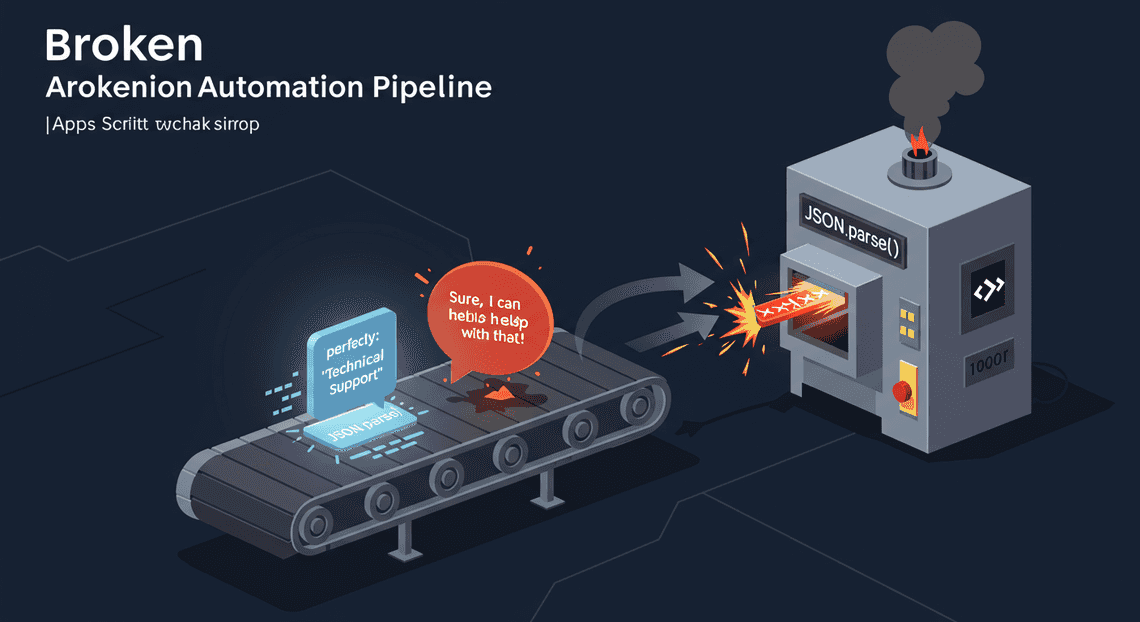
Let’s ground this in a common Apps Script scenario. You have a script that monitors a Gmail label for new customer support tickets. The goal is to use Gemini to classify the email’s intent (“Billing Question,” “Technical Support,” “Feature Request”) and extract the user’s name and company. You then want to log this structured data into a Google Sheet and forward the email to the correct department.
Your script sends the email body to the Gemini API with a carefully crafted prompt. In a perfect world, you get a clean response. But in reality, you’re playing a game of chance.
-
The Conversational Preamble: Instead of just returning the data, the model tries to be helpful. You expect
{"category": "Technical Support"}but you get back:"Sure, I can help with that! Based on the email content, the category is 'Technical Support'."YourJSON.parse()call immediately throws a syntax error, and the entire execution halts. -
The Creative Categorization: Your script has a
switchstatement looking for “Technical Support.” But today, the model decides to respond with “Software Glitch,” “Bug Report,” or “IT Assistance.” Your logic doesn’t recognize these synonyms, and the ticket is either misfiled or dropped entirely. -
The Format Fluctuation: One day, the output is a clean JSON object. The next, it’s a Markdown list. The day after, it’s a simple comma-separated string. Your parsing logic, which expects a consistent structure, is fragile and breaks with any deviation. The result is the dreaded
TypeError: Cannot read properties of nullin your execution logs because you tried to access a key that didn’t exist in the unexpected format. -
The Hallucinated Structure: The model might invent new keys, omit required ones, or nest the data in an entirely different way than you anticipated, causing your script to fail silently or, worse, log incorrect data.
Each of these failure modes stems from the same root cause: we are asking a natural language model for a structured data response, but we have no way to enforce that structure.
Introducing a Bulletproof Strategy for Reliable Data
The common, but ultimately flawed, solution is an endless cycle of “[Prompt Engineering for Reliable Autonomous Workspace Agents for Reliable Autonomous Workspace Agents](https://votuduc.com/prompt-engineering-for-reliable-autonomous-workspace-agents-p-20260319404106).” We litter our prompts with increasingly desperate instructions: “ONLY return JSON.” “DO NOT include any explanation.” “Your response MUST be a valid JSON object with the keys ‘category’ and ‘userName’.”
This is a hack, not a strategy. It’s a game of whack-a-mole. While it might increase your success rate from 80% to 95%, that remaining 5% represents a critical failure rate in any serious automation. A workflow that fails one in every twenty times is not a workflow; it’s a liability.
The bulletproof strategy is to fundamentally change the contract with the AI. We must move from asking for structure to demanding it.
This is where a feature like Gemini’s JSON Mode becomes a game-changer. It’s not another instruction in your prompt. It is a parameter sent with your API request that constrains the model’s output layer. When enabled, the Gemini API guarantees that the string it returns will be a syntactically valid JSON object. It physically cannot return conversational filler or malformed text.
By enforcing a machine-readable format at the source, we eliminate the entire class of parsing and format-related errors. We transform the LLM from an unpredictable conversational partner into a reliable, deterministic function call. It becomes a component you can trust within your automated pipeline, one that takes unstructured text as input and reliably returns a perfectly structured JSON object as output, every single time. This is the key to finally delivering on the promise of AI in automation without succumbing to the peril.
Forcing Structure at the Source with Gemini’s JSON Mode
Relying on string manipulation and regular expressions to parse a large language model’s (LLM) free-form text output is a recipe for brittle code. A minor change in the model’s phrasing, the addition of an introductory sentence like “Sure, here is the information you requested:”, or an extra newline can break your entire workflow. The traditional approach puts the burden of understanding and parsing on your Apps Script code.
Gemini’s JSON mode flips this paradigm. Instead of asking the model for text and then trying to fit it into a structure, you instruct the model to generate its response directly in a structured JSON format. This isn’t a post-processing step; the API constrains the model during generation to ensure its entire output is a syntactically valid JSON object. This simple change dramatically increases the reliability of your automation, making your scripts more robust and easier to maintain.
Understanding the responseMimeType Parameter in the API Call
The magic behind enabling JSON mode is a single parameter in the API request payload: responseMimeType. This parameter is part of the generationConfig object, which allows you to control various aspects of the model’s output.
When you set responseMimeType to 'application/json', you are sending a clear directive to the Gemini API: “The output from this request must be a valid JSON object. Do not include any conversational text, markdown formatting, or any other characters outside of the JSON structure.”
The API enforces this constraint at the token level, ensuring that the sequence of tokens generated by the model can be correctly parsed as JSON. This is the fundamental guarantee that makes this feature so powerful. If the model is unable to generate content that fits the JSON structure requested in your prompt, the API will return an error instead of a malformed or unpredictable string.
Crafting Prompts That Explicitly Request a JSON Schema
Simply enabling JSON mode isn’t enough. You’ve told the model how to format its response (as JSON), but you still need to tell it what the structure of that JSON should be. The most effective way to do this is to include a clear description, or even a sample, of the desired JSON schema directly within your prompt.
A poorly crafted prompt might lead to inconsistent key names or nested structures. A well-crafted prompt removes ambiguity and guides the model to produce the exact output your script expects.
Consider the difference:
Vague Prompt (Less Reliable):
“From the following email body, extract the customer’s name, order number, and the items they purchased. Put it in a JSON format.”
Explicit Schema Prompt (More Robust):
“Analyze the following email body and extract the specified customer details. Respond ONLY with a JSON object that strictly adheres to the following schema. If a value cannot be found for a specific field, use null.
{

  "customerName": "string",

  "orderId": "string",

e>   "items": [

    {

      "sku": "string",

      "quantity": "number"

    }

  ]

}
Email Body: [Insert email text here]”
The second prompt is superior because it:
-
Provides a clear schema: The model knows the exact key names (
customerName,orderId), data types (string,number), and structure (a nested array foritems). -
Defines error handling: It explicitly instructs the model on how to handle missing information (
use null), preventing unexpected omissions or placeholder text. -
Reinforces the output format: The instruction “Respond ONLY with a JSON object” further primes the model for the task.
Code Snippet: Configuring the UrlFetchApp Options
Now, let’s translate this into a practical Apps Script implementation. The key is to correctly structure the payload within the options object for your UrlFetchApp.fetch() call. The generationConfig object, containing our responseMimeType parameter, is sent alongside the prompt content.
Here is a focused look at how to build the options object:
/**

* Configures the options for a UrlFetchApp call to the Gemini API,

* specifically enabling JSON mode.

*/

function getGeminiJsonOptions(promptText) {

const API_KEY = 'YOUR_GEMINI_API_KEY'; // Replace with your API key

const API_ENDPOINT = `https://generativelanguage.googleapis.com/v1beta/models/gemini-pro:generateContent?key=${API_KEY}`;

// The main payload for the API request.

const payloadObject = {

// 'contents' holds the user's prompt and instructions.

"contents": [

{

"parts": [

{

"text": promptText

}

]

}

],

// 'generationConfig' controls the model's output.

"generationConfig": {

"temperature": 0.2,

"topP": 0.8,

"topK": 40,

// This is the critical line that enables JSON mode.

"responseMimeType": "application/json"

}

};

// The options object for UrlFetchApp.fetch().

const options = {

'method': 'post',

'contentType': 'application/json',

// Mute exceptions to handle potential API errors gracefully.

'muteHttpExceptions': true,

// The payload must be stringified before sending.

'payload': JSON.stringify(payloadObject)

};

return { endpoint: API_ENDPOINT, options: options };

}

// Example usage:

// const prompt = "Extract contact info for John Doe ([email protected]) into a JSON with 'name' and 'email' keys.";

// const { endpoint, options } = getGeminiJsonOptions(prompt);

// const response = UrlFetchApp.fetch(endpoint, options);

// const jsonResponse = JSON.parse(response.getContentText());

// Logger.log(jsonResponse);
In this snippet, notice how responseMimeType: "application/json" is nested within the generationConfig object. This, combined with a well-structured prompt like the one described above, provides the Gemini API with everything it needs to return a clean, predictable, and immediately parsable JSON object, ready for use in your Apps Script workflow.
Defensive Programming: Validating JSON Payloads in Apps Script
When you interact with an API—especially a generative one like Gemini—you’re making a pact. You agree to send data in a certain format, and the API agrees to send it back in another. With Gemini’s JSON mode, you’re explicitly asking for a structured response, but you can’t treat this pact as an unbreakable contract. Network glitches, unexpected API behavior, or even subtle misinterpretations by the model can lead to malformed or incomplete JSON.
Defensive programming is the practice of anticipating these failures. Instead of assuming the happy path where everything works perfectly, you write code that is resilient to unexpected inputs. For our Apps Script workflow, this means rigorously validating the JSON payload from Gemini before we try to use it. This prevents ugly TypeError: Cannot read properties of undefined errors and ensures our script either succeeds reliably or fails gracefully.
The First Line of Defense: Using try...catch with JSON.parse()
Before you can even think about the structure of the data, you must first confirm that you have a syntactically valid JSON string. A response could be truncated, or an error from an intermediary service could return plain text or HTML instead of JSON. The JSON.parse() method is your gatekeeper here. If you feed it anything that isn’t a well-formed JSON string, it will throw an error.
Wrapping this call in a try...catch block is non-negotiable. It’s the most fundamental validation step.
/**

* Safely parses a JSON string from a Gemini API response.

* @param {string} responseText The raw text content from the API call.

* @return {Object|null} The parsed JavaScript object, or null if parsing fails.

*/

function safeParseJson(responseText) {

try {

// Attempt to parse the string into a JavaScript object.

const parsedObject = JSON.parse(responseText);

return parsedObject;

} catch (e) {

// If JSON.parse() throws an error, it's not valid JSON.

Logger.log(`Error parsing JSON payload. Error: ${e.message}`);

Logger.log(`Invalid response text received: ${responseText}`);

// Return null or throw a more specific error to be handled upstream.

return null;

}

}

// --- Example Usage ---

function handleApiResponse() {

// Let's simulate a bad response from the API

const badResponseText = '{"name": "John Doe", "email": "[email protected]", "tasks": [ "Task 1", "Task 2" '; // Missing closing bracket and brace

const jsonData = safeParseJson(badResponseText);

if (jsonData) {

// This block will NOT execute for the bad response

Logger.log("JSON parsed successfully!");

// ... proceed with processing jsonData

} else {

// This block WILL execute

Logger.log("Failed to parse JSON. Halting or retrying operation.");

// You could trigger an email alert, retry the API call, or stop the script.

}

}
This try...catch block is your first line of defense. It ensures your script doesn’t crash on malformed data. However, it only tells you if the string is syntactically correct JSON; it tells you nothing about whether it contains the data you actually need.
Beyond Parsing: A Practical Approach to Schema Validation
Just because Gemini returned a valid JSON object doesn’t mean it’s the object you expected. Did it include the userName key you asked for? Is the itemCount value a number as you specified, or did the model return it as a string ("5")?
This is where schema validation comes in. A “schema” is simply a blueprint of your expected JSON structure. It defines:
-
Required Keys: Which properties must be present in the object.
-
Data Types: The expected type for each property’s value (e.g.,
string,number,boolean,array). -
Structure: The shape of any nested objects or arrays.
While there are comprehensive JSON Schema libraries in other ecosystems, they can be overkill for most Apps Script projects. A lightweight, custom validation function is often more practical, easier to maintain, and gives you complete control over the validation logic. We’ll build a reusable function that checks our payload against a simple schema we define ourselves.
Writing a Reusable Function to Verify Keys and Data Types
Let’s create a robust, reusable function called validatePayload. It will take two arguments: the payload (the parsed JSON object from Gemini) and a schema object that we define.
First, let’s define what our schema blueprint looks like. It’s a simple JavaScript object where keys match the expected keys in the payload, and values are strings representing the expected data type. We’ll use the strings returned by the typeof operator, plus a special case for 'array'.
Step 1: Define the Schema
// Define the blueprint for a user profile object we expect from Gemini.

const USER_PROFILE_SCHEMA = {

id: 'string',

name: 'string',

isActive: 'boolean',

loginCount: 'number',

tags: 'array' // We'll handle this as a special case

};
Step 2: Create the Validator Function
This function will iterate through our schema and check the payload against each rule. It provides detailed logging for easy debugging.
/**

* Validates a JSON payload against a defined schema object.

* Checks for key existence and correct data types.

*

* @param {Object} payload The parsed JSON object to validate.

* @param {Object} schema A schema object where keys match expected keys and

*                        values are the expected type string (e.g., 'string', 'number', 'array').

* @return {boolean} True if the payload is valid, false otherwise.

*/

function validatePayload(payload, schema) {

// First, ensure the payload is actually an object.

if (typeof payload !== 'object' || payload === null || Array.isArray(payload)) {

Logger.log('Validation Error: Payload is not a valid object.');

return false;

}

for (const key in schema) {

const expectedType = schema[key];

// 1. Check for key existence

if (!payload.hasOwnProperty(key)) {

Logger.log(`Validation Error: Payload is missing required key -> "${key}"`);

return false;

}

const actualValue = payload[key];

const actualType = typeof actualValue;

// 2. Check for correct data type

if (expectedType === 'array') {

if (!Array.isArray(actualValue)) {

Logger.log(`Validation Error: Key "${key}" expected type "array" but got "${actualType}".`);

return false;

}

} else if (actualType !== expectedType) {

Logger.log(`Validation Error: Key "${key}" expected type "${expectedType}" but got "${actualType}".`);

return false;

}

}

Logger.log('Payload validation successful.');

return true;

}
Step 3: Put It All Together
Now, let’s see how this fits into our workflow, combining it with the safeParseJson function from before.
function processGeminiData() {

// --- SIMULATED GEMINI RESPONSES ---

const validResponse = '{"id":"u-123", "name":"Alice", "isActive":true, "loginCount":42, "tags":["premium", "tester"]}';

const invalidTypeResponse = '{"id":"u-456", "name":"Bob", "isActive":"true", "loginCount":10, "tags":[]}'; // isActive is a string

const missingKeyResponse = '{"id":"u-789", "name":"Charlie", "isActive":false, "tags":[]}'; // missing loginCount

// --- Workflow for a VALID response ---

Logger.log("--- Testing Valid Payload ---");

let payload1 = safeParseJson(validResponse);

if (payload1 && validatePayload(payload1, USER_PROFILE_SCHEMA)) {

// Your business logic goes here. You can safely access properties.

Logger.log(`Processing user: ${payload1.name} with ${payload1.loginCount} logins.`);

} else {

Logger.log("Halting process due to invalid data.");

}

// --- Workflow for an INVALID TYPE response ---

Logger.log("\n--- Testing Invalid Type Payload ---");

let payload2 = safeParseJson(invalidTypeResponse);

if (payload2 && validatePayload(payload2, USER_PROFILE_SCHEMA)) {

// This block will not be reached.

Logger.log(`Processing user: ${payload2.name}`);

} else {

Logger.log("Halting process due to invalid data.");

}

// --- Workflow for a MISSING KEY response ---

Logger.log("\n--- Testing Missing Key Payload ---");

let payload3 = safeParseJson(missingKeyResponse);

if (payload3 && validatePayload(payload3, USER_PROFILE_SCHEMA)) {

// This block will not be reached.

Logger.log(`Processing user: ${payload3.name}`);

} else {

Logger.log("Halting process due to invalid data.");

}

}
By implementing this two-stage validation process, you’ve made your script dramatically more robust. Your core logic can now operate on the assumption that the payload object is well-formed and contains the data it needs, in the types it expects. This separation of concerns—validation logic vs. business logic—is a hallmark of clean, maintainable, and production-ready code.
End-to-End Implementation: A Complete Example
Theory is great, but code is better. Let’s build a complete, robust, and reusable Apps Script function that puts Gemini’s JSON mode to work.
Our goal is to create a function that takes unstructured customer feedback as input and returns a clean, structured JavaScript object containing three key pieces of information:
-
Sentiment:
POSITIVE,NEGATIVE, orNEUTRAL. -
Topics: An array of keywords or phrases mentioned.
-
Suggested Action: A concise, actionable next step.
This is a classic and incredibly useful real-world task that perfectly showcases the power of reliable JSON output.
Full Apps Script Code for a Reliable Gemini Function
Here is the complete, production-ready code. We’ll walk through it piece by piece in the next section. This function includes secure API key management, detailed prompting for JSON output, and comprehensive error handling.
Before you use this code:
-
In your Apps Script editor, go to Project Settings (the gear icon ⚙️).
-
Scroll down to Script Properties and click Add script property.
-
Enter
GEMINI_API_KEYas the Property and your actual Gemini API key as the Value.
/**

* Analyzes customer feedback using Gemini's JSON mode to extract structured data.

*

* IMPORTANT: Before running, store your Gemini API key in the Script Properties.

*

* @param {string} feedbackText The unstructured customer feedback to analyze.

* @returns {object|null} A structured JavaScript object with the analysis

*                        (e.g., {sentiment, topics, suggestedAction}) or null on failure.

*/

function analyzeFeedbackWithGemini(feedbackText) {

// 1. Retrieve the API key securely from Script Properties

const API_KEY = PropertiesService.getScriptProperties().getProperty('GEMINI_API_KEY');

if (!API_KEY) {

Logger.log("Error: GEMINI_API_KEY not found in Script Properties.");

throw new Error("API key is not configured. Please set it in Script Properties.");

}

const API_URL = `https://generativelanguage.googleapis.com/v1beta/models/gemini-1.5-flash:generateContent?key=${API_KEY}`;

// 2. Construct the prompt and the full API request payload

const prompt = `

You are a helpful assistant that analyzes customer feedback and responds only in JSON format.

Analyze the following feedback and provide a structured analysis.

Your output MUST be a single, valid JSON object that adheres to this schema:

{

"type": "object",

"properties": {

"sentiment": {

"type": "string",

"enum": ["POSITIVE", "NEGATIVE", "NEUTRAL"]

},

"topics": {

"type": "array",

"items": { "type": "string" }

},

"suggestedAction": { "type": "string" }

},

"required": ["sentiment", "topics", "suggestedAction"]

}

Do not include markdown formatting like \`\`\`json or any text outside the JSON object.

Feedback to analyze:

"${feedbackText}"

`;

const requestBody = {

contents: [{

parts: [{ text: prompt }]

}],

generationConfig: {

responseMimeType: "application/json",

}

};

const options = {

method: 'post',

contentType: 'application/json',

payload: JSON.stringify(requestBody),

muteHttpExceptions: true // Allows us to handle API errors gracefully

};

try {

// 3. Make the API call

const response = UrlFetchApp.fetch(API_URL, options);

const responseCode = response.getResponseCode();

const responseBody = response.getContentText();

if (responseCode !== 200) {

Logger.log(`Error: API call failed with status ${responseCode}. Response: ${responseBody}`);

return null;

}

// 4. Parse and validate the JSON response

// First, parse the API's own JSON wrapper

const apiResponse = JSON.parse(responseBody);

const jsonString = apiResponse.candidates[0]?.content?.parts[0]?.text;

if (!jsonString) {

Logger.log(`Error: JSON string not found in the expected path of the API response. Full response: ${responseBody}`);

return null;

}

// Now, parse the actual JSON string generated by the model

const structuredData = JSON.parse(jsonString);

// A final sanity check to ensure the object has the fields we expect

if (!structuredData.sentiment || !Array.isArray(structuredData.topics)) {

Logger.log(`Error: Parsed JSON is missing required fields. Data: ${JSON.stringify(structuredData)}`);

return null;

}

Logger.log("Successfully parsed Gemini response: %s", JSON.stringify(structuredData, null, 2));

return structuredData;

} catch (e) {

// This will catch errors from UrlFetchApp.fetch OR JSON.parse()

Logger.log(`An unexpected error occurred: ${e.message}\nStack: ${e.stack}`);

return null;

}

}
Walkthrough: Processing the Validated JSON Object
Let’s dissect the analyzeFeedbackWithGemini function to understand why it’s so reliable.
-
Secure Configuration: Instead of hardcoding the API key (a major security risk!), we use
PropertiesService.getScriptProperties().getProperty('GEMINI_API_KEY'). This service provides a secure way to store and retrieve simple configuration data like API keys, keeping them separate from your code. -
Crafting the Perfect Prompt and Payload: This is the heart of the operation.
-
The Prompt: We are extremely explicit with the model. We tell it its role (
responds only in JSON), provide the exact JSON schema it must follow, and explicitly forbid it from adding extra text or Markdown formatting. This detailed instruction is crucial for consistency. -
The Payload: The
requestBodycontains our prompt, but the most important part is thegenerationConfigobject. SettingresponseMimeType: "application/json"is the magic switch that tells the Gemini API to enforce JSON output.
-
Executing the Request: We use Apps Script’s standard
UrlFetchApp.fetch. The key parameter here ismuteHttpExceptions: true. By default, if the API returns an error (like a 400 Bad Request or 500 Server Error), Apps Script will halt execution. Setting this totruelets our script continue, allowing ourtry...catchblock to handle the error gracefully by checkingresponse.getResponseCode(). -
Robust Parsing and Validation: This is where we build our safety net.
- We wrap the entire API call and parsing logic in a
try...catchblock. This catches network failures, timeouts, and any unexpected errors during parsing.
The API’s response is a JSON object that contains* the model’s generated text. We first parse this outer wrapper (apiResponse).
Next, we extract the model’s output, which should* be a JSON string (jsonString).
- The most critical step is
const structuredData = JSON.parse(jsonString);. If the model failed to produce valid JSON, this line will throw an error, which ourcatchblock will handle, preventing our script from crashing.
Finally, we perform a quick sanity check (if (!structuredData.sentiment ...)). This ensures that even if the JSON is valid*, it also contains the fields we need for our application logic.
If any step in this chain fails, the function logs a detailed error and returns null, which your calling code can easily check for.
Integrating the Function into a Google Sheet or Document
Now that we have a powerful and reliable function, let’s put it to use directly within [Automatically create new folders in Google Drive, generate templates in new folders, fill out text automatically in new files, and save info in [Automated Web Scraping with [Multilingual Text-to-Speech Tool with SocialSheet Streamline Your Social Media Posting 123](https://votuduc.com/Multilingual-Text-to-Speech-Tool-with-Google-Workspace-p809282)](https://votuduc.com/Automated-Web-Scraping-with-Google-Sheets-p292968)](https://workspace.google.com/marketplace/app/auto_create_folder_and_files/430076014869).
In a Google Sheet
Custom functions in Google Sheets are a fantastic way to bring this power directly to your users. However, they have a limitation: they can only return simple values (like a string or number) or a 2D array (to fill multiple cells). They cannot return a complex JavaScript object.
The best practice is to create small, specific helper functions for each piece of data you want to extract. To avoid making redundant API calls for the same feedback, we’ll also add a simple caching layer with CacheService.
Add this code to your script:
// Use Apps Script's built-in cache to avoid re-analyzing the same text repeatedly.

const cache = CacheService.getScriptCache();

/**

* A helper function to get and cache the full analysis object.

* @param {string} feedbackText The text to analyze.

* @returns {object|null} The parsed analysis object or null.

*/

function getCachedAnalysis(feedbackText) {

const cacheKey = 'GEMINI_ANALYSIS_' + Utilities.computeDigest(Utilities.DigestAlgorithm.MD5, feedbackText);

const cached = cache.get(cacheKey);

if (cached != null) {

return JSON.parse(cached);

}

const result = analyzeFeedbackWithGemini(feedbackText);

if (result) {

// Cache the result for 6 hours

cache.put(cacheKey, JSON.stringify(result), 21600);

}

return result;

}

/**

* Custom function to get the sentiment from a cell.

* @param {string} feedbackText The text in a cell (e.g., A2).

* @returns {string} The sentiment (POSITIVE, NEGATIVE, NEUTRAL) or an error message.

* @customfunction

*/

function GET_SENTIMENT(feedbackText) {

if (!feedbackText) return "";

const analysis = getCachedAnalysis(feedbackText);

return analysis ? analysis.sentiment : "Analysis failed.";

}

/**

* Custom function to get the topics from a cell.

* @param {string} feedbackText The text in a cell (e.g., A2).

* @returns {string} A comma-separated list of topics or an error message.

* @customfunction

*/

function GET_TOPICS(feedbackText) {

if (!feedbackText) return "";

const analysis = getCachedAnalysis(feedbackText);

return analysis ? analysis.topics.join(", ") : "Analysis failed.";

}

/**

* Custom function to get the suggested action from a cell.

* @param {string} feedbackText The text in a cell (e.g., A2).

* @returns {string} The suggested action or an error message.

* @customfunction

*/

function GET_ACTION(feedbackText) {

if (!feedbackText) return "";

const analysis = getCachedAnalysis(feedbackText);

return analysis ? analysis.suggestedAction : "Analysis failed.";

}
Now, in your Google Sheet, you can use these functions just like SUM or AVERAGE:
| Feedback (Cell A2) | =GET_SENTIMENT(A2) | =GET_TOPICS(A2) | =GET_ACTION(A2) |
| ------------------------------------------------------------------------------- | ------------------ | ------------------------------- | ----------------------------------------------------------- |
| The app is amazing, but the new update made the export feature a bit confusing. | NEUTRAL | app experience, export feature | Update the UI for the export feature to improve clarity. |
| I absolutely love the performance improvements! My workflow is so much faster. | POSITIVE | performance, speed, workflow | Send a thank you message and ask for a review. |
In a Google Document
In Google Docs, we can create a custom menu item to analyze the entire document and append a summary at the end.
Add this code to your script:
/**

* Creates a custom menu in the Google Doc UI when the document is opened.

*/

function onOpen() {

DocumentApp.getUi()

.createMenu('Gemini Tools')

.addItem('Analyze Document Feedback', 'runDocumentAnalysis')

.addToUi();

}

/**

* Gets the document text, runs the analysis, and appends the results.

*/

function runDocumentAnalysis() {

const ui = DocumentApp.getUi();

const doc = DocumentApp.getActiveDocument();

const body = doc.getBody();

const fullText = body.getText();

if (fullText.trim().length < 20) {

ui.alert("Document is too short to analyze.");

return;

}

// Show a sidebar or toast while processing... (optional, for better UX)

ui.showSidebar(HtmlService.createHtmlOutput('<b>Analyzing...</b>'));

const analysis = analyzeFeedbackWithGemini(fullText);

// Close the temporary sidebar

const activeUi = DocumentApp.getUi();

const activeSidebar = activeUi.getSidebar();

if (activeSidebar) {

activeSidebar.close();

}

if (analysis) {

// Append a formatted summary to the document

body.appendHorizontalRule();

const header = body.appendParagraph('Gemini Analysis Summary');

header.setHeading(DocumentApp.ParagraphHeading.HEADING_2);

body.appendListItem(`Overall Sentiment: ${analysis.sentiment}`).setGlyphType(DocumentApp.GlyphType.SQUARE_BULLET);

body.appendListItem(`Key Topics: ${analysis.topics.join(', ')}`).setGlyphType(DocumentApp.GlyphType.SQUARE_BULLET);

body.appendListItem(`Suggested Action: ${analysis.suggestedAction}`).setGlyphType(DocumentApp.GlyphType.SQUARE_BULLET);

ui.alert('Success!', 'Analysis has been appended to the end of the document.', ui.ButtonSet.OK);

} else {

ui.alert('Error', 'Could not analyze the document. Please check the script logs for more details.', ui.ButtonSet.OK);

}

}
After saving this code and reloading your document, a new “Gemini Tools” menu will appear. Clicking “Analyze Document Feedback” will read the entire document, call our robust function, and append a neatly formatted summary right at the end.
Advanced Error Handling and Best Practices
Calling an external API like Gemini introduces a layer of unpredictability into your otherwise deterministic Apps Script code. Network latency, temporary service disruptions, rate limits, or even malformed data can cause your function to fail. A robust script doesn’t just hope for the best; it anticipates failure and is designed to handle it gracefully. Moving from a simple try...catch block to a more sophisticated error-handling strategy is the key to building production-ready workflows that you can trust.
Implementing Retries for Transient API Errors
Not all errors are created equal. A “transient” error is a temporary, often self-correcting issue. Common examples include:
-
Network Timeouts: A request takes too long to complete due to a momentary network hiccup.
-
503 Service Unavailable: The API is temporarily overloaded or down for a brief maintenance window. -
429 Too Many Requests: You’ve temporarily exceeded your allowed request rate.
For these errors, the simplest and most effective solution is to wait a moment and try again. However, repeatedly hammering an overloaded service is counterproductive. The best practice is to implement a retry with exponential backoff and jitter.
-
Exponential Backoff: Instead of waiting a fixed time between retries (e.g., 5 seconds), you increase the delay after each failed attempt (e.g., 2s, 4s, 8s…). This gives the API more time to recover.
-
Jitter: Adding a small, random amount of time to the delay prevents a “thundering herd” problem, where many clients all retry at the exact same moment after a service comes back online.
Here’s a reusable wrapper function in Apps Script that implements this pattern for your Gemini API calls.
/**

* Calls a function with retries using exponential backoff and jitter.

* @param {function} func The function to execute.

* @param {number} maxRetries The maximum number of retries. Default is 5.

* @param {number} initialDelayMs The initial delay in milliseconds. Default is 1000.

* @return {*} The return value of the executed function.

* @throws {Error} Throws the last error if all retries fail.

*/

function executeWithRetry(func, maxRetries = 5, initialDelayMs = 1000) {

let attempt = 0;

let delay = initialDelayMs;

while (attempt < maxRetries) {

try {

// Attempt to execute the function

return func();

} catch (e) {

attempt++;

console.log(`Attempt ${attempt} failed. Error: ${e.message}`);

if (attempt >= maxRetries) {

console.error(`All ${maxRetries} retries failed. Giving up.`);

throw e; // Re-throw the last error

}

// Calculate exponential backoff with jitter

const jitter = Math.random() * 1000; // Add up to 1 second of randomness

const backoffDelay = delay + jitter;

console.log(`Waiting for ${Math.round(backoffDelay / 1000)}s before next retry...`);

Utilities.sleep(backoffDelay);

// Increase delay for the next attempt

delay *= 2;

}

}

}

// --- Example Usage ---

function callGeminiWithRobustRetries(payload) {

const geminiAPICall = () => {

// Your original UrlFetchApp code to call Gemini goes here.

// If it fails, it will throw an error, which the retry logic will catch.

const response = UrlFetchApp.fetch('YOUR_GEMINI_API_ENDPOINT', { /* ... options ... */ });

const responseCode = response.getResponseCode();

// Explicitly throw an error for API-level failures that might be transient

if (responseCode === 429 || responseCode >= 500) {

throw new Error(`API returned transient error code: ${responseCode}`);

}

// For a 200 OK, parse and return the content

if (responseCode === 200) {

return JSON.parse(response.getContentText());

}

// For other client-side errors (4xx), throw an error that won't be retried

// (or handle it differently based on your logic)

throw new Error(`API returned unrecoverable error code: ${responseCode}`);

};

try {

const result = executeWithRetry(geminiAPICall);

console.log("Successfully received response from Gemini:", result);

return result;

} catch (e) {

console.error("Failed to get response from Gemini after multiple retries:", e.message);

// Now, trigger your fallback logic

return null;

}

}
By wrapping your API call in this executeWithRetry function, you automatically make your script far more resilient to temporary network or API issues.
Effective Logging for Debugging and Monitoring
When your script runs on an automated trigger at 3 AM, console.log() is of little use. You need a persistent logging strategy to reconstruct what happened, especially when things go wrong. Good logs are your eyes and ears for unattended executions.
What to Log:
-
Start and End: Log the start and end of a script’s execution, perhaps with a count of items processed.
-
Key Actions: Log significant milestones, like “Successfully processed Row 25” or “Generated JSON for document ID XYZ.”
-
Errors: Log every error in detail. This must include:
-
A precise timestamp.
-
The name of the function where the error occurred.
-
The full error message and stack trace (
e.message,e.stack). -
The context: What data was being processed? What was the exact payload sent to Gemini? (Be careful to scrub any Personally Identifiable Information (PII) before logging).
Where to Log:
A Google Sheet is an excellent, low-overhead logging solution within the AC2F Streamline Your Google Drive Workflow ecosystem. It’s persistent, easily searchable, sortable, and can be shared with non-technical stakeholders.
Here is a helper function to write structured logs to a dedicated sheet named “Logs”.
/**

* Appends a log entry to a Google Sheet named "Logs".

* @param {string} level The log level (e.g., "INFO", "WARN", "ERROR").

* @param {string} message The primary log message.

* @param {object} [context={}] Optional. An object containing contextual data to be stringified.

*/

function logToSheet(level, message, context = {}) {

try {

const spreadsheet = SpreadsheetApp.getActiveSpreadsheet();

let logSheet = spreadsheet.getSheetByName("Logs");

if (!logSheet) {

logSheet = spreadsheet.insertSheet("Logs");

logSheet.appendRow(["Timestamp", "Level", "Message", "Context"]);

logSheet.setFrozenRows(1);

}

const timestamp = new Date();

const contextString = Object.keys(context).length > 0 ? JSON.stringify(context) : "";

logSheet.appendRow([timestamp, level, message, contextString]);

} catch (e) {

// Fallback to console.log if logging to the sheet fails for any reason

console.error(`Failed to write to log sheet: ${e.message}`);

console.log(`Original Log Message: [${level}] ${message} | Context: ${JSON.stringify(context)}`);

}

}

// --- Example Usage in your main function ---

function processData() {

logToSheet("INFO", "Starting data processing workflow.");

try {

// ... your logic ...

const payload = { /* ... */ };

const result = callGeminiWithRobustRetries(payload);

if (result) {

logToSheet("INFO", "Successfully processed item.", { itemId: "123", result: result });

} else {

// This block runs if retries failed

throw new Error("Gemini call failed after all retries.");

}

} catch (e) {

logToSheet("ERROR", e.message, { function: "processData", stack: e.stack });

// Trigger fallback logic here

}

logToSheet("INFO", "Data processing workflow finished.");

}
Designing Fallback Logic for Unrecoverable Failures
Retries can’t fix everything. An unrecoverable failure is an error that will persist no matter how many times you retry. Examples include:
-
400 Bad Request: Your script is sending malformed JSON or an invalid request. Retrying with the same bad data won’t help. -
401 Unauthorized/403 Forbidden: Your API key is invalid or has been revoked. -
Persistent Data Issues: The source data itself is corrupt or in a format that consistently causes Gemini to fail.
Your script must not get stuck or terminate when it encounters such an error, especially when processing a batch of items. The goal is to isolate the failure and continue with the rest of the work.
Common Fallback Strategies:
- Mark, Log, and Continue: This is the most common pattern for batch processing (e.g., iterating through spreadsheet rows).
-
Mark: Update the status of the failed item directly in your data source (e.g., set a cell value to “FAILED”).
-
Log: Use your
logToSheetfunction to record the detailed error and the data that caused it. -
Continue: Allow the loop to proceed to the next item.
-
Notify an Administrator: After logging the error, send a formatted email or a chat message to a designated person or channel, alerting them to the manual intervention required.
-
Queue for Manual Review: For critical workflows, move the failed item to a separate queue (like another sheet named “Manual Review”) so there is a clear, actionable list of problems to be addressed by a human.
Here’s how you might structure the logic for processing rows in a spreadsheet:
function processSheetRows() {

const sheet = SpreadsheetApp.getActiveSpreadsheet().getSheetByName("InputData");

const data = sheet.getDataRange().getValues();

const STATUS_COLUMN = 5; // Assuming column F is for status

// Start from row 1 to skip header

for (let i = 1; i < data.length; i++) {

const row = data[i];

const rowNumber = i + 1;

const currentStatus = row[STATUS_COLUMN];

// Skip rows that are already done or have failed

if (currentStatus === "SUCCESS" || currentStatus === "FAILED") {

continue;

}

try {

const prompt = `Analyze this data: ${row[1]}`; // Assuming data is in column B

const payload = { /* ... construct your Gemini payload ... */ };

const result = callGeminiWithRobustRetries(payload);

if (!result) {

// This means all retries failed

throw new Error("Gemini API call failed after all retries.");

}

// Process the successful result

sheet.getRange(rowNumber, 3).setValue(JSON.stringify(result)); // Write result to column C

sheet.getRange(rowNumber, STATUS_COLUMN).setValue("SUCCESS");

logToSheet("INFO", `Successfully processed row ${rowNumber}.`);

} catch (e) {

// This is the fallback logic for unrecoverable failures

const errorMessage = e.message;

logToSheet("ERROR", `Failed to process row ${rowNumber}: ${errorMessage}`, { rowData: row, stack: e.stack });

// 1. Mark the row as FAILED

sheet.getRange(rowNumber, STATUS_COLUMN).setValue("FAILED");

// 2. Notify administrator

MailApp.sendEmail(

"[email protected]",

`Apps Script Error: Gemini Workflow Failed for Row ${rowNumber}`,

`The script encountered an unrecoverable error for row ${rowNumber} in sheet "InputData".\n\nError: ${errorMessage}\n\nPlease review the logs for more details.`

);

// 3. Continue to the next iteration of the loop

continue;

}

}

}
Conclusion: From Fragile Scripts to Resilient Systems
We’ve journeyed from the common pitfalls of parsing unpredictable text strings to a structured, reliable method for integrating generative AI into our AI Powered Cover Letter Automation Engine projects. The difference is not just incremental; it’s a fundamental shift in how we architect our automations. By trading the brittleness of regular expressions and string manipulation for the predictability of structured data, we elevate our scripts from clever hacks to robust, production-ready systems. Gemini’s JSON mode isn’t just a feature—it’s a new foundation for building AI-powered workflows you can actually trust.
Recap of the Core Reliability Pattern
At the heart of this transformation is a simple but powerful pattern. Let’s distill it down to its essential steps, the blueprint for building resilient, AI-enhanced Apps Script functions:
-
Define Your Contract: Before writing a single line of code, clearly define the exact JSON schema you need. This schema is your non-negotiable contract with the model. What keys are required? What are their data types? This clarity is the bedrock of reliability.
-
Instruct with Precision: Craft your prompt to explicitly request the data you need, referencing the schema you defined. Then, critically, enable JSON mode in your API call to Gemini. This forces the model to adhere to the structure you’ve demanded.
-
Parse, Don’t Guess: In your Apps Script code, receive the model’s text response and immediately pass it to
JSON.parse(). This single, deterministic function call replaces dozens of fragile lines of string-slicing or regex logic. -
Validate and Fail Gracefully: Wrap your parsing and subsequent object manipulation in a
try...catchblock. This is your safety net. It ensures that if the model (or the network) fails to deliver, your entire workflow doesn’t crash. Instead, it can log the error, notify an admin, or fall back to a default state, maintaining system integrity.
Following this pattern consistently moves the point of failure from unpredictable runtime errors to a predictable, manageable validation step.
Final Call to Action
Now, the challenge is yours. Think about the automations you’ve built or have been hesitant to build. Where are you currently parsing emails, classifying text, or extracting data with logic that feels like it’s held together with duct tape? That’s your first target.
Take one of those fragile scripts and refactor it using the JSON mode pattern. Replace that complex web of indexOf(), split(), and substring() with a single, clean JSON.parse() call. Experience the confidence that comes from knowing your data structure is guaranteed.
This isn’t just about making your existing scripts better; it’s about unlocking new possibilities. With a reliable method for data exchange, you can now build more complex, multi-step workflows that were previously too risky. You can create dynamic document generators, sophisticated data-entry bots, and intelligent routing systems with the assurance that they won’t break on a whim.
So, go forth and build resiliently. Upgrade your workflows, share your successes, and start thinking about what was once impossible. What enterprise-grade automation will you build first?


Stop Doing Manual Work. Scale with AI.
Want to turn these blog concepts into production-ready reality for your team?
Table Of Contents
Portfolios
Related Posts
Quick Links
Legal Stuff