

Dynamic Field Validation in Google Forms Using Vertex AI and Apps Script


Stop letting bad data pollute your downstream pipelines by catching errors the exact moment a form is submitted. Discover how to move beyond the native limitations of Google Forms and implement intelligent data validation right at the source.

The Need for Intelligent Data Validation at the Source
In any data-driven ecosystem, the principle of “garbage in, garbage out” (GIGO) reigns supreme. As cloud engineers and workspace architects, we spend an inordinate amount of time building robust ETL pipelines, complex data warehouses, and sophisticated dashboards. Yet, the integrity of these downstream systems is entirely dependent on the quality of data captured at the ingestion layer. Validating data at the source—the exact moment a user submits a form—is the most cost-effective way to maintain database hygiene. However, as business requirements grow more complex, traditional deterministic validation rules are no longer sufficient to ensure true data quality. We need intelligence at the edge of our data collection.
Limitations of Native Google Forms Validation
Google Forms is an incredibly frictionless tool for rapid data collection, but its native validation capabilities are strictly deterministic. Built-in features allow you to enforce data types (e.g., ensuring an input is a number), set character limits, and apply Regular Expressions (Regex) to match specific patterns like email addresses or standardized ID formats.
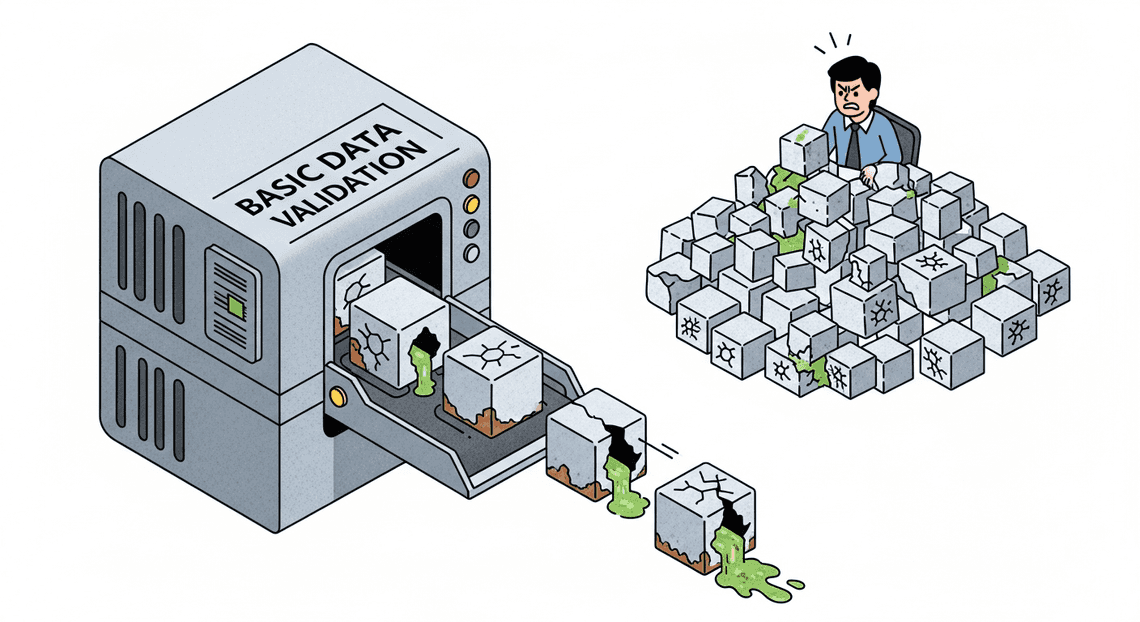
While these tools are excellent for structural validation, they are completely blind to semantic context. Consider a standard IT ticketing form with a required field: “Describe the technical issue in detail.”
-
Native Validation: Can enforce a minimum length of 20 characters.
-
The Problem: A user can input “It is broken and I do not know why,” which passes the 20-character Regex rule perfectly but provides absolutely zero actionable context for the IT team.
Native validation cannot assess sentiment, verify logical consistency between multiple fields (e.g., ensuring the requested budget aligns with the described project scope), or detect nuanced spam. When forms are exposed to a wide audience, this lack of contextual awareness inevitably leads to polluted datasets, requiring manual triage and expensive human intervention to clean up.
Architecting an AI Driven Quality Control Pipeline
To bridge this gap, we must transition from static rule-based checks to an AI-driven quality control pipeline. By injecting a Large Language Model (LLM) into the submission lifecycle, we can evaluate form responses probabilistically and contextually.
Because Google Forms does not natively support synchronous, pre-submission API calls to block the UI, we architect this as an asynchronous, event-driven pipeline. The moment a user clicks “Submit,” an event trigger captures the payload. Instead of immediately writing this data to our production database as “verified,” we route the payload to an AI model equipped with a specific system prompt detailing our business logic.
The AI acts as an automated triage agent. It reads the submission, evaluates the semantic quality of the text, cross-references fields for logical consistency, and returns a structured decision (e.g., VALID, INVALID_INSUFFICIENT_DETAIL, INVALID_POLICY_VIOLATION). Based on this AI-generated classification, our pipeline can automatically quarantine bad data, log it for review, or instantly email the submitter asking them to elaborate, effectively creating a self-healing data ingestion loop.
Core Tech Stack Components and Data Flow
To build this intelligent pipeline, we leverage a tightly integrated stack of Automatically create new folders in Google Drive, generate templates in new folders, fill out text automatically in new files, and save info in Google Sheets and Google Cloud services. Here is how the components interact to form the validation engine:
-
Google Forms (The Ingestion Layer): The user-facing interface where raw data is collected. It handles the basic structural validation (required fields, basic regex) before submission.
-
AI Powered Cover Letter Automation Engine (The Orchestrator): The serverless glue binding the workspace to the cloud. We utilize the
onFormSubmitinstallable trigger to capture the form response object in real-time. Apps Script extracts the user’s answers, formats them into a JSON payload, and handles the authentication and HTTP requests to Google Cloud. -
Vertex AI & Gemini API (The Cognitive Engine): The brain of the operation. Apps Script sends the formatted payload to a deployed Gemini model via the Vertex AI REST API. The model is configured with a strict
temperaturesetting (for deterministic outputs) and a system prompt that dictates the validation criteria. It processes the input and returns a structured JSON response containing the validation status and a reason for failure, if applicable. -
Google Sheets & Gmail (The Action Layer): The destination for the processed data.
If Vertex AI flags the submission as valid*, Apps Script tags the corresponding row in the linked Google Sheet as “Approved” and allows downstream processes to continue.
If flagged as invalid*, Apps Script tags the row as “Quarantined” and triggers the GmailApp service to send a dynamically generated, contextual email back to the user, explaining exactly why their submission was rejected (based on the AI’s reasoning) and providing a link to resubmit.
The Data Flow Summary:
User Submits Form → GAS onFormSubmit Trigger Fires → Payload Constructed → REST Call to Vertex AI → Gemini Evaluates Semantics → Structured JSON Returned to GAS → GAS Executes Conditional Logic (Approve/Quarantine/Email)
Configuring the Google Cloud and Apps Script Environment
Before we can inject intelligent, dynamic validation into our Google Forms, we need to establish a secure and functional bridge between AC2F Streamline Your Google Drive Workflow and Google Cloud. This requires configuring a standard Google Cloud Project (GCP), enabling the necessary machine learning APIs, and setting up the precise permissions required for Apps Script to communicate with Vertex AI.
Enabling Vertex AI and Gemini APIs in Google Cloud
To leverage Gemini models for field validation, your first step is to prepare your Google Cloud environment. By default, Apps Script projects use a hidden, default GCP project, but to access advanced services like Vertex AI, you must create and link a Standard GCP Project.
-
Create or Select a Project: Navigate to the Google Cloud Console and either select an existing project or create a new one dedicated to this integration.
-
Link a Billing Account: Vertex AI requires an active billing account. Ensure your project is linked to a billing account via the “Billing” section in the console.
-
Enable the API: Go to APIs & Services > Library. Search for the Vertex AI API and click Enable.
-
Enable the Gemini API (if applicable): While enabling the Vertex AI API generally grants access to the Gemini models hosted on the platform, ensure that you have accepted any necessary terms of service for generative AI features within the Vertex AI dashboard.
Setting Up Service Account Permissions and OAuth Scopes
Security is paramount when connecting Workspace applications to Cloud resources. We need to ensure that the identity executing the Apps Script has the exact authorization required to invoke Vertex AI models—no more, no less.
Configuring IAM Permissions:
If your script will run as a specific service account (highly recommended for enterprise-grade applications to avoid tying execution to a single user’s lifecycle), you need to provision it correctly:
-
In the GCP Console, navigate to IAM & Admin > Service Accounts and create a new service account.
-
Grant this service account the Vertex AI User (
roles/aiplatform.user) role. This provides the necessary permissions to trigger predictions and generate content using the Gemini models. -
If you are relying on the executing user’s credentials (default Apps Script behavior), ensure the users running the script have this same IAM role assigned in the GCP project.
Defining OAuth Scopes:
Apps Script relies on OAuth 2.0 scopes to determine what data and services the script can access. We will need to explicitly declare these scopes in our project manifest to allow HTTP requests to the Google Cloud platform. You will need the following scopes:
-
https://www.googleapis.com/auth/cloud-platform: Required to authenticate calls to the Vertex AI API. -
https://www.googleapis.com/auth/script.external_request: Required to useUrlFetchAppto make the REST API calls to Vertex AI. -
https://www.googleapis.com/auth/forms.currentonly: Required to read and modify the specific Google Form the script is bound to.
Initializing the Bound Apps Script Project
With the cloud infrastructure ready, it is time to set up the code environment directly within Google Forms. We will use a “container-bound” script, which allows the code to easily interact with the Form’s UI and trigger events.
-
Create the Script: Open your Google Form. Click the three-dot menu (More) in the top right corner and select Script editor. This opens a new Apps Script project bound directly to your form.
-
Link the Standard GCP Project:
In the Apps Script editor, click on the* Project Settings** (gear icon) on the left sidebar.
Under the “Google Cloud Platform (GCP) Project” section, click* Change project**.
Enter the* Project Number of the standard GCP project you configured earlier (found on the GCP Console dashboard) and click Set project**.
- Configure the Manifest:
Still in the Project Settings, check the box that says* “Show ‘appsscript.json’ manifest file in editor”**.
Return to the* Editor** (code icon) and open the newly visible appsscript.json file.
- Update the JSON structure to include the OAuth scopes we defined earlier. Your manifest should look similar to this:
{

"timeZone": "America/New_York",

"dependencies": {},

"exceptionLogging": "STACKDRIVER",

"oauthScopes": [

"https://www.googleapis.com/auth/cloud-platform",

"https://www.googleapis.com/auth/script.external_request",

"https://www.googleapis.com/auth/forms.currentonly"

],

"runtimeVersion": "V8"

}
By completing these steps, you have successfully established a secure, authenticated pipeline. Your Google Form is now equipped with a bound Apps Script project that has the explicit authority to communicate with Vertex AI, setting the stage for writing the dynamic validation logic.
Capturing Inputs with the onFormSubmit Trigger
The foundation of any dynamic validation system in Automated Client Onboarding with Google Forms and Google Drive. begins with capturing user input the moment it occurs. In the context of Google Forms, this means leveraging Genesis Engine AI Powered Content to Video Production Pipeline to intercept the form submission before the data is permanently routed to its final destination (like a Google Sheet). To achieve this, we rely on the onFormSubmit event trigger, which acts as the critical bridge between the user’s frontend experience and our backend Vertex AI validation logic.
Deploying Installable Triggers for Form Submissions
Google Apps Script offers two types of triggers: simple and installable. While simple triggers (like a basic onEdit or onOpen function) are convenient, they execute under restricted authorization scopes. Because our architecture requires making authenticated HTTP requests to Google Cloud’s Vertex AI API, a simple trigger will fail due to lack of permissions.
To solve this, we must deploy an installable trigger. Installable triggers run under the authorization of the user who created them, granting the script the necessary OAuth scopes to communicate with external APIs and Google Cloud services.
You can set up an installable trigger manually via the Apps Script dashboard (Triggers > Add Trigger), but as cloud engineers, we prefer infrastructure as code. You can programmatically deploy the trigger using the ScriptApp service:
/**

* Programmatically creates an installable trigger for form submissions.

* Run this function once during the initial setup.

*/

function setupTrigger() {

const form = FormApp.getActiveForm();

// Check if trigger already exists to avoid duplicates

const existingTriggers = ScriptApp.getProjectTriggers();

const triggerExists = existingTriggers.some(trigger => trigger.getHandlerFunction() === 'processFormSubmission');

if (!triggerExists) {

ScriptApp.newTrigger('processFormSubmission')

.forForm(form)

.onFormSubmit()

.create();

Logger.log("Installable trigger deployed successfully.");

}

}
Extracting and Normalizing Event Object Data
When the installable trigger fires, it passes an event object (e) to our handler function. This object contains the raw submission data, but it is deeply nested within Apps Script’s FormResponse and ItemResponse classes. Passing this raw, unstructured data directly to a Large Language Model (LLM) is highly inefficient and can lead to hallucinations or parsing errors.
We need to extract the data and normalize it into a clean, predictable key-value structure (JSON). This involves iterating through the submitted items, mapping the question titles (keys) to the user’s answers (values), and handling edge cases like empty responses or array-based answers from checkboxes.
/**

* Extracts and normalizes the form submission event object.

* @param {Object} e - The event object from the onFormSubmit trigger.

* @returns {Object} A normalized dictionary of the form responses.

*/

function processFormSubmission(e) {

const formResponse = e.response;

const itemResponses = formResponse.getItemResponses();

const normalizedData = {};

itemResponses.forEach(item => {

const questionTitle = item.getItem().getTitle();

const answer = item.getResponse();

// Normalize the data: ensure arrays (like checkbox responses) are joined

// and empty responses are handled gracefully.

if (Array.isArray(answer)) {

normalizedData[questionTitle] = answer.join(', ');

} else {

normalizedData[questionTitle] = answer ? answer.toString().trim() : "NO_RESPONSE";

}

});

// Proceed to structure the payload for Vertex AI

const aiPayload = buildVertexAIPayload(normalizedData);

// ... execute API call

}
By normalizing the data, we create a standardized schema. This guarantees that regardless of how the Google Form is modified in the future, our data pipeline feeds a consistent format to the validation engine.
Structuring the Payload for Vertex AI Consumption
With our form data neatly organized into a JSON object, the final step in the input capture phase is formatting it for Vertex AI. Whether you are routing this to a Gemini 1.5 Pro or Flash model via the Vertex AI REST API, the model expects a highly specific payload structure.
For validation tasks, Prompt Engineering for Reliable Autonomous Workspace Agents is critical. We must wrap our normalized data in a strict set of system instructions that define how the model should validate the fields. Furthermore, because validation is a deterministic task (we want strict rule adherence, not creative storytelling), we must configure the model’s hyperparameters—specifically setting the temperature to 0 or a very low value.
Here is how you structure the normalized data into a robust Vertex AI payload:
/**

* Wraps the normalized form data into a Vertex AI compatible payload.

* @param {Object} formData - The normalized key-value form data.

* @returns {Object} The JSON payload ready for the UrlFetchApp request.

*/

function buildVertexAIPayload(formData) {

// Construct a strict prompt for the LLM

const promptText = `

You are a strict data validation assistant. Review the following form submission data.

Validate the inputs based on standard corporate policies (e.g., valid email formats,

appropriate project descriptions, no PII in public fields).

Form Data:

${JSON.stringify(formData, null, 2)}

Respond ONLY in valid JSON format with two keys:

1. "isValid": boolean (true/false)

2. "reason": string (explanation of the validation failure, or "Success" if valid)

`;

// Structure the payload according to the Vertex AI Gemini API schema

const payload = {

"contents": [

{

"role": "user",

"parts": [

{ "text": promptText }

]

}

],

"generationConfig": {

"temperature": 0.0, // Force deterministic output

"topP": 0.8,

"topK": 40,

"responseMimeType": "application/json" // Ensure the model returns JSON

}

};

return payload;

}
This structured payload accomplishes three things: it securely packages the user’s input, it provides explicit boundaries and role-playing instructions to the AI, and it enforces a strict JSON output schema. This ensures that when the HTTP request is dispatched to Google Cloud, the response we get back can be programmatically parsed and acted upon without additional string manipulation.
Integrating Vertex AI for Advanced Rule Evaluation
Standard Google Forms validation is excellent for basic checks—ensuring an email looks like an email or a number falls within a specific range. However, when your validation requirements involve nuanced business logic, contextual understanding, or How to build a Custom Sentiment Analysis System for Operations Feedback Using Google Forms AppSheet and Vertex AI, regular expressions and basic Apps Script functions fall short. This is where integrating Google Cloud’s Vertex AI, specifically the Gemini models, transforms a simple form into an intelligent, dynamic data entry gateway.
By passing form responses to Vertex AI before finalizing the submission workflow, we can leverage Large Language Models (LLMs) to evaluate complex criteria in real-time.
Constructing the API Request to Vertex AI via UrlFetchApp
To bridge Automated Discount Code Management System and Google Cloud, we utilize Google Apps Script’s native UrlFetchApp service. This service allows us to make HTTP requests directly to the Vertex AI REST API.
Before constructing the request, ensure your Apps Script project is linked to a standard Google Cloud Project (GCP) and that the Vertex AI API is enabled. You will also need to configure your appsscript.json manifest to include the necessary OAuth scopes (e.g., https://www.googleapis.com/auth/cloud-platform).
Here is how you construct the API call to a Gemini model (like gemini-1.5-flash or gemini-1.5-pro) using UrlFetchApp:
function callVertexAI(promptText) {

const projectId = 'YOUR_PROJECT_ID';

const location = 'us-central1'; // e.g., us-central1

const modelId = 'gemini-1.5-flash-001';

const endpoint = `https://${location}-aiplatform.googleapis.com/v1/projects/${projectId}/locations/${location}/publishers/google/models/${modelId}:generateContent`;

// Fetch the OAuth token natively from Apps Script

const token = ScriptApp.getOAuthToken();

const payload = {

"contents": [{

"role": "user",

"parts": [{

"text": promptText

}]

}],

"generationConfig": {

"temperature": 0.1, // Low temperature for deterministic output

"responseMimeType": "application/json" // Force JSON output if supported by the model version

}

};

const options = {

'method': 'post',

'contentType': 'application/json',

'headers': {

'Authorization': `Bearer ${token}`

},

'payload': JSON.stringify(payload),

'muteHttpExceptions': true

};

const response = UrlFetchApp.fetch(endpoint, options);

return response.getContentText();

}
Notice the generationConfig block. Setting a low temperature (e.g., 0.1 or 0.0) is crucial for validation tasks, as it forces the model to be highly deterministic and analytical rather than creative.
Engineering Prompts for Sentiment and Business Logic Analysis
The success of your dynamic validation hinges entirely on prompt engineering. You must instruct the Gemini model exactly how to act, what rules to apply, and how to format its response.
When validating form data, your prompt should explicitly define the business logic. For example, if you are processing a customer support intake form, you might want to automatically escalate tickets that contain highly negative sentiment or flag warranty claims that don’t meet specific textual descriptions.
Here is an example of a robust prompt template designed for both sentiment analysis and business logic evaluation:
function buildValidationPrompt(formResponseData) {

return `

You are an expert data validation assistant for a customer support system.

Analyze the following form submission and evaluate it against our business rules.

Business Rules:

1. Determine the sentiment of the "Customer Issue" field (Positive, Neutral, or Negative).

2. If the sentiment is Negative AND the "Urgency" field is marked as "High", set "requiresEscalation" to true.

3. Check if the "Issue Description" contains sufficient detail (at least 3 distinct sentences explaining the problem). If not, set "isValid" to false and provide a "reason".

Form Submission Data:

${JSON.stringify(formResponseData, null, 2)}

You MUST respond ONLY with a valid JSON object using the following schema:

{

"sentiment": "String",

"requiresEscalation": Boolean,

"isValid": Boolean,

"reason": "String (empty if isValid is true)"

}

`;

}
By providing a clear persona, strict rules, the injected form data, and a rigid output schema, you drastically reduce the chances of model hallucination and ensure the output is programmatically useful.
Parsing the JSON Response from the Gemini Model
Once Vertex AI processes the prompt, it returns a deeply nested JSON response containing the model’s generated content, safety ratings, and usage metadata. To use the validation results in Apps Script, we must extract the text payload and parse it back into a JavaScript object.
Even when instructed to return JSON, LLMs will sometimes wrap their output in Markdown code blocks (e.g., ```json ... ```). As an expert Cloud Engineer, you should always write defensive parsing logic to handle these edge cases.
function evaluateFormSubmission(e) {

// 1. Extract form data (assuming a helper function exists)

const formData = extractFormData(e);

// 2. Build prompt and call Vertex AI

const prompt = buildValidationPrompt(formData);

const rawResponse = callVertexAI(prompt);

try {

const jsonResponse = JSON.parse(rawResponse);

// 3. Navigate the Vertex AI response schema to get the generated text

let generatedText = jsonResponse.candidates[0].content.parts[0].text;

// 4. Defensively clean the text of any Markdown formatting

generatedText = generatedText.replace(/^```json\n/, '').replace(/\n```$/, '').trim();

// 5. Parse the LLM's JSON output

const validationResult = JSON.parse(generatedText);

// 6. Execute Apps Script logic based on the AI's evaluation

if (!validationResult.isValid) {

Logger.log(`Validation Failed: ${validationResult.reason}`);

// Logic to email the user to resubmit, or flag the row in Google Sheets

}

if (validationResult.requiresEscalation) {

Logger.log("Escalating ticket based on negative sentiment and high urgency.");

// Logic to trigger PagerDuty, send a Slack message, etc.

}

return validationResult;

} catch (error) {

Logger.log(`Error parsing Vertex AI response: ${error.message}`);

Logger.log(`Raw Response: ${rawResponse}`);

// Fallback logic in case the AI fails

}

}
By carefully extracting candidates[0].content.parts[0].text and stripping away potential Markdown artifacts, you guarantee that your Apps Script workflow can reliably interpret the AI’s decisions and route the Google Form data accordingly.
Executing Real Time Feedback Loops via MailApp
Bridging the gap between advanced machine learning models and end-user experience is where Automated Email Journey with Google Sheets and Google Analytics truly shines. Once Vertex AI processes the form submission and returns its evaluation payload, the next critical step is acting on that data. If a user submits invalid, nonsensical, or policy-violating data, we don’t want them waiting days for a manual review. Instead, we can leverage Google Apps Script’s native MailApp service to create an automated, real-time feedback loop that guides the user toward a correct submission.
Designing Conditional Logic Based on AI Validation Scores
To build an intelligent feedback loop, we must first translate the raw output from Vertex AI into actionable routing logic within Apps Script. When you query a Vertex AI model (whether it’s a custom trained model or a Gemini foundational model), the response payload typically contains a confidence score, a boolean classification, or a generated reasoning string.
As a best practice in Cloud Engineering, you should establish strict thresholds for these scores. Instead of a binary pass/fail, you might design a tiered logic system. For instance, a score above 0.85 is an automatic pass, a score between 0.60 and 0.84 flags for human review, and anything below 0.60 triggers an immediate rejection and feedback loop.
Here is how you might implement this conditional logic in your Apps Script environment:
// Assuming 'responsePayload' is the parsed JSON from the Vertex AI fetch request

const predictions = responsePayload.predictions[0];

const validationScore = predictions.confidenceScore;

const aiReasoning = predictions.reasoning;

// Define our strict validation threshold

const ACCEPTANCE_THRESHOLD = 0.85;

if (validationScore >= ACCEPTANCE_THRESHOLD) {

// Proceed with standard workflow (e.g., write to BigQuery or Google Sheets)

processValidSubmission(formResponse);

} else {

// Trigger the MailApp feedback loop for scores below the threshold

triggerCorrectionWorkflow(userEmail, originalInput, aiReasoning);

}
By decoupling the threshold variable from the core logic, you allow for easy tuning of your model’s strictness without having to rewrite the underlying routing architecture.
Generating Dynamic Correction Emails for Users
The true power of integrating Vertex AI with Google Forms isn’t just in catching bad data—it’s in explaining why the data is bad. Generic “invalid input” error messages lead to user frustration and abandonment. By extracting the AI’s contextual reasoning, we can use MailApp to dispatch highly personalized, dynamic correction emails.
Using JavaScript template literals, we can construct an email body that echoes the user’s original submission, provides the AI-generated feedback, and offers clear instructions on how to rectify the issue.
function triggerCorrectionWorkflow(userEmail, originalInput, aiReasoning) {

const subject = "Action Required: Please update your recent form submission";

// Constructing a dynamic, user-friendly email body

const textBody = `Hello,\n\n` +

`Thank you for your submission. Our automated review system flagged a potential issue with your entry that requires your attention.\n\n` +

`Your Original Input: "${originalInput}"\n` +

`System Feedback: ${aiReasoning}\n\n` +

`Please review the feedback above and resubmit your response using the original Google Form link.\n\n` +

`Best regards,\nAutomated Cloud Operations`;

// Dispatch the email via MailApp

MailApp.sendEmail({

to: userEmail,

subject: subject,

body: textBody

});

}
This approach transforms a simple rejection into a guided correction process. Because MailApp executes asynchronously within the Apps Script trigger, the user receives this email within seconds of hitting the “Submit” button on the Google Form, creating a seamless, real-time experience.
Logging Validation Results and API Errors
In any robust cloud architecture, observability is non-negotiable. Relying on AI for dynamic field validation introduces external dependencies (the Vertex AI API), which means you must account for network timeouts, quota limits, and unexpected payload structures.
Google Apps Script integrates directly with Google Cloud Logging (formerly Stackdriver). By utilizing console.info(), console.warn(), and console.error(), you can stream your validation results and API errors directly into the Google Cloud Console for monitoring and alerting.
You should wrap your Vertex AI invocation and MailApp execution in a try...catch block to ensure that an API failure doesn’t cause the entire script to crash silently.
function evaluateFormSubmission(e) {

const userEmail = e.response.getRespondentEmail();

try {

// Attempt to call Vertex AI

const aiResult = callVertexAI(e.response);

// Log successful API execution and the resulting score

console.info({

message: "Vertex AI validation completed",

user: userEmail,

score: aiResult.confidenceScore,

status: aiResult.confidenceScore >= ACCEPTANCE_THRESHOLD ? "PASSED" : "REJECTED"

});

// Execute conditional logic...

} catch (error) {

// Log the specific API or execution error to Google Cloud Logging

console.error({

message: "Validation Workflow Failed",

user: userEmail,

errorName: error.name,

errorMessage: error.message,

stackTrace: error.stack

});

// Optional: Send a fallback email or notify the admin

MailApp.sendEmail(

"[email protected]",

"Vertex AI API Error in Form Validation",

`An error occurred for user ${userEmail}: ${error.message}`

);

}

}
By structuring your logs with JSON objects, you make it incredibly easy to query these logs later in the Google Cloud Logs Explorer. You can quickly filter for all REJECTED statuses to audit the AI’s strictness, or set up log-based metrics to trigger an alert if the Vertex AI API throws consecutive errors, ensuring your dynamic validation pipeline remains healthy and reliable.
Scaling and Automating Your Workspace Ecosystem
Transitioning a dynamic, AI-driven Google Form from a functional proof-of-concept to an enterprise-grade solution requires a shift in architectural thinking. When you bridge Automated Google Slides Generation with Text Replacement with Google Cloud’s Vertex AI, you are effectively building a distributed system. As user adoption grows, your architecture must gracefully handle increased throughput, API rate limits, and complex downstream workflows. Scaling this ecosystem means moving beyond basic script executions and embracing robust cloud engineering principles to ensure high availability and seamless automation.
Optimizing Apps Script Execution Time and Quota Management
Google Apps Script is a highly accessible serverless platform, but it operates within strict quota boundaries. For enterprise applications, the 6-minute execution limit per script and the daily quotas for UrlFetchApp (used to call Vertex AI) can quickly become bottlenecks. When performing dynamic field validation using large language models, latency and resource consumption are your primary enemies.
To build a resilient validation engine, you must implement aggressive optimization and defensive programming strategies:
-
Model Selection and Payload Optimization: Do not default to the heaviest AI model for simple validation tasks. Use lightweight, high-speed models like
gemini-1.5-flashinstead ofgemini-1.5-profor real-time or near-real-time validation. Keep your system prompts concise and restrict the output format (e.g., forcing a strict JSON schema) to minimize token generation time and reduce payload parsing overhead. -
Implementing
CacheService: If your form validates common inputs (like standard industry codes, recurring project names, or standardized addresses), leverage the Apps ScriptCacheService. Before making an expensiveUrlFetchAppcall to Vertex AI, check the cache. Storing previously validated responses for up to 6 hours can drastically reduce API calls, mitigating both latency and quota consumption. -
Exponential Backoff for Rate Limits: Vertex AI API endpoints have strict Requests Per Minute (RPM) limits. If multiple users submit the form simultaneously, your script might encounter
429 Too Many Requestserrors. Implement an exponential backoff algorithm within yourUrlFetchAppcalls. If a request fails due to rate limiting, the script should pause for a progressively longer duration before retrying, ensuring the validation process eventually succeeds without crashing the script. -
Asynchronous Decoupling: For complex validations that risk hitting the 6-minute execution limit, decouple the process. Instead of forcing the user to wait for a synchronous response, use the
onSubmittrigger to push the raw form data into a Google Cloud Pub/Sub topic or a Google Sheet. From there, a Cloud Run service or an asynchronous time-driven Apps Script trigger can process the data against Vertex AI in batches, updating the validation status asynchronously.
Exploring the ContentDrive App Ecosystem for Advanced Automation
Once your data is intelligently validated and structured by Vertex AI, the next logical step is putting that data to work. This is where integrating with the broader ContentDrive app ecosystem—and similar advanced Drive-centric automation frameworks—unlocks massive potential.
The ContentDrive ecosystem represents a paradigm of treating Google Drive not just as a storage repository, but as an active, event-driven content management system. By connecting your Vertex AI-validated form data to these advanced automation tools, you can orchestrate complex, multi-step business workflows without manual intervention.
-
Intelligent Document Generation: Validated form inputs can be automatically routed to ContentDrive automation tools to generate highly customized documents. For example, if Vertex AI validates and categorizes a vendor intake form, the system can automatically select the correct legal contract template, populate it with the validated data via the Google Docs API, and save it to a dynamically provisioned Drive folder.
-
Dynamic Permissions and Lifecycle Management: Advanced automation allows you to map the AI’s validation output directly to Workspace security policies. Depending on the sensitivity level determined by Vertex AI (e.g., flagging a form submission as containing PII), the ContentDrive ecosystem can automatically restrict sharing settings on the generated files, apply Automated Order Processing Wordpress to Gmail to Google Sheets to Jobber Data Loss Prevention (DLP) labels, and assign view/edit rights only to specific Active Directory groups.
-
Automated Routing and Approvals: Instead of dumping form responses into a static spreadsheet, validated data can trigger state machines within the ContentDrive ecosystem. If an AI-validated request meets specific criteria, it can be routed through a multi-tiered approval workflow. Webhooks can notify stakeholders via Google Chat or Slack, embedding actionable buttons directly in the message to approve or reject the dynamically generated documents.
By marrying the intelligent validation capabilities of Vertex AI with the robust routing and document management features of the ContentDrive ecosystem, you transform a simple data-entry form into a fully automated, self-regulating operational engine.


Stop Doing Manual Work. Scale with AI.
Want to turn these blog concepts into production-ready reality for your team?
Table Of Contents
Portfolios
Related Posts
Quick Links
Legal Stuff