

The Workspace as a Service Pattern with Google Workspace and Cloud Run


While your team thrives in collaborative tools like Google Sheets, a critical disconnect from your backend systems is creating inefficient, siloed workflows.

Introduction: The Problem with Siloed Workflows
In the modern enterprise, the digital workspace is the epicenter of productivity. Tools like [Automated Web Scraping with [Multilingual Text-to-Speech Tool with SocialSheet Streamline Your Social Media Posting 123](https://votuduc.com/Multilingual-Text-to-Speech-Tool-with-Google-Workspace-p809282)](https://votuduc.com/Automated-Web-Scraping-with-Google-Sheets-p292968), Docs, and Slides are no longer just static documents; they are dynamic, collaborative environments where business logic lives, data is analyzed, and decisions are made. Yet, a fundamental disconnect persists. These user-friendly interfaces, optimized for collaboration and immediate interaction, exist in a world apart from the powerful, scalable backend systems that handle heavy computation, data processing, and complex business logic.
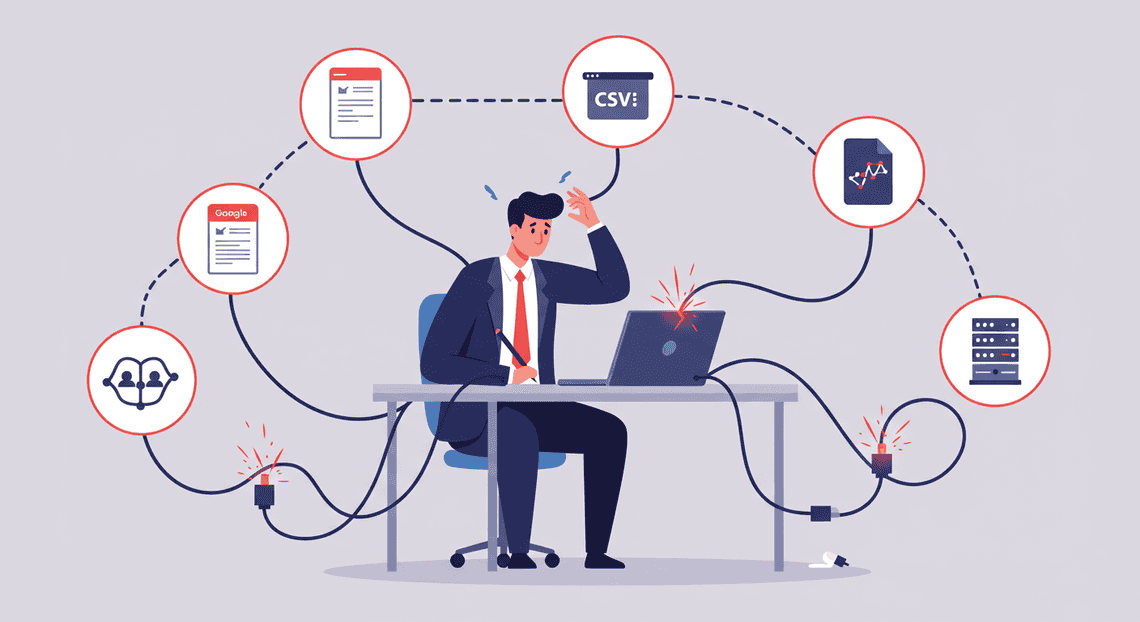
This separation creates what we call the “siloed workflow.” Consider a financial analyst who needs to run a sophisticated risk model on a dataset housed in a Google Sheet. The Sheet is the perfect tool for data entry, manipulation, and final visualization. The model itself, however, might require a JSON-to-Video Automated Rendering Engine environment with specialized libraries and significant CPU resources—far beyond the capabilities of the browser environment.
The typical workflow becomes a series of manual, disjointed steps:
-
Export: The analyst exports the data from Google Sheets to a CSV file.
-
Context Switch: They switch to a local machine or a separate cloud console.
-
Execute: They run a script or application against the exported data.
-
Wait: They wait for the long-running process to complete.
-
Import: They import the results back into the Google Sheet.
This process is not just inefficient; it’s a breeding ground for errors, a barrier to adoption, and a source of immense friction.
Bridging the Gap Between User Interfaces and Heavy Compute
The ideal solution is to dissolve the barrier between the user’s immediate workspace and the backend computational engine. We need to create a seamless bridge that allows a user to trigger complex, resource-intensive tasks directly from the familiar interface of a Google Sheet, Doc, or Form, and receive the results in the same context, without ever needing to “leave the room.”
This isn’t merely a matter of convenience; it’s about fundamentally changing how users interact with powerful technology. It’s about democratizing access to heavy compute. The financial analyst shouldn’t need to understand gcloud commands or manage a virtual machine to run their model. The marketing team shouldn’t need to file an engineering ticket to enrich a list of 100,000 leads with data from an external API.
The goal is to empower users to leverage the full power of the cloud from within the applications they already know and trust. The user interface (the Google Sheet) becomes a control panel, and the complex backend logic is abstracted away into a service that can be invoked with the click of a button. This approach maintains the collaborative, intuitive nature of the workspace while injecting the near-infinite scale and power of the cloud.
Defining the ‘Workspace-as-a-Service’ (WaaS) Architectural Pattern
To formalize this solution, we introduce the “Workspace-as-a-Service” (WaaS) architectural pattern.
WaaS is an architectural pattern that extends the native functionality of a digital workspace by integrating it with decoupled, scalable, on-demand cloud services. It treats the user’s familiar application as a thin client or control panel for invoking powerful backend processes.
This pattern is defined by a few core characteristics:
-
User-Centric Trigger: The entire workflow is initiated from within the user’s workspace. This could be a custom menu item, a button embedded in a sheet, a sidebar, or an automated trigger like
onEdit(). -
**Lightweight Orchestration: A middle layer acts as a secure orchestrator. Its sole purpose is to gather context from the workspace (e.g., read a cell range, get the user’s email), authenticate itself, and make a secure, well-defined call to a backend service. It does not perform the heavy lifting itself.
-
Decoupled, Scalable Backend: The actual computation is handled by a separate, purpose-built service that is completely decoupled from the user’s session. This service can be written in any language, use any library, and scale independently to meet demand—from zero to thousands of concurrent requests.
-
Asynchronous Communication: The interaction is often asynchronous. The user triggers the task and can continue their work. The orchestrator fires the request and doesn’t need to wait for the full computation to finish. The results are delivered back to the workspace when ready, updating a document, sending an email, or notifying the user.
By adopting this pattern, we move away from monolithic, constrained scripts and the clumsy, manual export/import cycle. We create a robust, scalable, and elegant solution that brings the power of the cloud directly to the user’s fingertips.
Core Technologies at a Glance: Automatically create new folders in Google Drive, generate templates in new folders, fill out text automatically in new files, and save info in Google Sheets, Apps Script, and Architecting Workspace as a Service with GCP Cloud Run
To implement the WaaS pattern within the Google ecosystem, we leverage a powerful trio of technologies, each playing a distinct and critical role:
-
AC2F Streamline Your Google Drive Workflow (The Front-End): This is the user’s environment—the “control panel.” Applications like Google Sheets, Docs, Forms, and Slides serve as the interface. They provide the user context, hold the input data, and are the ultimate destination for the processed results. Their native collaborative features and familiar UI are the foundation of the user experience.
-
[AI Powered Cover Letter [Automated Job Creation in Real Time Jobber and Google Sheets Integration from Gmail](https://votuduc.com/Automated-Job-Creation-in-Jobber-from-Gmail-p115606) Engine](https://votuduc.com/AI-Powered-Cover-Letter-Automated Quote Generation and Delivery System for Jobber-Engine-p111092) (The Orchestrator): This is the essential “glue” that connects the workspace to the backend. Apps Script is a serverless scripting platform that has privileged access to Automated Client Onboarding with Google Forms and Google Drive. APIs. Its role in the WaaS pattern is not to perform heavy computation but to:
-
Create custom UI elements (menus, buttons, sidebars).
-
Read from and write to the host application (e.g.,
SpreadsheetApp.getActiveRange()). -
Securely invoke external services using its
UrlFetchAppservice, automatically handling authentication by generating and including Google-signed identity tokens. -
Google Cloud Run (The Backend Compute Engine): This is our scalable, heavy-lifting backend. Cloud Run is a fully managed, serverless platform that runs stateless containers. It is the ideal choice for our WaaS backend because it:
-
Scales to Zero: If no one is using the service, it costs nothing.
-
Scales On-Demand: It can automatically scale up to handle thousands of concurrent requests and scale back down instantly.
-
Is Polyglot: You can write your service in any language (Python, Node.js, Go, Java, etc.), allowing you to use the best tool for the job.
-
Is Secure: It can be configured to only accept authenticated invocations, which Apps Script can provide, ensuring that only authorized users from your workspace can trigger your backend processes.
Architectural Blueprint: The Three Core Pillars
The power of the Workspace as a Service (WaaS) pattern lies in its deliberate separation of concerns. It’s not a monolithic application but a distributed system composed of three distinct, yet deeply integrated, pillars. Each pillar leverages a specific Google technology for what it does best, creating a whole that is far greater than the sum of its parts. Understanding these pillars is key to building robust, scalable, and user-friendly internal platforms.
Pillar 1: Automated Discount Code Management System as the User-Facing Control Plane
The first pillar establishes the user interface—the command and control center for your entire system. Instead of building a custom web application from scratch, we leverage the ubiquitous and familiar environment of Automated Email Journey with Google Sheets and Google Analytics.
What is its role? Automated Google Slides Generation with Text Replacement (Sheets, Docs, Forms, etc.) acts as the control plane. It is the surface where users define their intent and initiate actions. A row in a Google Sheet isn’t just data; it’s a desired state declaration. A submitted Google Form isn’t just a response; it’s a service request.
How does it work?
-
Google Sheets: An ideal interface for managing a fleet of resources. Each row can represent a service, a project, or a configuration, with columns for its parameters (e.g.,
project_name,status,owner,cpu_request). Users interact by adding new rows or changing a value in a specific cell (e.g., updating thestatusfrompendingtoprovision). -
Google Forms: Perfect for guided, request-based workflows. A user fills out a structured form to request a new development environment, a data report, or access to a system. This provides a simple, wizard-like experience that ensures all required information is captured upfront.
-
Google Docs: Can be used for approval workflows. For example, a technical design document could have a custom menu item that, when clicked, triggers a process to provision the infrastructure described within it, but only after specific users have left “Approved” comments.
The primary advantage here is the zero-friction user experience. There is no new UI to learn, no separate portal to log into. Your team operates within the collaborative tools they already use daily, dramatically lowering the barrier to adoption. Workspace’s native identity, authentication, and sharing models serve as the first layer of access control.
Pillar 2: Genesis Engine AI Powered Content to Video Production Pipeline as the Orchestration Middleware
If Automated Order Processing Wordpress to Gmail to Google Sheets to Jobber is the control plane, [Architecting Multi Tenant AI Workflows in Building Modular Agentic Apps Script with Gemini Function Calling](https://votuduc.com/architecting-multi-tenant-ai-workflows-in-google-apps-script-p-20260321290501) is the intelligent, event-driven middleware that connects user intent to backend execution. It is the essential glue that makes the entire pattern interactive and automated.
**What is its role? Apps Script acts as the orchestrator. It runs directly within the Automated Payment Transaction Ledger with Google Sheets and PayPal environment, listening for specific triggers and translating them into authenticated instructions for our backend.
How does it work?
Apps Script code is bound to the specific Workspace file (e.g., the Google Sheet). It uses triggers to initiate its logic:
-
Simple Triggers: Functions like
onEdit(e)oronFormSubmit(e)execute automatically when a user edits a cell or submits a form. The event object (e) provides crucial context, such as which cell was changed or what the form responses were. -
Custom Menus: You can create custom menus directly in the UI of a Sheet or Doc, allowing users to explicitly trigger a script with a button click like “Provision Selected Rows”.
The script’s core responsibilities are:
-
Capture and Contextualize: It catches the user’s action (the trigger).
-
Marshal Data: It reads the relevant data from the source document (e.g., the entire row that was edited, the form submission details).
-
Perform Light Validation: It can run initial sanity checks on the data before making an external call.
-
Authenticate and Delegate: This is its most critical function. It uses a Service Account or OAuth to securely authenticate itself and then makes an authorized HTTP request to our backend service, passing the marshalled data as a JSON payload.
It’s crucial to recognize that Apps Script is not meant for heavy lifting. With execution time limits and a simpler runtime, its strength lies in being a lightweight, trusted orchestrator—not the workhorse itself.
Pillar 3: GCP Cloud Run as the Scalable Serverless Backend
The final pillar is the engine room—the powerful, scalable, and flexible backend where the actual work gets done. This is where we break free from the constraints of the Workspace environment and leverage the full power of Google Cloud.
**What is its role? Cloud Run provides the serverless backend execution layer. It hosts our custom business logic, packaged as a container, and exposes it as a secure HTTP endpoint that Apps Script can invoke.
How does it work?
When the Cloud Run service receives a request from Apps Script, it takes over the heavy lifting:
-
Receives Payload: It ingests the JSON payload containing the user’s request and data.
-
Executes Complex Logic: This is where you can use any programming language (Go, Python, Node.js, etc.), any library, and any framework. The container can contain GCP client libraries to interact with any service in the Google Cloud ecosystem—creating GCP projects with Resource Manager, provisioning databases with Cloud SQL, running queries in BigQuery, or interacting with any third-party API.
-
Scales on Demand: Cloud Run automatically scales the number of container instances based on incoming traffic, even scaling down to zero when there are no requests. This makes it incredibly cost-effective for the often-bursty, on-demand nature of WaaS workflows.
-
**Secure by Default: The Cloud Run endpoint is configured with IAM to be private, ensuring it can only be invoked by the specific service account identity used by our Apps Script orchestrator. This creates a secure, auditable link between the user’s action in Workspace and the execution of privileged operations in GCP.
This pillar is where your “Service” in “Workspace as a Service” truly comes to life. It’s the component that turns a simple row edit in a spreadsheet into a fully provisioned, production-ready cloud environment.
The End-to-End Orchestration Flow
Now that we’ve established the high-level architecture, let’s trace the complete journey of a request. This flow is the heartbeat of our Workspace-as-a-Service pattern, transforming a simple click inside a Google Doc into a powerful, scalable backend process. Think of it as a well-choreographed digital relay race, where each service securely hands off the baton to the next, from the user’s browser all the way to Google’s serverless infrastructure and back again.
Step 1: Initiating the Job from a Google Doc or Sheet
Everything begins with the user, right inside their familiar Google Docs to Web environment. The goal is to make triggering a complex backend job feel as natural as clicking “Save” or “Print”. We achieve this using Google Apps Script’s ability to modify the UI of Docs, Sheets, and other Workspace applications.
The most common method is to add a custom menu to the application’s toolbar. This is accomplished with an onOpen() simple trigger—a special function that Apps Script automatically runs every time the document is opened by a user with edit access.
Here’s a canonical example for a Google Sheet:
// This function runs automatically when the spreadsheet is opened.

function onOpen() {

SpreadsheetApp.getUi() // Or DocumentApp or SlidesApp

.createMenu('🚀 Custom Reports')

.addItem('Generate Quarterly Sales Report', 'showReportDialog')

.addToUi();

}
When the user opens their spreadsheet, a new menu named ”🚀 Custom Reports” magically appears. Clicking the “Generate Quarterly Sales Report” item will execute the showReportDialog function, kicking off the next step in our flow. This seamless integration is the key to user adoption; there are no new platforms to learn and no context switching required.
Step 2: Capturing User Input with Apps Script UI Triggers
A backend job is rarely a one-size-fits-all operation. It often requires parameters: a date range, a customer ID, a specific output format. Instead of forcing users to type these into a cell, we can present them with a clean, interactive dialog box or sidebar, again using the Apps Script Ui class.
Continuing our example, the showReportDialog function would generate an HTML-based UI to collect the necessary information.
// This function is called from the custom menu item.

function showReportDialog() {

// Create an HTML service instance from an HTML file in the script project.

const html = HtmlService.createHtmlOutputFromFile('ReportDialog')

.setWidth(400)

.setHeight(300);

SpreadsheetApp.getUi().showModalDialog(html, 'Report Generation Options');

}

// This function is called from the dialog's client-side JavaScript.

function processReportRequest(formObject) {

// `formObject` contains user input, e.g., { quarter: 'Q3', year: '2023' }

// Now, we pass this data to the next step...

invokeCloudRunJob(formObject);

}
The ReportDialog.html file would contain a standard HTML form with inputs, dropdowns, and a “Submit” button. When the user clicks “Submit”, it calls the google.script.run client-side API, which executes our server-side processReportRequest Apps Script function. This function now has all the user-provided parameters neatly packaged in an object, ready for the secure handoff to our Cloud Run service.
Step 3: Authenticating Securely with GCP via OAuth2
This is the most critical step for security. We cannot expose our Cloud Run service to the public internet without authentication. The Apps Script needs to prove its identity and authorization to invoke the service.
The modern, recommended, and most secure way to do this is by using an OIDC (OpenID Connect) identity token. When you associate your Apps Script project with a Google Cloud Platform (GCP) project, the script is assigned a unique identity in the form of a service account. We can leverage this identity.
The process is as follows:
-
Grant Permissions in GCP: In your GCP project’s IAM & Admin console, find the service account associated with your Apps Script project (it usually looks like
[PROJECT_ID]@appspot.gserviceaccount.com). Grant this service account the Cloud Run Invoker (roles/run.invoker) role specifically for your target Cloud Run service. This ensures that only this script is permitted to call the endpoint. -
Generate an Identity Token in Apps Script: Inside your Apps Script function, you make a single call to
ScriptApp.getIdentityToken(). This token is a short-lived, cryptographically signed JWT (JSON Web Token) that contains the script’s identity. -
Pass the Token: This identity token will be included in the
Authorizationheader of our API request to Cloud Run.
Cloud Run has built-in functionality to automatically validate this token. If the token is valid and signed by Google, and if the identity contained within it (email claim) corresponds to a service account that has the run.invoker permission, the request is allowed. If not, it’s rejected with a 401 Unauthorized or 403 Forbidden error. This mechanism provides robust, zero-hassle, service-to-service authentication.
Step 4: Invoking the Cloud Run API to Start an Asynchronous Job
With user parameters in hand and a fresh identity token, we are ready to make the call. We use Apps Script’s UrlFetchApp service to send an HTTP POST request to our Cloud Run service’s invoke URL.
A crucial design principle here is asynchronicity. Apps Script functions have a maximum execution time (currently 6 minutes). If your backend job takes 10 minutes, the script will time out and fail. To prevent this, the Cloud Run service should be designed to immediately accept the request, queue the job for background processing (using tools like Cloud Tasks or Pub/Sub), and return a 202 Accepted response with a unique jobId.
function invokeCloudRunJob(reportParams) {

const cloudRunUrl = 'https://your-cloud-run-service-url.a.run.app/api/reports';

const identityToken = ScriptApp.getIdentityToken();

const options = {

'method': 'post',

'contentType': 'application/json',

'headers': {

'Authorization': 'Bearer ' + identityToken

},

'payload': JSON.stringify({

'params': reportParams,

// Optional: Provide a callback URL for when the job is done

'callbackUrl': ScriptApp.getService().getUrl()

}),

'muteHttpExceptions': true // Important for handling errors

};

const response = UrlFetchApp.fetch(cloudRunUrl, options);

const responseCode = response.getResponseCode();

const responseBody = response.getContentText();

if (responseCode === 202) {

const { jobId } = JSON.parse(responseBody);

// Store the jobId for status checks and notify the user

PropertiesService.getUserProperties().setProperty('latestJobId', jobId);

SpreadsheetApp.getUi().alert(`✅ Job started successfully! Job ID: ${jobId}`);

} else {

// Handle errors from the Cloud Run service

SpreadsheetApp.getUi().alert(`Error starting job: ${responseBody}`);

}

}
The baton has now been passed. The Apps Script’s primary role is complete, and the heavy lifting is now the responsibility of our scalable Cloud Run service.
Step 5: Monitoring Job Status and Handling Callbacks
The job is running, but how does the user know when it’s done? And how do the results get back into the Google Sheet? We have two primary patterns for closing the loop.
Pattern 1: Manual Polling
The simpler approach is to provide a way for the user to check the status. We can add another custom menu item like “Check Job Status”.
-
When clicked, an Apps Script function retrieves the
jobIdstored inPropertiesService. -
It makes an authenticated GET request to a status endpoint on our Cloud Run service (e.g.,
/api/reports/status/{jobId}). -
The service returns the current status (“Pending”, “Running”, “Completed”, “Failed”).
-
The script displays this status to the user via a toast notification or sidebar update.
Pattern 2: Automated Callbacks (Webhooks)
A more sophisticated and user-friendly approach is to have the Cloud Run service proactively notify the Workspace Add-on when the job is complete.
-
Deploy Apps Script as a Web App: In the Apps Script editor, you deploy the script as a “Web App”. This provides a unique, stable URL that can receive HTTP POST requests. You’ll need to implement a special
doPost(e)function to handle incoming data. -
Pass the Callback URL: As shown in the code snippet in Step 4, the initial request to Cloud Run includes this Web App URL in its payload.
-
Cloud Run Calls Back: When the background job finishes, the Cloud Run service makes a POST request to the provided callback URL. The payload of this request contains the final status and any results (e.g., a signed URL to a generated PDF report in a Google Cloud Storage bucket).
-
Secure the Callback: To prevent anyone from calling your Web App URL, the Cloud Run service should authenticate itself when making the callback, again using an OIDC token generated for its own service account. The Apps Script
doPost(e)function would be responsible for validating this token before processing the payload. -
Update the UI: The
doPost(e)function receives the results and updates the Google Sheet directly—for example, by writing “Completed” into a status cell and inserting the link to the generated report in the adjacent cell.
This callback pattern creates a seamless, fully automated round-trip experience. The user clicks a button, and a few minutes later, the results appear directly in their document without any further action required.
Key Implementation Considerations for Architects
Transitioning the “Workspace as a Service” concept from a pattern to a production-ready system requires careful architectural planning. The serverless, event-driven nature of this design offers immense scalability and cost-efficiency, but it also introduces specific challenges around security, state management, and operational robustness. Here, we delve into the critical considerations that will ensure your implementation is secure, resilient, and cost-effective.
IAM and Service Account Permissions for Secure Invocation
Security begins and ends with identity. In this pattern, the Cloud Run service’s identity is a Google Cloud Service Account. Securing the interaction between Cloud Run and the SocialSheet Streamline Your Social Media Posting APIs hinges on correctly configuring permissions at two distinct layers: Google Cloud IAM and Speech-to-Text Transcription Tool with Google Workspace Domain-Wide Delegation.
The Principle of Least Privilege is Non-Negotiable. The service account should possess only the permissions essential for its function. Over-provisioning permissions creates an unnecessarily large blast radius in the event of a compromise.
1. Google Cloud IAM Permissions:
This layer governs what the service account can do within the Google Cloud ecosystem and who can invoke it.
-
Invoker Permissions: To trigger your Cloud Run service, the calling principal (e.g., an end-user, another service, or a scheduler) needs the
roles/run.invokerrole. If you are using API Gateway or an HTTP Load Balancer, you would typically grant this role to the service account managing the gateway. -
Service-to-Service Permissions: The service account itself will need roles to interact with other GCP services. For example:
-
roles/pubsub.publisher: To publish messages to a Pub/Sub topic. -
roles/datastore.user: To read/write job status to Firestore. -
roles/secretmanager.secretAccessor: To access any necessary secrets, such as an API key for a third-party system.
2. Google Workspace Domain-Wide Delegation:
This is the critical mechanism that authorizes your service account to act on behalf of a user within your Google Workspace domain. Without it, your Cloud Run service has no authority to call the Admin SDK APIs.
-
Mechanism: You grant the service account specific OAuth 2.0 scopes, which explicitly define the API actions it is allowed to perform (e.g., create users, manage groups, modify calendar settings). The service account then uses these delegated permissions to impersonate a designated Workspace administrator account to execute its tasks.
-
Implementation Steps:
-
Create a dedicated Service Account in your Google Cloud project.
-
In the Service Account’s settings, enable Google Workspace Domain-Wide Delegation. Note the Unique ID (Client ID) of the service account.
-
Navigate to your Google Workspace Admin Console:
Security > Access and data control > API controls. -
Under “Domain-wide Delegation,” add a new API client.
-
Paste the Service Account’s Client ID and provide a comma-separated list of the precise OAuth scopes it requires. For example:
-
https://www.googleapis.com/auth/admin.directory.user(for user management) -
https://www.googleapis.com/auth/drive(for Drive management) -
https://www.googleapis.com/auth/apps.groups.settings(for group settings)
Always start with the narrowest possible scopes and only expand them as required. Regularly audit these delegated permissions as you would any high-privilege IAM role.
Designing for Asynchronicity and Long-Running Processes
Provisioning a complete workspace—creating a user, assigning licenses, creating a Drive folder, setting permissions, and adding the user to groups—can take several seconds or even minutes. Forcing a client to wait for this entire process synchronously over an HTTP connection is brittle and prone to timeouts. The solution is to decouple the initial request from the actual work.
The Pub/Sub Decoupling Pattern:
- Ingress Service: A primary Cloud Run service (or Cloud Function) acts as the public-facing endpoint. Its sole responsibilities are to:
-
Validate the incoming request (e.g., check authentication, validate payload).
-
Generate a unique correlation ID for the task.
-
Publish a message containing the validated payload and correlation ID to a Pub/Sub topic.
-
Immediately return a
202 Acceptedresponse to the client, along with the correlation ID.
- Worker Service: A second, internal Cloud Run service is triggered by push subscriptions to the Pub/Sub topic. This service performs the heavy lifting:
-
It receives the message from Pub/Sub.
-
It executes the multi-step logic to call the various Google Workspace APIs.
-
Because it’s not tied to a client HTTP request, it can use the full Cloud Run request timeout (up to 60 minutes) to complete its work.
Benefits of this approach:
-
Resilience: If the worker service fails, Pub/Sub’s built-in retry mechanism will attempt to deliver the message again. This handles transient network issues or temporary API unavailability.
-
Scalability: Pub/Sub and Cloud Run scale independently. A sudden burst of provisioning requests will simply queue up in Pub/Sub, and Cloud Run will scale out the number of worker instances to process the backlog.
-
Improved User Experience: The client receives an immediate response and can use the correlation ID to poll a separate status endpoint if needed, rather than holding a connection open.
Idempotency is Key: Pub/Sub guarantees “at-least-once” delivery, meaning your worker service might process the same message more than once. Your logic must be idempotent. Before creating a user, check if a user with that email already exists. Before creating a folder, check for its existence. Use the correlation ID to track job state in a database like Firestore to prevent duplicate executions.
Cost Management Strategies for Cloud Run Usage
Cloud Run’s pay-per-use model is a major advantage, but without careful configuration, costs can escalate. Architects should focus on right-sizing resources and leveraging the platform’s scaling controls.
-
Right-Sizing CPU and Memory: Workspace API interactions are typically I/O-bound, not CPU-bound. The container spends most of its time waiting for network responses. Start with the smallest CPU and memory allocations (e.g., 1 vCPU, 256MiB) and use Cloud Monitoring to observe actual usage. Over-provisioning is a direct waste of money.
-
Optimize Concurrency: The
concurrencysetting defines how many requests a single container instance can process simultaneously. For I/O-bound workloads, a high concurrency (the default is 80) is extremely cost-effective. A single instance can juggle many concurrent API calls, maximizing the utilization of its allocated CPU and memory. -
Leverage Scale-to-Zero: For the worker service, which only runs in response to Pub/Sub messages, setting
min-instancesto0is the most cost-effective strategy. You only pay when work is being done. This is the default and ideal for workloads that are not time-sensitive. -
Consider Minimum Instances for Latency: For the public-facing ingress service, a cold start could introduce a few seconds of latency for the first request after a period of inactivity. If this initial latency is unacceptable, you can set
min-instancesto1. This keeps one container instance warm at all times, eliminating cold starts at the cost of paying for that instance 24/7. This is a classic cost-vs-performance trade-off. -
Set Budget Alerts: Always configure budget alerts in Google Cloud Billing to be notified of unexpected spending, allowing you to react before costs spiral out of control.
Robust Error Handling and Logging Across the Stack
In a distributed, event-driven system, a request can fail at multiple points. A robust error handling and logging strategy is not an afterthought—it’s a core architectural requirement for a production system.
Structured Logging with Correlation IDs:
Your logs are your primary tool for debugging.
-
Use JSON: Write your logs as structured JSON payloads rather than plain text strings. This makes them first-class citizens in Cloud Logging, allowing you to easily filter, query, and build metrics on log data.
-
**Trace Everything: The correlation ID generated by the ingress service must be included in every single log entry related to that request, across both the ingress and worker services. When a user reports a failure, you can use this ID to immediately find all relevant logs and trace the entire lifecycle of the request.
Intelligent Error Handling and Retries:
-
API-Specific Errors: Your code must differentiate between different types of errors from the Google Workspace APIs. A
409 Conflict(e.g., user already exists) is not a true failure and should be handled gracefully. A403 Forbiddenindicates a permissions problem that is not retryable and should be escalated immediately. -
Transient Errors: For transient errors like
500or503from the APIs, implement a retry strategy. The Pub/Sub push subscription offers a powerful, configurable retry policy out of the box. You can define the maximum number of retries and the exponential backoff delay between them. -
Dead-Letter Queues (DLQ): Configure a DLQ on your Pub/Sub subscription. If a message fails processing after all retry attempts (a “poison pill”), Pub/Sub will move it to a separate DLQ topic. This is critical for two reasons:
-
It prevents a single bad message from blocking the entire processing queue.
-
It preserves the failed message for manual inspection, debugging, and potential reprocessing.
Monitoring and Alerting:
Use Cloud Monitoring to build a dashboard that provides a single-pane-of-glass view of your system’s health.
-
Key Metrics: Track Cloud Run 5xx error rates, request latency, and instance count. Monitor Pub/Sub metrics like
subscription/num_undelivered_messages(a growing backlog is a sign of trouble) andsubscription/dead_letter_message_count. -
Proactive Alerts: Configure alerts for critical thresholds. You should be notified automatically if the number of messages in your DLQ increases, if your Cloud Run service’s error rate spikes, or if the processing latency exceeds your service-level objective (SLO).
Practical Use Cases for the WaaS Pattern
The theoretical architecture is compelling, but the real power of the Workspace as a Service (WaaS) pattern shines when applied to concrete business problems. By treating Google Workspace as the user-facing control plane for robust backend services on Cloud Run, you can unlock sophisticated new capabilities for your users without forcing them to leave their familiar tools. Let’s explore some practical, high-impact use cases.
On-Demand Batch Data Processing from Google Sheets
The Scenario: A business analyst has a Google Sheet with 50,000 rows of raw sales data. They need to run a cohort analysis and generate a forecast, a task that would instantly overwhelm the computational limits and execution timeouts of standard Google Apps Script.
The WaaS Solution: Instead of exporting the data and running a local Python script, the analyst uses a custom menu item within the Sheet labeled “Run Advanced Forecast.”
-
Trigger: The Apps Script associated with the menu item grabs the entire data range (
Sheet.getDataRange().getValues()). -
Dispatch: It makes an authenticated
UrlFetchAppcall to a dedicated Cloud Run endpoint, sending the data payload as a JSON object in the POST request body. -
Process: The Cloud Run service, a Python container equipped with libraries like Pandas, NumPy, and Scikit-learn, receives the data. It deserializes the JSON into a DataFrame, performs the complex time-series analysis, generates the forecast, and aggregates the results. This entire process might take a few minutes, far exceeding the Apps Script timeout, but is handled effortlessly by the scalable Cloud Run instance.
-
Response: Upon completion, the Cloud Run service sends the summarized results back as a JSON response. The Apps Script, which has been waiting for the
UrlFetchAppcall to complete, receives this response, parses it, and neatly writes the forecast data into a new tab in the original Google Sheet. For jobs longer than the HTTP request timeout, the Cloud Run service could instead write the results to a new CSV in Cloud Storage and update the sheet with a link.
This pattern empowers the analyst to trigger powerful, server-grade processing with a single click, democratizing access to complex data science workflows.
Automated Report Generation and PDF Conversion
The Scenario: A marketing team needs to generate a personalized, professionally branded performance report for each of their top clients at the end of every month. The process involves pulling data from Google Analytics, a CRM, and a project tracking sheet, merging it into a Google Doc template, and then emailing a PDF version to the client.
The WaaS Solution: The team uses a “Report Generation” Google Sheet. They fill in the client ID and the reporting period and click a “Generate Report” button.
-
Trigger: An Apps Script function is triggered by the button click. It collects the client ID and date range.
-
Dispatch: It sends this small set of parameters to a “report-generator” Cloud Run service.
-
Process: The Cloud Run service, likely running Node.js, acts as an orchestrator:
-
It uses the Google Drive API to make a fresh copy of the master
report-template.gdoc. -
It uses its service account credentials to independently query the Google Analytics API and the internal CRM API for the client’s data.
-
It reads additional project notes from the shared project tracking Google Sheet.
-
Using the Google Docs API, it performs a “mail merge” style operation, finding and replacing placeholders like
{{client_name}},{{total_conversions}}, and{{project_milestones}}in the copied document. -
Finally, it calls the Google Drive API’s
files.exportmethod withmimeType: 'application/pdf'to convert the populated Google Doc into a PDF.
- Response & Delivery: The service saves the final PDF to a shared “Client Reports” folder in Google Drive and uses an email service like SendGrid (or even the Gmail API) to send the report directly to the client, CC’ing the account manager. It then returns a success message with a link to the generated PDF, which the Apps Script displays to the user in a popup dialog.
This automates a tedious and error-prone workflow, ensuring consistency and freeing up the marketing team to focus on analysis rather than document formatting.
Triggering Complex Media Rendering Workflows
The Scenario: A social media team creates dozens of short video variations for A/B testing. They use a Google Sheet to manage the creative pipeline, with columns for the source video file (in Google Drive), text overlay content, background music track, and desired output format.
The WaaS Solution: The sheet includes a “Status” column and a custom menu item to “Queue for Render.”
-
Trigger: A team member selects a row for a completed video definition and clicks the menu item.
-
Dispatch: The Apps Script updates the status cell to “Queued” to provide immediate visual feedback. It then packages the row’s data (file IDs, text, etc.) and sends it to a Cloud Run endpoint.
-
Process (Asynchronous): This is a perfect use case for an asynchronous, decoupled workflow.
-
The initial Cloud Run service is a lightweight endpoint that simply validates the request and publishes a message with the job details to a Pub/Sub topic. It immediately returns a
202 Acceptedstatus to the Apps Script. -
A separate, more powerful Cloud Run service (configured with a higher CPU/memory allocation and a longer request timeout) is subscribed to this Pub/Sub topic.
-
When a message arrives, this “render” service spins up, uses the Drive API to download the specified video and audio assets, uses a powerful library like
FFmpegto composite the text overlays and render the new video file, and then uploads the final MP4 back to a designated “Rendered Videos” folder in Google Drive.
- Callback: Upon successful upload, the render service can invoke another lightweight Cloud Run endpoint (or place a message on a “results” topic) that uses the Google Sheets API to find the original row and update its status to “Complete,” adding a direct link to the newly rendered video file.
This pattern provides a simple spreadsheet interface for a computationally intensive, long-running background task, leveraging the best of both worlds: a user-friendly frontend and a powerful, scalable, event-driven backend.
Integrating with Third-Party APIs for Data Enrichment
The Scenario: A lead generation team has a list of company domains in a Google Sheet. They need to enrich this list with firmographic data (employee count, industry, annual revenue) by querying a third-party API like Clearbit or ZoomInfo. Storing API keys in Apps Script properties is a security risk, and handling API rate limits and retries in Apps Script is cumbersome.
The WaaS Solution: The team simply clicks an “Enrich Company Data” button.
-
Trigger: The Apps Script reads the column of company domains that need enrichment.
-
Dispatch: It sends the list of domains to a secure Cloud Run endpoint.
-
Process: The Cloud Run service is the secure intermediary:
-
It fetches the third-party API key securely at runtime from Google Secret Manager. The key is never exposed to the client-side Apps Script or the user.
-
It iterates through the domains, making calls to the enrichment API.
-
It intelligently handles the API’s rate limits, pausing and retrying with exponential backoff if necessary.
-
It aggregates the results into a clean, structured array of objects.
- Response: The service returns the complete, enriched dataset to the Apps Script. The script then iterates through the response and efficiently updates the corresponding rows in the Google Sheet in a single batch operation (
sheet.getRange(...).setValues(...)), populating the “Employee Count,” “Industry,” and “Revenue” columns.
This approach centralizes the logic for third-party integration, drastically improves security by isolating API keys on the backend, and creates a more robust and reliable enrichment tool for the end-user.
Conclusion: Unlocking Scalable Operations within Your Workspace
We’ve journeyed from the familiar landscape of Google Workspace to the dynamic, event-driven world of Google Cloud Run, culminating in a powerful architectural blueprint: the Workspace as a Service (WaaS) pattern. This isn’t merely a technical exercise; it’s a paradigm shift in how we view and manage our digital collaboration environments. By treating the workspace as a programmable, API-driven platform, we move beyond manual, reactive administration and into a future of automated, proactive, and scalable operations.
Recap: The Power of Extending Google Workspace with Serverless
The core thesis of the WaaS pattern is the powerful synergy between Google Workspace’s rich APIs and the elastic, on-demand compute of a serverless platform like Cloud Run. Let’s distill the key advantages this fusion unlocks:
-
Limitless Automated Work Order Processing for UPS: We’ve broken free from the constraints of simple scripting. With Cloud Run, we can build robust, containerized applications in any language to orchestrate complex, multi-step workflows—from intricate user onboarding sequences that provision access across multiple systems to sophisticated document lifecycle management triggered by external business events.
-
Elastic Scalability: Unlike a dedicated VM or even a traditional Apps Script, a Cloud Run service scales from zero to handle immense load and then back to zero, ensuring you only pay for the exact compute you use. Whether you’re processing one user de-provisioning request or ten thousand simultaneous document generation calls, the infrastructure scales automatically without intervention.
-
Seamless Integration: The WaaS pattern acts as the central nervous system for your business operations. Your Cloud Run service becomes the intelligent middleware connecting Google Workspace to your CRM, HRIS, or ERP systems. This creates a cohesive, automated ecosystem where data flows and actions are triggered across platforms in real-time.
-
Enhanced Governance and Security: By centralizing business logic into version-controlled, containerized services, you gain unprecedented control and auditability. You can enforce complex permissioning rules, create detailed audit trails, and manage security through granular IAM roles and service accounts, elevating your governance posture far beyond what’s possible with scattered, manually-managed scripts.
In essence, you’re building a custom, intelligent layer on top of your workspace—one that is tailored to your organization’s unique operational needs and is built to scale with your growth.
Next Steps: Implementing the WaaS Pattern in Your Organization
Moving from concept to code is the most exciting step. The beauty of this pattern is its incremental adoptability. You don’t need to overhaul your entire operation overnight. Instead, start by identifying a single, high-value “pain point” and build from there.
- Identify Your First Target: Begin with a process that is manual, repetitive, and error-prone. Excellent candidates include:
-
User Onboarding/Offboarding: Automating the creation of accounts, adding users to groups, creating introductory documents, and transferring Drive file ownership.
-
Report Generation: Triggering a service to pull data from multiple Google Sheets, process it, generate a Google Doc or Slide presentation, and email it to stakeholders on a schedule.
-
Project Workspace Provisioning: Creating a shared drive, a set of template documents, a calendar event, and a Chat space for a new project based on an entry in a project management tool.
- Build a Proof of Concept (PoC):
-
Define the Trigger: Will your service be invoked by an HTTP call from a Google Form, a message on a Pub/Sub topic, or a scheduled job from Cloud Scheduler?
-
Develop the Logic: Write your core application using your preferred language and the Google Client Libraries. Authenticate using a dedicated Service Account with precisely scoped permissions via Domain-Wide Delegation.
-
Containerize and Deploy: Package your application into a container image, push it to the Artifact Registry, and deploy it as a Cloud Run service. Ensure it is deployed with the principle of least privilege, only allowing authenticated invocations.
- Iterate and Expand: Once your first service is running, you’ve established the foundation. From here, you can explore more advanced integrations using tools like Eventarc to trigger your services directly from Google Workspace audit logs (e.g., “when a new user is added to this group…”), or use Secret Manager to securely handle credentials for third-party systems.
By embracing the Workspace as a Service pattern, you are not just adopting a new technology; you are investing in operational excellence. You are building a more intelligent, responsive, and efficient digital headquarters that frees your team to focus on what truly matters: innovation and impact. The journey starts with a single workflow. What will yours be?


Stop Doing Manual Work. Scale with AI.
Want to turn these blog concepts into production-ready reality for your team?
Table Of Contents
Portfolios
Related Posts
Quick Links
Legal Stuff