

Architecting Workspace as a Service with GCP Cloud Run


Discover how the Workspace as a Service (WaaS) pattern transforms everyday tools like Google Sheets and Docs into dynamic, interactive application interfaces. Learn to streamline enterprise workflows by bringing powerful business logic directly into the apps your team already uses.
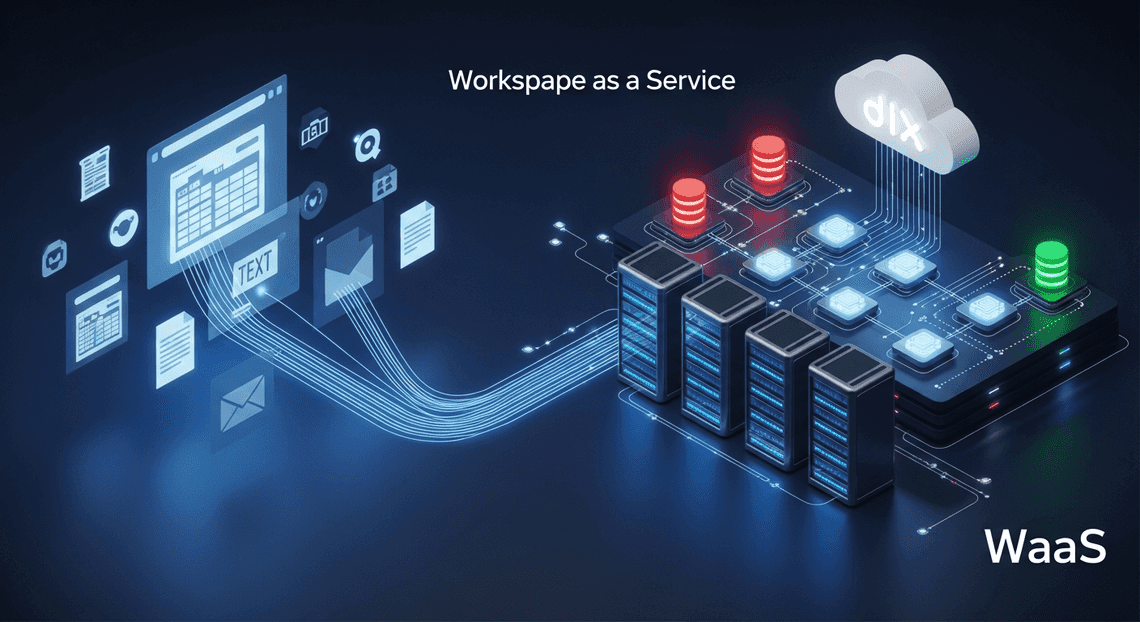
Introduction to the Workspace as a Service Pattern
In modern enterprise architecture, the definition of an “application” is rapidly evolving. Traditionally, building an internal tool meant developing a standalone web application, complete with its own authentication flow, frontend UI, and backend infrastructure. However, the Workspace as a Service (WaaS) pattern flips this paradigm on its head.
Instead of forcing users to leave their daily workflows to interact with a custom web app, the WaaS pattern treats Automatically create new folders in Google Drive, generate templates in new folders, fill out text automatically in new files, and save info in Google Sheets—specifically tools like Google Sheets, Docs, and Gmail—as the presentation layer. By decoupling the user interface from the business logic, we can transform static productivity documents into dynamic, interactive frontends powered by robust, scalable microservices running on Google Cloud Platform (GCP). This architectural approach allows cloud engineers to deliver enterprise-grade functionality directly into the environments where users already spend their time.
Bridging the Gap Between End Users and Cloud Compute
The fundamental goal of the WaaS pattern is to eliminate context switching. End users are highly proficient in AC2F Streamline Your Google Drive Workflow; they know how to manipulate data in Sheets, draft templates in Docs, and manage communications in Gmail. Conversely, cloud engineers know how to build highly available, scalable, and secure backend systems using tools like Cloud Run, Pub/Sub, and Cloud SQL.
Bridging the gap between these two domains involves creating a seamless conduit between the Workspace UI and GCP compute resources.
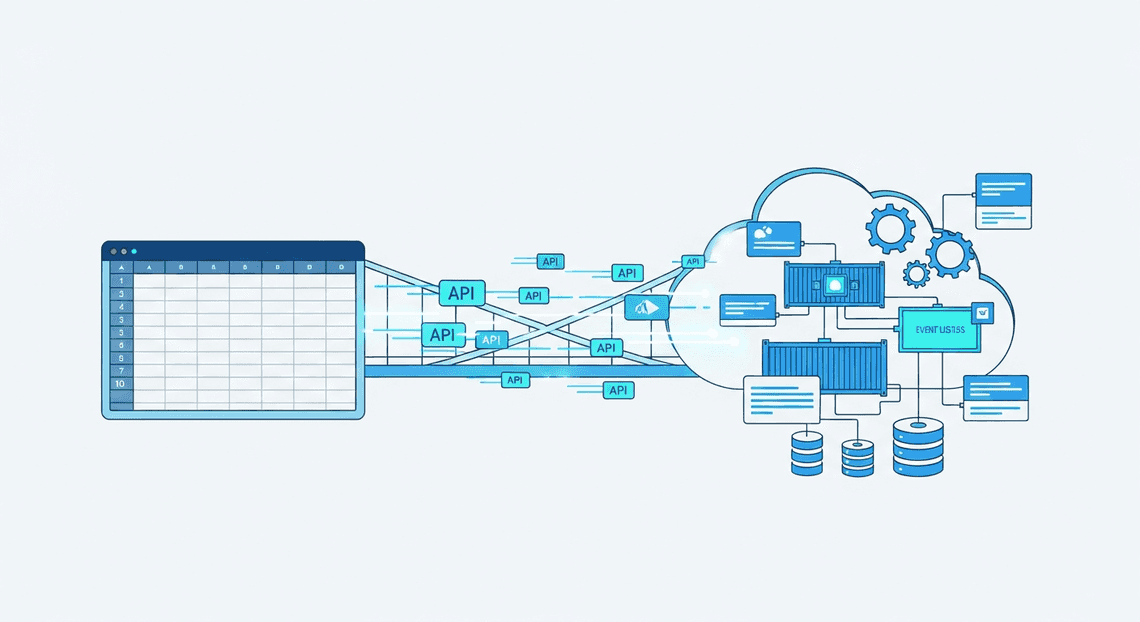
This separation of concerns is incredibly powerful. It allows developers to build stateless, containerized microservices that handle complex business logic, database transactions, or machine learning inferences, while the end user experiences the results in real-time within their familiar spreadsheet or document. By routing Workspace interactions directly into the cloud compute layer, organizations can democratize access to advanced cloud capabilities without requiring users to learn a new interface.
The Limitations of Native Workspace Processing
To truly appreciate the necessity of the WaaS pattern, we must first understand the boundaries of native Workspace development. Genesis Engine AI Powered Content to Video Production Pipeline is a phenomenal tool for basic automation, simple macros, and lightweight triggers. However, when tasked with enterprise-scale workloads, native Workspace processing quickly reveals its architectural limitations:
-
Strict Execution Timeouts: The most notorious bottleneck in Apps Script is the 6-minute execution limit per script (or 30 minutes for Automated Client Onboarding with Google Forms and Google Drive. Enterprise accounts). If you are processing large datasets, generating complex reports, or waiting on slow third-party APIs, your script will unceremoniously time out and fail.
-
Runtime and Language Lock-in: Apps Script is fundamentally tied to the V8 JavaScript engine. If your data engineering team writes their processing logic in JSON-to-Video Automated Rendering Engine using Pandas, or your backend team prefers the concurrency of Go, native Workspace processing offers no native support. You are locked into JavaScript.
-
Resource Constraints: Native scripts run in a shared, multi-tenant environment with strict quotas on CPU and memory. Intensive computational tasks, such as running machine learning models, image processing, or heavy cryptographic operations, will easily exceed available memory limits.
-
Suboptimal Developer Experience (DX): While tools like
clasphave improved the situation, managing complex dependencies, implementing robust CI/CD pipelines, and writing automated unit tests for Apps Script remains clunky compared to modern containerized development. There is no native equivalent to apackage.jsonorrequirements.txtfor importing complex external libraries.
These limitations make it clear that while Workspace is an exceptional frontend, it was never designed to be a heavy compute engine. By acknowledging these constraints, we can architect a solution that offloads the processing burden to a platform built specifically for scalable compute: GCP Cloud Run.
Architectural Overview and Tech Stack
Building a “Workspace as a Service” (WaaS) platform requires seamlessly bridging the collaborative ecosystem of Automated Discount Code Management System with the robust, scalable infrastructure of Google Cloud Platform (GCP). The goal of this architecture is to automate the provisioning, management, and governance of Workspace resources—such as users, groups, shared drives, and calendar events—without manual IT intervention.
To achieve this, we rely on a modern, serverless technology stack that prioritizes scalability, security, and developer velocity. The foundational stack for our WaaS architecture includes:
-
Compute & Orchestration: Google Cloud Run (Serverless containers)
-
Workspace Integration & UI: Architecting Multi Tenant AI Workflows in Google Apps Script
-
Asynchronous Messaging: Google Cloud Pub/Sub and Eventarc
-
Identity & Security: Google Cloud IAM, Secret Manager, and OpenID Connect (OIDC)
-
Target APIs: Automated Email Journey with Google Sheets and Google Analytics Admin SDK, Google Drive API, and Google Docs API
By decoupling the user interface from the backend provisioning logic, we create a resilient system capable of handling complex, long-running automation tasks that would otherwise overwhelm native Workspace limitations.
Core Components Apps Script and Cloud Run API
At the heart of this architecture is the symbiotic relationship between Google Apps Script and the Cloud Run API. Understanding how these two components interact is critical to mastering the WaaS pattern.
Google Apps Script: The Contextual Frontend
In this architecture, Apps Script acts as the lightweight, native extension layer within Automated Google Slides Generation with Text Replacement. Rather than building a standalone web portal from scratch, we use Apps Script to surface custom UIs directly where users already work—via Automated Order Processing Wordpress to Gmail to Google Sheets to Jobber Add-ons (in Gmail, Calendar, or Drive) or custom menus in Google Sheets and Google Forms.
-
**User Context: Apps Script natively understands who is executing the action, effortlessly handling user authorization and OAuth2 flows.
-
Event Capture: It serves as the primary trigger mechanism, capturing user inputs (e.g., a manager requesting a new project workspace via a Google Form).
-
Limitations: Apps Script has strict quotas, most notably a 6-minute execution time limit. This makes it unsuitable for complex, multi-step provisioning tasks like cloning large Drive folder structures or orchestrating multi-system user onboarding.
Cloud Run API: The Heavy-Lifting Backend
To bypass Apps Script’s limitations, we offload the actual “Service” in our WaaS model to Google Cloud Run. Cloud Run allows us to deploy a containerized API written in any language (Python, Go, Node.js) that scales automatically from zero to thousands of instances.
-
Stateless Scalability: Cloud Run handles the heavy computational lifting and API orchestration.
-
Security: We secure the Cloud Run endpoint using Cloud IAM. Apps Script securely communicates with the Cloud Run API by generating an OIDC (OpenID Connect) identity token, ensuring that only authorized Workspace scripts can invoke your backend services.
-
Advanced Tooling: By moving logic to Cloud Run, developers can utilize enterprise-grade CI/CD pipelines, robust error tracking (Cloud Logging/Error Reporting), and advanced libraries that aren’t available in the Apps Script environment.
Designing the Event Driven Workflow
Provisioning Workspace resources is inherently time-consuming. Creating a user, assigning licenses, generating a templated folder structure, and updating group memberships can take anywhere from a few seconds to several minutes. If Apps Script waits synchronously for Cloud Run to finish these tasks, the HTTP request will likely time out, resulting in a poor user experience and potential data inconsistencies.
To solve this, we design an event-driven, asynchronous workflow using Cloud Pub/Sub and Eventarc.
-
**Event Ingestion: The workflow begins when a user initiates a request (e.g., submitting a “New Project” Google Form). Apps Script captures this event and sends a lightweight, authenticated HTTP POST request containing the payload to our Cloud Run Ingress API.
-
Immediate Acknowledgment: The Cloud Run Ingress API receives the request, validates the payload, and immediately publishes a message to a Cloud Pub/Sub topic (e.g.,
workspace-provisioning-events). It then returns an HTTP 202 (Accepted) response back to Apps Script. This ensures the user interface remains snappy and avoids timeout limits. -
**Asynchronous Processing: Google Eventarc (or a direct Pub/Sub push subscription) listens to the topic and triggers a secondary, private Cloud Run service—the Worker API. This worker service is designed for long-running executions (Cloud Run supports up to 60 minutes per request).
-
Resource Provisioning: The Worker API executes the core business logic. It authenticates with Automated Payment Transaction Ledger with Google Sheets and PayPal using a Service Account (via Domain-Wide Delegation) to interact with the Admin SDK and Drive APIs. It provisions the requested groups, creates the Shared Drives, and applies the necessary IAM policies.
-
State Management and Notification: Because the process is asynchronous, the Worker API logs its progress to a database (like Firestore). Once the provisioning is complete, the worker can trigger a final notification—such as sending an email via the Gmail API or a message to a Google Chat webhook—informing the user that their new Workspace environment is ready to use.
This event-driven design ensures high availability, built-in retry mechanisms for transient API failures, and a clean separation of concerns between the Workspace UI and the GCP backend.
Building the Google Docs to Web Interface
To architect a true “Workspace as a Service” solution, the user experience must be seamless. Instead of forcing users to leave their familiar environment to interact with our backend, we can transform SocialSheet Streamline Your Social Media Posting 123 applications—like Google Docs—into our frontend client. By leveraging Google Apps Script, we can extend the native Workspace UI, bridging the gap between everyday document editing and powerful, containerized Cloud Run microservices.
Creating Custom UI Triggers in Google Docs
The first step in integrating our Cloud Run architecture with Google Docs is establishing an intuitive entry point for the user. Google Apps Script provides simple yet powerful event triggers, the most common being the onOpen() function. This trigger executes automatically whenever a user with edit permissions opens the document, allowing us to inject custom menus directly into the native Google Docs toolbar.
Using the DocumentApp.getUi() service, we can construct a tailored menu that initiates our backend workflows. Here is an example of how to build a custom menu that launches a sidebar interface:
/**

* The onOpen function runs automatically when the Google Doc is opened.

* It builds a custom menu in the Docs toolbar.

*/

function onOpen() {

const ui = DocumentApp.getUi();

ui.createMenu('☁️ Cloud Run Services')

.addItem('Process Document', 'showSidebar')

.addSeparator()

.addItem('Configure Settings', 'showSettings')

.addToUi();

}

/**

* Opens a custom HTML sidebar for user interaction.

*/

function showSidebar() {

const html = HtmlService.createHtmlOutputFromFile('Sidebar')

.setTitle('Cloud Run Processor')

.setWidth(300);

DocumentApp.getUi().showSidebar(html);

}
By binding these UI elements to specific Apps Script functions, we create a frictionless bridge. The user clicks a menu item, and a custom HTML sidebar or modal dialog appears, keeping them entirely within their workflow while preparing to interact with the cloud architecture.
Capturing and Structuring User Input Data
With the custom UI deployed, the next critical phase is capturing user intent and structuring that data into a standardized format that our Cloud Run service can digest. Typically, this involves building an HTML form within the sidebar where users can input parameters, select processing options, or confirm actions.
When a user submits the form within the sidebar, client-side JavaScript captures the input and passes it to the server-side Apps Script environment using the asynchronous google.script.run API. Once the data reaches the server-side script, it must be structured—usually as a JSON payload—before being transmitted to the Cloud Run endpoint via UrlFetchApp.
Here is an example of how to structure the captured data, enrich it with Workspace context, and prepare the HTTP request for the backend:
/**

* Receives data from the sidebar, structures it, and prepares the Cloud Run request.

* @param {Object} formData - The raw input captured from the HTML sidebar.

*/

function processUserInput(formData) {

// 1. Extract context from the active Google Doc

const doc = DocumentApp.getActiveDocument();

const docId = doc.getId();

const docTitle = doc.getName();

// 2. Structure the data payload for the Cloud Run service

const payload = {

documentContext: {

id: docId,

title: docTitle

},

userParameters: {

actionType: formData.actionType,

processingLevel: formData.intensity,

customNotes: formData.notes || ""

},

timestamp: new Date().toISOString()

};

// 3. Prepare the HTTP request options

const options = {

method: 'post',

contentType: 'application/json',

payload: JSON.stringify(payload),

headers: {

// Assuming Identity-Aware Proxy (IAP) or direct IAM Bearer token auth is configured

'Authorization': 'Bearer ' + getOidcToken()

},

muteHttpExceptions: true

};

// 4. Dispatch to Cloud Run (Implementation of UrlFetchApp follows)

// const response = UrlFetchApp.fetch('https://your-cloud-run-service-url.run.app/process', options);

// return response.getContentText();

}
In this flow, we aren’t just capturing what the user typed; we are enriching the payload with contextual metadata from the Workspace environment (such as the Document ID and Title). By structuring the data into a well-defined JSON schema, we ensure strict API contract adherence between the SocialSheet Streamline Your Social Media Posting frontend and the Cloud Run backend. This structured approach prevents malformed requests, simplifies data validation on the server side, and paves the way for robust, scalable document processing.
Orchestrating GCP Cloud Run Containers
In a “Workspace as a Service” architecture, Google Cloud Run acts as the heavy-lifting compute engine, executing tasks that are too resource-intensive, complex, or long-running for native Google Apps Script. However, simply deploying a container is only half the battle. True orchestration involves managing the lifecycle of these containers, ensuring they process workloads efficiently without bottlenecking the user experience, and locking down communication channels so that only authorized Workspace environments can trigger them.
Configuring Cloud Run for Asynchronous Processing
One of the most critical architectural considerations when bridging Speech-to-Text Transcription Tool with Google Workspace and Cloud Run is handling timeouts. Google Apps Script’s UrlFetchApp has a hard execution limit (typically 6 minutes), while Workspace add-on UI interactions expect responses in a matter of seconds. If your Cloud Run container is processing a massive Google Drive migration or generating thousands of Google Docs, a synchronous HTTP request will inevitably fail and leave the user with a timeout error.
To solve this, we must configure Cloud Run for asynchronous processing by decoupling the request from the execution. As a Cloud Engineering best practice, this is achieved by introducing an event-driven buffer—typically Google Cloud Pub/Sub or Google Cloud Tasks—between Workspace and your container.
The Cloud Tasks Pattern:
For Workspace automation, Google Cloud Tasks is often the superior choice because it provides granular control over concurrency and rate-limiting. This is vital because Google Workspace APIs have strict quota limits; blasting them with highly concurrent Cloud Run instances will result in 429 Too Many Requests errors.
-
The Ingress Endpoint: You deploy a lightweight, synchronous Cloud Run service (or use API Gateway). When Apps Script calls this endpoint, it rapidly validates the payload, creates a task in a Cloud Tasks queue, and immediately returns an
HTTP 202 Acceptedto Apps Script. -
The Queue Configuration: The Cloud Tasks queue is configured with a
max_dispatches_per_secondlimit to ensure your downstream Workspace API quotas are respected. -
The Worker Container: Cloud Tasks then asynchronously invokes your secondary, heavy-lifting Cloud Run worker container. Because Cloud Run can be configured with a timeout of up to 60 minutes, the worker container has ample time to execute the complex Workspace automation.
If you require background processing within a single container without a queue, you must enable the “CPU always allocated” setting in Cloud Run. By default, Cloud Run throttles CPU to zero the moment an HTTP response is returned. By keeping the CPU allocated, you can return an immediate HTTP response to Apps Script and spawn a background thread (e.g., using Python’s asyncio or Node.js worker threads) to complete the Workspace operations asynchronously.
Securely Invoking the Cloud Run API via Apps Script
Exposing your Cloud Run orchestration containers to the public internet is a massive security risk, especially when they possess the IAM permissions required to manipulate your organization’s Google Workspace data. The service must be deployed with the “Require authentication” flag, meaning it will reject any request that does not include a valid OpenID Connect (OIDC) identity token.
To securely invoke this locked-down Cloud Run API from Google Apps Script, we must navigate the complexities of GCP Identity and Access Management (IAM) and OIDC token generation.
Step 1: IAM Configuration
First, ensure that the identity executing the Apps Script (either the end-user or a dedicated Service Account) is granted the roles/run.invoker role on the specific Cloud Run service.
Step 2: Generating the OIDC Token
Cloud Run requires an OIDC token where the audience (aud) claim exactly matches the URL of the Cloud Run service. Native Apps Script tokens often default to a generic Google audience, which Cloud Run will reject with an HTTP 401 Unauthorized. To bypass this, the most robust method is to use a Google Cloud Service Account and the IAM Credentials API to generate an audience-specific token dynamically within Apps Script.
Here is the architectural blueprint for the Apps Script implementation:
/**

* Securely invokes an authenticated Cloud Run service.

* Requires the Apps Script project to be linked to a standard GCP Project

* with the IAM Credentials API enabled.

*/

function invokeCloudRunAsync(payload) {

const cloudRunUrl = "https://workspace-worker-xyz-uc.a.run.app/process";

const serviceAccountEmail = "[email protected]";

// 1. Obtain the OAuth2 token for the script's default identity

const scriptToken = ScriptApp.getOAuthToken();

// 2. Exchange for an OIDC token with the correct Cloud Run audience

const iamUrl = `https://iamcredentials.googleapis.com/v1/projects/-/serviceAccounts/${serviceAccountEmail}:generateIdToken`;

const tokenResponse = UrlFetchApp.fetch(iamUrl, {

method: "post",

contentType: "application/json",

headers: {

"Authorization": `Bearer ${scriptToken}`

},

payload: JSON.stringify({

audience: cloudRunUrl,

includeEmail: true

})

});

const idToken = JSON.parse(tokenResponse.getContentText()).token;

// 3. Securely invoke the Cloud Run container

const runResponse = UrlFetchApp.fetch(cloudRunUrl, {

method: "post",

contentType: "application/json",

headers: {

"Authorization": `Bearer ${idToken}` // Pass the OIDC token

},

payload: JSON.stringify(payload),

muteHttpExceptions: true

});

if (runResponse.getResponseCode() !== 202) {

console.error("Cloud Run invocation failed: " + runResponse.getContentText());

}

return runResponse.getResponseCode();

}
By utilizing this pattern, you establish a zero-trust boundary. The Apps Script environment securely assumes the identity of a least-privilege service account, generates a tightly scoped, short-lived OIDC token, and passes it to Cloud Run. This ensures that your Workspace as a Service backend remains completely invisible and inaccessible to unauthorized actors.
Handling Heavy Data Processing Workloads
When architecting a Workspace-as-a-Service solution, you will inevitably encounter scenarios where a user triggers a resource-intensive task from their Google Workspace environment. Whether it is parsing gigabytes of CSV data from Google Drive, generating complex end-of-month financial reports in Google Sheets, or running machine learning inference on a batch of documents, these operations cannot be handled synchronously.
While Cloud Run services can be configured with request timeouts of up to 60 minutes, tying up an HTTP connection for that long is an architectural anti-pattern. It leads to poor user experiences, browser timeouts, and brittle integrations with Workspace Add-ons, which typically expect responses within 30 seconds. To build a resilient system, we must decouple the request from the execution.
Managing State and Long Running Executions
To handle heavy workloads effectively, we transition from a synchronous request-response model to an asynchronous, event-driven architecture. When a Workspace user initiates a heavy task, your frontend Cloud Run service should immediately acknowledge the request, return a 202 Accepted status, and offload the actual processing.
Leveraging Cloud Run Jobs and Eventing
For the execution layer, Cloud Run Jobs is the ideal compute primitive. Unlike Cloud Run Services, which listen for web traffic, Cloud Run Jobs are designed specifically for run-to-completion scripts and background processing. They can execute for up to 24 hours and execute multiple tasks in parallel using array jobs.
To orchestrate this hand-off, you should utilize Cloud Tasks or Pub/Sub:
-
Cloud Tasks: Best when you need strict rate limiting, scheduling, or guaranteed execution order. Your initial Cloud Run service creates a task targeting your worker endpoint.
-
Pub/Sub: Best for fan-out architectures where a single Workspace event (e.g., a file uploaded to Drive) might trigger multiple independent processing pipelines.
Externalizing State
Because Cloud Run containers are inherently stateless and ephemeral, you must externalize the state of your long-running executions. Firestore is highly recommended for this in a Workspace context due to its real-time capabilities and seamless integration with GCP.
When a job is triggered, create a document in Firestore representing the job state (e.g., status: PENDING). As the Cloud Run Job processes the data, it updates this document (status: PROCESSING, progress: 45%). If a container fails and is retried by Pub/Sub or Cloud Tasks, it can query Firestore to resume from the last known checkpoint, ensuring idempotency and preventing duplicate data processing.
Returning Results to the Workspace Environment
Once your Cloud Run Job completes its heavy lifting, the final architectural hurdle is delivering the processed data back to the user seamlessly. Since the original HTTP connection was closed immediately after the request was acknowledged, we must push the results back into the Workspace ecosystem proactively.
Direct API Integration
The most seamless approach is to have your Cloud Run Job write the results directly back into the user’s Workspace using the Google Workspace APIs (e.g., Sheets API, Docs API, or Drive API).
To authenticate these requests securely, your Cloud Run Job should run under a dedicated Google Cloud Service Account. By configuring Domain-Wide Delegation (DWD) on this Service Account within your Google Workspace Admin console, your Cloud Run Job can impersonate the user who triggered the task. This ensures that the generated Google Doc or updated Google Sheet retains the correct ownership and sharing permissions, maintaining strict zero-trust security boundaries.
Closing the Loop with the User
Writing the data is only half the battle; the user needs to know the job is done. You can implement this notification loop in a few ways:
-
Real-time Polling (Workspace Add-ons): If the user triggered the job via a Google Workspace Add-on (built with Apps Script or alternative runtimes), the Add-on’s UI can periodically poll your Cloud Run service or directly listen to the Firestore document for a
status: COMPLETEDflag. Once detected, the UI refreshes to display the new data or a link to the generated file. -
Proactive Notifications: For tasks that take hours, users will likely navigate away. Your Cloud Run Job can utilize the Google Chat API to send a direct message or post in a Space, or use the Gmail API to send an automated email containing a summary of the execution and a direct link to the output artifacts in Google Drive.
By combining asynchronous Cloud Run Jobs, robust state management in Firestore, and Domain-Wide Delegation for Workspace API interactions, you create a powerful, scalable backend capable of handling enterprise-grade data processing without ever blocking the end user.
Security and Scalability Considerations
When building a Workspace as a Service (WaaS) platform on Google Cloud, the architecture extends far beyond merely getting the code to execute. You are handling highly sensitive organizational data—user identities, emails, drive files, and calendar events—while simultaneously managing unpredictable traffic patterns. Baking robust security boundaries and elastic, intelligent scalability into your Cloud Run architecture from day one is the foundation of a production-ready system.
Implementing IAM Roles and Service Accounts
In the Google Cloud ecosystem, Identity and Access Management (IAM) is your primary security perimeter. When integrating Cloud Run with Google Workspace, security must be approached from two distinct angles: securing who can invoke your Cloud Run services, and restricting what those services can do within Workspace.
The Principle of Least Privilege (PoLP) via Dedicated Service Accounts
Never use the default Compute Engine service account for your Cloud Run deployments. Instead, provision a dedicated, purpose-built Service Account (SA) for your WaaS application. This SA should only be granted the exact IAM roles necessary to function—for instance, roles/secretmanager.secretAccessor to retrieve API keys, or roles/cloudsql.client if it needs to query a tenant database.
Securing Workspace Access with Domain-Wide Delegation (DwD)
To perform administrative actions programmatically (such as provisioning users via the Admin SDK or managing shared drives), your Cloud Run Service Account will likely require Google Workspace Domain-Wide Delegation. This is a powerful feature that allows the SA to impersonate users within the Workspace tenant.
-
Scope Restriction: When configuring DwD in the Google Workspace Admin Console, strictly limit the OAuth scopes to the bare minimum. If your service only needs to read users, grant
https://www.googleapis.com/auth/admin.directory.user.readonly, not the full admin scope. -
Impersonation Logic: Ensure your Cloud Run application code explicitly specifies the subject (the Workspace admin email) it is impersonating when constructing the Google API client credentials.
Controlling Cloud Run Invocation
By default, ensure your Cloud Run service is deployed privately (without the allUsers invoker role). If your WaaS platform exposes a frontend or an API gateway, those upstream components should authenticate to Cloud Run using OpenID Connect (OIDC) tokens. Grant the roles/run.invoker role only to the specific service accounts of the calling services or API gateways (like Apigee or API Gateway), ensuring that lateral movement within your GCP environment is severely restricted.
Scaling Containers Based on Workspace Demand
Cloud Run’s ability to scale from zero to thousands of instances in seconds is a massive operational advantage, but scaling a WaaS application requires a nuanced approach. You must balance the elasticity of Cloud Run with the strict rate limits and quotas enforced by Google Workspace APIs.
Tuning Concurrency and CPU Allocation
Unlike traditional serverless functions that handle one request at a time, Cloud Run can handle up to 1,000 concurrent requests per container. For a WaaS application making frequent, I/O-bound network calls to Workspace APIs (like the Drive or Calendar API), you should carefully tune the concurrency setting. Setting concurrency too high might exhaust your container’s connection pools or memory; setting it too low will force Cloud Run to spin up unnecessary instances. Pair this with “CPU always allocated” if your application relies on background threads to process Workspace webhooks or batch API responses.
Mitigating Cold Starts with Minimum Instances
Workspace users expect snappy, synchronous responses—especially for actions like single sign-on (SSO) routing or real-time document generation. To prevent latency spikes caused by container cold starts during business hours, configure the min-instances setting. Keeping a baseline of 1 or 2 instances “warm” ensures that baseline Workspace API interactions remain highly responsive.
Protecting Workspace Quotas with Maximum Instances
This is a critical, often-overlooked architectural consideration: Google Workspace APIs will rate-limit you. If a sudden surge in demand causes Cloud Run to scale out to 500 instances, and each instance starts hammering the Workspace Admin SDK, you will rapidly encounter HTTP 429 Too Many Requests errors, bringing your WaaS platform to a halt.
-
Use the
max-instancessetting in Cloud Run to create a physical bottleneck that protects your Workspace API quotas. -
Implement robust exponential backoff and retry logic (using libraries like
google-api-python-clientorgoogle-api-nodejs-client) within your containerized code to handle the inevitable throttling gracefully.
Asynchronous Scaling for Heavy Workloads
For massive Workspace operations—such as bulk-provisioning hundreds of users at the start of a school semester, or migrating terabytes of Drive data—do not rely on synchronous HTTP requests. Instead, decouple the architecture. Have your frontend publish these heavy tasks to Cloud Pub/Sub. You can then configure a backend Cloud Run service as a push subscriber. This allows you to control the exact rate of message delivery, smoothing out demand spikes and ensuring your WaaS platform scales reliably without breaching Workspace API limits.
Conclusion and Next Steps
Building a “Workspace as a Service” (WaaS) platform is no small feat, but by leveraging the power of Google Cloud Platform and the serverless capabilities of Cloud Run, we have transformed a complex integration challenge into a streamlined, highly available architecture. By decoupling our application logic into stateless containers and utilizing Google’s robust API ecosystem, we have established a foundation that bridges the gap between custom cloud applications and Google Workspace administration.
Reviewing the Architectural Benefits
Before moving forward, it is crucial to understand exactly why this architecture provides such a massive competitive advantage for modern engineering teams. By anchoring our WaaS solution on GCP Cloud Run, we unlock several transformative benefits:
-
True Serverless Agility and Cost-Efficiency: Cloud Run’s scale-to-zero capability ensures that you are only paying for the exact compute time your WaaS platform consumes. Whether you are processing a massive batch of Workspace user provisions at 9:00 AM or sitting idle at midnight, the infrastructure automatically aligns with your traffic curve without any manual intervention.
-
Seamless IAM and Workspace API Integration: Because Cloud Run operates natively within the GCP ecosystem, authenticating against Google Workspace APIs (like the Admin SDK, Google Drive API, or Gmail API) is inherently secure. By attaching a dedicated Google Cloud Service Account to your Cloud Run revisions and utilizing Domain-Wide Delegation, you eliminate the need to manage long-lived, vulnerable API keys.
-
Containerized Portability: Your WaaS application isn’t locked into a proprietary runtime. Because Cloud Run relies on standard OCI (Open Container Initiative) images, your team can write the integration layer in Go, Python, Node.js, or Java, utilizing the exact libraries and dependencies required to interact with Workspace efficiently.
-
Enterprise-Grade Security: By routing traffic through Global HTTP(S) Load Balancing and securing it with Google Cloud Armor, your Workspace provisioning endpoints are protected against DDoS attacks and OWASP Top 10 vulnerabilities. Furthermore, integrating VPC Serverless Access allows your Cloud Run services to securely communicate with internal databases (like Cloud SQL or Firestore) without exposing traffic to the public internet.
Ready to Scale Your Architecture
Proving the concept is only the first step. As your organization grows and the demand on your Workspace as a Service platform increases, your architecture must evolve to handle Day 2 operations seamlessly. Here are the critical next steps to take your WaaS deployment from a functional prototype to an enterprise-grade powerhouse:
-
Implement Event-Driven Workflows with Eventarc: Instead of relying solely on synchronous HTTP requests, transition your architecture to an event-driven model. By integrating Eventarc and Cloud Pub/Sub, your Cloud Run services can automatically trigger in response to specific Google Workspace events—such as a new employee being added to your HR system, instantly kicking off an asynchronous Workspace provisioning pipeline.
-
Automate Deployments with Cloud Build: Manual container deployments are an anti-pattern in modern cloud engineering. Establish a robust CI/CD pipeline using Cloud Build or GitHub Actions. Configure your pipeline to automatically lint your code, build the container image, push it to the Artifact Registry, and deploy the new revision to Cloud Run with zero downtime.
-
Enhance Observability: As your WaaS platform scales, visibility becomes paramount. Leverage the Google Cloud Operations Suite. Ensure your application is emitting structured JSON logs to Cloud Logging, set up Cloud Trace to identify latency bottlenecks in your Workspace API calls, and configure Cloud Monitoring alerts to notify your SRE team if error rates spike during user provisioning.
-
Explore Traffic Splitting for Canary Releases: Take advantage of Cloud Run’s native traffic splitting capabilities. When rolling out a new feature—such as a new automated Google Drive folder generation script—route only 5% or 10% of your traffic to the new revision. This allows you to validate the integration safely in production before committing to a full rollout.
By embracing these advanced GCP patterns, your Workspace as a Service architecture will remain resilient, secure, and infinitely scalable, empowering your organization to manage its digital workspace with unprecedented automation and operational excellence.


Stop Doing Manual Work. Scale with AI.
Want to turn these blog concepts into production-ready reality for your team?
Table Of Contents
Portfolios
Related Posts
Quick Links
Legal Stuff