

Automate Google Slides From Sheets Using Gemini AI and Apps Script


Stop letting manual status reports kill your team’s productivity. Learn how to combine Google Workspace automation and Gemini AI to instantly transform raw tracking data into executive-ready presentations with zero manual effort.
Solving the Manual Status Reporting Bottleneck
In any fast-paced engineering or business environment, status reporting is a necessary mechanism for alignment, but the manual effort required to produce these reports is a notorious productivity killer. Teams often find themselves trapped in a cycle of extracting raw metrics from trackers and painstakingly formatting them into executive-ready presentations. By leveraging the native capabilities of Automatically create new folders in Google Drive, generate templates in new folders, fill out text automatically in new files, and save info in Google Sheets alongside the advanced reasoning of Gemini AI, we can completely eliminate this bottleneck, transforming raw data into synthesized, presentation-ready narratives with zero manual intervention.
The Cost of Repetitive Presentation Updates
Before diving into the technical solution, it is crucial to understand the hidden tax of manual reporting. Every week, project managers, cloud engineers, and team leads dedicate countless hours to translating rows of spreadsheet data into digestible slide decks. This repetitive cycle carries several distinct costs:
-
The Time Drain: Copying and pasting data from Google Sheets into Google Slides, adjusting text boxes, and aligning charts is a low-value, high-friction activity. Hours spent on formatting are hours stolen from strategic planning, coding, or problem-solving.
-
High Margin for Human Error: Manual data entry is inherently error-prone. Fat-fingering a critical metric, forgetting to update a specific slide, or carrying over stale data from last week’s template can lead to misinformed executive decisions and a loss of trust in the reporting process.
-
**Lack of Contextual Synthesis: Simply moving data from a cell to a slide doesn’t inherently add value. The real value lies in the synthesis of that data—explaining the “why” behind the numbers. When humans are bogged down by the mechanics of building slides, they often lack the time to write meaningful, analytical summaries.
-
Scalability Limits: As projects grow in complexity or the number of stakeholders increases, the manual reporting process breaks down. You simply cannot scale human effort linearly with the demand for real-time, customized reporting.
Architectural Overview of AI Driven Slide Generation
To solve this, we need an architecture that seamlessly bridges the gap between structured data and unstructured, intelligent presentation. The beauty of the Google Cloud and AC2F Streamline Your Google Drive Workflow ecosystem is that the infrastructure required to build this automated pipeline is already at our fingertips.
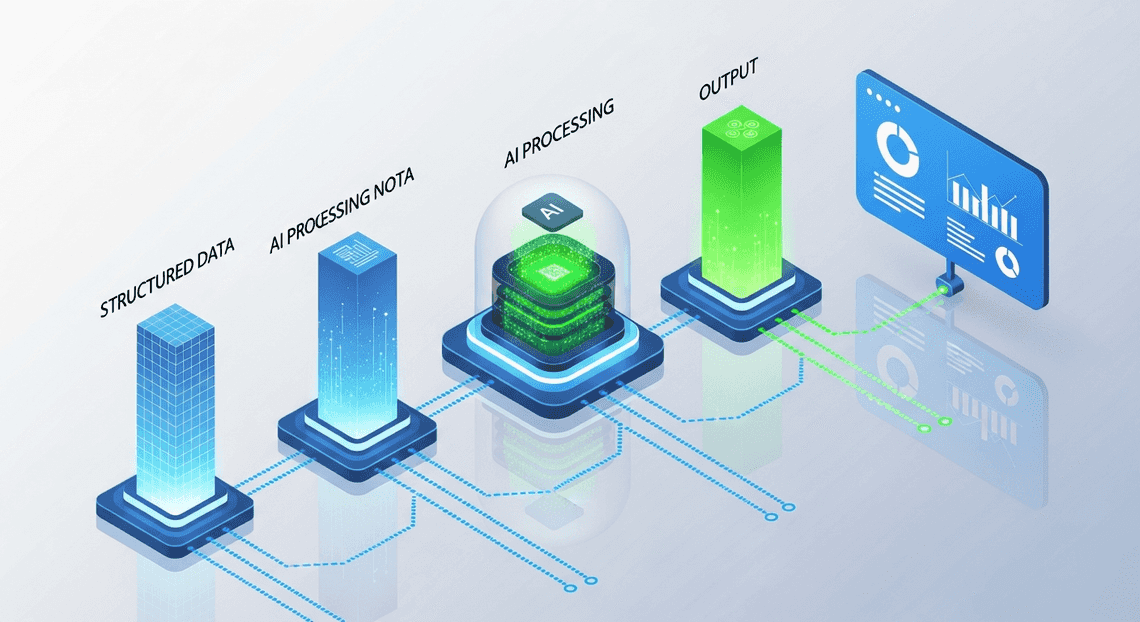
The architecture of our AI-driven slide generator relies on four core pillars working in concert:
-
The Data Layer (Google Sheets): This acts as our single source of truth. Whether it is populated manually by engineers, updated via third-party integrations, or fed by BigQuery data syncs, Google Sheets holds the raw project statuses, key performance indicators (KPIs), and operational metrics.
-
The Intelligence Layer (Gemini AI): This is where the magic happens. Instead of just dumping raw numbers onto a slide, we utilize Gemini AI (accessed via the Vertex AI API or the native Gemini API) to analyze the spreadsheet data. Gemini acts as an automated analyst—taking raw bullet points and metrics, understanding the context, and generating polished, executive-friendly summaries, risk assessments, and talking points.
-
The Orchestration Layer (AI Powered Cover Letter Automation Engine): Apps Script serves as the serverless glue binding the entire workflow together. Living directly within your Automated Client Onboarding with Google Forms and Google Drive., it executes the logic required to read the data from Sheets, construct the prompt, make the API call to Gemini, parse the AI’s response, and push the final content to the presentation.
-
The Presentation Layer (Google Slides): The final destination. Using the Google Slides API via Apps Script, the system dynamically duplicates a pre-formatted “template” slide, targets specific text placeholders (e.g.,
\{\{Project_Summary\}\}or\{\{Risk_Analysis\}\}), and injects the AI-generated narrative directly into the deck.
The Execution Flow:
When triggered—either by a custom menu button in Google Sheets or a time-based trigger—Apps Script iterates through the rows of your status sheet. For each project, it packages the raw data into a structured prompt and sends it to Gemini. Gemini returns a synthesized narrative. Apps Script then opens the target Google Slide deck, duplicates the master template slide for that specific project, and replaces the placeholder tags with the intelligent text generated by Gemini. The result is a fully updated, highly analytical presentation generated in seconds, directly from your raw data.
Defining the Technology Stack
To build a seamless, automated pipeline that transforms raw spreadsheet data into polished presentation decks, we need a robust and highly integrated technology stack. By leveraging the native extensibility of Automated Discount Code Management System alongside the cutting-edge generative AI capabilities of Google Cloud, we can create a solution that is both powerful and entirely serverless. Let’s break down the core components that will drive our automation engine.
Automated Email Journey with Google Sheets and Google Analytics APIs SheetsApp and SlidesApp
At the heart of our automation lie the native Automated Google Slides Generation with Text Replacement services provided by Genesis Engine AI Powered Content to Video Production Pipeline. These built-in libraries allow us to programmatically interact with Workspace files without the overhead of managing OAuth tokens or complex external REST API architectures.
First, we utilize the Sheets service (accessed programmatically via the SpreadsheetApp class). This acts as our data ingestion layer. We use it to dynamically read rows, columns, and specific cell values from our source spreadsheet. Whether you are tracking quarterly financial data, project milestones, or marketing metrics, the Sheets API allows us to extract this raw information efficiently and parse it into structured JavaScript objects.
Next, we hand this data over to the Slides service (SlidesApp). This API serves as our rendering engine. It allows us to programmatically open an existing template presentation, duplicate specific slides, and manipulate individual page elements. By defining specific text placeholders—such as \{\{Project_Name\}\} or \{\{Key_Metrics\}\}—in a master Google Slide template, we can use SlidesApp to execute precise text replacements. Together, these two APIs form a highly reliable bridge, turning static rows and columns into visually appealing, structured slide decks.
Unlocking Intelligent Mapping with Gemini Pro
While moving data directly from a spreadsheet to a slide is incredibly useful, raw data rarely makes for an engaging presentation. This is where Google’s Gemini Pro model enters the stack, elevating our script from a simple data-merging tool to an intelligent, context-aware presentation generator.
Instead of directly injecting raw spreadsheet strings into our slides, we route the extracted data through the Gemini API. By crafting precise system prompts, we can instruct Gemini Pro to analyze the spreadsheet data and generate presentation-ready content. For example, Gemini can take a row containing dense, technical project updates and synthesize it into three concise, impactful bullet points. It can generate executive summaries, draft compelling speaker notes, or even analyze sentiment to adjust the tone of the slide text.
Within our Apps Script environment, we connect to Gemini Pro using the UrlFetchApp service to make secure HTTP requests to Google Cloud’s Vertex AI or the Gemini Developer API. By integrating this generative AI layer, our technology stack doesn’t just automate the assembly of the slides—it automates the reasoning and formatting of the content itself, ensuring the final output is polished, digestible, and ready for the boardroom.
Extracting Project Status Data from Google Sheets
The success of any AI-driven automation pipeline hinges on the quality and accessibility of its source data. Before we can leverage Gemini to synthesize our slide content, we must first establish a reliable mechanism for extracting project updates from Google Sheets. In this phase, we act as data engineers—ensuring our spreadsheet operates as a robust, queryable database rather than just a visual grid.
Structuring the Tabular Data for Optimal Retrieval
Google Apps Script interacts with spreadsheet data as a two-dimensional array. To make this data easily digestible for both our script and the Gemini API, the spreadsheet must be strictly structured. Poorly formatted data—such as merged cells, floating tables, or inconsistent column layouts—will inevitably lead to script failures or hallucinated AI outputs.
To optimize your Sheet for programmatic retrieval, adhere to these structural rules:
-
Flat Data Architecture: Keep your data flat. Row 1 must strictly contain your column headers (e.g., Project Name, Owner, Status, Key Achievements, Blockers, Next Steps).
-
Atomic Rows: Every subsequent row should represent a single, self-contained project update. Do not split a single project’s update across multiple rows.
-
Zero Merged Cells: Merged cells disrupt the index mapping of the 2D array returned by Apps Script. Avoid them entirely in your data range.
-
**Consistent Data Types: Use Data Validation (dropdowns) for columns like Status (e.g., “On Track”, “At Risk”, “Delayed”) to ensure the AI receives standardized inputs, reducing variability in the generated presentation.
By treating your Google Sheet as a lightweight relational database table, you ensure that the payload we eventually send to Gemini is clean, structured, and context-rich.
Writing Apps Script to Fetch Row Data Programmatically
With our data neatly structured, we can now write the Google Apps Script to extract it. While you could simply grab the raw 2D array using getDataRange().getValues(), passing raw arrays to Gemini isn’t ideal. Instead, we will write a function that reads the data and transforms it into an array of JSON objects, mapping the header row to the values of each subsequent row. This creates a highly readable key-value structure that makes Prompt Engineering for Reliable Autonomous Workspace Agents much easier.
Open your Apps Script editor (Extensions > Apps Script) and implement the following code:
/**

* Fetches project status data from the active spreadsheet

* and formats it as an array of objects.

*

* @returns {Array<Object>} Array of project data objects.

*/

function getProjectData() {

const sheetName = "Project Updates"; // Adjust to match your tab name

const sheet = SpreadsheetApp.getActiveSpreadsheet().getSheetByName(sheetName);

if (!sheet) {

throw new Error(`Sheet "${sheetName}" not found. Please check the tab name.`);

}

// Fetch all data in the sheet as a 2D array

const rawData = sheet.getDataRange().getValues();

// Separate headers (Row 1) from the actual data rows

const headers = rawData.shift();

// Map the remaining rows into an array of objects

const projectUpdates = rawData.map(row => {

let rowObject = {};

headers.forEach((header, index) => {

// Map each header to its corresponding row value

// We convert the header to a string to ensure valid object keys

rowObject[String(header).trim()] = row[index];

});

return rowObject;

});

// Filter out completely empty rows just in case

// Assumes "Project Name" is a required column in your sheet

const cleanData = projectUpdates.filter(project => project["Project Name"] !== "");

Logger.log(cleanData);

return cleanData;

}
How this code works under the hood:
-
Targeted Extraction: We explicitly target the “Project Updates” sheet and pull the entire populated range using
getDataRange().getValues(). This is highly efficient as it executes a single read operation against the Google Sheets API, minimizing execution time and avoiding quota limits. -
Header Separation: The
shift()method elegantly removes the first row (the headers) from ourrawDataarray and stores it in theheadersvariable, leaving only the data rows behind. -
Object Mapping: We iterate through the remaining rows using
map(). Inside the loop,forEach()pairs every cell value with its corresponding column header. -
Data Sanitization: Finally, we filter out any empty rows that might have been accidentally caught in the data range, ensuring we only pass valid project payloads to the next step of our automation pipeline.
This function now serves as the perfect data ingestion engine. The returned array of objects is exactly what we need to construct dynamic, context-aware prompts for the Gemini API.
Intelligent Data Processing with Gemini JSON Mode
When bridging the gap between generative AI and deterministic systems like Google Slides, predictability is paramount. Historically, developers had to rely on complex regular expressions or brittle string manipulation to extract usable data from LLM outputs. Enter Gemini’s JSON mode. By enforcing a strict JSON output structure natively at the API level, we transform Gemini from a simple text generator into a highly reliable, intelligent data-processing engine.
Using JSON mode ensures that the unstructured or semi-structured data pulled from your Google Sheets is consistently transformed into a predictable key-value payload. This payload acts as the perfect intermediary, perfectly aligning with the text placeholders waiting in your Google Slides template.
Crafting the Perfect Prompt for Template Mapping
To get the most out of Gemini, your prompt must serve as a precise set of mapping instructions. You are essentially asking the model to ingest raw row data from Google Sheets, synthesize or format it as needed, and output it into predefined keys that match your Google Slides placeholders (e.g., \{\{SlideTitle\}\}, \{\{ExecutiveSummary\}\}).
The secret to a robust prompt in this architecture involves three elements: context, raw data injection, and strict schema definition. Even when using the API’s JSON mode, explicitly defining the expected schema in your prompt prevents hallucinations and ensures the keys match your Apps Script logic exactly.
Here is an example of how you might construct this prompt dynamically within Apps Script:
/**

* Constructs the prompt for Gemini to map Sheets data to Slides placeholders.

* @param {Object} rowData - The raw data object from the current Sheet row.

* @return {string} The fully constructed prompt.

*/

function buildGeminiPrompt(rowData) {

const schema = {

"SlideTitle": "A concise, engaging title based on the project name.",

"ExecutiveSummary": "A 2-sentence professional summary of the project status.",

"KeyMetrics": "A bulleted list of the top 3 metrics."

};

return `

You are an expert data analyst and presentation copywriter.

Analyze the following raw project data from Google Sheets:

${JSON.stringify(rowData)}

Transform and map this data to fit the exact JSON schema provided below.

Ensure the tone is professional and suitable for an executive presentation.

EXPECTED JSON SCHEMA:

${JSON.stringify(schema, null, 2)}

`;

}
By passing the raw row data as a stringified JSON object and explicitly defining the EXPECTED JSON SCHEMA, you give Gemini zero room for structural ambiguity. The model focuses its computational power on the content transformation—summarizing and formatting—while strictly adhering to your structural constraints.
Parsing the Structured JSON Response in Apps Script
Once you have dispatched your prompt to the Gemini API, the next step is handling the response. Because we are leveraging Gemini’s JSON mode, we must configure our UrlFetchApp payload to enforce the application/json response MIME type.
When the response returns, Apps Script needs to parse the outer API envelope to extract the generated text, and then parse that text into a native JavaScript object ready for the Slides API.
Here is how you execute the fetch request and safely parse the structured response:
/**

* Calls the Gemini API and parses the structured JSON response.

* @param {string} prompt - The mapping prompt.

* @param {string} apiKey - Your Google Cloud Gemini API Key.

* @return {Object} The parsed key-value pairs for Slides mapping.

*/

function fetchAndParseGeminiData(prompt, apiKey) {

const endpoint = `https://generativelanguage.googleapis.com/v1beta/models/gemini-1.5-flash:generateContent?key=${apiKey}`;

const payload = {

"contents": [{

"parts": [{"text": prompt}]

}],

"generationConfig": {

"temperature": 0.2, // Low temperature for deterministic, factual mapping

"responseMimeType": "application/json" // Enforcing JSON mode

}

};

const options = {

"method": "post",

"contentType": "application/json",

"payload": JSON.stringify(payload),

"muteHttpExceptions": true

};

try {

const response = UrlFetchApp.fetch(endpoint, options);

const responseCode = response.getResponseCode();

const responseText = response.getContentText();

if (responseCode !== 200) {

throw new Error(`API Error ${responseCode}: ${responseText}`);

}

// 1. Parse the outer Gemini API response envelope

const apiResult = JSON.parse(responseText);

// 2. Extract the actual text content generated by the model

const generatedText = apiResult.candidates[0].content.parts[0].text;

// 3. Parse the generated text into a usable JavaScript object

const mappedTemplateData = JSON.parse(generatedText);

Logger.log("Successfully parsed Gemini JSON: " + JSON.stringify(mappedTemplateData));

return mappedTemplateData;

} catch (error) {

Logger.log("Failed to parse Gemini response: " + error.message);

// Return a fallback object or rethrow to handle upstream

return null;

}

}
Notice the inclusion of "responseMimeType": "application/json" inside the generationConfig. This is the critical Cloud Engineering best practice that activates Gemini’s native JSON mode. Furthermore, wrapping the parsing logic in a try...catch block ensures that your Apps Script execution won’t silently fail if a network anomaly occurs or if the API returns an unexpected error code. The resulting mappedTemplateData object is now perfectly primed to be injected directly into your Google Slides template via the replaceAllText method.
Binding Processed Data to Google Slides
After leveraging Gemini AI to synthesize, summarize, and structure your Google Sheets data, the next critical phase is rendering that intelligence into a visual format. Binding data to Google Slides programmatically requires a seamless handoff between your Apps Script backend and the Slides API. This process transforms abstract arrays and AI-generated JSON objects into a polished, client-ready deck without requiring manual copy-pasting.
Designing a Robust Presentation Template
Automation is only as reliable as the template it populates. To ensure a smooth data binding process, you need to design a “smart” Google Slides template using deterministic placeholders. A well-architected template minimizes the complexity of your Apps Script code and prevents formatting errors.
-
Placeholder Syntax: Use a distinct, easily parsable syntax for your text variables, such as double curly braces (
\{\{COMPANY_NAME\}\}or\{\{AI_SUMMARY\}\}). This ensures your Apps Script logic doesn’t accidentally overwrite standard presentation text. -
Formatting Integrity: Apply all styling (font size, color, bolding, typography) directly to the placeholder text in the template. When Apps Script replaces
\{\{TITLE\}\}, the injected data automatically inherits the exact styling of the placeholder. -
Guru Tip: Ensure the entire placeholder string is formatted uniformly. If a user accidentally bolds just the first curly brace, Google Slides might split the underlying text element in its internal structure, causing the Apps Script
replaceAllTextmethod to silently fail. -
Slide Layouts vs. Direct Duplication: For highly dynamic reports where the number of slides varies, design custom Slide Layouts in the Slides Theme Builder. You can programmatically append new slides based on these layouts and target the specific shapes within them. For simpler workflows, create a single “master” presentation, duplicate the entire file via Apps Script, and execute a global find-and-replace.
Injecting Data into Slide Elements Dynamically
With a robust template in place, we can utilize the SlidesApp service in Google Apps Script to map our Gemini-processed data directly into the slide elements.
The core mechanism relies on duplicating your template file, opening the new presentation instance, and iterating through the slides to replace tags with actual data. Here is how you can architect the injection logic:
/**

* Binds AI-processed data to a duplicated Google Slides template.

* @param {string} templateId - The Drive ID of the Slides template.

* @param {Object} slideData - The JSON object containing Gemini-processed data.

* @return {string} The URL of the newly generated presentation.

*/

function generateAutomatedDeck(templateId, slideData) {

// 1. Duplicate the template to avoid overwriting the original master file

const driveFile = DriveApp.getFileById(templateId);

const newDeck = driveFile.makeCopy(`Automated AI Report - ${slideData.clientName}`);

// 2. Open the newly created presentation via SlidesApp

const presentation = SlidesApp.openById(newDeck.getId());

const slides = presentation.getSlides();

// 3. Inject data globally

// Global text replacement is highly efficient for headers, dates, and recurring names

presentation.replaceAllText('\{\{CLIENT_NAME\}\}', slideData.clientName);

presentation.replaceAllText('\{\{REPORT_DATE\}\}', new Date().toLocaleDateString());

// 4. Targeted injection (Iterating through specific slides)

// Assuming slide 2 is dedicated to the Gemini AI summary

const summarySlide = slides[1];

summarySlide.replaceAllText('\{\{AI_INSIGHTS\}\}', slideData.geminiSummary);

// 5. Advanced: Dynamically replacing a placeholder shape with an image/chart

const shapes = summarySlide.getShapes();

shapes.forEach(shape => {

if (shape.getText().asString().includes('\{\{CHART_PLACEHOLDER\}\}')) {

// Retrieve bounding box dimensions to maintain layout integrity

const left = shape.getLeft();

const top = shape.getTop();

const width = shape.getWidth();

const height = shape.getHeight();

// Insert the image and remove the placeholder shape

summarySlide.insertImage(slideData.chartBlob, left, top, width, height);

shape.remove();

}

});

// Save and apply all pending changes to the Slides API

presentation.saveAndClose();

return presentation.getUrl();

}
In this script, replaceAllText() acts as the primary workhorse, scanning the presentation’s underlying structure to swap our double-brace tags with the AI-generated insights. By combining global replacements for recurring data and targeted injections for slide-specific content, you create a highly scalable pipeline. Furthermore, by calculating the bounding boxes of shapes (getLeft(), getTop(), etc.), you can seamlessly swap text placeholders for dynamic images or Sheets charts, ensuring your final deliverable is both data-rich and visually compelling.
Streamlining Your Workspace Development
As your automation needs grow, what starts as a simple script to generate a few slides can quickly evolve into a mission-critical business process. To ensure your Automated Order Processing Wordpress to Gmail to Google Sheets to Jobber automations remain reliable, performant, and easy to maintain, you need to adopt a professional development mindset. Bridging the gap between a quick Apps Script hack and a robust Cloud Engineering solution requires strategic planning, especially when integrating advanced AI capabilities like Gemini. Let’s explore how to optimize your environment and workflows for the long haul.
Best Practices for Scaling Apps Script Automations
Scaling an Apps Script project that orchestrates Google Sheets, Google Slides, and the Gemini API introduces unique challenges, particularly around execution time limits and API quotas. To build enterprise-grade automations, keep these cloud engineering best practices at the forefront of your architecture:
-
Optimize Data Operations (Batching): The most common bottleneck in Apps Script is interacting with Workspace services. Never read or write data inside a loop. Instead, fetch your entire dataset from Sheets using
Range.getValues(), process the data in memory (including generating your Gemini AI prompts), and write any necessary logging or status updates back in a single batch usingRange.setValues(). -
Implement Robust Error Handling and Retries: When calling external endpoints like the Gemini API, network timeouts or rate limits (HTTP 429) are inevitable. Implement
try...catchblocks paired with an exponential backoff strategy. This ensures your script gracefully pauses and retries failed requests rather than crashing halfway through generating a massive slide deck. -
Leverage
claspfor Version Control: Transition away from the browser-based Apps Script editor for complex projects. Use Google’sclasp(Command Line Apps Script Projects) utility to develop locally using your preferred IDE (like VS Code). This allows you to use TypeScript, write modular code, and manage your scripts with Git for proper version control and CI/CD integration. -
Utilize Caching: If your Gemini prompts require contextual data that rarely changes, store that data using Apps Script’s
CacheService. Caching reduces redundant API calls, drastically speeding up execution times and protecting your Google Cloud quotas. -
Link a Standard Google Cloud Project: By default, Apps Script uses a hidden, default GCP project. For production-level scaling, link your script to a standard Google Cloud Project. This unlocks advanced quota management, enables you to monitor execution metrics, and provides access to Google Cloud Logging for deep-dive debugging and alerting.
Discover the ContentDrive App Ecosystem
While building custom Apps Script solutions from scratch offers ultimate flexibility, you don’t always have to reinvent the wheel. As you expand your automated document generation capabilities, it is highly beneficial to explore the ContentDrive App ecosystem.
ContentDrive represents a paradigm shift in how organizations manage digital assets, templates, and automated workflows within Automated Payment Transaction Ledger with Google Sheets and PayPal. Instead of treating Sheets, Slides, and Drive as siloed applications, the ContentDrive ecosystem provides a unified framework for content orchestration.
-
Centralized Asset Management: ContentDrive methodologies allow you to maintain a single source of truth for your master slide templates, brand imagery, and AI prompt libraries. When your Apps Script pulls a template to generate a new presentation, it pulls from a dynamically updated, version-controlled repository, ensuring every generated deck is perfectly on-brand.
-
Seamless AI Integration: Tools within this ecosystem are increasingly built with native AI hooks. By aligning your custom Gemini automations with ContentDrive principles, you can easily pipe AI-generated text and data insights directly into pre-formatted slide placeholders without writing extensive boilerplate formatting code.
-
Automated Distribution and Lifecycle Management: Once Gemini and Apps Script have generated your personalized slide decks from your spreadsheet data, ContentDrive solutions can handle the next steps. This includes automating the distribution—such as emailing specific presentations to targeted stakeholders, publishing them to a Google Site, or organizing them into secure Drive folders based on dynamic metadata.
By combining the raw generative power of Gemini AI and the connective tissue of Apps Script with the structured asset management of the ContentDrive ecosystem, you transform a simple automation script into a scalable, enterprise-ready content engine.


Stop Doing Manual Work. Scale with AI.
Want to turn these blog concepts into production-ready reality for your team?
Table Of Contents
Portfolios
Related Posts
Quick Links
Legal Stuff