

Build an Automated CRM Pipeline with Gemini Entity Extraction from Google Drive


Your Google Drive is a goldmine of customer data, but it’s locked away in documents, creating a manual entry bottleneck for your CRM.

The Challenge: The Manual Data Entry Bottleneck in Google Drive
Google Drive is the de facto collaboration hub for countless organizations. It’s a dynamic ecosystem where proposals are drafted, contracts are signed, and invoices are stored. While it excels as a file repository and collaborative workspace, it often becomes a data graveyard. Critical business information—the lifeblood of any CRM—gets locked away inside documents, effectively invisible to the automated systems that need it most. This forces a reliance on the most inefficient and error-prone process in the modern tech stack: manual data entry.
Why unstructured data (PDFs & Docs) is a CRM nightmare
The core of the problem lies in the nature of the data itself. A CRM thrives on structure: discrete fields for names, companies, deal values, and close dates. The documents in Google Drive—PDFs, Google Docs, even scanned images—are the polar opposite. They are unstructured.
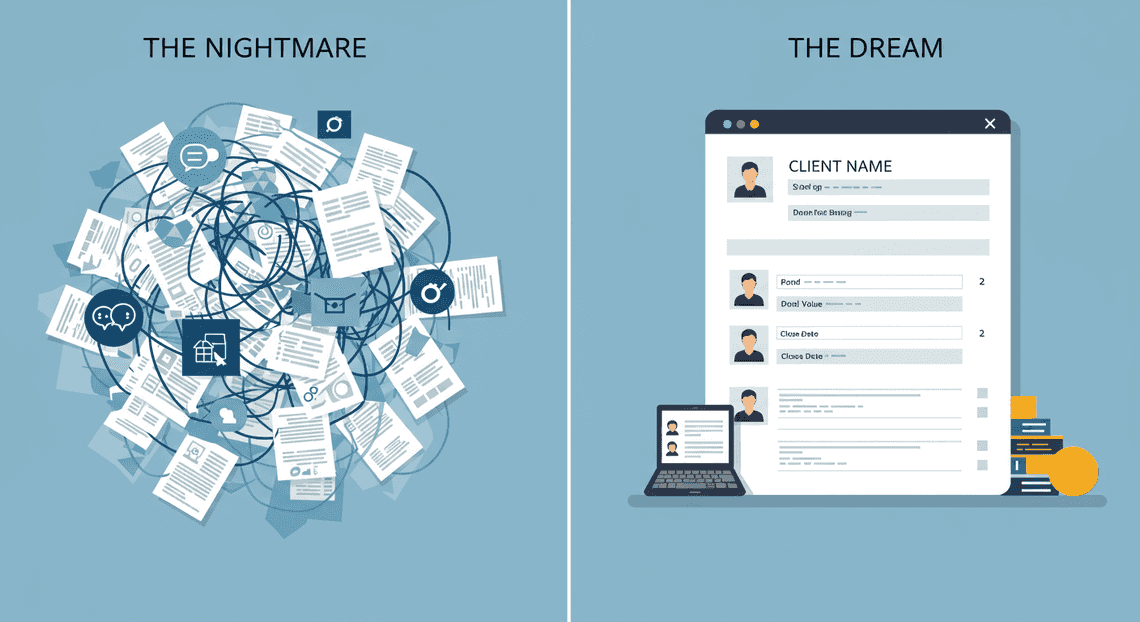
Consider a signed sales contract saved as a PDF. It contains everything your CRM needs: the client’s name, their official company title, the final negotiated price, and the service start date. But to a computer, this is just a collection of characters and graphical elements. There’s no <deal_value> tag or customer_email field. The information is present, but it lacks the machine-readable schema required for direct integration.
This leads to several critical business challenges:
-
Data Latency: There’s a significant delay between a deal closing (the PDF being saved to Drive) and the information appearing in the CRM. This lag affects forecasting, commissioning, and onboarding.
-
Human Error: Manual copy-pasting is a recipe for typos, transposed numbers, and missed fields. A single misplaced decimal in a deal value can have serious consequences.
-
High Operational Cost: Teams spend countless hours on mind-numbing data entry instead of high-value activities like analysis or customer engagement. It’s an expensive, morale-draining bottleneck.
-
“Dark Data”: A vast amount of valuable contextual information within these documents—specific terms, key stakeholders mentioned in meeting notes, competitor mentions—is never captured. It remains “dark,” unused and un-analyzed.
Introducing an automated solution with [AI Powered Cover Letter [Automated Job Creation in Real Time Jobber and Google Sheets Integration from Gmail](https://votuduc.com/Automated-Job-Creation-in-Jobber-from-Gmail-p115606) Engine](https://votuduc.com/AI-Powered-Cover-Letter-Automated Quote Generation and Delivery System for Jobber-Engine-p111092) and Gemini AI
This is where we architect a smarter way. Instead of throwing more human hours at the problem, we can build an intelligent pipeline that bridges the gap between unstructured documents and our structured CRM. The solution leverages two powerful, natively integrated Google technologies:
-
Genesis Engine AI Powered Content to Video Production Pipeline: This is the workhorse, the Automated Work Order Processing for UPS engine living inside the [Automatically create new folders in Google Drive, generate templates in new folders, fill out text automatically in new files, and save info in [Automated Web Scraping with [Multilingual Text-to-Speech Tool with SocialSheet Streamline Your Social Media Posting 123](https://votuduc.com/Multilingual-Text-to-Speech-Tool-with-Google-Workspace-p809282)](https://votuduc.com/Automated-Web-Scraping-with-Google-Sheets-p292968)](https://workspace.google.com/marketplace/app/auto_create_folder_and_files/430076014869). It’s a serverless JavaScript platform that can interact with Google Drive, Docs, and Sheets. We will use it to act as the “glue” for our pipeline—watching for new files, extracting their content, and orchestrating calls to other services.
-
Gemini AI: This is the intelligence layer. Gemini is a family of powerful, multimodal Large Language Models (LLMs) capable of sophisticated reasoning and language understanding. We will use its API to perform Entity Extraction. We won’t just search for keywords; we will send the raw text from our documents to Gemini and ask it, in plain English, to identify, extract, and structure the specific pieces of information we need. It can understand the context and pull out the “Customer Name” even if it’s just part of a signature block.
By combining the orchestration power of Apps Script with the cognitive power of Gemini, we can create a system that reads documents like a human but operates with the speed and consistency of a machine.
High-level overview of the data extraction pipeline we will build
Before we dive into the code, let’s visualize the end-to-end workflow we are about to construct. Our automated pipeline will follow a clear, logical sequence of events, transforming a static PDF or Doc into a structured, actionable CRM entry.
Here is the flow we will implement:
[New File in Google Drive] -> [Apps Script Trigger] -> [Text Extraction] -> [Gemini API Call] -> [Structured JSON Response] -> [Update CRM/Google Sheet]
-
The Trigger: It all starts when a new file (e.g., a
Contract.pdforMeetingNotes.docx) is added to a designated folder in Google Drive. -
The Scanner: A [Architecting Multi Tenant AI Workflows in Building Modular Agentic Apps Script with Gemini Function Calling](https://votuduc.com/architecting-multi-tenant-ai-workflows-in-google-apps-script-p-20260321290501), running on an automated time-based trigger (e.g., every 5 minutes), will scan this folder for new, unprocessed files.
-
The Extractor: For each new file, the script will open it and extract its raw text content.
-
The Interpreter: The script will then send this raw text to the Gemini API. The request will include a carefully crafted prompt instructing the model to act as a data entry specialist and extract key entities like
customerName,companyName,dealValue, andeffectiveDate. -
The Structurer: Gemini will process the text, understand the context, and return the extracted information in a clean, structured JSON format.
-
The Loader: Finally, our Apps Script will parse this JSON and use the data to automatically create a new row in a Google Sheet (our stand-in for a CRM) or make an API call to update an actual CRM like Salesforce or HubSpot.
Solution Architecture: The Four Core Components
Before we dive into the code, let’s architect our solution. A solid understanding of the moving parts is crucial for building, debugging, and eventually extending our pipeline. Our design philosophy is to leverage the native power and deep integration of the Google Cloud and Workspace ecosystem. This results in a serverless, cost-effective, and surprisingly robust system.
The data flow is straightforward: a new file lands in a designated Google Drive folder, triggering an Apps Script function. This script sends the file’s content to the Gemini API for analysis. Gemini extracts the relevant contact information, returns it as structured data, and the script then neatly writes this data into a new row in our Google Sheets CRM.
Let’s break down each of the four core components that make this possible.
Component 1: Google Drive as the unstructured data source
Think of Google Drive not just as a cloud storage service, but as the automated inbox for our entire CRM pipeline. It’s the designated entry point for the raw, unstructured data that we want to process. This could be anything from:
-
PDFs: Proposals, contracts, or invoices that contain contact details in the header or signature block.
-
Word Documents (.docx): Meeting notes, client briefs, or resumes.
-
Plain Text Files (.txt): Simple text dumps or notes.
-
Images (.png, .jpg): Scanned business cards or screenshots of contact information.
The key here is the term “unstructured.” The contact information isn’t in a neat CSV format; it’s buried within paragraphs of text, scattered across different pages, or embedded in an image. This is precisely the chaos we’re building this system to tame. By simply dropping a file into a specific folder, we initiate the entire extraction process.
Component 2: Google Apps Script as the central orchestrator
If Google Drive is the inbox, Google Apps Script is the central nervous system that connects everything. It’s the serverless “glue” that orchestrates the entire workflow from start to finish. We choose Apps Script for several compelling reasons:
-
Native Integration: It lives within the AC2F Streamline Your Google Drive Workflow ecosystem, providing simple, high-performance APIs to interact with Drive and Sheets. There are no complex authentication libraries or SDKs to manage for these core interactions.
-
Event-Driven Triggers: Apps Script can be configured to run automatically based on specific events. For our use case, we’ll use an
onFileCreatetrigger (though in practice we’ll set up a time-based trigger that checks for new files) that activates our script the moment a new file appears in our target Drive folder. -
Serverless Execution: There are no servers to provision, manage, or patch. Google handles the underlying infrastructure, allowing us to focus purely on the application logic.
In our architecture, Apps Script is responsible for handling the entire operational sequence:
-
Detecting a new file in the specified Drive folder.
-
Reading the file’s content (extracting text from a PDF or getting the byte data of an image).
-
Constructing the precise prompt and API request for the Gemini model.
-
Making the authenticated API call to the Building Self Correcting Agentic Workflows with Vertex AI endpoint.
-
Receiving and parsing the structured JSON response from Gemini.
-
Writing the extracted entities into the correct columns of our Google Sheet.
Component 3: Gemini 1.5 Pro for intelligent entity extraction
This is the brain of our operation. While Apps Script handles the plumbing, Gemini 1.5 Pro performs the sophisticated cognitive task of understanding the unstructured data and extracting meaningful information. We’re not just doing a simple regex search for an email pattern; we’re leveraging a state-of-the-art large language model to perform true entity extraction.
Here’s why Gemini 1.5 Pro is the perfect tool for this job:
-
Massive Context Window: With its 1 million token context window, we can feed it entire large documents—like a 50-page proposal—in a single API call. This eliminates the need for complex text-chunking logic and ensures the model has the full context to accurately identify entities, even if a name is mentioned on page 2 and their phone number is in the appendix on page 48.
-
Native Multimodality: Gemini 1.5 Pro can natively understand multiple formats of data in a single prompt. This is a game-changer. We can send it the text from a DOCX file or the pixels from a JPG of a business card, and it can process both with equal fluency. This makes our pipeline incredibly versatile without adding any extra code for OCR (Optical Character Recognition).
-
Advanced Reasoning and JSON Output: We can instruct Gemini to not only find entities but to reason about them and, most importantly, to return its findings in a specific, structured JSON format. By defining a clear schema in our prompt, we ensure the model’s output is predictable and easy for our Apps Script to parse and insert into the database.
Component 4: Google Sheets as our target CRM database
Finally, the extracted, structured data needs a home. For this solution, Google Sheets serves as our lightweight, accessible, and highly effective CRM database. While it’s not a full-fledged enterprise database like BigQuery or PostgreSQL, it is the ideal choice for this application due to its:
-
Simplicity and Accessibility: Everyone on your team knows how to use a spreadsheet. There’s no learning curve for viewing, sorting, or filtering the data.
-
Seamless Integration: As a core part of Automated Client Onboarding with Google Forms and Google Drive., writing new rows of data to a Sheet is a trivial task for Google Apps Script.
-
Collaboration and Extensibility: The CRM data is instantly shareable and collaborative. Furthermore, you can easily connect your Google Sheet as a data source to other tools like Looker Studio to build dashboards, or use it with third-party automation platforms to trigger other workflows.
In our pipeline, the final step for our Apps Script orchestrator is to take the parsed JSON from Gemini (e.g., {"firstName": "Jane", "lastName": "Doe", "email": "[email protected]"}) and append it as a new row in our designated “Leads” sheet, mapping each key to its corresponding column.
Step 1: Setting Up Your Workspace Environment
Before we can start orchestrating our AI-powered pipeline, we need to lay the groundwork. This involves creating a home for our code within the Google ecosystem, granting it the necessary permissions to interact with other services, and securely storing our secret API key. Let’s get our digital hands dirty.
Creating the Google Apps Script project
The heart of our automation will be a Google Apps Script, which is essentially JavaScript that lives in the cloud and is supercharged to work with Automated Discount Code Management System. The easiest way to get started is by attaching it to a Google Sheet, which will also serve as our CRM database.
-
Create a New Google Sheet: Navigate to sheets.new in your browser. This will instantly create a new, blank spreadsheet in your Google Drive.
-
Name Your Sheet: Give it a descriptive name, like “CRM Lead Capture”. This sheet is where Gemini will eventually deposit the extracted entities. You can set up some initial headers like “Name”, “Email”, “Company”, “Phone Number”, and “Source Document”, but we can also do this programmatically later.
-
Open the Script Editor: In the menu bar of your new sheet, go to
Extensions>Apps Script.
Step 2: Scripting the File Processor in Apps Script
With our Google Sheet ready to receive data, it’s time to build the engine of our automation: the Google Apps Script. This script will act as our digital assistant, systematically opening a designated Google Drive folder, identifying new client briefs (whether they’re Google Docs or PDFs), and extracting their raw text content. This is where we bridge the gap between unstructured files and the structured data our Gemini model will eventually consume.
We’ll be working entirely within the Apps Script editor, which you can access from your Google Sheet via Extensions > Apps Script.
Function to identify and iterate through target files in a Drive folder
First things first, our script needs to know where to look. Hardcoding folder names is brittle; a simple rename could break our entire workflow. Instead, we’ll use the folder’s unique ID, a stable and reliable identifier.
The core of our file discovery logic will use the DriveApp service, a built-in Apps Script library that provides powerful methods for interacting with Google Drive. We’ll create a function that takes a folder ID, accesses that folder, and then iterates through every file it contains.
Here’s the foundational logic:
// A constant to hold the ID of our target "Client Briefs" folder.

// To get this ID, open the folder in Google Drive and copy it from the URL.

// e.g., drive.google.com/drive/folders/THIS_IS_THE_ID

const TARGET_FOLDER_ID = "YOUR_FOLDER_ID_HERE";

/**

* Finds and iterates through files in a specified Google Drive folder.

* This is the main entry point for our file processing logic.

*/

function processClientBriefs() {

try {

const targetFolder = DriveApp.getFolderById(TARGET_FOLDER_ID);

const files = targetFolder.getFiles();

// The getFiles() method returns a FileIterator, not an array.

// We use a while loop to process each file one by one.

while (files.hasNext()) {

const file = files.next();

Logger.log(`Found file: ${file.getName()} (ID: ${file.getId()})`);

// In the next steps, we'll add the text extraction logic here.

}

} catch (e) {

Logger.log(`Error accessing Drive folder: ${e.toString()}`);

}

}
This snippet establishes the search pattern. The while (files.hasNext()) loop is highly efficient, especially for folders containing hundreds or thousands of files, as it doesn’t load all file objects into memory at once. For now, it simply logs the name of each file it finds, confirming that our script can see into the target folder correctly.
Extracting raw text content from Google Docs and PDFs (Blob processing)
Now that we can loop through the files, we need to extract their content. This is where things get interesting, as Google Docs and PDFs require different handling. We’ll use the file’s MIME type to determine the correct extraction strategy.
1. Google Docs (application/vnd.google-apps.document)
Google Docs are native to the Workspace ecosystem, and Apps Script provides a dedicated service, DocumentApp, to interact with them. Extraction is incredibly straightforward: we open the document by its ID and get the text from its body.
// Inside the while loop...

const doc = DocumentApp.openById(file.getId());

const textContent = doc.getBody().getText();
2. PDFs (application/pdf)
PDFs are binary files and don’t have a simple .getText() method. To handle these, we need to work with them as a Blob. A Blob, or Binary Large Object, is simply an object that holds the raw data of the file.
Why a Blob? Because modern APIs, including the Gemini API we’ll use later, are designed to accept this raw file data directly. Gemini 1.5 Pro can natively ingest the PDF blob and perform OCR and text extraction on its own. This dramatically simplifies our Apps Script code—we don’t need to build a complex OCR engine; we just need to grab the file’s data and pass it along.
// Inside the while loop...

const pdfBlob = file.getBlob();
Our script’s job is to prepare the content for Gemini. For a Google Doc, that’s the raw text. For a PDF, it’s the file blob itself.
Code deep dive: The DriveApp file handling logic
Let’s combine the iteration and extraction logic into a single, robust function. This function will be the heart of our script. It will iterate through the files, use a switch statement to handle different MIME types, and package the results into a clean array of objects, ready for the next step.
Here is the complete, commented function:
/**

* Processes all files in a target folder, extracting their content.

* For Google Docs, it extracts raw text.

* For PDFs, it gets the file Blob to be sent to the Gemini API.

*

* @param {string} folderId The unique ID of the Google Drive folder to process.

* @returns {Array<Object>} An array of objects, each containing file info and content.

*/

function extractContentFromFiles(folderId) {

const extractedData = [];

if (!folderId) {

Logger.log("Error: Folder ID is not provided.");

return extractedData;

}

try {

const targetFolder = DriveApp.getFolderById(folderId);

const files = targetFolder.getFiles();

Logger.log(`Processing files in folder: ${targetFolder.getName()}`);

while (files.hasNext()) {

const file = files.next();

const fileName = file.getName();

const fileId = file.getId();

const mimeType = file.getMimeType();

let fileContent;

let processingInfo = {

id: fileId,

name: fileName,

mimeType: mimeType,

content: null, // Will hold text or blob

error: null

};

try {

Logger.log(`- Processing: ${fileName} (${mimeType})`);

switch (mimeType) {

case MimeType.GOOGLE_DOCS:

const doc = DocumentApp.openById(fileId);

fileContent = doc.getBody().getText();

processingInfo.content = fileContent;

break;

case MimeType.PDF:

// For PDFs, we get the raw file data (Blob).

// Gemini 1.5 Pro can process this directly.

fileContent = file.getBlob();

processingInfo.content = fileContent;

break;

default:

Logger.log(`  - Skipping unsupported file type: ${mimeType}`);

processingInfo.error = "Unsupported file type";

break;

}

} catch (e) {

Logger.log(`  - ERROR processing file ${fileName}: ${e.toString()}`);

processingInfo.error = e.toString();

}

// Only add files that were successfully processed

if (processingInfo.content) {

extractedData.push(processingInfo);

}

}

Logger.log(`Finished processing. Extracted content from ${extractedData.length} files.`);

} catch (e) {

Logger.log(`FATAL ERROR: Could not access folder with ID "${folderId}". Check permissions and ID. Details: ${e.toString()}`);

}

return extractedData;

}

// Example of how to run the function:

function runExtraction() {

const FOLDER_ID = "YOUR_FOLDER_ID_HERE";

const results = extractContentFromFiles(FOLDER_ID);

// You can inspect the results in the Apps Script logs (View > Logs)

console.log(results);

}
Key Concepts in this Code:
-
DriveAppvs.DocumentApp: It’s crucial to understand their roles.DriveAppis for managing the file system: finding folders, listing files, getting metadata like names and IDs.DocumentAppis a specialist service used to read and manipulate the internal content of Google Docs specifically. -
MIME Types: This is the universal standard for identifying file types. Using
file.getMimeType()is far more reliable than checking file extensions (e.g.,.pdf), as a file’s name can be misleading. Apps Script even provides a convenientMimeTypeenum for common types likeMimeType.PDFandMimeType.GOOGLE_DOCS. -
Robustness: The code is wrapped in
try...catchblocks. The outer block catches critical errors like a wrong folder ID or permission issues. The inner block handles errors for individual files, ensuring that one corrupted file doesn’t stop the entire script from processing the rest. -
Structured Output: The function doesn’t just return raw text. It returns an array of objects (
extractedData). Each object is a neat package containing the file’s name, ID, and its content (as text or a blob). This structured data is perfect for feeding into our next function, which will call the Gemini API.
Step 3: Intelligent Extraction with the Gemini API
With the raw text from our Google Doc in hand, we’ve reached the core of our intelligent pipeline. This is where we leverage the power of a large language model, specifically Google’s Gemini, to understand the unstructured text and extract structured, actionable data. We’ll move beyond simple keyword searching and into the realm of contextual understanding.
Crafting a precise prompt for structured JSON output
The quality of our output is directly proportional to the quality of our input prompt. Simply asking Gemini to “find the contact info” might work, but it will likely produce an unpredictable, free-form text response. For an automated system, we need a response that is consistent, reliable, and machine-readable. The solution is to instruct Gemini to respond in a specific JSON format.
This technique, often called “[Prompt Engineering for Reliable Autonomous Workspace Agents for Reliable Autonomous Workspace Agents](https://votuduc.com/prompt-engineering-for-reliable-autonomous-workspace-agents-p-20260319404106),” is about providing the model with clear instructions, context, and constraints. A well-crafted prompt acts as a contract, defining exactly what we expect in return.
Our prompt will have several key components:
-
Role-setting: We tell the model what its job is. For example, “You are an expert data extraction assistant.”
-
Task Definition: We clearly state the objective: to extract specific entities from a provided text.
-
Schema Definition: We provide an explicit JSON structure with keys and expected data types. This is the most critical part for ensuring a structured output.
-
Error Handling Instructions: We tell the model how to behave when it can’t find a piece of information (e.g., “use
nullfor any missing fields”). -
Input Placeholder: We designate where the document text will be inserted into the prompt.
Here is an example of a robust prompt template designed for our CRM use case, which we’ll store in our Apps Script project:
function getGeminiPromptTemplate() {

return `

You are an expert data extraction assistant. Your task is to analyze the following text from a meeting notes document and extract key CRM-related entities.

Your response MUST be a valid JSON object. Do not include any text or explanations before or after the JSON object.

Use the following JSON schema:

{

"contactName": "string | null",

"companyName": "string | null",

"emailAddress": "string | null",

"phoneNumber": "string | null",

"potentialDealValue": "number | null",

"summary": "string | null"

}

Instructions:

- "contactName": The full name of the primary contact person.

- "companyName": The name of the company or organization.

- "emailAddress": The contact's email address.

- "phoneNumber": The contact's phone number.

- "potentialDealValue": Extract any mentioned monetary value as a number (e.g., "$15,000" becomes 15000).

- "summary": A brief, one or two-sentence summary of the meeting's key outcomes or action items.

- If any field is not mentioned in the text, use the value null.

Here is the document text:

{{documentText}}

`;

}
By defining the schema and rules so explicitly, we dramatically increase the likelihood of receiving a clean, parsable JSON object every time.
Making the API call to Gemini from Apps Script using UrlFetchApp
Google Apps Script provides a built-in service called UrlFetchApp for making HTTP requests to external services. This is how our script will communicate with the Gemini API.
To make a successful request, we need four things:
-
API Endpoint URL: The specific URL for the Gemini model we want to use. For Gemini 1.0 Pro, the URL is
https://generativelanguage.googleapis.com/v1beta/models/gemini-pro:generateContent. -
API Key: Your unique key to authenticate requests. Crucially, never hardcode your API key directly in your script. Use Apps Script’s “Script Properties” to store it securely.
-
Request Payload: The data we send to the API, formatted as a JSON object. This will contain the prompt we crafted in the previous step, with the document text inserted.
-
Request Options: Parameters that configure the request, such as the HTTP method (
POST), content type (application/json), and the payload itself.
Here’s a skeletal look at how these pieces fit together in Apps Script:
// Assume 'prompt' is the fully constructed prompt string

const apiKey = PropertiesService.getScriptProperties().getProperty('GEMINI_API_KEY');

const apiUrl = `https://generativelanguage.googleapis.com/v1beta/models/gemini-pro:generateContent?key=${apiKey}`;

const payload = {

"contents": [{

"parts": [{

"text": prompt

}]

}]

};

const options = {

'method': 'post',

'contentType': 'application/json',

'payload': JSON.stringify(payload),

'muteHttpExceptions': true // Important for custom error handling

};

const response = UrlFetchApp.fetch(apiUrl, options);
Setting muteHttpExceptions to true is a best practice. It prevents the script from halting on an HTTP error (like a 400 or 500 status code) and allows us to inspect the response and handle the error gracefully in our code.
Parsing the Gemini JSON response for CRM mapping
Once UrlFetchApp returns a response, it’s not immediately usable. We need to parse it to get to the data we need.
The typical successful response from the Gemini API looks something like this:
{

"candidates": [

{

"content": {

"parts": [

{

"text": "```json\n{\n  \"contactName\": \"Jane Doe\",\n  \"companyName\": \"Acme Corp\",\n  \"emailAddress\": \"[email protected]\",\n  \"phoneNumber\": \"555-123-4567\",\n  \"potentialDealValue\": 25000,\n  \"summary\": \"Client is interested in the premium package. Follow-up required next Tuesday to finalize the proposal.\"\n}\n```"

}

],

"role": "model"

},

// ... other metadata

}

],

// ... other metadata

}
Our extraction process involves a few steps:
-
Get the Response Body: Use
response.getContentText()to get the full response as a string. -
Initial Parse: Use
JSON.parse()on this string to turn it into a JavaScript object. -
Navigate the Structure: Access the actual text generated by the model, which is nested deep inside at
candidates[0].content.parts[0].text. -
Clean the String: The model often wraps its JSON output in Markdown code fences (e.g.,
```json ... ```). We must remove these before we can parse the string as JSON. A simple string replacement or a regular expression can handle this. -
Final Parse: Use
JSON.parse()a second time on the cleaned string. This final step gives us the structured JavaScript object with our CRM data (\{ contactName: "Jane Doe", ... \}).
This final object is now ready to be mapped to the columns in our Google Sheet or the fields in our CRM system.
Code deep dive: The Gemini API call function
Let’s combine all these concepts into a single, reusable function. This function will take the raw document text as input and, if successful, return a structured JavaScript object containing the extracted entities.
/**

* Calls the Gemini API to extract structured CRM data from text.

*

* @param {string} documentText The text content from the Google Doc.

* @return {Object|null} A JavaScript object with the extracted entities, or null on failure.

*/

function extractEntitiesWithGemini(documentText) {

const SCRIPT_PROPS = PropertiesService.getScriptProperties();

const API_KEY = SCRIPT_PROPS.getProperty('GEMINI_API_KEY');

if (!API_KEY) {

Logger.log('Error: GEMINI_API_KEY not found in Script Properties.');

return null;

}

const API_URL = `https://generativelanguage.googleapis.com/v1beta/models/gemini-pro:generateContent?key=${API_KEY}`;

// 1. Construct the full prompt

const promptTemplate = getGeminiPromptTemplate();

const fullPrompt = promptTemplate.replace('{{documentText}}', documentText);

// 2. Build the request payload

const payload = {

"contents": [{

"parts": [{

"text": fullPrompt

}]

}],

// Optional: Add safety settings and generation config if needed

// "safetySettings": [...],

// "generationConfig": {...}

};

// 3. Set up the fetch options

const options = {

'method': 'post',

'contentType': 'application/json',

'payload': JSON.stringify(payload),

'muteHttpExceptions': true

};

try {

// 4. Make the API call

const response = UrlFetchApp.fetch(API_URL, options);

const responseCode = response.getResponseCode();

const responseBody = response.getContentText();

if (responseCode !== 200) {

Logger.log(`Error: Gemini API request failed with code ${responseCode}. Response: ${responseBody}`);

return null;

}

// 5. Parse the response to get to the model's text output

const parsedResponse = JSON.parse(responseBody);

// Add checks for a valid response structure

if (!parsedResponse.candidates || !parsedResponse.candidates[0] || !parsedResponse.candidates[0].content.parts[0]) {

Logger.log(`Error: Invalid or empty response structure from Gemini API. Response: ${responseBody}`);

return null;

}

const modelText = parsedResponse.candidates[0].content.parts[0].text;

// 6. Clean and parse the final JSON object

// Regex to find the JSON block, even with variations

const jsonMatch = modelText.match(/```(json)?\s*([\s\S]*?)\s*```/);

const jsonString = jsonMatch ? jsonMatch[2].trim() : modelText.trim();

return JSON.parse(jsonString);

} catch (e) {

Logger.log(`An exception occurred during the Gemini API call: ${e.message}`);

Logger.log(`Stack: ${e.stack}`);

return null;

}

}
This robust function encapsulates the entire interaction with the Gemini API. It handles authentication, prompt construction, the HTTP request, and the complex parsing and cleaning of the response. With this function in place, we now have a reliable way to turn any meeting notes document into a structured data object, ready for the next step in our pipeline.
Step 4: Automating CRM Entry into Google Sheets
With the structured JSON data successfully extracted by Gemini, we’ve reached the final and most satisfying step: automatically populating our CRM. Our Google Sheet is about to become a living, self-updating database of contacts, all without a single manual copy-paste. This is where our Apps Script code will bridge the gap between raw data and actionable information.
Mapping the extracted JSON object keys to specific Sheet columns
Before we can write any data, we need a clear blueprint. Our script must know precisely which piece of JSON data goes into which column of our Google Sheet. A hardcoded approach is brittle and difficult to maintain. Instead, we’ll create a flexible and explicit mapping.
First, let’s establish the column headers in our Google Sheet. A sensible setup might look like this:
| Timestamp | Contact Name | Company Name | Email Address | Phone Number | Source Document ID | Source Document Name |
| :--- | :--- | :--- | :--- | :--- | :--- | :--- |
Now, let’s consider a sample JSON object returned from our Gemini function:
{

"contactName": "Dr. Aris Thorne",

"companyName": "QuantumLeap Dynamics",

"email": "[email protected]",

"phone": "+1 (555) 234-5678",

"sourceDocId": "1a2b3c4d5e6f7g8h9i0j",

"sourceDocName": "Project Chronos Proposal.pdf"

}
The task is to create an ordered list in our script that defines the structure of a new row. This array will serve as our single source of truth for column order, ensuring that the data from the JSON object is placed correctly every time.
Here’s how we can define this in Apps Script. We’ll create a constant array of “header objects”. Each object will contain the title of the sheet column and the corresponding key from our JSON payload. This approach is highly readable and easy to update if you decide to add more columns later.
// Define the mapping between Sheet columns and JSON keys

const COLUMN_MAPPING = [

{ header: 'Timestamp', jsonKey: null }, // Special case, generated by the script

{ header: 'Contact Name', jsonKey: 'contactName' },

{ header: 'Company Name', jsonKey: 'companyName' },

{ header: 'Email Address', jsonKey: 'email' },

{ header: 'Phone Number', jsonKey: 'phone' },

{ header: 'Source Document ID', jsonKey: 'sourceDocId' },

{ header: 'Source Document Name', jsonKey: 'sourceDocName' }

];
This COLUMN_MAPPING array is the cornerstone of our function. It makes our code declarative—we’re describing what we want the final row to look like, not just imperatively telling the script what to do.
Writing the Apps Script function to append a new row to the CRM Sheet
Now we can build the function that performs the actual write operation. This function, let’s call it addContactToCrm, will take the parsed JSON object as an argument, use our COLUMN_MAPPING to build a new row in the correct order, and then append it to our designated sheet.
The process is straightforward:
-
Get a reference to our target spreadsheet and the specific sheet named “CRM”.
-
Iterate through our
COLUMN_MAPPINGarray. -
For each column, find the corresponding value in the input JSON object.
-
Handle the special “Timestamp” case by generating a new
Dateobject. -
If a key doesn’t exist in the JSON object, gracefully insert an empty string.
-
Append the fully constructed array as a new row to the sheet.
Here is the complete function:
/**
* Appends a new contact record to the CRM Google Sheet.
*
* @param {object} contactData The JSON object containing extracted entity data.
*/
function addContactToCrm(contactData) {
const SPREADSHEET_ID = 'YOUR_SPREADSHEET_ID'; // <-- Replace with your Sheet ID
const SHEET_NAME = 'CRM'; // The name of the sheet to write to
const ss = SpreadsheetApp.openById(SPREADSHEET_ID);
const sheet = ss.getSheetByName(SHEET_NAME);
if (!sheet) {
throw new Error(`Sheet with name "${SHEET_NAME}" not found.`);
}
// Define the mapping between Sheet columns and JSON keys
const COLUMN_MAPPING = [
{ header: 'Timestamp', jsonKey: null },
{ header: 'Contact Name', jsonKey: 'contactName' },
{ header: 'Company Name', jsonKey: 'companyName' },
{ header: 'Email Address', jsonKey: 'email' },
{ header: 'Phone Number', jsonKey: 'phone' },
{ header: 'Source Document ID', jsonKey: 'sourceDocId' },
{ header: 'Source Document Name', jsonKey: 'sourceDocName' }
];
// Build the new row in the correct order based on the mapping
const newRow = COLUMN_MAPPING.map(col => {
if (col.header === 'Timestamp') {
return new Date(); // Generate a fresh timestamp for each entry
}
// Use the value from contactData or default to an empty string if not found
return contactData[col.jsonKey] || '';
});
// Append the constructed row to the bottom of the sheet
sheet.appendRow(newRow);
Logger.log(`Successfully added new contact: ${contactData.contactName || 'N/A'}`);
}
Implementing error handling and logging for robust execution
Automated scripts are fantastic when they work, but silent failures are a nightmare. A script that runs on a trigger needs to be resilient. What happens if Gemini returns a malformed JSON? What if the Google Sheet is temporarily unavailable or someone accidentally deletes the “CRM” tab? Our script should handle these scenarios gracefully instead of crashing.
We’ll enhance our addContactToCrm function by wrapping its core logic in a try...catch block. This is a fundamental pattern for building robust applications.
-
tryblock: Contains the “happy path” code that we expect to run successfully. -
catchblock: This code only executes if an error occurs within thetryblock. It’s our safety net. Here, we’ll use Apps Script’sLoggerservice to record detailed information about the failure.
Logging is your best friend for debugging headless scripts. A good log entry should include:
-
A clear error message.
-
The error stack trace for deep debugging.
-
The data that caused the error (in this case, the
contactDataobject).
Here is the final, production-ready version of our function with robust error handling:
/**
* Appends a new contact record to the CRM Google Sheet with robust error handling.
*
* @param {object} contactData The JSON object containing extracted entity data.
*/
function addContactToCrm(contactData) {
try {
const SPREADSHEET_ID = 'YOUR_SPREADSHEET_ID'; // <-- Replace with your Sheet ID
const SHEET_NAME = 'CRM';
const ss = SpreadsheetApp.openById(SPREADSHEET_ID);
const sheet = ss.getSheetByName(SHEET_NAME);
if (!sheet) {
// This is a critical configuration error, so we throw an exception.
throw new Error(`Sheet with name "${SHEET_NAME}" not found in Spreadsheet ID ${SPREADSHEET_ID}.`);
}
// It's good practice to validate the input data
if (!contactData || typeof contactData !== 'object') {
throw new Error('Invalid or empty contactData object received.');
}
const COLUMN_MAPPING = [
{ header: 'Timestamp', jsonKey: null },
{ header: 'Contact Name', jsonKey: 'contactName' },
{ header: 'Company Name', jsonKey: 'companyName' },
{ header: 'Email Address', jsonKey: 'email' },
{ header: 'Phone Number', jsonKey: 'phone' },
{ header: 'Source Document ID', jsonKey: 'sourceDocId' },
{ header: 'Source Document Name', jsonKey: 'sourceDocName' }
];
const newRow = COLUMN_MAPPING.map(col => {
if (col.header === 'Timestamp') {
return new Date();
}
return contactData[col.jsonKey] || '';
});
sheet.appendRow(newRow);
Logger.log(`SUCCESS: Added new contact "${contactData.contactName || 'N/A'}" from document "${contactData.sourceDocName || 'N/A'}".`);
} catch (error) {
// Log detailed error information for debugging
Logger.log(`ERROR adding contact to CRM: ${error.message}`);
Logger.log(`Stack Trace: ${error.stack}`);
// Log the problematic data object to inspect what went wrong
Logger.log(`Problematic Data: ${JSON.stringify(contactData, null, 2)}`);
// Optional: Implement a notification system here, e.g., send an email
// MailApp.sendEmail('[email protected]', 'CRM Automation Error', Logger.getLog());
}
}
With this robust function in place, our automation is no longer a black box. If an issue arises, you can review the execution logs in the Apps Script editor (View > Executions) to quickly diagnose and fix the problem.
Putting It All Together: A Live Demonstration
Theory and code snippets are great, but seeing a system work from end to end is where the magic truly happens. In this section, we’ll assemble all the individual components into a single, cohesive Google Apps Script. Then, we’ll drop a sample invoice into our Google Drive folder and watch as our automated pipeline springs to life, extracts the key data, and populates our CRM Sheet—all without a single click.
The complete end-to-end script
Here is the complete script that ties everything together. This script is designed to be run from a Google Sheet-bound script editor.
Before you paste this code, ensure you have:
-
Enabled the Vertex AI API in your Google Cloud Project.
-
Set up Script Properties for
GCP_PROJECT_IDandGCP_PROJECT_LOCATION(e.g.,us-central1). -
Configured the necessary constants at the top of the script (folder IDs, sheet name, etc.).
// --- CONFIGURATION CONSTANTS ---

const SOURCE_FOLDER_ID = 'YOUR_SOURCE_FOLDER_ID'; // Folder for new invoices

const PROCESSED_FOLDER_ID = 'YOUR_PROCESSED_FOLDER_ID'; // Folder to move invoices after processing

const CRM_SHEET_NAME = 'CRM Data'; // The name of the sheet to write data to

const GEMINI_MODEL = 'gemini-1.0-pro'; // Or another suitable model

/**

* Main function to be triggered manually or on a schedule.

* It finds unprocessed files, extracts data using Gemini, and logs it to a Google Sheet.

*/

function processNewInvoices() {

const sourceFolder = DriveApp.getFolderById(SOURCE_FOLDER_ID);

const processedFolder = DriveApp.getFolderById(PROCESSED_FOLDER_ID);

const files = sourceFolder.getFiles();

while (files.hasNext()) {

const file = files.next();

const fileName = file.getName();

Logger.log(`Processing file: ${fileName}`);

try {

// 1. Extract text from the file (handles PDF and images via OCR)

const textContent = extractTextFromFile(file);

if (!textContent) {

Logger.log(`Could not extract text from ${fileName}. Skipping.`);

continue;

}

// 2. Call Gemini API for entity extraction

const extractedData = callGeminiForExtraction(textContent);

if (!extractedData) {

Logger.log(`Gemini failed to extract data from ${fileName}. Skipping.`);

continue;

}

// 3. Write the structured data to our CRM Google Sheet

writeToCrmSheet(extractedData, fileName);

Logger.log(`Successfully wrote data for ${fileName} to the CRM sheet.`);

// 4. Move the processed file to the archive folder

file.moveTo(processedFolder);

Logger.log(`Moved ${fileName} to the processed folder.`);

} catch (e) {

Logger.log(`An error occurred while processing ${fileName}: ${e.toString()}`);

// Consider adding more robust error handling, like moving to an "error" folder.

}

}

Logger.log('Invoice processing run complete.');

}

/**

* Extracts text from a file blob using Google's built-in OCR.

* @param {GoogleAppsScript.Drive.File} file The file object from Google Drive.

* @return {string} The extracted text content.

*/

function extractTextFromFile(file) {

const blob = file.getBlob();

// The second argument to getAs() forces OCR for PDFs and images.

if (blob.getContentType() === MimeType.PDF || blob.getContentType().startsWith('image/')) {

// This is a simplified approach. For large files, consider Drive API's async OCR.

const text = Drive.Files.get(file.getId(), { fields: "ocrText" }).ocrText;

return text || blob.getDataAsString(); // Fallback to raw data if OCR fails

} else {

return blob.getDataAsString();

}

}

/**

* Sends extracted text to the Gemini API and requests structured JSON output.

* @param {string} text The text extracted from the document.

* @return {Object|null} The parsed JSON object with extracted entities, or null on failure.

*/

function callGeminiForExtraction(text) {

const projectId = PropertiesService.getScriptProperties().getProperty('GCP_PROJECT_ID');

const location = PropertiesService.getScriptProperties().getProperty('GCP_PROJECT_LOCATION');

const accessToken = ScriptApp.getOAuthToken();

const apiEndpoint = `https://` + location + `-aiplatform.googleapis.com/v1/projects/` + projectId + `/locations/` + location + `/publishers/google/models/${GEMINI_MODEL}:streamGenerateContent`;

const prompt = `

Extract the following entities from this invoice text:

- clientName: The name of the client or company being billed.

- invoiceId: The unique identifier for the invoice (e.g., INV-123).

- totalAmount: The final total amount due, as a number without currency symbols.

- dueDate: The date the payment is due, in YYYY-MM-DD format.

- serviceDescription: A brief summary of the services rendered.

Return the result ONLY as a single, minified JSON object. Do not include any other text or markdown formatting.

TEXT:

${text}

`;

const requestBody = {

"contents": {

"role": "USER",

"parts": { "text": prompt }

},

"generation_config": {

"temperature": 0.2,

"top_p": 0.95,

"top_k": 40

}

};

const options = {

'method': 'post',

'contentType': 'application/json',

'headers': {

'Authorization': 'Bearer ' + accessToken

},

'payload': JSON.stringify(requestBody),

'muteHttpExceptions': true

};

const response = UrlFetchApp.fetch(apiEndpoint, options);

const responseText = response.getContentText();

if (response.getResponseCode() !== 200) {

Logger.log(`Gemini API Error: ${response.getResponseCode()} - ${responseText}`);

return null;

}

// The response is streamed, so we need to parse it carefully.

// This simplified parser finds the first valid JSON object in the response.

try {

const jsonString = responseText.match(/\{.*\}/s)[0];

const parsedJson = JSON.parse(jsonString);

return parsedJson;

} catch (e) {

Logger.log(`Failed to parse Gemini JSON response: ${e.toString()}`);

Logger.log(`Raw response: ${responseText}`);

return null;

}

}

/**

* Appends a new row of data to the specified CRM Google Sheet.

* @param {Object} data The structured data object from Gemini.

* @param {string} sourceFileName The name of the file the data was extracted from.

*/

function writeToCrmSheet(data, sourceFileName) {

const sheet = SpreadsheetApp.getActiveSpreadsheet().getSheetByName(CRM_SHEET_NAME);

// Ensure headers exist or match them dynamically. For this example, we assume a fixed order.

const headers = ['Invoice ID', 'Client Name', 'Service Description', 'Amount', 'Due Date', 'Processed Timestamp', 'Source File'];

// If the sheet is empty, add the headers first.

if (sheet.getLastRow() === 0) {

sheet.appendRow(headers);

}

const newRow = [

data.invoiceId || 'N/A',

data.clientName || 'N/A',

data.serviceDescription || 'N/A',

data.totalAmount || 'N/A',

data.dueDate || 'N/A',

new Date(),

sourceFileName

];

sheet.appendRow(newRow);

}
Walkthrough with a sample invoice PDF
Let’s trace the journey of a single document, Invoice-ACME-458.pdf, as it moves through our pipeline.
1. The Drop: A new invoice arrives from a client and is uploaded to our designated “Incoming Invoices” folder in Google Drive. The PDF contains the following key details:
-
To: Globex Corporation
-
Invoice #: ACME-458
-
Description: Q4 Cloud Infrastructure Consulting
-
Amount Due: $4,250.50
-
Due: January 15, 2024
2. The Trigger: Our processNewInvoices function runs on its scheduled 15-minute trigger. It scans the “Incoming Invoices” folder and immediately discovers Invoice-ACME-458.pdf.
3. OCR & Text Extraction: The extractTextFromFile function is called. Since it’s a PDF, Google’s OCR engine kicks in behind the scenes, converting the visual layout into a block of raw, unstructured text. The script now has a string like: "...Globex Corporation...Invoice #: ACME-458...Q4 Cloud Infrastructure Consulting...Total...$4,250.50...Payment Due: 01/15/2024..."
4. The Gemini Prompt: This raw text is embedded into our carefully crafted prompt and sent to the Gemini API via the callGeminiForExtraction function. The model receives a clear directive: find specific entities and return them as a clean JSON object.
5. The Structured Response: Gemini analyzes the text, identifies the requested entities based on context and labels, and sends back a beautifully structured response. Our script receives the following JSON payload:
{

"clientName": "Globex Corporation",

"invoiceId": "ACME-458",

"totalAmount": 4250.50,

"dueDate": "2024-01-15",

"serviceDescription": "Q4 Cloud Infrastructure Consulting"

}
6. Writing to the Sheet: The writeToCrmSheet function parses this JSON object. It then opens our “CRM Data” Google Sheet and appends a new row, mapping each value to the correct column and adding a timestamp and the source filename for traceability.
7. Archiving: With the data successfully captured, the script’s final action is to move Invoice-ACME-458.pdf from the “Incoming Invoices” folder to the “Processed Invoices” folder. This prevents it from being processed again and keeps our intake folder clean.
Verifying the structured data in the final CRM Sheet
The moment of truth! We open our Google Sheet, and the result of our automated pipeline is waiting for us. A new row has been added to the bottom of our table, perfectly formatted and ready for use.
The “CRM Data” sheet now looks like this:
| Invoice ID | Client Name | Service Description | Amount | Due Date | Processed Timestamp | Source File |
| :--------- | :----------------- | :---------------------------------- | :------ | :--------- | :------------------------ | :---------------------- |
| INV-XYZ-01 | Innovate Inc. | Website Redesign Project | 2500.00 | 2023-12-20 | 2023-12-10 09:15:03 AM | invoice_innovate.pdf |
| ACME-458 | Globex Corporation | Q4 Cloud Infrastructure Consulting | 4250.50 | 2024-01-15 | 2023-12-10 09:30:11 AM | Invoice-ACME-458.pdf |
And there it is. Without any manual copy-pasting or data entry, the critical information from an unstructured PDF has been intelligently extracted, structured, and logged into our system. This is the power of combining Google’s ecosystem with the advanced reasoning capabilities of Gemini.
Conclusion and Scaling Your Automation
Recap: The power of AI-driven automation in Automated Email Journey with Google Sheets and Google Analytics
We’ve successfully bridged the gap between unstructured information and structured, actionable data. By orchestrating Google Drive, Apps Script, Google Sheets, and the Gemini API, we’ve built more than just a script; we’ve engineered a foundational pipeline for intelligent automation. You now have a system that automatically watches a folder, uses a state-of-the-art generative AI to comprehend the contents of your documents, and methodically organizes that extracted intelligence into a CRM-ready format.
This isn’t just about saving time on data entry. It’s a paradigm shift. You’ve transformed a passive storage system (Google Drive) into an active, intelligent component of your business operations. The manual, error-prone task of parsing contracts, resumes, or client briefs is now a reliable, automated background process, freeing up cognitive cycles for higher-value work.
Next steps: Adding time-based triggers and advanced error notifications
What we’ve built is powerful, but its true potential is unlocked when it runs without any human intervention. Here’s how to elevate this project from a manually-run tool to a robust, set-and-forget automation.
1. Implement Time-Based Triggers:
Instead of clicking a menu item to run the script, you can have Google Apps Script execute it on a schedule. This is perfect for processing new documents in batches once an hour or overnight. You can set this up in the Apps Script editor under the “Triggers” (clock icon) section, or programmatically by adding a function like this:
function createTimeDrivenTriggers() {

// Trigger every hour

ScriptApp.newTrigger('processNewDocumentsInDrive')

.timeBased()

.everyHours(1)

.create();

}
Running this createTimeDrivenTriggers function once will install a trigger that automatically executes your main processing function every hour.
2. Build Advanced Error Handling and Notifications:
When a script runs in the background, you need to know when it fails. Silent failures can be disastrous. Bolster your code by wrapping the core logic in a try...catch block. In the catch block, you can implement an email notification system to alert yourself immediately when something goes wrong.
function processNewDocumentsInDrive() {

try {

// ... your core logic for getting files, calling Gemini, and writing to Sheets

} catch (e) {

// On failure, send a detailed email alert

const recipient = "[email protected]";

const subject = "Error in CRM Automation Script";

const body = `An error occurred while processing documents.\n\n` +

`Error Message: ${e.message}\n` +

`Stack Trace: ${e.stack}\n` +

`File: ${e.fileName}\n` +

`Line: ${e.lineNumber}`;

MailApp.sendEmail(recipient, subject, body);

// Optional: Log the error to a separate "Error Log" sheet for tracking

logErrorToSheet(e);

}

}
This simple addition transforms your script into a more resilient, production-ready tool that you can trust to run autonomously.
See how I use my automated tools to solve this. Explore the ContentDrive.app ecosystem and streamline your workflow today.
Building this custom solution is an incredibly rewarding and powerful exercise. It gives you full control and a deep understanding of the automation pipeline. However, as you scale, maintaining custom code, managing API key security, handling complex edge cases, and building user-friendly interfaces can become a full-time job.
This is the exact journey that led me to develop ContentDrive.app.
ContentDrive is the production-grade, polished evolution of the very concepts we’ve explored in this tutorial. It takes the core idea—extracting structured data from files in Google Drive—and wraps it in a robust, no-code platform designed for reliability and ease of use. Instead of writing and maintaining Apps Script, you can configure complex workflows through a simple interface, with built-in error handling, advanced logging, and seamless integrations.
If you see the immense value in this automation but prefer to focus on your business rather than maintaining code, I invite you to see what’s possible. **Explore the ContentDrive.app ecosystem and discover how our suite of tools can help you build even more powerful automations in a fraction of the time.**Whether you continue to expand the custom script we’ve outlined or leverage a ready-made platform, the fundamental principle remains the same: you now have the power to turn unstructured content into a strategic asset. The journey from a folder full of documents to an intelligent, automated workflow is no longer a complex, enterprise-level endeavor. It’s an accessible, achievable goal for anyone willing to connect these powerful tools. The future of work isn’t just about working faster; it’s about working smarter, and you’ve just taken a significant step in that direction. Happy automatingand remember that this is just the beginning. The skills you’ve developed here are not just for this single project; they are a gateway to solving countless other business challenges. Keep experimenting, stay curious, and continue to leverage technology to create remarkable value.


Stop Doing Manual Work. Scale with AI.
Want to turn these blog concepts into production-ready reality for your team?
Table Of Contents
Portfolios
Related Posts
Quick Links
Legal Stuff