

Automate Google Slides from Docs with a Gemini Agent


The tedious work of manually converting a Google Doc into a presentation is over. Learn how to automate your workflow and end presentation fatigue for good.
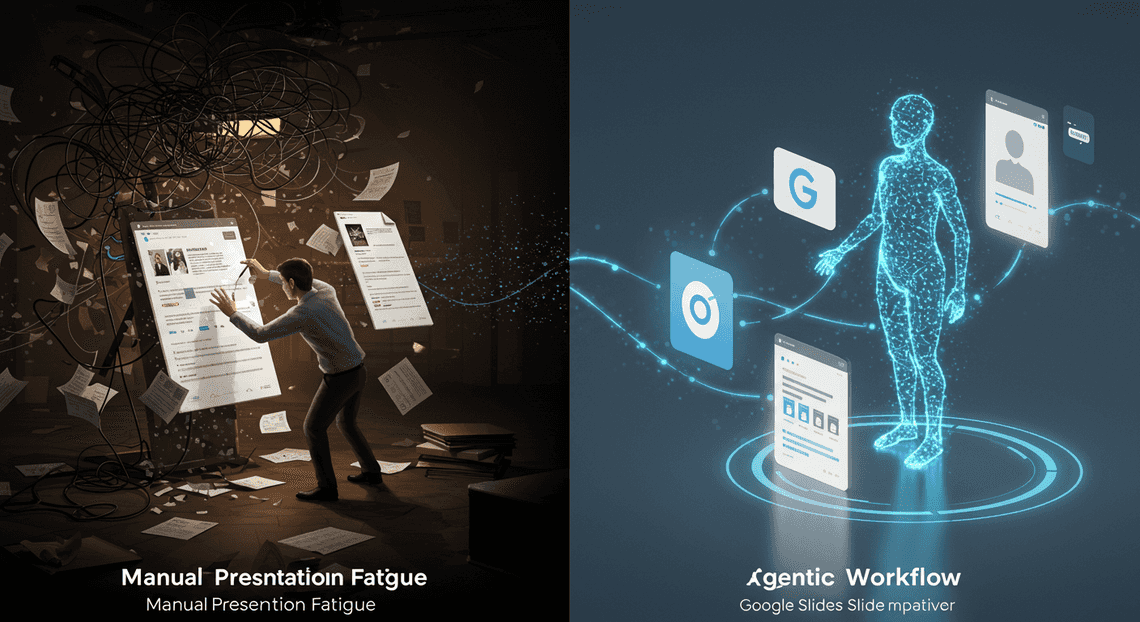
The Problem: The End of Manual Presentation Fatigue
We’ve all been there. You’ve just finalized a comprehensive report, a detailed project proposal, or an in-depth analysis in a Google Doc. The hard work of research and writing is done. But now, the second, often more tedious, phase begins: translating that dense, text-heavy document into a clear, engaging, and visually appealing Google Slides presentation for a stakeholder meeting.
This is where the real friction lies. It’s a high-friction, low-reward task that drains cognitive energy better spent on strategy and delivery.
From Tedious Reporting to Automated Storytelling
The manual process is a notorious productivity sink. It involves a repetitive cycle of:
-
Skimming and Summarizing: Rereading your own document to distill key messages, bullet points, and data-driven insights.
-
Copy-Paste Hell: Laboriously transferring snippets of text from one browser tab to another, constantly reformatting and tweaking.
-
Slide Design Paralysis: Deciding on layouts, titles, and the logical flow of the narrative. How many bullet points are too many? Does this point deserve its own slide?
-
The Hunt for Visuals: Scouring stock photo sites or internal asset libraries for relevant images to break up the “wall of text” and make the content more digestible.
Each step is a context switch that breaks your flow.

Introducing the Agentic Workflow Concept
This is where a simple script or a basic API call falls short. We don’t need a dumb copy-paste bot; we need an intelligent collaborator. Enter the concept of an agentic workflow.
In the context of Large Language Models (LLMs) like Gemini, an “agent” is more than just a model that responds to a prompt. An agent is an autonomous system that can:
-
Reason and Plan: Given a high-level objective (e.g., “Create a presentation from this document”), the agent can break it down into a sequence of logical steps. It decides what information is critical, how to structure it, and what actions are needed to achieve the goal.
-
Utilize Tools: An agent isn’t confined to its own knowledge. It can be given access to a suite of tools—in our case, APIs. It can decide to use the Google Docs API to read the source material, the Google Slides API to build the presentation, and a search API to find appropriate imagery.
-
Execute and Iterate: The agent executes its plan, calling the necessary tools with the right parameters. It can even self-correct, analyzing the output of one step to inform the next.
This is a paradigm shift from simple [Automated Job Creation in Real Time Jobber and Google Sheets Integration from Gmail](https://votuduc.com/Automated-Job-Creation-in-Jobber-from-Gmail-p115606) to intelligent orchestration. We’re not just telling the machine what to do step-by-step; we’re giving it a goal and the tools to figure out how to achieve it.
What We Will Build: An Intelligent Document-to-Slide Pipeline
To solve our problem, we will construct a robust, agent-driven pipeline that transforms a Google Doc into a polished Google Slides presentation. This isn’t a black box; it’s a transparent, multi-step process orchestrated by our Gemini-powered agent.
Here’s a high-level blueprint of the system we’re about to build:
-
Content Ingestion & Analysis: The pipeline begins with a single input: the URL of a Google Doc. Our agent will use the Google Docs API to fetch the entire document’s content, including text, headings, and structure.
-
Intelligent Structuring: This is the core of the agent’s reasoning. It will analyze the raw text and transform it into a structured JSON object that represents the entire slide deck. This object will define each slide’s title, its content (as concise bullet points), detailed speaker notes for the presenter, and even a descriptive query for a relevant image (e.g.,
"a chart showing upward growth"or"a team collaborating around a whiteboard"). -
Programmatic Slide Generation: With the structured JSON plan in hand, a separate component will use the Google Slides API to execute it. It will create a new presentation, iterate through the JSON object, and programmatically generate each slide with the correct title, body text, and speaker notes, applying a consistent template for a professional look.
-
Automated Visual Enhancement: For each slide defined in our plan, the agent will take the image query it generated and use a tool (like the Google Custom Search API or an image service API) to find a suitable visual. It will then use the Slides API to insert that image seamlessly into the corresponding slide.
The final output is a complete, ready-to-review Google Slides presentation, created in a fraction of the time it would take a human. This pipeline is our intelligent collaborator, handling the tedious mechanics so we can focus on refining the message and delivering a compelling story.
Architecting the Automated Quote Generation and Delivery System for Jobber Solution
Before we write a single line of code, let’s architect our solution. A solid plan is the difference between a brittle, one-off script and a robust, extensible Automated Work Order Processing for UPS agent. Our goal is to create a system where the complexity of transforming a document into a presentation is handled by a clear, logical flow of data between specialized components.
The Three Core Pillars: DriveApp, SlidesApp, and the Gemini API
Our agent is built upon three fundamental technologies, each with a distinct and crucial role. Think of them as the specialized departments in our automation factory.
DriveApp&DocumentApp: The Logistics Department. This is our interface to the [Automatically create new folders in Google Drive, generate templates in new folders, fill out text automatically in new files, and save info in [Automated Web Scraping with [Multilingual Text-to-Speech Tool with SocialSheet Streamline Your Social Media Posting 123](https://votuduc.com/Multilingual-Text-to-Speech-Tool-with-Google-Workspace-p809282)](https://votuduc.com/Automated-Web-Scraping-with-Google-Sheets-p292968)](https://workspace.google.com/marketplace/app/auto_create_folder_and_files/430076014869) file system. Its job is purely logistical. It will be responsible for:
-
Locating the Source: Finding and accessing the target Google Doc.
-
Reading the Content: Using the
DocumentAppservice to open the document and extract its raw, unstructured text content. -
Creating the Destination: Using
DriveAppto create a brand new, blank Google Slides presentation where our final product will live.
- **The Gemini API: The Strategy & Design Department. This is the intelligent core of our entire operation. We don’t just ask it to summarize; we command it to structure. We will send the raw text from the Google Doc to the Gemini API with a very specific set of instructions. Its primary responsibilities are:
-
Content Analysis: Ingesting the unstructured text and understanding its hierarchy, key points, and underlying topics.
-
Structural Transformation: Reasoning about the best way to present this information in a slide format.
-
JSON Output: Returning a predictable, well-formed JSON object that represents the entire presentation deck. This is the critical step—transforming unstructured prose into a structured data format that a machine can easily parse and act upon.
SlidesApp: The Assembly Line. Once Gemini provides the blueprint (the JSON data),SlidesAppis the service that builds the final product. It’s our programmatic interface for manipulating Google Slides. It will execute the assembly instructions from the JSON, performing tasks like:
-
Adding Slides: Creating new slides for each major section defined in the JSON.
-
Populating Content: Inserting titles, bullet points, and body text into the appropriate placeholders on each slide.
-
Basic Formatting: Applying layouts (like “Title and Body”) to ensure the presentation is clean and readable from the start.
These three pillars work in concert, managed by our central script, to create a seamless workflow from document to deck.
Conceptual Flow: From Unstructured Doc to Structured Presentation
Understanding the data’s journey is key. At a high level, the process is a linear transformation from a blob of text into a polished presentation.
Here’s the step-by-step flow:
-
Initiation: The process is triggered, for example, by a user clicking a custom menu item within a Google Doc.
-
Extraction: The script activates, identifies the active document, and uses
DocumentApp.getActiveDocument().getBody().getText()to pull all the text into a single string variable. -
[Prompt Engineering for Reliable Autonomous Workspace Agents for Reliable Autonomous Workspace Agents](https://votuduc.com/prompt-engineering-for-reliable-autonomous-workspace-agents-p-20260319404106): The script wraps this extracted text within a carefully crafted prompt for the Gemini API. This prompt is more than just “summarize this”; it’s an instruction manual, telling Gemini, “Analyze the following text and return a JSON array where each object represents a slide, containing
title,content(as an array of strings), andspeakerNoteskeys.” -
API Call: The script makes an outbound HTTP request to the Gemini API endpoint using
UrlFetchApp, sending the engineered prompt and the document text as the payload. -
Reasoning & Structuring: The Gemini model processes the request. It reads the document text, comprehends the content, and meticulously constructs the JSON output according to our schema instructions.
-
Parsing the Blueprint: The script receives the JSON string in the API response. It parses this string into a native AI Powered Cover Letter Automation Engine object, making it easy to iterate over.
-
Presentation Assembly:
-
The script uses
SlidesApp.create()to generate a new presentation file. -
It then loops through the array of slide objects from the parsed JSON.
-
For each object, it appends a new slide (
presentation.appendSlide()) and populates the title and content text boxes with the data from the corresponding JSON keys.
- Completion: The loop finishes, the script execution ends, and the user is left with a link to a newly created Google Slides presentation, perfectly structured based on the content of their original document.
Visually, the flow looks something like this:
graph TD

A[Google Doc] -->|1. Extract Text| B(Raw Text String);

B -->|2. Send with Prompt| C{Gemini API};

C -->|3. Return Structured Data| D(JSON Blueprint);

D -->|4. Parse & Iterate| E([Genesis Engine AI Powered Content to Video Production Pipeline](https://votuduc.com/Genesis-Engine-AI-Powered-Content-to-Video-Production-Pipeline-p452744));

E -->|5. Build Slide by Slide| F[Google Slides];
Defining the Agent Logic in [Architecting Multi Tenant AI Workflows in Building Modular Agentic Apps Script with Gemini Function Calling](https://votuduc.com/architecting-multi-tenant-ai-workflows-in-google-apps-script-p-20260321290501)
Google Apps Script (GAS) is the glue that holds these pillars together. It’s the perfect environment for this task because it runs on Google’s servers and has native, privileged access to Workspace services like Drive, Docs, and Slides.
Our script won’t be one monolithic block of code. We’ll structure it into logical functions to keep it clean, readable, and maintainable. The core logic will be divided into a few key functions:
-
A main orchestrator function (
generateSlidesFromDoc): This will be the entry point. It will call the other helper functions in the correct order, managing the flow of data from one step to the next. -
A Gemini API communication function (
callGeminiAPI): This function’s sole responsibility is to handle the interaction with the Gemini API. It will take the document text as an argument, construct the full API request (including the prompt and API key), useUrlFetchAppto make the call, and return the JSON response. It will also include basic error handling for API failures. -
A presentation building function (
createPresentation): This function will take the parsed JSON data from Gemini as its input. It will contain all theSlidesApplogic—creating the presentation, iterating through the slide data, and populating the content.
Finally, we’ll need to handle configuration and security. The Gemini API key, a sensitive piece of information, shouldn’t be hardcoded directly in the script. We’ll use Apps Script’s PropertiesService to store it securely as a script property, ensuring our agent’s credentials are safe.
Step 1 Preparing the AC2F Streamline Your Google Drive Workflow Canvas
Before we can unleash our Gemini agent, we need to build the stage on which it will perform. A successful automation is built on a foundation of well-structured inputs and outputs. In this step, we’ll meticulously prepare our Google Slides template, structure our source Google Doc for predictable parsing, and set up the necessary Google Apps Script project with the correct APIs enabled.
Designing a Reusable Google Slides Template with Placeholders
The core principle of this automation is not to create a presentation from a blank slate every time, but to populate a pre-designed, branded template. This ensures consistency and a professional look. Our script will find and replace specific “placeholders” within this template.
Placeholders are unique strings of text that act as targets for our script. A common and highly effective convention is to use double curly braces, like {{placeholder_name}}.
Let’s create a simple two-slide template:
-
Create a New Presentation: Go to Google Slides and create a new, blank presentation. Name it something descriptive, like “Gemini Automation Template”.
-
Design the Title Slide:
-
On the first slide, use the default title and subtitle layout.
-
In the title box, type
{{presentation_title}}. -
In the subtitle box, type
{{presentation_subtitle}}. -
Feel free to customize the fonts, colors, and background to match your branding.
- Design the Content Slide:
-
Add a new slide. A “Title and Body” layout works well.
-
In the title box for this new slide, type
{{slide_title}}. -
In the main content box, type
{{slide_body}}. -
For Images: We need a way to tell our script where an image should go and what the image should be. A robust method is to use the speaker notes. Add a placeholder in the speaker notes section of this slide, like
{{image_prompt: a futuristic robot assistant helping with a presentation}}. This gives our Gemini agent a clear instruction for image generation later.
- Clean Up: Delete any extra, unused slides. Your final template should contain only the layouts you intend to use—in this case, the title slide and the content slide. The script will duplicate the content slide as needed.
Your template is now a blueprint. The script will find {{presentation_title}} and replace it with the actual title from your document, find {{slide_body}} and fill it with content, and so on.
Structuring the Source Google Doc for Optimal Data Extraction
Our Gemini agent needs to read the source Google Doc and understand its structure. It can’t guess which text is a title and which is body content. Therefore, we must create a simple, machine-readable format within the document. This structure is the “contract” between your content and your code.
Here is a highly effective structure. Create a new Google Doc and format it exactly as follows:
- Use a Key-Value Format for Metadata: For overall presentation details, start each line with a key, a colon, and then the value.
-
presentation_title: Automating Workflows with AI -
presentation_subtitle: A Guide by the Gemini Agent
-
Use a Delimiter for Slides: Separate the metadata and each subsequent slide with a clear, unambiguous delimiter. A horizontal rule (which you can insert in Google Docs via
Insert > Horizontal line) is perfect for this, as it’s both visually distinct and easy for a script to detect. Use three hyphens---as a text-based alternative if you prefer. -
Structure Each Slide’s Content: Within each slide section, use the same key-value format.
Here is a complete example of what your source Google Doc should look like:
presentation_title: The Solar System: A Cosmic Journey

presentation_subtitle: An Automated Presentation by Gemini

slide_title: Introduction to Our Cosmic Neighborhood

slide_body: The Solar System is a gravitationally bound system comprising the Sun and the objects that orbit it. It formed 4.6 billion years ago from the gravitational collapse of a giant interstellar molecular cloud. The vast majority of the system's mass is in the Sun, with most of the remaining mass contained in the planet Jupiter.

image_prompt: a beautiful, high-resolution digital painting of the solar system with swirling nebulae in the background

slide_title: The Terrestrial Planets

slide_body: The inner, or terrestrial, planets are Mercury, Venus, Earth, and Mars. They are composed primarily of rock and metal and are relatively dense. They have solid surfaces that record their geological history through impact craters, tectonics, and volcanism.

image_prompt: a photorealistic image showing the four terrestrial planets—Mercury, Venus, Earth, and Mars—in a line

slide_title: The Gas Giants

slide_body: The outer planets, or gas giants, are Jupiter and Saturn. They are substantially more massive than the terrestrials and are composed mainly of hydrogen and helium. They lack a solid surface and have deep atmospheres.

image_prompt: a dramatic, cinematic shot of Jupiter with its Great Red Spot clearly visible, and Saturn with its rings in the background
By adhering to this structure, you make the data extraction process deterministic and reliable. The script will know exactly how to parse this document to get the content for each specific placeholder.
Setting Up the Apps Script Project and Enabling APIs
With our input and output templates ready, it’s time to set up the automation engine: Google Apps Script. This involves creating a script project and enabling the necessary APIs that allow it to communicate with Docs, Slides, and Gemini.
- Create a Standalone Apps Script Project:
- Navigate to
script.google.com.
Click on* New project** in the top-left corner.
- Give your project a meaningful name, like “Gemini Slides Agent”, by clicking on “Untitled project”.
- Enable Standard Automated Client Onboarding with Google Forms and Google Drive. Services (APIs):
In the Apps Script editor, look for the* Services** section in the left-hand sidebar and click the + icon.
Find and select* Google Docs API**. Click Add.
Click the + icon next to* Services** again.
Find and select* Google Slides API**. Click Add.
- These services allow your script to programmatically read from your source document and write to your presentation template.
- Link to a Google Cloud Platform (GCP) Project:
The Gemini API (officially, the Building Self Correcting Agentic Workflows with Vertex AI API) is an advanced service that requires a standard Google Cloud project.
In the Apps Script editor, click on the* Project Settings** (gear icon) in the left sidebar.
Scroll down to the* Google Cloud Platform (GCP) Project** section.
- You need a GCP Project Number. If you don’t have one, go to the Google Cloud Console, create a new project, and enable billing (the Vertex AI API has a generous free tier, but billing is required for activation).
Once you have a project, find its* Project number** on the main dashboard.
Back in Apps Script Project Settings, click* Change project and paste your GCP Project Number. Click Set project**.
- Enable the Vertex AI API in GCP:
-
Go to your Google Cloud Console.
-
Ensure the correct project is selected in the top navigation bar.
-
In the search bar at the top, type “Vertex AI API” and select it.
Click the* Enable** button. This may take a minute. This step grants your linked Apps Script project permission to make calls to the Gemini models.
Your canvas is now fully prepared. You have a well-designed output template, a clearly structured input document, and a powerful Apps Script project configured with the necessary permissions to act as the bridge between them.
Step 2: Extracting Key Entities with the Gemini API
With our document content in hand, the next critical phase is to transform this unstructured text into a structured data format that our script can use to build the presentation. This is where the power of a generative AI model like Gemini comes into play. We’re not just summarizing; we’re performing a targeted information extraction, asking the model to act as a data parser and return a predictable, machine-readable JSON object.
Prompt Engineering for Precise Information Extraction
The quality of your output is directly proportional to the quality of your input. For a task like this, a simple “summarize this document” prompt won’t suffice. We need to engineer a prompt that clearly defines the model’s role, the task, the input format, and, most importantly, the exact structure of the desired output. This practice, known as prompt engineering, is the key to achieving reliable and repeatable results from the API.
Our prompt will instruct Gemini to do the following:
-
Assume a Role: Act as an expert content analyst.
-
Understand the Goal: The primary goal is to structure the provided text into a JSON format suitable for creating a slide deck.
-
Identify Key Entities: Extract a main title, a subtitle, speaker details, and then break the main content into individual “slides,” each with its own title and bulleted content.
-
Adhere to a Strict Schema: This is the most crucial part. We provide a non-negotiable JSON schema that it must follow. This ensures we can parse its response programmatically without ambiguity.
Here is the detailed prompt we’ll use. Notice how it explicitly defines the JSON structure, including data types and nested objects.
You are an expert content analyst tasked with converting a document into a structured JSON format for a presentation.

Analyze the following document text and extract the key information according to the JSON schema provided below.

**RULES:**

- The `presentationTitle` should be the main title of the document.

- The `subtitle` should be a concise, secondary title or topic description.

- The `speakerName` and `speakerTitle` should be identified from the text. If they are not present, use "N/A".

- The `slides` array should contain objects for each logical section of the document.

- Each slide object MUST have a `title` and a `content` field.

- The `content` for each slide should be a single string containing key points, formatted with newline characters (`\n`) to represent distinct bullet points. Do not use markdown like `-` or `*`.

**JSON SCHEMA TO FOLLOW:**

{

"presentationTitle": "string",

"subtitle": "string",

"speaker": {

"name": "string",

"title": "string"

},

"slides": [

{

"title": "string",

"content": "string (use '\\n' for bullet points)"

}

]

}

**DOCUMENT TEXT:**

[Document text will be inserted here]

Return ONLY the JSON object. Do not include any other commentary or markdown formatting.
This prompt leaves very little to interpretation, guiding the model to produce exactly the data structure we need for the subsequent steps.
Executing the Gemini API Call from Apps Script
Now that we have our prompt, we need to send it, along with the document text, to the Gemini API from our Google Apps Script environment. This is accomplished using the built-in UrlFetchApp service, which allows us to make HTTP requests to external services.
First, ensure you have your Gemini API key. For security, it’s best practice to store this in Apps Script’s Project Properties. Go to Project Settings > Script Properties and add a property named GEMINI_API_KEY with your key as the value.
The function below constructs the API request, sends it, and returns the response.
/**

* Calls the Gemini API to extract structured data from text.

* @param {string} textContent The text content from the Google Doc.

* @return {string} The raw JSON string response from the API.

*/

function callGeminiAPI(textContent) {

// Retrieve the API Key from Script Properties

const API_KEY = PropertiesService.getScriptProperties().getProperty('GEMINI_API_KEY');

if (!API_KEY) {

throw new Error("GEMINI_API_KEY not found in Script Properties.");

}

const API_URL = `https://generativelanguage.googleapis.com/v1beta/models/gemini-pro:generateContent?key=${API_KEY}`;

// The prompt template from the previous section

const prompt = `

You are an expert content analyst tasked with converting a document into a structured JSON format for a presentation.

Analyze the following document text and extract the key information according to the JSON schema provided below.

**RULES:**

- The 'presentationTitle' should be the main title of the document.

- The 'subtitle' should be a concise, secondary title or topic description.

- The 'speakerName' and 'speakerTitle' should be identified from the text. If they are not present, use "N/A".

- The 'slides' array should contain objects for each logical section of the document.

- Each slide object MUST have a 'title' and a 'content' field.

- The 'content' for each slide should be a single string containing key points, formatted with newline characters ('\\n') to represent distinct bullet points. Do not use markdown like '-' or '*'.

**JSON SCHEMA TO FOLLOW:**

{

"presentationTitle": "string",

"subtitle": "string",

"speaker": {

"name": "string",

"title": "string"

},

"slides": [

{

"title": "string",

"content": "string (use '\\n' for bullet points)"

}

]

}

**DOCUMENT TEXT:**

${textContent}

Return ONLY the JSON object. Do not include any other commentary or markdown formatting.

`;

const requestBody = {

"contents": [{

"parts": [{

"text": prompt

}]

}]

};

const options = {

'method': 'post',

'contentType': 'application/json',

'payload': JSON.stringify(requestBody),

'muteHttpExceptions': true // Important for handling potential API errors gracefully

};

try {

const response = UrlFetchApp.fetch(API_URL, options);

const responseCode = response.getResponseCode();

const responseBody = response.getContentText();

if (responseCode === 200) {

return responseBody;

} else {

Logger.log(`Error: Received status code ${responseCode}. Response: ${responseBody}`);

throw new Error(`Gemini API request failed with status code ${responseCode}. Check logs for details.`);

}

} catch (e) {

Logger.log(`Failed to call Gemini API: ${e.message}`);

throw e;

}

}
Parsing the Structured JSON Response for a Data Map
The callGeminiAPI function returns a raw string from the API. This string should be the JSON we requested, but we need to parse it into a usable JavaScript object—our “data map.” This process involves two key steps: cleaning the string and then parsing it.
Models sometimes wrap their JSON output in Markdown code blocks (e.g., json ... ). We need to strip these away to ensure we have a clean JSON string. Then, we’ll use JSON.parse() inside a try...catch block to convert the string into an object. The try...catch is vital because if the model fails to return valid JSON for any reason, our script won’t crash; it will log the error and stop gracefully.
This helper function handles the cleaning and parsing, turning the raw API output into the structured data map we’ll use to build our slides.
/**

* Parses the raw string response from the Gemini API into a JavaScript object.

* @param {string} rawResponse The raw string returned by the API call.

* @return {Object} A structured JavaScript object representing the presentation data.

*/

function parseGeminiResponse(rawResponse) {

try {

// The actual content is nested within the API's response structure.

const responseObject = JSON.parse(rawResponse);

let contentText = responseObject.candidates[0].content.parts[0].text;

// Clean the response: remove markdown code fences if they exist.

// This regex looks for ```json at the start and ``` at the end.

const jsonRegex = /^```json\s*([\s\S]*?)\s*```$/;

const match = contentText.match(jsonRegex);

if (match) {

contentText = match[1]; // Use the captured group which is the clean JSON

}

// Parse the cleaned string into a JavaScript object

const presentationData = JSON.parse(contentText);

return presentationData;

} catch (e) {

Logger.log(`Failed to parse JSON response. Error: ${e.message}`);

Logger.log(`Raw Response Text: ${rawResponse}`);

throw new Error("Could not parse the data from the Gemini API. The response was not valid JSON.");

}

}
After executing this function, we will have a presentationData object in our script. This object is our blueprint, containing the title, subtitle, and an array of slides, each with its own title and content, ready for the final step of automating the Google Slides creation.
Step 3: Assembling the Deck with SlidesApp
With our structured data neatly packaged by the Gemini agent, we’ve reached the most tangible part of our automation pipeline: constructing the actual presentation. This is where the raw text and concepts from our Google Doc are transformed into polished, professional slides. We’ll leverage Google Apps Script’s powerful SlidesApp service, which gives us programmatic control over nearly every aspect of a Google Slides presentation. Think of it as having a robotic assistant who can create, format, and populate slides faster than any human ever could.
Our strategy is methodical: first, we’ll create a safe copy of our master template. Then, we’ll populate the static, predictable parts of the presentation. Finally, we’ll tackle the dynamic content, generating new slides as needed to accommodate a variable number of points or sections.
Programmatically Copying the Slide Template
A cardinal rule of automation is to work non-destructively. We never want our script to alter the original master template. That template is our pristine blueprint, ready to be used again and again. Therefore, our first action is always to create a working copy for each new presentation.
This is handled not by SlidesApp, but by its sibling service, DriveApp. We’ll locate our template file in Google Drive, create a copy with a new, descriptive name (perhaps incorporating the source document’s title or the current date), and then open this new copy to begin our work.
Here’s how you can implement this foundational step in your Apps Script function:
// Define the ID of your master template and the destination folder

const TEMPLATE_ID = 'YOUR_PRESENTATION_TEMPLATE_ID';

const DESTINATION_FOLDER_ID = 'YOUR_GOOGLE_DRIVE_FOLDER_ID';

// Get the template file from Google Drive

const templateFile = DriveApp.getFileById(TEMPLATE_ID);

const destinationFolder = DriveApp.getFolderById(DESTINATION_FOLDER_ID);

// Create a unique name for the new presentation

const newFileName = `Generated Presentation - ${new Date().toISOString()}`;

// Make a copy of the template in the specified folder

const newPresentationFile = templateFile.makeCopy(newFileName, destinationFolder);

// Get the ID of the newly created presentation

const newPresentationId = newPresentationFile.getId();

// Open the new presentation to begin editing

const presentation = SlidesApp.openById(newPresentationId);

console.log(`Successfully created new presentation with ID: ${newPresentationId}`);
With the presentation object, we now have a live connection to our new slide deck, ready for manipulation. All subsequent operations will target this copy, leaving our original template untouched.
Mapping Extracted Data to Template Placeholders
The simplest part of the assembly process involves populating fixed content. Your template likely has a title slide, a concluding slide, or perhaps an agenda slide with a consistent structure. These are perfect candidates for a direct data-mapping operation.
The technique relies on using placeholders in your template—unique text strings that your script can easily find and replace. A common and highly readable convention is to use double curly braces, like {{title}}, {{presenter_name}}, or {{summary}}.
The SlidesApp service provides a wonderfully efficient method, replaceAllText(), which scans the entire presentation for a given string and replaces every instance. We can loop through the key-value pairs in our Gemini-generated JSON object and apply these replacements across the whole deck.
/**

* Replaces all placeholder text in the presentation with data from the JSON object.

* @param {Presentation} presentation The presentation object to modify.

* @param {Object} data The JSON object containing the data.

*/

function populateStaticContent(presentation, data) {

// Loop through each key-value pair in our data object

for (const key in data) {

// We only process string or number values for direct replacement

if (typeof data[key] === 'string' || typeof data[key] === 'number') {

const placeholder = `{{${key}}}`;

const value = data[key];

// This powerful command finds and replaces all instances in one go

presentation.replaceAllText(placeholder, value);

console.log(`Replaced "${placeholder}" with "${value}"`);

}

}

}

// Example usage with the presentation object from the previous step

// and the 'parsedData' from our Gemini agent

// populateStaticContent(presentation, parsedData);
This approach is incredibly effective for one-to-one replacements. After this function runs, your title slide will have the correct title, your presenter’s name will be filled in, and any other static fields will be populated with the extracted data.
Dynamically Generating New Slides for Variable Content
Herein lies the true power of automation. Your source document won’t always have exactly three key takeaways or five main sections. The amount of content is variable, and our script must be flexible enough to handle this. We can’t simply rely on a fixed number of placeholder slides in our template.
The solution is to create a “blueprint” slide within your master template. This is a single, perfectly formatted slide that represents one item in a list—for example, a “Key Takeaway” slide layout. Our script will then:
-
Get a reference to this blueprint slide.
-
Loop through the corresponding array of data from our JSON (e.g.,
key_takeaways). -
In each iteration, duplicate the blueprint slide.
-
Populate the new, duplicated slide with the specific data for that item.
-
Once the loop is complete, delete the original blueprint slide, leaving a clean series of perfectly populated slides.
Let’s assume your template has a slide at index 2 (the third slide) that serves as the blueprint for “key takeaways.” It contains placeholders like {{takeaway_title}} and {{takeaway_details}}.
/**

* Generates new slides based on an array of data objects.

* @param {Presentation} presentation The presentation object to modify.

* @param {Array<Object>} itemsArray The array of data (e.g., key_takeaways).

* @param {number} blueprintSlideIndex The index of the slide to use as a template.

*/

function generateDynamicSlides(presentation, itemsArray, blueprintSlideIndex) {

// Get the blueprint slide from the presentation

const blueprintSlide = presentation.getSlides()[blueprintSlideIndex];

// Loop through each item in our data array (e.g., each key takeaway)

itemsArray.forEach(item => {

// Duplicate the blueprint slide and insert it at the end

const newSlide = blueprintSlide.duplicate();

// For each key in the current item object...

for (const key in item) {

const placeholder = `{{${key}}}`;

const value = item[key];

// ...replace the corresponding placeholder ON THE NEW SLIDE ONLY.

newSlide.replaceAllText(placeholder, value);

}

console.log(`Created and populated a new slide for: ${item.takeaway_title}`);

});

// Clean up by removing the original blueprint slide

blueprintSlide.remove();

console.log('Removed original blueprint slide.');

}

// Example usage:

// const keyTakeaways = parsedData.key_takeaways; // Assuming this is an array of objects

// const BLUEPRINT_INDEX = 2; // The third slide is our template

// generateDynamicSlides(presentation, keyTakeaways, BLUEPRINT_INDEX);
By combining these three techniques—copying, static mapping, and dynamic generation—we can translate a structured JSON object into a complete, well-formatted, and contextually accurate Google Slides presentation, all without any manual intervention.
The Complete Agentic Workflow Script
With the high-level architecture in place, it’s time to dive into the code that brings our Gemini agent to life. This script is the engine of our automation, orchestrating calls between Automated Discount Code Management System and the Gemini API to transform a document into a presentation. We’ll start with the main function that controls the workflow, then break down each component piece by piece.
The Main Orchestration Function
Every good agent needs a brain—a central function that directs the flow of tasks. In our case, this is the generateSlidesFromDoc function. It acts as the conductor, calling a series of specialized “tool” functions in a precise sequence to achieve the final goal. This approach makes the code modular, easier to read, and simpler to debug.
Here is the complete orchestration function. It provides a 10,000-foot view of the entire process from start to finish.
/**

* The main orchestration function for the agentic workflow.

*

* @param {string} documentId The ID of the Google Doc to process.

* @returns {string} The URL of the newly created Google Slides presentation.

*/

function generateSlidesFromDoc(documentId) {

const SCRIPT_PROPERTIES = PropertiesService.getScriptProperties();

const LOG_SHEET_ID = SCRIPT_PROPERTIES.getProperty('LOG_SHEET_ID');

logToSheet(LOG_SHEET_ID, `[INFO] Starting presentation generation for Doc ID: ${documentId}`);

try {

// 1. Read the content from the source Google Doc

const docContent = readTextFromDoc(documentId);

if (!docContent || docContent.trim().length < 50) {

throw new Error("Document content is too short or could not be read.");

}

logToSheet(LOG_SHEET_ID, `[INFO] Successfully read ${docContent.length} characters from document.`);

// 2. Call Gemini to get a structured presentation plan

const presentationPlan = getPresentationPlanFromGemini(docContent);

logToSheet(LOG_SHEET_ID, `[INFO] Received presentation plan from Gemini.`);

// 3. Create the new Google Slides presentation

const presentationId = createPresentation(presentationPlan.title);

const presentation = SlidesApp.openById(presentationId);

logToSheet(LOG_SHEET_ID, `[INFO] Created new presentation with ID: ${presentationId}`);

// 4. Add the title slide

addTitleSlide(presentation, presentationPlan.title, presentationPlan.subtitle);

// 5. Iterate through the content slides and create them

for (const slideData of presentationPlan.slides) {

const newSlide = addContentSlide(presentation, slideData.title, slideData.content);

logToSheet(LOG_SHEET_ID, `[INFO] Created slide: "${slideData.title}"`);

// 6. (Optional) Find and insert an image for each slide

if (slideData.imageSearchQuery) {

try {

findAndInsertImage(presentationId, newSlide.getObjectId(), slideData.imageSearchQuery);

logToSheet(LOG_SHEET_ID, `[SUCCESS] Inserted image for query: "${slideData.imageSearchQuery}"`);

} catch (imageError) {

logToSheet(LOG_SHEET_ID, `[WARNING] Could not find or insert image for query "${slideData.imageSearchQuery}". Error: ${imageError.message}`);

}

}

}

const presentationUrl = presentation.getUrl();

logToSheet(LOG_SHEET_ID, `[SUCCESS] Workflow complete. Presentation URL: ${presentationUrl}`);

return presentationUrl;

} catch (error) {

logToSheet(LOG_SHEET_ID, `[ERROR] Workflow failed. Error: ${error.message} \nStack: ${error.stack}`);

// Re-throw the error to allow the calling context (e.g., a web app) to handle it

throw new Error(`Failed to generate presentation: ${error.message}`);

}

}
Full Code Walkthrough with Commentary
Now, let’s dissect each of the helper functions called by our orchestrator. These are the specialized tools our agent uses to perform specific tasks.
1. Reading from Google Docs
First, we need to extract the raw text from the source document. This function uses the DocumentApp service, which is a simple and effective way to access document content.
/**

* Reads all the body text from a given Google Doc.

* @param {string} documentId The ID of the Google Doc.

* @returns {string} The text content of the document body.

*/

function readTextFromDoc(documentId) {

try {

const doc = DocumentApp.openById(documentId);

return doc.getBody().getText();

} catch (e) {

throw new Error(`Could not access or read Google Doc with ID: ${documentId}. Please check permissions and ID.`);

}

}
Commentary: This is a straightforward function. We wrap the core logic in a try...catch block to handle cases where the script doesn’t have permission to access the doc or the ID is invalid.
2. Consulting the Gemini AI
This is the core of the agent’s intelligence. We send the document text to Gemini and ask it to structure the content into a presentation plan. The key here is the prompt—it’s carefully engineered to request a JSON object with a predictable schema.
/**

* Sends document content to the Gemini API to get a structured presentation plan.

* @param {string} docContent The text content from the Google Doc.

* @returns {object} A JavaScript object parsed from Gemini's JSON response.

*/

function getPresentationPlanFromGemini(docContent) {

const SCRIPT_PROPERTIES = PropertiesService.getScriptProperties();

const GEMINI_API_KEY = SCRIPT_PROPERTIES.getProperty('GEMINI_API_KEY');

const API_ENDPOINT = `https://generativelanguage.googleapis.com/v1beta/models/gemini-1.5-flash-latest:generateContent?key=${GEMINI_API_KEY}`;

const prompt = `

You are an expert at summarizing technical documents and creating engaging presentation outlines.

Analyze the following document content and generate a JSON object that represents a slide deck.

The JSON object must have the following structure:

{

"title": "A concise and engaging title for the presentation",

"subtitle": "A brief subtitle, perhaps with the author's name or context",

"slides": [

{

"title": "Title for Slide 1",

"content": [

"Bulleted point 1 summarizing a key concept.",

"Bulleted point 2 elaborating on the concept.",

"Bulleted point 3 providing a supporting detail."

],

"imageSearchQuery": "A simple, relevant 2-3 word search term for a background image (e.g., 'cloud computing', 'data security')."

}

]

}

RULES:

- The main title and subtitle must be based on the overall document theme.

- Create between 5 and 8 content slides.

- Each slide's content array should contain 2 to 4 bullet points.

- Each bullet point should be a complete sentence or a concise phrase.

- The imageSearchQuery must be generic and suitable for finding a stock photo.

DOCUMENT CONTENT:

${docContent}

`;

const requestBody = {

"contents": [{

"parts": [{

"text": prompt

}]

}],

"generationConfig": {

"responseMimeType": "application/json",

"temperature": 0.5,

"maxOutputTokens": 8192,

}

};

const options = {

'method': 'post',

'contentType': 'application/json',

'payload': JSON.stringify(requestBody),

'muteHttpExceptions': true // Important for custom error handling

};

const response = UrlFetchApp.fetch(API_ENDPOINT, options);

const responseCode = response.getResponseCode();

const responseBody = response.getContentText();

if (responseCode !== 200) {

throw new Error(`Gemini API request failed with status ${responseCode}: ${responseBody}`);

}

try {

// The response from Gemini is often wrapped in markdown backticks. We need to clean it.

const cleanedJson = responseBody.replace(/```json/g, '').replace(/```/g, '').trim();

return JSON.parse(cleanedJson);

} catch (e) {

throw new Error(`Failed to parse JSON response from Gemini. Raw response: ${responseBody}`);

}

}
Commentary:
-
Prompt Engineering: The prompt is highly specific. It defines the desired JSON schema, sets constraints (e.g., number of slides), and clearly separates instructions from the raw document content. This is crucial for getting reliable, structured output.
-
responseMimeType: We’re using a powerful feature of the Gemini API to explicitly requestapplication/jsonoutput. This significantly improves the reliability of getting valid JSON. -
muteHttpExceptions: Setting this totrueprevents the script from halting on non-200 responses, allowing ourtry...catchblock to handle API errors gracefully. -
JSON Cleaning: We include a step to strip markdown code fences (
json ...) that the model sometimes includes in its response, making our JSON parsing more robust.
3. Creating Slides with the Slides API
Once we have the plan from Gemini, we use the SlidesApp and the advanced Slides API service to build the presentation.
/**

* Creates a new, blank Google Slides presentation.

* @param {string} title The title for the new presentation.

* @returns {string} The ID of the newly created presentation.

*/

function createPresentation(title) {

const presentation = SlidesApp.create(title);

return presentation.getId();

}

/**

* Adds a standard title slide to the presentation.

* @param {GoogleAppsScript.Slides.Presentation} presentation The presentation object.

* @param {string} title The main title for the slide.

* @param {string} subtitle The subtitle for the slide.

*/

function addTitleSlide(presentation, title, subtitle) {

const titleSlide = presentation.getSlides()[0]; // The first slide is always a title slide

titleSlide.getPlaceholder(SlidesApp.PlaceholderType.TITLE).asShape().getText().setText(title);

titleSlide.getPlaceholder(SlidesApp.PlaceholderType.SUBTITLE).asShape().getText().setText(subtitle);

}

/**

* Adds a new "Title and Body" content slide to the presentation.

* @param {GoogleAppsScript.Slides.Presentation} presentation The presentation object.

*  @param {string} title The title for the slide.

* @param {string[]} contentPoints An array of strings for the bullet points.

* @returns {GoogleAppsScript.Slides.Slide} The newly created slide object.

*/

function addContentSlide(presentation, title, contentPoints) {

const slideLayout = presentation.getLayouts().find(layout => layout.getLayoutName() === 'TITLE_AND_BODY');

const newSlide = presentation.appendSlide(slideLayout);

newSlide.getPlaceholder(SlidesApp.PlaceholderType.TITLE).asShape().getText().setText(title);

const bodyShape = newSlide.getPlaceholder(SlidesApp.PlaceholderType.BODY).asShape();

const bodyText = bodyShape.getText();

// Clear any default text and set the bullet points

bodyText.clear();

contentPoints.forEach(point => {

bodyText.appendParagraph(point).getRange().getParagraphStyle().setIndentStart(36).setIndentFirstLine(18).setListPreset(SlidesApp.ListPreset.DISC_CIRCLE_SQUARE);

});

return newSlide;

}
Commentary:
-
Layouts: We explicitly find the “TITLE_AND_BODY” layout. This makes the code more robust than just assuming a layout index, as presentation themes can have different layout orders.
-
Text Formatting: For the content slide, we programmatically add each bullet point and apply list styling. This gives us fine-grained control over the final appearance.
4. The “Wow” Factor: Adding Images
To make the agent truly powerful, we can give it the ability to search for and insert relevant images. This function uses the Google Custom Search API. Note: This requires setting up a Custom Search Engine and enabling its API in your Google Cloud project.
/**

* Searches for an image using the Google Custom Search API and inserts it into a slide.

* @param {string} presentationId The ID of the presentation.

* @param {string} slideId The object ID of the slide to add the image to.

* @param {string} searchTerm The query to search for.

*/

function findAndInsertImage(presentationId, slideId, searchTerm) {

const SCRIPT_PROPERTIES = PropertiesService.getScriptProperties();

const SEARCH_API_KEY = SCRIPT_PROPERTIES.getProperty('SEARCH_API_KEY');

const SEARCH_ENGINE_ID = SCRIPT_PROPERTIES.getProperty('SEARCH_ENGINE_ID');

const searchUrl = `https://www.googleapis.com/customsearch/v1?key=${SEARCH_API_KEY}&cx=${SEARCH_ENGINE_ID}&q=${encodeURIComponent(searchTerm)}&searchType=image&num=1&safe=active`;

const response = UrlFetchApp.fetch(searchUrl, { 'muteHttpExceptions': true });

if (response.getResponseCode() !== 200) {

throw new Error("Google Custom Search API call failed.");

}

const results = JSON.parse(response.getContentText());

if (!results.items || results.items.length === 0) {

throw new Error(`No image results found for "${searchTerm}".`);

}

const imageUrl = results.items[0].link;

// Use the advanced Slides API to insert the image and send it to the back

const requests = [{

createImage: {

url: imageUrl,

elementProperties: {

pageObjectId: slideId,

// Position and size can be customized here

size: {

height: { magnitude: 3375000, unit: 'EMU' }, // 16:9 aspect ratio

width: { magnitude: 6000000, unit: 'EMU' }

},

transform: {

scaleX: 1, scaleY: 1,

translateX: 1587500, // Centered

translateY: 1047750,

unit: 'EMU'

}

}

}

}, {

updatePageElementsZOrder: {

pageObjectIds: [slideId],

zOrderOperations: [{

sendToBack: {}

}]

}

}];

Slides.Presentations.batchUpdate({ requests: requests }, presentationId);

}
Commentary:
-
Advanced API: This function uses the advanced
Slidesservice (i.e.,Slides.Presentations.batchUpdate), not justSlidesApp. This is necessary for more complex operations like inserting an image from a URL and controlling its Z-order (sending it to the back). -
EMUs: The Slides API uses English Metric Units (EMUs) for sizing and positioning. You’ll often need to calculate these values to get the layout you want. The values here are pre-calculated to roughly center a 16:9 image on a standard slide.
Best Practices for Error Handling and Execution Logging
Writing code that works is one thing; writing code that is robust, debuggable, and maintainable is another. For an automation agent that might run unattended, this is non-negotiable.
Error Handling
Our code already incorporates try...catch blocks around all major operations, especially I/O-bound tasks like API calls. This is the first line of defense.
-
Be Specific: Instead of a generic
catch (e), our error messages provide context.throw new Error("Document content is too short...")is far more useful for debugging thanthrow new Error("Something failed"). -
Handle API Failures: For
UrlFetchApp, always usemuteHttpExceptions: true. This lets your code inspect the response code and body, allowing you to log detailed API errors from Gemini or the Search API instead of just getting a generic “Request failed” message from Apps Script. -
Validate Inputs and Outputs: Before processing, check your inputs. Our orchestrator checks if
docContentis long enough. After an API call, validate the output. Our Gemini function uses atry...catchspecifically forJSON.parse()because a malformed response from the LLM is a common failure point.
Execution Logging
When your script runs on a trigger or in the background, you can’t see the Logger.log output. A persistent logging mechanism is essential. Logging to a Google Sheet is a simple and highly effective solution.
Here is the helper function used throughout our orchestrator:
/**

* Logs a message with a timestamp to a specified Google Sheet.

* The sheet should have two columns: "Timestamp" and "Log Message".

* @param {string} sheetId The ID of the Google Sheet to use for logging.

* @param {string} message The message to log.

*/

function logToSheet(sheetId, message) {

if (!sheetId) {

console.log(`Log Sheet ID not configured. Logging to console: ${message}`);

return;

}

try {

const sheet = SpreadsheetApp.openById(sheetId).getSheets()[0];

const timestamp = new Date();

sheet.appendRow([timestamp, message]);

} catch (e) {

// If logging to the sheet fails, fall back to the console to avoid a crash loop.

console.error(`Failed to log to Google Sheet. Error: ${e.message}`);

console.error(`Original log message: ${message}`);

}

}
How to Use This:
-
Create a new Google Sheet.
-
Get its ID from the URL (
.../spreadsheets/d/SHEET_ID/edit). -
Store this ID in the script’s properties (
File > Project properties > Script properties). -
Call
logToSheet(LOG_SHEET_ID, 'Your message here')at key points in your script.
This creates an invaluable audit trail. You can see when a process started, where it failed, and what the final output was, all from a single, easily-shareable Google Sheet.
Conclusion: From a Single Script to a Scalable System
You’ve done it. You’ve moved beyond simple automation and built a genuine AI-powered agent. What started as a Google Doc and a blank script editor has become a powerful engine for content creation, bridging the gap between raw text and a polished presentation. This isn’t just about saving time; it’s about fundamentally changing how you transform ideas into visual stories. Let’s reflect on what you’ve built and explore where you can go from here.
Recap: The Power of Your New Gemini-Powered Agent
Take a moment to appreciate the system you’ve engineered. You have successfully:
-
Connected Disparate Workspaces: You’ve taught Google Docs and Google Slides to communicate in a meaningful way, breaking down the silos between drafting and presenting.
-
**Delegated Creative Tasks to AI: Your agent doesn’t just copy and paste. It understands. It leverages Gemini to intelligently parse document structure, summarize key points, discern the core theme, and even generate context-aware prompts for stunning visuals.
-
Automated the Entire Workflow: With a single function call, you can now trigger a cascade of actions that reads, analyzes, designs, and builds a complete presentation. The hours spent manually formatting slides, hunting for images, and distilling bullet points are now a thing of the past.
You haven’t just written a script; you’ve created a blueprint for an intelligent content assistant that works tirelessly on your behalf, ensuring consistency and freeing you up to focus on the one thing that matters most: the message itself.
Beyond the Script: Streamline Your Workflow with ContentDrive.app
For many, the script you’ve built is a perfect, customizable solution. But what if you need to scale this capability across a team without having everyone manage their own version of the code? What if you want a polished user interface, robust error handling, and continuous updates without ever touching the Apps Script editor again?
That’s where a dedicated platform like ContentDrive.app comes in. Think of it as the production-ready, enterprise-grade version of the agent you just built. It takes the core logic—using AI to convert documents to presentations—and wraps it in a seamless, collaborative experience. With a platform like this, you can:
-
Empower Non-Technical Users: Your entire team can leverage this automation through a simple, intuitive interface.
-
Ensure Brand Consistency: Manage and enforce the use of specific templates, color palettes, and logos across all generated presentations.
-
Gain Deeper Insights: Track usage, analyze which documents make the best presentations, and refine your content strategy with data.
-
Forget Maintenance: Let a dedicated team handle API changes, bug fixes, and feature enhancements while you simply enjoy the benefits.
Building the script gives you an incredible understanding of the mechanics. Adopting a tool like ContentDrive.app is how you deploy that power at scale.
Future Possibilities: Expanding the Agent’s Capabilities
The agent you’ve built is a powerful foundation, but it’s truly just the beginning. The combination of Automated Email Journey with Google Sheets and Google Analytics and a powerful LLM like Gemini opens up a universe of possibilities. Here are a few ideas to get you thinking about what’s next:
-
Speaker Note Generation: Enhance your agent to have Gemini write detailed, compelling speaker notes for each slide, drawing from the richer context of the original Google Doc.
-
Data-Driven Chart Creation: Teach your agent to identify tables in your Google Doc, push that data to a temporary Google Sheet, generate a chart, and embed it directly into the slide.
-
Interactive Content: Programmatically add links to further reading, or even have the agent generate quiz questions and answers based on the document’s content to create engaging training materials.
-
Tone and Style Adaptation: Go beyond summarization. Use advanced prompting to instruct Gemini to rewrite the slide content to match a specific tone—be it “professional,” “witty,” “academic,” or your unique brand voice.
-
Multi-Modal Analysis: Evolve the agent to analyze not just text but also images and comments within the source document, using that information to influence the presentation’s structure and design.
Consider this script your first step into the world of autonomous content operations. The tools are at your fingertips. The only question left is: what will you build next?


Stop Doing Manual Work. Scale with AI.
Want to turn these blog concepts into production-ready reality for your team?
Table Of Contents
Portfolios
Related Posts
Quick Links
Legal Stuff