

Automating Google Docs Version Control with Gemini and Apps Script


We praise Google Docs for its real-time collaboration, but this same tool can cause your document’s core message to unintentionally unravel when your team works asynchronously.
The Challenge of Asynchronous Collaboration in Google Docs
Google Docs revolutionized real-time, synchronous collaboration. The sight of multiple cursors dancing across a page is a testament to its power in bringing teams together, literally on the same page. However, the reality of modern workflows is often asynchronous. Team members across different time zones, departments, and schedules contribute when they can, not necessarily at the same time.
This asynchronous model, while flexible, introduces a subtle but significant challenge that goes beyond simple text overwrites. It creates an environment where a document’s core message can unintentionally unravel, edit by edit. While the technology prevents simultaneous character-level conflicts, it offers little protection against the more insidious divergence of ideas and intent.
Beyond Built-in Version History: The Problem of Semantic Drift
Google Docs’ built-in Version History is an indispensable tool. It’s a perfect safety net for tracking who changed what and when, allowing for easy rollbacks from catastrophic errors or a review of a document’s linear evolution. It provides a forensic log of textual changes. But that’s precisely its limitation: it tracks text, not meaning.
This is where we encounter the problem of semantic drift. Semantic drift is the gradual, often unnoticed, divergence of a document’s content from its original purpose or core thesis due to multiple, well-intentioned, but uncoordinated edits.
Consider a project proposal for a new software feature:
-
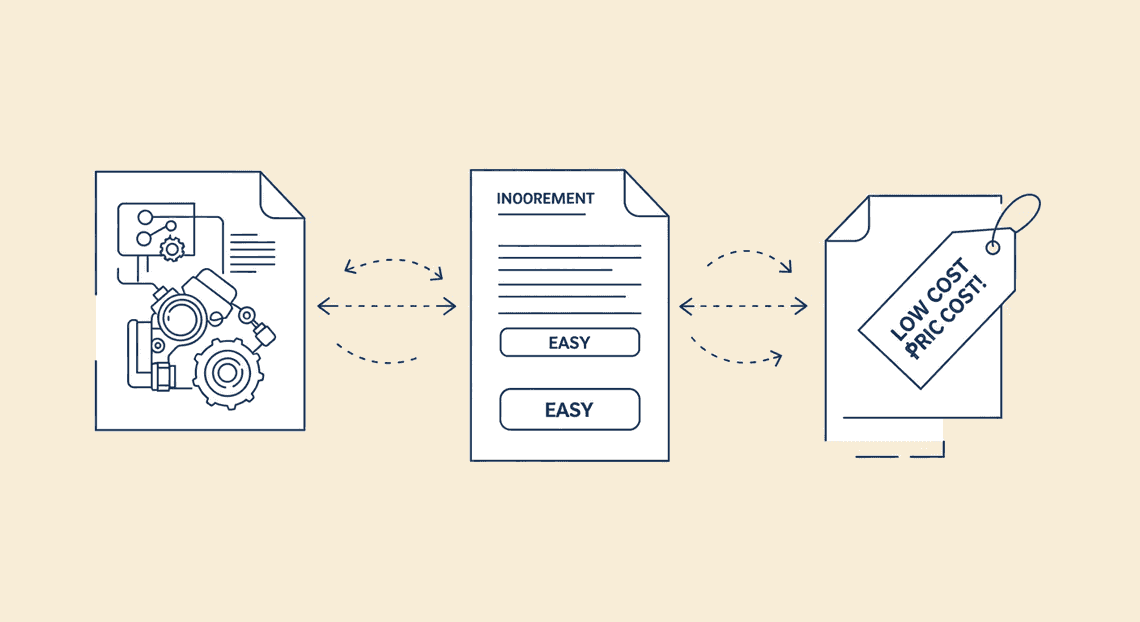
Monday: The Lead Engineer writes the initial draft, emphasizing technical innovation and a new, high-performance architecture as the key selling point. The document’s “intent” is established: performance is paramount.
-
Tuesday: A Product Manager, focusing on user adoption, edits a section to highlight ease-of-use, slightly downplaying the complex underlying architecture to make it sound more accessible.
-
Wednesday: A Sales Director, working late to prepare for a client meeting, rewrites the executive summary to focus heavily on cost-savings and rapid deployment, using language that implies a simpler, off-the-shelf solution.
Each of these edits is logical in isolation. Version History will dutifully record them as three distinct, valid contributions. However, the document is now semantically incoherent. It simultaneously promises cutting-edge performance, simple usability, and low-cost implementation—a classic case of trying to be all things to all people. The core message has drifted into a state of internal contradiction.
Introducing an AI-Powered Sentinel for Content Integrity
To combat semantic drift, we need to move beyond simple character-level diffing. We need a mechanism that can understand and enforce the intent of the document. This is a task perfectly suited for a Large Language Model (LLM) like Google’s Gemini.
A traditional script could, at best, perform keyword analysis or check for stylistic deviations. It would be brittle and lack context. An LLM, by contrast, can be tasked with a far more sophisticated goal: to act as an AI-powered sentinel for the document’s content integrity.
We can provide the LLM with a “statement of purpose” or a “golden summary” that represents the document’s ground truth. With this context, the model can analyze new contributions not just as a collection of new words, but as propositions that either align with, deviate from, or outright contradict the established core message. It allows us to graduate from diffing text to diffing meaning. This sentinel doesn’t just ask “What changed?”—it asks “Does this change still make sense in the context of our goal?”
High-Level Goal: Building a Conflict Resolution Bot
The abstract concept of an “AI sentinel” can be realized as a concrete, automated tool: a Conflict Resolution Bot built with [AI Powered Cover Letter [Automated Job Creation in Real Time Jobber and Google Sheets Integration from Gmail](https://votuduc.com/Automated-Job-Creation-in-Jobber-from-Gmail-p115606) Engine](https://votuduc.com/AI-Powered-Cover-Letter-Automated Quote Generation and Delivery System for Jobber-Engine-p111092) and powered by the Gemini API. The rest of this article will walk through how to build this bot, but its high-level function is straightforward.
Our bot will operate in a simple, powerful loop:
-
Establish a Baseline: We’ll initialize the bot with a clear, concise “statement of intent” for the document. This could be the executive summary, a list of core objectives, or a prompt-engineered description of the document’s purpose.
-
Monitor for Changes: Using Apps Script triggers, the bot will periodically wake up and check the document for significant modifications since its last review.
-
Perform Semantic Analysis: For each meaningful change detected, the bot will send the new text, along with the original statement of intent, to the Gemini API. It will ask a critical question: “Does this new content align with the document’s primary goal?”
-
Flag and Notify: If the Gemini API detects a potential semantic conflict—a tonal mismatch, a factual contradiction, or a strategic misalignment—the bot will spring into action. It will automatically insert a comment directly into the Google Doc at the relevant location, tagging the contributors and clearly explaining the nature of the potential conflict.
For example, a comment from our bot might read:
“@sales.director, this new emphasis on ‘cost-savings’ in the summary appears to conflict with the ‘high-performance architecture’ goal established in the technical specification (authored by @lead.engineer). Could you please clarify or sync to ensure alignment?”
This bot becomes an impartial, ever-vigilant collaborator. It doesn’t block changes, but it surfaces potential conflicts for human review, turning the invisible problem of semantic drift into a visible, actionable conversation. It ensures that even in a highly asynchronous environment, the document evolves coherently, staying true to its intended purpose.
Solution Architecture The Technical Blueprint
To build a robust, automated version control system within the [Automatically create new folders in Google Drive, generate templates in new folders, fill out text automatically in new files, and save info in [Automated Web Scraping with [Multilingual Text-to-Speech Tool with SocialSheet Streamline Your Social Media Posting 123](https://votuduc.com/Multilingual-Text-to-Speech-Tool-with-Google-Workspace-p809282)](https://votuduc.com/Automated-Web-Scraping-with-Google-Sheets-p292968)](https://workspace.google.com/marketplace/app/auto_create_folder_and_files/430076014869) ecosystem, we need a smart architecture that leverages the native strengths of each component. Our solution is not a monolithic application but rather a synergistic interplay between three core pillars: a central script for orchestration, a service for file system interaction, and a powerful AI model for intelligent analysis. This design provides a serverless, scalable, and deeply integrated solution.
Let’s break down the role of each component in this technical blueprint.
Genesis Engine AI Powered Content to Video Production Pipeline as the Central Orchestrator
At the heart of our system lies [Architecting Multi Tenant AI Workflows in Building Modular Agentic Apps Script with Gemini Function Calling](https://votuduc.com/architecting-multi-tenant-ai-workflows-in-google-apps-script-p-20260321290501). Think of it as the central nervous system or the conductor of our orchestra. It’s the “glue” that connects everything, initiating processes, passing data between services, and executing the core logic. Choosing Apps Script is a strategic decision for several key reasons:
-
Native Integration: Apps Script lives inside Google’s ecosystem. This gives it privileged, seamless, and secure access to services like Google Drive, Google Docs, and—crucially—the ability to make authenticated API calls to Google Cloud services like Building Self Correcting Agentic Workflows with Vertex AI, where Gemini resides. We don’t need to wrestle with complex OAuth 2.0 flows for basic operations.
-
Serverless Execution: There are no servers to provision, manage, or patch. We write the code, and Google handles the entire underlying infrastructure. This dramatically lowers the barrier to entry and the total cost of ownership.
-
Event-Driven Triggers: Automated Work Order Processing for UPS is powered by triggers. Apps Script allows us to execute our version control logic based on various events. We could set up a time-driven trigger to run the check every hour, or we could build a custom menu item within Google Docs to trigger the process manually. This flexibility is key to adapting the tool to different workflows.
In this architecture, Apps Script is responsible for fetching the document versions, constructing the precise prompt for the AI, making the API call to Gemini, and then parsing the response to take action—either by creating a merged document or by flagging conflicts for human review.
Using DriveApp to Access and Compare Document Content
Before we can perform any intelligent analysis, we need the raw material: the content of the documents. This is where the DriveApp and DocumentApp services in Apps Script come into play. They are our hands and eyes within the Google Drive file system.
Our script will use these services to perform a clear sequence of file operations:
-
Identify the Target: The script first needs to know which document to process. This can be hardcoded for a specific file ID or, more dynamically, configured to watch all documents within a specific “monitored” folder.
-
Retrieve the “Current” Version: Using
DocumentApp.openById(id).getBody().getText(), the script reads the entire text content of the live document. This gives us the most recent, potentially un-saved state. -
Locate the “Base” Version: A version control system needs something to compare against. Our strategy involves maintaining a “base” version. Upon the first run, the script creates a copy of the original document in a dedicated archive subfolder (e.g.,
/.versions/). In subsequent runs, this archived copy serves as our stable “base” for comparison. -
Content Extraction: The script extracts the full text from both the “current” and “base” documents. It’s critical to understand that we are moving beyond simple file metadata. We are pulling the complete textual content into memory within the Apps Script environment, preparing it to be sent to our AI for deep analysis.
This file-handling logic, managed entirely by DriveApp and DocumentApp, ensures that our system has reliable access to the precise data needed for a meaningful comparison.
Leveraging Gemini 1.5 Pro for Semantic Conflict Detection
This is where our solution transcends a simple diff utility and enters the realm of intelligent automation. A standard text comparison can tell you that lines have changed, but it has no understanding of meaning. It cannot tell if two different edits are complementary or contradictory. This is the problem Gemini 1.5 Pro is uniquely suited to solve.
We leverage Gemini for its advanced reasoning and massive context window, which allows us to analyze entire documents in a single call. The process is centered on sophisticated [Prompt Engineering for Reliable Autonomous Workspace Agents for Reliable Autonomous Workspace Agents](https://votuduc.com/prompt-engineering-for-reliable-autonomous-workspace-agents-p-20260319404106):
-
Constructing the Prompt: Our Apps Script doesn’t just dump the text into the API. It carefully constructs a detailed prompt that frames the task for the AI. This prompt instructs Gemini to act as an expert technical editor tasked with identifying version control conflicts.
-
Providing Context: The prompt will contain the full text of both the “base” version and the “current” version, clearly delineated with markers like
<base_version_content>and<current_version_content>. -
The Core Instruction: The heart of the prompt is the task itself. We instruct Gemini:
-
“Analyze the changes between the base and current versions.”
-
“Your primary goal is to detect semantic conflicts. A semantic conflict is where one change logically invalidates or contradicts another change (e.g., a paragraph is rewritten to support a conclusion, while a data point in a table that refutes that conclusion is simultaneously removed).”
-
“If no semantic conflicts exist, generate a clean, merged version of the document that intelligently incorporates all changes.”
-
“If you detect one or more conflicts, do not merge the text. Instead, provide a structured summary (e.g., JSON) detailing each conflict, explaining the logical contradiction, and quoting the relevant snippets from both versions.”
- Interpreting the Response: The Apps Script receives Gemini’s response. If it gets back a clean, merged text, it can create a new “version” file and update the “base” version. If it gets back a structured conflict report, it can take another action, such as emailing a summary to the document owner or adding a comment directly into the Google Doc, flagging the precise areas that require human intervention.
Step-by-Step Implementation: From Code to Report
Alright, let’s roll up our sleeves and translate theory into a working reality. This is where the magic happens. We’ll walk through the entire process, from initializing our script environment to generating a polished, AI-driven analysis document. Follow these steps carefully, and you’ll have a powerful automation tool at your fingertips.
Part 1: Setting Up the Apps Script Environment and Permissions
Before we write a single line of comparison logic, we need to build our workshop. This involves creating the script, linking it to a Google Cloud Project, and granting it the necessary permissions to interact with Google Docs and Gemini.
- Create a Standalone Apps Script Project:
- Navigate to
script.google.com.
Click on* New project**. Give it a descriptive name, like “Gemini Doc Version Control”. A standalone project is perfect for this kind of backend utility.
- Link to a Google Cloud Platform (GCP) Project:
Gemini API access is managed through GCP. In your Apps Script editor, click on the* Project Settings** (gear icon ⚙️) on the left.
Scroll down to the* Google Cloud Platform (GCP) Project** section.
- If you don’t have one already, create a new GCP project and associate it with a billing account (the Gemini API has a generous free tier, but billing must be enabled).
Click* Change project** and enter your GCP Project Number.
- Enable the Necessary APIs:
In your associated GCP Project, navigate to the* APIs & Services > Library**.
Search for and* enable** the following two APIs:
-
Google Docs API: Allows our script to read the content of the documents.
-
Vertex AI API: This is the gateway to the Gemini models.
- Configure the Manifest File for Permissions:
Back in the Apps Script editor, click on the* Project Settings** (gear icon ⚙️) again.
Check the box for* “Show ‘appsscript.json’ manifest file in editor”**.
-
Click on the
appsscript.jsonfile that now appears in the editor. We need to explicitly declare the permissions (OAuth scopes) our script requires. This is crucial for security and functionality. -
Modify your
appsscript.jsonto include the followingoauthScopes:
{

"timeZone": "America/New_York",

"dependencies": {},

"exceptionLogging": "STACKDRIVER",

"runtimeVersion": "V8",

"oauthScopes": [

"https://www.googleapis.com/auth/script.external_request",

"https://www.googleapis.com/auth/documents",

"https://www.googleapis.com/auth/cloud-platform"

]

}
-
script.external_request: Allows us to call the external Gemini API endpoint. -
documents: Grants full permission to read and write Google Docs. -
cloud-platform: Allows the script to authenticate with GCP services like Vertex AI.
Save the manifest file. The first time you run the script, Google will prompt you to authorize these permissions for your account.
Part 2: Scripting the Document Comparison Logic
With the environment set up, our first coding task is simple but essential: retrieve the raw text content from our two Google Docs. We’ll create a helper function to keep our code clean and modular.
The goal is to extract the plain text. While this approach ignores complex formatting, images, and tables, it’s the perfect input for an LLM focused on textual changes.
// Code.gs

/**

* Retrieves the plain text content from two Google Docs.

*

* @param {string} originalDocId - The ID of the original Google Doc.

* @param {string} revisedDocId - The ID of the revised Google Doc.

* @returns {object} An object containing the text of both documents.

*/

function getDocumentsContent(originalDocId, revisedDocId) {

try {

console.log(`Fetching content for Original Doc: ${originalDocId}`);

const originalDoc = DocumentApp.openById(originalDocId);

const originalText = originalDoc.getBody().getText();

console.log(`Fetching content for Revised Doc: ${revisedDocId}`);

const revisedDoc = DocumentApp.openById(revisedDocId);

const revisedText = revisedDoc.getBody().getText();

if (!originalText || !revisedText) {

throw new Error("One or both documents are empty or could not be read.");

}

return {

original: originalText,

revised: revisedText,

};

} catch (e) {

console.error(`Error in getDocumentsContent: ${e.toString()}`);

// Re-throw the error to be handled by the main function

throw e;

}

}
This function, getDocumentsContent, takes two document IDs as input and uses the standard DocumentApp service to open them and extract their body text. We’ve wrapped it in a try...catch block for robust error handling—a best practice for any I/O operation.
Part 3: Engineering the Gemini Prompt for Accurate Conflict Analysis
This is the intellectual core of our project. The quality of our output depends almost entirely on the quality of our prompt. We need to instruct Gemini not just to find differences but to categorize and explain them in a structured format that our script can easily parse. JSON is the perfect choice for this.
Our prompt will establish a persona for the AI (a meticulous editor), define the task, provide the source texts, and specify the exact output structure.
Here’s the function that builds the prompt and calls the Gemini API:
// Code.gs (continued)

/**

* Sends document texts to the Gemini API for analysis and returns the structured result.

*

* @param {string} originalText - The text from the original document.

* @param {string} revisedText - The text from the revised document.

* @returns {object} The parsed JSON object from the Gemini API response.

*/

function analyzeChangesWithGemini(originalText, revisedText) {

const gcpProjectId = 'YOUR_GCP_PROJECT_ID'; // <-- IMPORTANT: Replace with your GCP Project ID

const model = 'gemini-1.0-pro';

const endpoint = `https://us-central1-aiplatform.googleapis.com/v1/projects/${gcpProjectId}/locations/us-central1/publishers/google/models/${model}:streamGenerateContent`;

const prompt = `

You are a meticulous document comparison expert. Your task is to analyze two versions of a document and identify all changes.

Compare the "Original Document" with the "Revised Document".

Your analysis must be structured as a JSON object with the following keys: "summary", "additions", "deletions", and "modifications".

- "summary": Provide a brief, high-level overview of the changes.

- "additions": An array of strings. Each string should be a verbatim quote of a significant new phrase or sentence added to the revised document.

- "deletions": An array of strings. Each string should be a verbatim quote of a significant phrase or sentence that was present in the original but removed from the revised document.

- "modifications": An array of objects. Each object should have two keys: "original_phrase" and "revised_phrase", showing the text before and after the change. Focus on substantive changes, not minor typo corrections.

If there are no changes for a specific category, return an empty array for it. Do not add any explanatory text outside of the JSON structure.

Original Document:

\`\`\`

${originalText}

\`\`\`

Revised Document:

\`\`\`

${revisedText}

\`\`\`

Respond ONLY with the valid JSON object.

`;

const requestBody = {

"contents": {

"role": "user",

"parts": { "text": prompt }

},

"generation_config": {

"temperature": 0.2,

"top_p": 0.95,

"top_k": 40,

"max_output_tokens": 2048,

"response_mime_type": "application/json"

}

};

const options = {

'method': 'post',

'contentType': 'application/json',

'headers': {

'Authorization': 'Bearer ' + ScriptApp.getOAuthToken()

},

'payload': JSON.stringify(requestBody),

'muteHttpExceptions': true // Important for parsing error responses

};

try {

console.log("Sending request to Gemini API...");

const response = UrlFetchApp.fetch(endpoint, options);

const responseCode = response.getResponseCode();

const responseBody = response.getContentText();

if (responseCode === 200) {

console.log("Successfully received response from Gemini.");

// The response might be chunked, so we need to clean it up.

// A simple approach is to find the main JSON block.

const jsonString = responseBody.match(/\{[\s\S]*\}/)[0];

return JSON.parse(jsonString);

} else {

console.error(`Gemini API Error: ${responseCode} - ${responseBody}`);

throw new Error(`Gemini API request failed with status code ${responseCode}.`);

}

} catch (e) {

console.error(`Error calling Gemini API: ${e.toString()}`);

throw e;

}

}
Key Elements of this Script:
-
Prompt Engineering: Notice how specific the instructions are. We ask for a JSON object, define the exact keys (
summary,additions, etc.), and even specify the data types (array of strings, array of objects). This minimizes ambiguity and ensures a predictable, machine-readable output. -
response_mime_type: We explicitly set this to"application/json"in thegeneration_config. This is a powerful feature that instructs the model to constrain its output to valid JSON, greatly increasing reliability. -
Authentication:
ScriptApp.getOAuthToken()is the Apps Script magic that handles the complex OAuth2 flow for us, providing a temporary token to authenticate our API call. -
Error Handling: By setting
muteHttpExceptionstotrue, we can inspect the response code and body ourselves, allowing for more graceful failure and better debugging.
Part 4: Generating the Automated ‘Conflict Resolution’ Document
The final step is to take the structured JSON data from Gemini and present it in a clean, human-readable format. We’ll generate a brand new Google Doc that serves as our “Conflict Resolution Report.”
This function will parse the analysis and use the DocumentApp service to build the report piece by piece.
// Code.gs (continued)

/**

* Creates a new Google Doc and populates it with the analysis from Gemini.

*

* @param {object} analysis - The parsed JSON object from the Gemini analysis.

* @param {string} originalDocId - The ID of the original document, for reference.

* @param {string} revisedDocId - The ID of the revised document, for reference.

* @returns {string} The URL of the newly created report document.

*/

function createConflictReport(analysis, originalDocId, revisedDocId) {

try {

const reportTitle = `Version Analysis Report - ${new Date().toLocaleString()}`;

const doc = DocumentApp.create(reportTitle);

const body = doc.getBody();

// --- Header Section ---

body.appendParagraph(reportTitle).setHeading(DocumentApp.ParagraphHeading.TITLE);

body.appendParagraph(`This report details the changes between two document versions, analyzed by Gemini.`);

body.appendParagraph(`Original Document: https://docs.google.com/document/d/${originalDocId}/`);

body.appendParagraph(`Revised Document: https://docs.google.com/document/d/${revisedDocId}/`).appendHorizontalRule();

// --- Summary Section ---

body.appendParagraph("Analysis Summary").setHeading(DocumentApp.ParagraphHeading.HEADING1);

body.appendParagraph(analysis.summary || "No summary was provided.");

// --- Additions Section ---

body.appendParagraph("Additions").setHeading(DocumentApp.ParagraphHeading.HEADING1);

if (analysis.additions && analysis.additions.length > 0) {

analysis.additions.forEach(addition => {

body.appendListItem(addition).setGlyphType(DocumentApp.GlyphType.SQUARE_BULLET);

});

} else {

body.appendParagraph("No significant additions were found.");

}

// --- Deletions Section ---

body.appendParagraph("Deletions").setHeading(DocumentApp.ParagraphHeading.HEADING1);

if (analysis.deletions && analysis.deletions.length > 0) {

analysis.deletions.forEach(deletion => {

body.appendListItem(deletion).setGlyphType(DocumentApp.GlyphType.SQUARE_BULLET);

});

} else {

body.appendParagraph("No significant deletions were found.");

}

// --- Modifications Section ---

body.appendParagraph("Modifications").setHeading(DocumentApp.ParagraphHeading.HEADING1);

if (analysis.modifications && analysis.modifications.length > 0) {

analysis.modifications.forEach(mod => {

const listItem = body.appendListItem('');

listItem.appendText('Original: ').setBold(true);

listItem.appendText(`"${mod.original_phrase}"`);

listItem.appendListItem(''); // Indent for the revised part

listItem.appendText('  Revised: ').setBold(true).setItalic(true);

listItem.appendText(`"${mod.revised_phrase}"`).setItalic(true);

});

} else {

body.appendParagraph("No significant modifications were found.");

}

doc.saveAndClose();

console.log(`Report created successfully: ${doc.getUrl()}`);

return doc.getUrl();

} catch (e) {

console.error(`Error in createConflictReport: ${e.toString()}`);

throw e;

}

}
This final function is a straightforward document-building exercise. It systematically checks for the presence of data in each category (additions, deletions, etc.) and formats it using headings and bullet points for clarity. We even include links back to the source documents for easy reference, closing the loop on our automated workflow.
A Practical Demonstration Analyzing a Real-World Conflict
Theory and code are essential, but seeing a system in action is where the understanding truly solidifies. Let’s move beyond the abstract and put our Apps Script-Gemini integration to the test with a tangible, real-world scenario. We’ll simulate a common collaborative hiccup: two team members independently editing a project brief, resulting in two divergent versions that need reconciliation.
The Scenario: Two Divergent Document Drafts
Imagine a project manager, Alex, creates an initial draft for a new marketing campaign called “Project Nova.” A marketing specialist, Ben, then takes a copy and adds his own revisions, focusing on target audience and channels, without realizing Alex was also making updates. We now have two conflicting documents.
Document A: Alex’s Updated Draft (The “Original”)
This version is focused on internal logistics and a conservative timeline.
Project Nova - Q3 Initiative Brief (Alex’s Version)
1. Objective: To increase user sign-ups by 15% in Q3 through a targeted digital campaign.
2. Target Audience: Existing users in the North American market who have not upgraded to a premium plan.
3. Key Channels: The campaign will primarily leverage our existing Email Newsletter and in-app notifications.
4. Timeline:
- Week 1-2: Creative asset development.
- Week 3: Technical implementation.
- Week 4-12: Campaign launch and monitoring.
5. Budget: A preliminary budget of $20,000 is allocated for this initiative.
Document B: Ben’s Revised Draft (The “Revision”)
This version is more ambitious, with an expanded scope and a more aggressive marketing angle.
Project Nova - Q3 Growth Campaign (Ben’s Version)
1. Objective: To drive a 25% lift in premium subscriptions during Q3 by launching a multi-channel growth campaign.
2. Target Audience: Potential new users and existing non-premium users in the North American and EMEA markets. We should focus on the 25-35 tech-savvy demographic.
3. Key Channels: The campaign will utilize our Email Newsletter, in-app notifications, and new paid social campaigns on LinkedIn and Twitter.
4. Timeline:
- Week 1: Creative sprint and asset finalization.
- Week 2-3: Technical setup and A/B test configuration.
- Week 4-10: Phased campaign rollout and performance analysis.
5. Budget: [Budget section was removed]
As you can see, we have several conflicts:
The core* Objective** has changed from “user sign-ups” to “premium subscriptions” with a different percentage target.
The* Target Audience** has been expanded to include new users and a new geographical region (EMEA).
- Key Channels now include paid social media.
The* Timeline** has been condensed.
The* Budget** section has been completely removed by Ben.
This is a perfect test case for our automated analysis.
Executing the Script and Calling the Gemini API
With our two document IDs in hand, we trigger our custom function, “Analyze Version Conflict,” from the Google Docs menu. Behind the scenes, our Apps Script springs into action:
-
It reads the full text content from both Document A and Document B.
-
It sanitizes the text, removing any extraneous formatting that might confuse the model.
-
It constructs a detailed, structured prompt and packages it into a JSON payload for the Gemini API.
Here’s a look at the exact prompt our script sends to the gemini-pro model. The structure of this prompt is critical for getting a high-quality, parseable response.
{

"contents": [

{

"parts": [

{

"text": "You are a document version control assistant. Your task is to analyze two versions of a document, identify all changes, highlight direct conflicts, and propose a merged version that synthesizes the best of both. Provide your output in clean Markdown format.\n\nHere are the two document versions:\n\n--- DOCUMENT A (Original) ---\nProject Nova - Q3 Initiative Brief (Alex's Version)\n\n1. Objective: To increase user sign-ups by 15% in Q3 through a targeted digital campaign.\n2. Target Audience: Existing users in the North American market who have not upgraded to a premium plan.\n3. Key Channels: The campaign will primarily leverage our existing Email Newsletter and in-app notifications.\n4. Timeline:\n- Week 1-2: Creative asset development.\n- Week 3: Technical implementation.\n- Week 4-12: Campaign launch and monitoring.\n5. Budget: A preliminary budget of $20,000 is allocated for this initiative.\n\n--- DOCUMENT B (Revised) ---\nProject Nova - Q3 Growth Campaign (Ben's Version)\n\n1. Objective: To drive a 25% lift in premium subscriptions during Q3 by launching a multi-channel growth campaign.\n2. Target Audience: Potential new users and existing non-premium users in the North American and EMEA markets. We should focus on the 25-35 tech-savvy demographic.\n3. Key Channels: The campaign will utilize our Email Newsletter, in-app notifications, and new paid social campaigns on LinkedIn and Twitter.\n4. Timeline:\n- Week 1: Creative sprint and asset finalization.\n- Week 2-3: Technical setup and A/B test configuration.\n- Week 4-10: Phased campaign rollout and performance analysis.\n\n--- ANALYSIS ---\n"

}

]

}

],

"generationConfig": {

"temperature": 0.3,

"maxOutputTokens": 2048

}

}
The script makes the UrlFetchApp call and waits for the response. Once Gemini processes the request, the script receives the Markdown-formatted report, ready to be displayed to the user.
Deconstructing the Gemini-Generated Resolution Report
Here’s where the magic happens. The script takes the text response from Gemini and presents it, perhaps in a new Google Doc or a sidebar dialog. Below is the raw output we received from the model.
Version Conflict Analysis: Project Nova Brief
Here is a detailed analysis of the differences between Document A and Document B, along with a suggested merged version for review.
Summary of Changes
Document B introduces significant changes to the campaign’s scope and ambition. Key modifications include a shift in the primary objective from sign-ups to paid subscriptions, an expansion of the target audience and marketing channels, a more aggressive timeline, and the removal of the budget section.
Detailed Change Log
| Section | Document A (Original) | Document B (Revised) | Change Type |
| :--- | :--- | :--- | :--- |
| Title | Q3 Initiative Brief | Q3 Growth Campaign | Modification |
| Objective | Increase user sign-ups by 15% | Drive a 25% lift in premium subscriptions | Conflict |
| Target Audience | Existing NA users | New & existing NA/EMEA users, 25-35 demo | Expansion |
| Key Channels | Email, In-app notifications | Email, In-app, Paid Social (LinkedIn, Twitter) | Addition |
| Timeline | 12 weeks, standard phases | 10 weeks, condensed “sprint” phases | Modification |
| Budget | $20,000 allocated | Section removed | Conflict/Deletion |
Conflict Resolution & Key Discussion Points
- Primary Objective: There is a direct conflict between targeting
15% user sign-upsand25% premium subscriptions. This is a strategic decision that requires immediate discussion. The goal fundamentally changes the nature of the campaign.
- Budget Removal: Document B removes the budget entirely. This is a critical omission. The addition of paid social channels in Document B makes the original $20,000 budget from Document A likely insufficient. This needs to be clarified and a new budget defined.
Suggested Merged Version (For Review)
Project Nova - Q3 Growth Campaign
1. Objective: [CONFLICT] To drive a [25% lift in premium subscriptions OR 15% increase in user sign-ups] during Q3 by launching a multi-channel growth campaign. (Decision needed)
2. Target Audience: Potential new users and existing non-premium users in the North American and EMEA markets, with a focus on the 25-35 tech-savvy demographic.
3. Key Channels: The campaign will utilize our Email Newsletter, in-app notifications, and new paid social campaigns on LinkedIn and Twitter.
4. Timeline:
- Week 1: Creative sprint and asset finalization.
- Week 2-3: Technical setup and A/B test configuration.
- Week 4-10: Phased campaign rollout and performance analysis.
5. Budget: [CONFLICT] A budget needs to be defined. The original $20,000 may be insufficient for the expanded channel scope. (Decision needed)
This output is incredibly powerful. Gemini didn’t just perform a simple diff. It understood the context of the changes. It correctly identified the modifications (Title), additions (Channels), and expansions (Audience). Most importantly, it flagged the two most critical business-level conflicts—the objective and the budget—and framed them as discussion points rather than just picking a side. The suggested merged version is a brilliant starting point for a human-led resolution, intelligently combining the non-conflicting elements and using placeholders to highlight where a decision is required. This is automation acting as a true collaborator, not just a blind tool.
Conclusion and Next Steps
We’ve successfully architected and implemented a robust system that fundamentally changes how we handle collaborative edits in Google Docs. By bridging the gap between Google’s native revision history and the intelligent reasoning of the Gemini API, we’ve built more than just a script; we’ve created a blueprint for intelligent document automation.
Recap: From Manual Reconciliation to Automated Resolution
Let’s take a moment to appreciate the transformation. We began with a common, high-friction problem: the tedious and error-prone process of manually comparing document versions, untangling conflicting edits, and hoping nothing critical was lost in the shuffle. This manual reconciliation is a significant drain on productivity and a frequent source of team misalignment.
Through the strategic use of Google Apps Script and the Gemini API, we’ve replaced that chaotic process with a streamlined, automated workflow. Our solution now programmatically fetches document revisions, intelligently identifies semantic conflicts using Gemini’s advanced language understanding, and generates a clear, consolidated version. The result is a system that not only saves countless hours but also introduces a level of precision and auditability that manual methods simply cannot match. You’ve built a genuine conflict resolution engine.
Future Enhancements: Proactive Alerts and UI Integration
What we’ve built is a powerful foundation, but the journey doesn’t have to end here. The real beauty of this architecture is its extensibility. Here are a couple of high-impact enhancements to consider for your v2.0:
-
Proactive Conflict Alerts: Currently, the script runs on a trigger or manual execution. The next logical step is to make it proactive. You could configure the script to, upon detecting a significant conflict, automatically send a notification via Google Chat or email. This alert could contain a summary of the conflict generated by Gemini and a direct link to the resolved document, turning your system from a passive tool into an active collaboration assistant.
-
Custom UI Integration: Elevate the user experience by moving the controls directly into the Google Docs interface. Using Apps Script’s
Uiclass, you could build a custom menu (Document > Version Control > Resolve Conflicts) or even a full-fledged sidebar. This sidebar could display a log of recent resolutions, allow users to trigger the process on-demand, and perhaps even present Gemini’s suggested changes for manual approval before they are merged. This transforms your backend script into a polished, user-facing application.
Call to Action: Share Your Implementation
Now, the baton is passed to you. The true test of any technical solution is its application in the wild. Take the code and concepts from this article and apply them to your own unique workflows. Did you adapt the Gemini prompt for a specific domain, like legal contracts or technical documentation? Did you integrate a different notification system or build out a more complex UI?
This is where the community comes in. Fork the repository, experiment with the code, and share what you build. Post your successes, your challenges, and your innovations in the comments below or link to your public gists. By sharing your implementation, you contribute to a collective understanding and help everyone build more effective, intelligent automation systems. We’re excited to see what you create.


Stop Doing Manual Work. Scale with AI.
Want to turn these blog concepts into production-ready reality for your team?
Table Of Contents
Portfolios
Related Posts
Quick Links
Legal Stuff