

Building an Agentic Workflow to Automate Google Docs with Sheet Data


Are your Google Docs outdated the moment you hit publish? Discover how to eliminate the error-prone chore of manual copy-and-pasting and keep your critical business metrics effortlessly synced.

The Challenge of Manual Document Maintenance
In any modern organization, Google Docs serves as the collaborative lifeblood for project proposals, quarterly business reviews, and architectural design records. However, a fundamental friction exists between the fluid nature of business data and the static nature of a text document. When critical data—such as performance metrics, financial projections, or system health statuses—lives in Automated Web Scraping with Google Sheets but needs to be presented in Google Docs, teams often default to the most primitive integration method available: copy and paste. This creates a fragile ecosystem where documents are instantly outdated the moment they are published, transforming document maintenance into a continuous, error-prone chore rather than a strategic asset.
Why Static Metrics Fail in Fast Paced Environments
In cloud-native and agile environments, data is highly dynamic. Key performance indicators (KPIs), user engagement metrics, and infrastructure costs fluctuate by the minute. When teams rely on static metrics embedded within a Google Doc, they create a dangerous illusion of accuracy. A stakeholder reviewing a project status report on a Friday might be making critical resource allocation decisions based on data that was manually pulled from a Google Sheet on a Monday.
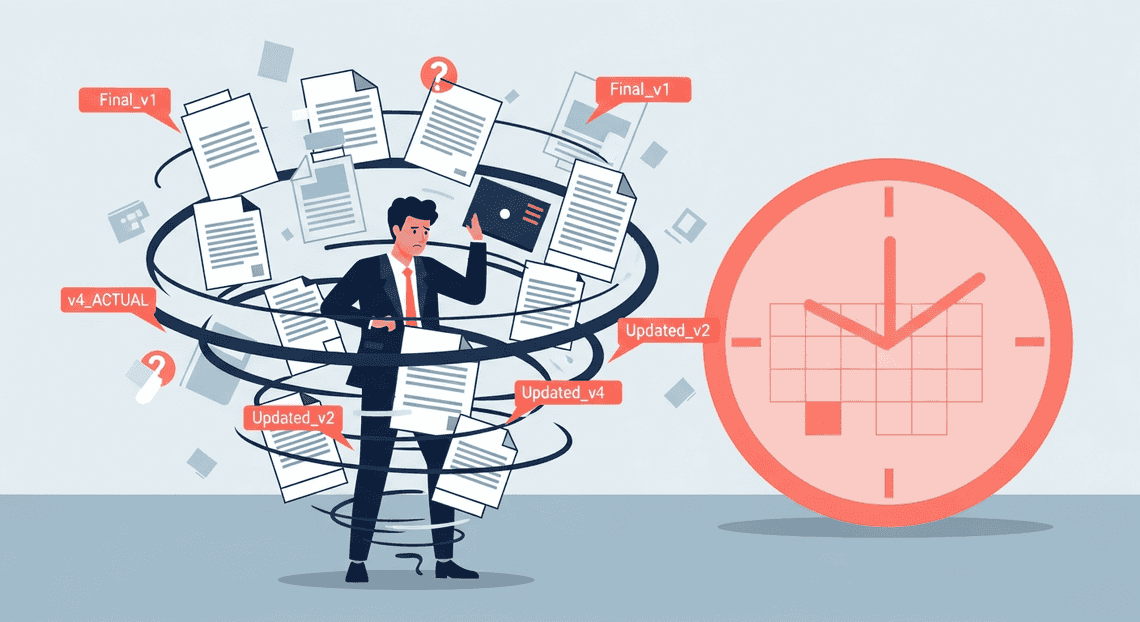
This latency between data generation and data presentation leads to several cascading failures:
-
Erosion of Trust: When stakeholders discover discrepancies between the “live” data source and the written report, confidence in the documentation plummets. Teams begin to second-guess the numbers, requiring constant verbal verification.
-
Decision Paralysis: Meetings are frequently derailed or paused to verify if the numbers in the document are still accurate, completely defeating the purpose of preparing asynchronous documentation in the first place.
-
Version Control Chaos: The frantic attempt to keep static documents updated often spawns endless document versions (e.g.,
Q3_Report_Final_v4_ACTUAL.docx), creating a labyrinth of fragmented information where the concept of a “single source of truth” is entirely lost.
Static metrics simply cannot survive the velocity of modern business. They demand a paradigm shift from treating documents as isolated snapshots in time to treating them as living interfaces connected directly to the underlying data.
The Cost of Manual Data Entry for Workspace Developers
For Automatically create new folders in Google Drive, generate templates in new folders, fill out text automatically in new files, and save info in Google Sheets developers and cloud engineers, the burden of manual document updates represents a significant operational anti-pattern: toil. Every hour spent manually cross-referencing a Google Sheet to update values, tables, or charts in a Google Doc is an hour diverted from high-impact engineering work.
The true cost of this manual data entry extends far beyond just lost time:
-
Introduction of Human Error: The tedious nature of transposing rows and columns of data inevitably leads to mistakes. A misplaced decimal point, a pasted value in the wrong paragraph, or an overlooked cell update can drastically alter the narrative of a technical or financial report, leading to severe downstream consequences.
-
Severe Context Switching: Engineers are forced to break their flow state to perform administrative updates. Jumping between Google Sheets, BigQuery dashboards, and Google Docs disrupts deep work and significantly reduces overall engineering velocity.
-
Underutilized Infrastructure: AC2F Streamline Your Google Drive Workflow is built on a robust foundation of REST APIs, AI Powered Cover Letter Automation Engine, and seamless Google Cloud integrations. When developers resort to manual data entry, they are actively ignoring the powerful programmatic capabilities inherent to the ecosystem they are supposed to be mastering.
Ultimately, relying on human intervention to bridge the gap between structured data (Sheets) and unstructured reports (Docs) is an unscalable practice. It effectively transforms highly skilled technical professionals into human middleware, highlighting a critical bottleneck that begs for an automated, intelligent solution.
Architectural Overview of the Agentic Docs Workflow
To build a truly agentic workflow—one where an AI doesn’t just blindly copy-paste data, but actively reads, synthesizes, and formats information—we need a robust architecture that bridges structured data with unstructured document generation. At a high level, this architecture consists of three core pillars: the data source (Google Sheets), the intelligent routing and processing layer (the AI Agent), and the output destination (Google Docs).
Instead of relying on external third-party automation tools like Zapier or Make, we can build this entirely within the Google Cloud and Automated Client Onboarding with Google Forms and Google Drive. ecosystem. This approach reduces latency, eliminates complex authentication hurdles, and gives us programmatic, fine-grained control over every character and table inserted into our final document. The workflow triggers when new data is added to a Sheet, passes that raw context to an LLM (like Gemini via Vertex AI) equipped with specific system instructions, and dynamically renders a polished Google Doc based on the AI’s structured response.
Defining the Tech Stack Apps Script DocsApp and SpreadsheetApp
The serverless glue holding this entire architecture together is Genesis Engine AI Powered Content to Video Production Pipeline (GAS). As a cloud-based JavaScript platform deeply integrated with Automated Discount Code Management System, GAS allows us to manipulate Workspace files natively without managing infrastructure or dealing with cumbersome OAuth2 flows.
To execute this workflow, we rely heavily on two primary built-in services:
-
SpreadsheetApp(The Ingestion Engine): This service acts as the eyes of our agent. We useSpreadsheetAppto programmatically access the source data. Whether we are triggering the script via anonEditevent or a time-driven trigger, this class allows us to isolate specific rows, read dynamic ranges, and pull multi-dimensional arrays of data using methods likegetDataRange().getValues(). This raw array data is then mapped into a readable context payload for our AI agent. -
DocumentApp(The Rendering Engine): (Note: While often colloquially referred to as DocsApp, the native GAS class isDocumentApp). Once the AI has processed the spreadsheet data,DocumentApptakes over to physically construct the output. Unlike a simple “find-and-replace” mail merge, an agentic workflow requires dynamic document building. UsingDocumentApp.create(), we can generate a new file on the fly. From there, we use methods likeappendParagraph(),appendTable(), andHeadingTypeenumerations to programmatically build the document section by section, applying formatting dynamically based on the AI’s instructions.
By keeping the execution environment inside Apps Script, the data never leaves the secure boundaries of your Automated Email Journey with Google Sheets and Google Analytics and Google Cloud environment.
Leveraging JSON Mode for AI Data Processing
The most critical challenge in building an agentic document generator is bridging the gap between the probabilistic nature of Large Language Models and the deterministic requirements of a script. If you ask an LLM to “summarize this spreadsheet data and write a report,” it will return a massive string of Markdown text. Apps Script cannot natively translate raw Markdown into a beautifully formatted Google Doc without writing incredibly complex and brittle regex parsers.
This is where JSON Mode becomes the linchpin of the architecture.
Modern LLM APIs (including Google’s Vertex AI Gemini API) support forced JSON output. By enabling JSON mode and providing a strict schema in our system prompt, we strip away the unpredictable formatting of the AI and force it to return a structured data object.
Instead of raw text, the AI agent acts as a data processor, returning a payload that looks like this:
{

"document_title": "Q3 Financial Summary",

"executive_summary": "Revenue increased by 15%...",

"action_items": [

{"assignee": "Alice", "task": "Review marketing budget"},

{"assignee": "Bob", "task": "Finalize vendor contracts"}

]

}
By leveraging JSON mode, the Apps Script can simply use JSON.parse(aiResponse) to turn the LLM’s output into a native JavaScript object. This transforms our script from a fragile text-parser into a robust, deterministic rendering engine. We can now iterate through the action_items array to dynamically generate a table using DocumentApp.getActiveDocument().getBody().appendTable(), or apply specific H1 styling to the document_title.
This JSON-driven approach is what makes the workflow truly agentic. The AI is given the autonomy to analyze the spreadsheet data, decide what information is important, and structure it according to the schema. The Apps Script simply acts as the obedient builder, translating that structured JSON blueprint into a finalized Google Doc.
Structuring Google Docs with Anchor Tags
When building an agentic workflow to bridge Google Sheets and Google Docs, the intelligence of your agent is only as effective as the canvas it operates on. To dynamically generate contracts, reports, or invoices, your agent needs deterministic targets within the document to inject the spreadsheet data. This is achieved through “anchor tags”—specifically formatted text placeholders that act as variables within your Google Doc template.
Properly structuring these tags ensures that your automation scripts or Google Docs API calls can locate and replace text with 100% accuracy, without requiring human intervention.
Designing Reliable Placeholder Tags
The foundation of a robust template lies in how you design your anchor tags. A poorly designed tag can lead to false positives (replacing unintended text) or false negatives (the agent failing to find the placeholder). To design reliable placeholder tags, you must establish a strict, machine-readable syntax.
-
Use Distinctive Delimiters: Always wrap your variables in characters that would never naturally occur in standard text. The double curly brace syntax (e.g.,
\{\{variable_name\}\}) or double angle brackets (e.g.,<<variable_name>>) are industry standards. Avoid single brackets or parentheses, as they are frequently used in normal writing and can confuse your agent’s regular expression (Regex) parsers. -
Map Directly to Google Sheets Headers: For a seamless agentic workflow, your tag names should have a 1:1 relationship with your Google Sheets column headers. If your Sheet has a column named
Client_Name, your document tag should be\{\{Client_Name\}\}. This allows your agent to dynamically iterate through the Sheet’s headers and automatically map the data without hardcoding every single variable. -
Enforce Naming Conventions: Be consistent with casing and spacing. Avoid spaces within your tags (e.g., use
\{\{Invoice_Date\}\}instead of\{\{Invoice Date\}\}). Stick tosnake_caseorcamelCaseto prevent parsing errors when your agent reads the data via Google Apps Script or the Automated Google Slides Generation with Text Replacement APIs. -
Keep it Descriptive: While
\{\{var1\}\}works technically, it makes template maintenance a nightmare. Use semantic names like\{\{Project_Deliverable_1\}\}so human operators can easily read and update the template without consulting a mapping dictionary.
Document Formatting Best Practices for Automated Injection
Designing the text of the tag is only half the battle; how that tag is formatted within the Google Doc is equally critical. The Google Docs API represents text as a series of “Text Runs.” A Text Run is a continuous string of characters with the exact same text style. Understanding this underlying architecture is vital for preventing injection failures.
To ensure your agent can flawlessly execute ReplaceAllText requests, adhere to the following formatting best practices:
-
**Apply Formatting to the Entire Tag: If you want the injected Sheet data to be bold, you must bold the entire anchor tag, including the delimiters (e.g.,
\{\{Total_Amount\}\}). If you accidentally bold only the brackets and leave the variable name in plain text, the Google Docs API splits the tag across multiple Text Runs. While modern API methods can sometimes handle cross-run replacements, it frequently results in broken formatting or failed regex matches. -
Beware of Invisible Characters: When copying and pasting tags, it is easy to accidentally introduce zero-width spaces, non-breaking spaces, or hidden newline characters inside the delimiters. These invisible characters will cause your agent’s exact-match search to fail. Always type tags out manually or paste them as plain text (
Ctrl + Shift + VorCmd + Shift + V). -
Isolate Table Injections: If your agent is pulling multiple rows from a Google Sheet to populate a table in Google Docs, place your anchor tags in a single, well-formatted template row. Leave the surrounding rows empty. Your agent can be programmed to find the row containing
\{\{Table_Item_Name\}\}, duplicate that specific table row for as many entries as exist in the Sheet, and then perform the text replacement on the newly generated rows. -
Mind the Pagination: Dynamic data varies in length. A paragraph pulled from a Sheet cell might be two sentences or two pages. Ensure your Google Doc template utilizes proper pagination controls. Use “Keep with next” or “Keep lines together” in the line spacing settings for critical sections (like signature blocks) so that the injected data doesn’t push vital structural elements into awkward page breaks.
Developing the Apps Script Automation
Google Apps Script serves as the serverless orchestration layer for this workflow. By leveraging its native integration with Automated Order Processing Wordpress to Gmail to Google Sheets to Jobber and its ability to make external HTTP requests, we can build a seamless pipeline that pulls raw data, routes it through an AI agent for intelligent processing, and injects the final output directly into a document. Let’s break down the code and architecture required to build this agentic pipeline.
Extracting Live Metrics from Google Sheets
The first step in our workflow is securely fetching the raw data. Using the SpreadsheetApp service, we can programmatically target specific sheets and ranges to extract live metrics. For an agentic workflow, it is crucial to structure this data cleanly—typically as an array of JSON objects—so the Large Language Model (LLM) can easily interpret the context of the rows and columns.
function extractSheetData(spreadsheetId, rangeA1) {

const sheet = SpreadsheetApp.openById(spreadsheetId).getRange(rangeA1);

const values = sheet.getValues();

// Extract headers to use as JSON keys

const headers = values.shift();

// Map rows to structured JSON objects

const structuredData = values.map(row => {

let rowData = {};

headers.forEach((header, index) => {

rowData[header] = row[index];

});

return rowData;

});

return JSON.stringify(structuredData);

}
This function dynamically maps column headers to their respective row values. By doing this, we ensure that our AI agent receives a well-structured JSON payload rich with metadata, rather than a contextless 2D array that might lead to hallucinations or misinterpretations.
Processing and Formatting Data via AI
With our raw metrics extracted, we now introduce the “agentic” intelligence. Instead of relying on rigid, hard-coded string concatenations to build our report, we pass the structured JSON to an LLM (such as Google’s Gemini model via Vertex AI or Google AI Studio) using the UrlFetchApp service.
The agent’s system prompt instructs it to analyze the metrics, draw insights, and format the output appropriately for the final document.
function processDataWithAI(jsonData) {

// Retrieve API key from Apps Script Properties Service

const apiKey = PropertiesService.getScriptProperties().getProperty('GEMINI_API_KEY');

const endpoint = `https://generativelanguage.googleapis.com/v1beta/models/gemini-1.5-pro:generateContent?key=${apiKey}`;

const payload = {

"contents": [{

"parts": [{

"text": `You are an expert data analyst agent. Review the following JSON metrics and generate a concise, professional executive summary. Highlight any significant trends. Format the output in plain text suitable for a formal report.\n\nData: ${jsonData}`

}]

}]

};

const options = {

"method": "post",

"contentType": "application/json",

"payload": JSON.stringify(payload)

};

const response = UrlFetchApp.fetch(endpoint, options);

const result = JSON.parse(response.getContentText());

// Return the generated text from the LLM response

return result.candidates[0].content.parts[0].text;

}
By decoupling the data extraction from the formatting logic, the AI agent handles the heavy lifting of contextualization. It can turn a sudden drop in sales or a spike in user engagement into a coherent, readable narrative, adapting dynamically to the data it receives.
Locating and Replacing Anchor Tags in Google Docs
The final stage of the pipeline is injecting the AI-generated insights into a Google Doc. To do this reliably without overwriting important boilerplate text, we use a templating approach. By placing specific anchor tags—like \{\{EXECUTIVE_SUMMARY\}\} or <<Q3_METRICS>>—within a Google Doc template, we give our script exact, predictable coordinates for data insertion.
Using the DocumentApp service, we can load the document, access its body, and execute a targeted text replacement.
function updateDocumentWithInsights(documentId, aiGeneratedText) {

const doc = DocumentApp.openById(documentId);

const body = doc.getBody();

// Define the exact anchor tag used in the Google Doc template

const anchorTag = "\{\{EXECUTIVE_SUMMARY\}\}";

// Replace the anchor tag with the AI-processed data

body.replaceText(anchorTag, aiGeneratedText);

// Save and apply changes to the document

doc.saveAndClose();

Logger.log("Document updated successfully with AI insights.");

}
This method ensures that the styling, headers, and formatting of the original document remain intact. The script simply scans the Document Object Model (DOM) for the designated string and swaps it out with the dynamic, agent-generated content. When tied together, these three functions create a robust, fully automated pipeline that transforms raw spreadsheet data into polished, intelligent documents.
Deployment and Workflow Optimization
Transitioning your agentic workflow from a functional prototype to a production-ready system requires a strategic approach to deployment. In the Automated Payment Transaction Ledger with Google Sheets and PayPal ecosystem, an autonomous agent is only as powerful as the event-driven architecture that triggers it and the telemetry that monitors it. To ensure your Google Sheets to Google Docs pipeline operates seamlessly, we need to implement robust event listeners and enterprise-grade observability.
Configuring Apps Script Triggers for Real Time Updates
For a workflow to be truly “agentic,” it must operate autonomously without manual intervention. In Google Docs to Web, this is achieved by binding Google Apps Script triggers to your spreadsheet events. While you might be tempted to use a simple onEdit(e) function, agentic workflows—which typically require authorization to access the Google Docs API, Vertex AI, or external LLM endpoints—demand Installable Triggers.
Unlike simple triggers, installable triggers execute under the authorization of the user who created them, granting the script the necessary OAuth scopes to interact with other Google Cloud services.
To configure a real-time, event-driven architecture, you should set up an installable onEdit trigger that listens for specific state changes in your Google Sheet (e.g., a “Status” column changing to “Generate Document”).
Here is how you can programmatically deploy an installable trigger to optimize your workflow:
/**

* Programmatically creates an installable trigger for the agentic workflow.

* Run this function once during the deployment phase.

*/

function deployAgenticTrigger() {

const sheet = SpreadsheetApp.getActiveSpreadsheet();

// Check if trigger already exists to prevent duplicates

const existingTriggers = ScriptApp.getProjectTriggers();

for (const trigger of existingTriggers) {

if (trigger.getHandlerFunction() === 'processAgenticWorkflow') {

Logger.log('Trigger already deployed.');

return;

}

}

// Create a new installable onEdit trigger

ScriptApp.newTrigger('processAgenticWorkflow')

.forSpreadsheet(sheet)

.onEdit()

.create();

console.info('Successfully deployed the installable trigger for real-time updates.');

}

/**

* The core handler function triggered by sheet edits.

*/

function processAgenticWorkflow(e) {

// Guard clauses to optimize execution and prevent infinite loops

if (!e || !e.range) return;

const sheet = e.range.getSheet();

const column = e.range.getColumn();

// Assuming column 5 is the "Status" column and we only trigger on "Generate"

if (sheet.getName() === 'DataInput' && column === 5 && e.value === 'Generate') {

console.info(`Trigger activated for row ${e.range.getRow()}`);

// Initialize your agentic generation logic here

}

}
For high-volume datasets where real-time generation might hit Apps Script execution quotas, consider utilizing Time-driven triggers (e.g., running a batch processing function every 15 minutes) to pool requests and process them asynchronously.
Error Handling and Execution Logs
Agentic workflows are inherently non-deterministic. When you introduce LLMs, API calls, and dynamic document generation into the mix, the surface area for potential failures expands. Network timeouts, SocialSheet Streamline Your Social Media Posting 123 API quota limits, and unexpected data formatting in Google Sheets can all halt your pipeline. Therefore, defensive programming and comprehensive logging are non-negotiable.
Google Apps Script integrates natively with Google Cloud Logging (formerly Stackdriver). By utilizing the console class (console.log, console.info, console.warn, console.error) rather than the legacy Logger.log, your execution logs are automatically routed to the Google Cloud Console. This allows you to filter by severity, set up log-based metrics, and configure alerts for workflow failures.
To build a resilient agent, wrap your core logic in try...catch blocks, implement exponential backoff for API rate limits, and ensure the agent reports its failure state back to the user interface (the Google Sheet).
Here is an optimized pattern for error handling and logging within your workflow:
function executeDocumentGeneration(rowData, targetRange) {

const maxRetries = 3;

let attempt = 0;

while (attempt < maxRetries) {

try {

console.info({

message: "Initiating document generation",

row: targetRange.getRow(),

attempt: attempt + 1

});

// 1. Call the Agent/LLM (Simulated)

const generatedContent = callAgenticService(rowData);

// 2. Write to Google Docs

const docUrl = createGoogleDoc(generatedContent);

// 3. Update Sheet with Success State

targetRange.offset(0, 1).setValue('Completed');

targetRange.offset(0, 2).setValue(docUrl);

console.info(`Successfully generated document: ${docUrl}`);

return; // Exit function on success

} catch (error) {

attempt++;

console.warn(`Attempt ${attempt} failed: ${error.message}`);

if (attempt >= maxRetries) {

// Log the critical error to Google Cloud Logging with full stack trace

console.error({

message: "Workflow execution failed after maximum retries",

error: error.toString(),

stack: error.stack,

rowData: rowData

});

// Provide visual feedback to the user in the Sheet

targetRange.offset(0, 1).setValue('Failed');

targetRange.offset(0, 2).setValue(`Error: ${error.message}`);

} else {

// Exponential backoff before retrying (e.g., handling HTTP 429 Too Many Requests)

Utilities.sleep(Math.pow(2, attempt) * 1000);

}

}

}

}
By structuring your deployment with precise installable triggers and backing it up with Google Cloud-integrated error handling, you transform a fragile script into a highly observable, fault-tolerant cloud engineering solution. This ensures your agentic workflow remains reliable, even as the complexity of your automated document generation scales.
Next Steps in Workspace Automation
Now that we have successfully built a foundational agentic workflow that bridges Google Sheets and Google Docs, the journey doesn’t stop here. The true power of SocialSheet Streamline Your Social Media Posting, especially when paired with Google Cloud, lies in its boundless extensibility. Transitioning from a basic data-mapping script to a fully autonomous, enterprise-grade system opens up a new realm of possibilities for productivity and operational efficiency. Let’s explore how to elevate your automation to the next level.
Scaling Your Agentic Workflows
Moving from a proof-of-concept to a production-ready system requires a robust, scalable architecture. When your organization starts relying on these automated document pipelines, you must account for increased data volume, complex decision trees, and API quotas.
To scale your agentic workflows effectively, consider implementing the following Cloud Engineering strategies:
-
Embrace Event-Driven Architecture: Instead of relying on manual triggers or basic time-based Apps Script triggers, integrate Google Cloud Pub/Sub and Eventarc. You can configure webhooks or use the Speech-to-Text Transcription Tool with Google Workspace Events API to trigger your agents the exact millisecond a specific cell in Google Sheets is updated or a new row is appended.
-
Leverage Serverless Compute: While Google Apps Script is fantastic for prototyping, heavy workloads benefit from being migrated to Google Cloud Functions or Cloud Run. This transition allows you to utilize powerful, containerized runtimes (like JSON-to-Video Automated Rendering Engine or Node.js), bypass Apps Script execution time limits, and handle massive parallel processing when generating hundreds of documents simultaneously.
-
Integrate Vertex AI for Advanced Reasoning: Upgrade your agents from simple data-movers to intelligent assistants. By connecting your Cloud Run services to Vertex AI, your agents can use Large Language Models (LLMs) to analyze the raw data in your Sheets, summarize trends, perform How to build a Custom Sentiment Analysis System for Operations Feedback Using Google Forms AppSheet and Vertex AI, and dynamically draft highly contextual narratives in the resulting Google Docs.
-
State Management and Observability: As your workflows grow more complex, implement Cloud Logging and Cloud Monitoring to track agent performance and API usage. Use a NoSQL database like Firestore to maintain the state of your agents, ensuring that if a workflow is interrupted, it can resume seamlessly without generating duplicate documents or losing data.
Discover the ContentDrive App Ecosystem
Building custom infrastructure from scratch is a rewarding engineering challenge, but it isn’t always the most time-efficient path. To truly supercharge your document automation and reduce time-to-market, you should explore the ContentDrive App Ecosystem.
ContentDrive represents a powerful suite of integrations, add-ons, and pre-built agentic tools designed specifically to extend the native capabilities of Google Drive and the broader Workspace suite. Tapping into this ecosystem provides several distinct advantages:
-
Pre-trained Workspace Agents: Instead of training your own models to understand Google Docs formatting and Sheets data structures, the ContentDrive ecosystem offers access to specialized agents. These tools inherently understand Workspace APIs, allowing them to manipulate tables, headers, and complex document layouts with zero-shot precision.
-
Seamless Third-Party Integrations: Your data rarely lives in a vacuum. ContentDrive apps frequently provide out-of-the-box connectors to external systems like CRMs (Salesforce, HubSpot), ERPs, and project management tools. This allows your agentic workflow to span across platforms—for example, automatically pulling a newly closed deal from your CRM, logging the financial metrics into Google Sheets, and generating a stylized, client-ready contract in Google Docs.
-
Dynamic Template Libraries: Leverage enterprise-grade templates that define complex document structures. Rather than hard-coding document layouts in your scripts, you can use ContentDrive’s templating engines to let your agents dynamically populate highly stylized reports, invoices, and proposals based on conditional logic.
By combining the custom scalability of Google Cloud with the specialized tools found in the ContentDrive ecosystem, Cloud Engineers and Workspace administrators can transform Google Drive from a static file repository into a fully autonomous, intelligent content generation engine.


Stop Doing Manual Work. Scale with AI.
Want to turn these blog concepts into production-ready reality for your team?
Table Of Contents
Portfolios
Related Posts
Quick Links
Legal Stuff