

Building a HIPAA Security Auditor for Google Drive with Google Chat


While Google Drive is a powerhouse for team collaboration, its use in the healthcare sector introduces a critical challenge: ensuring HIPAA compliance.
The Challenge of HIPAA Compliance in [Automatically create new folders in Google Drive, generate templates in new folders, fill out text automatically in new files, and save info in [Automated Web Scraping with [Multilingual Text-to-Speech Tool with SocialSheet Streamline Your Social Media Posting 123](https://votuduc.com/Multilingual-Text-to-Speech-Tool-with-Google-Workspace-p809282)](https://votuduc.com/Automated-Web-Scraping-with-Google-Sheets-p292968)](https://workspace.google.com/marketplace/app/auto_create_folder_and_files/430076014869)
AC2F Streamline Your Google Drive Workflow is a powerhouse of collaboration, enabling teams to create, share, and iterate with incredible speed. Its cloud-native design breaks down silos and accelerates productivity. However, for organizations in the healthcare and health-tech sectors—entities bound by the Health Insurance Portability and Accountability Act (HIPAA)—this ease of collaboration introduces a significant compliance burden. While Google provides a robust platform and will sign a Business Associate Agreement (BAA), the ultimate responsibility for safeguarding Protected Health Information (PHI) rests squarely on your shoulders. The default settings are not HIPAA-compliant, and the dynamic nature of file sharing creates a constantly shifting attack surface that requires vigilant, intelligent monitoring.
Why PHI Protection is Critical for Healthcare Tech
Protected Health Information (PHI) is any individually identifiable health information, from a patient’s name linked to a diagnosis to their medical record number. The HIPAA Security Rule mandates specific administrative, physical, and technical safeguards to ensure the confidentiality, integrity, and availability of electronic PHI (ePHI).
Failure to protect this data isn’t just a technical misstep; it’s a critical business failure with severe consequences:
-
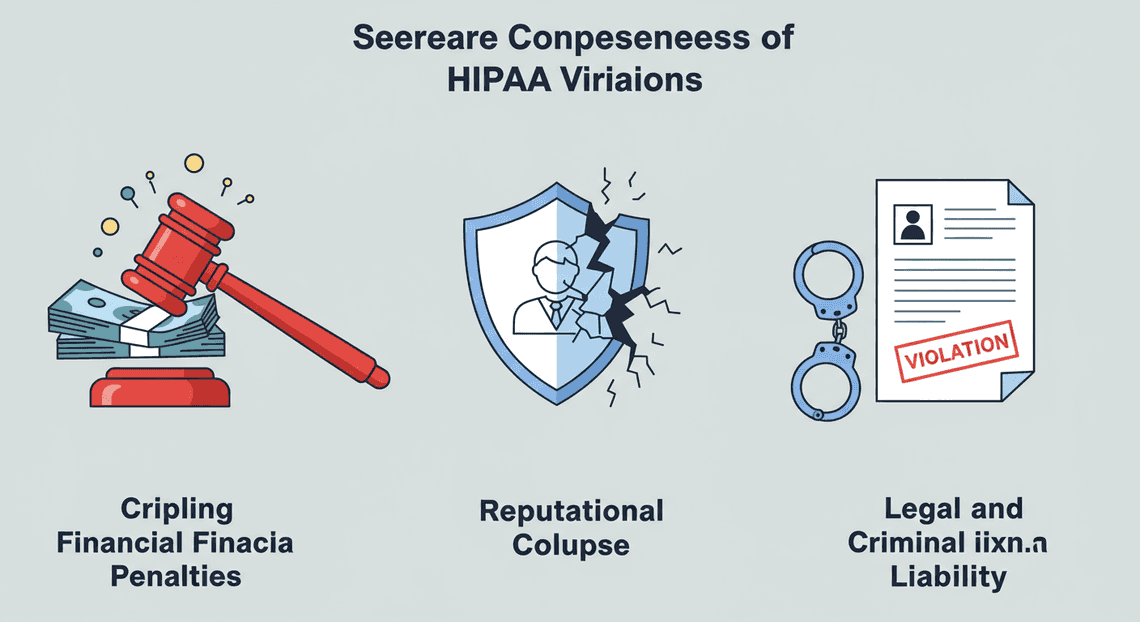
**Crippling Financial Penalties: The Office for Civil Rights (OCR) enforces HIPAA with a tiered penalty structure. Violations can result in fines ranging from a few hundred dollars to over $1.9 million per violation, with an annual cap that can reach millions.
-
Reputational Collapse: A data breach erodes the most valuable asset a healthcare organization has: patient trust. The resulting loss of customers, partners, and investor confidence can be more damaging than any financial penalty.
-
Forced Corrective Action: Beyond fines, the OCR can impose a Corrective Action Plan (CAP). This is a legally binding agreement that requires a complete, often expensive, and resource-intensive overhaul of your security and compliance programs under federal oversight.
-
Legal and Criminal Liability: In cases of willful neglect, HIPAA violations can lead to civil lawsuits and even criminal charges for individuals and organizations.
For any company operating in the healthcare space, robust PHI protection is not an optional IT project—it is a fundamental prerequisite for existence.
The Risks of Unmonitored File Sharing in Google Drive
Google Drive is the epicenter of collaboration, but its core features can become compliance landmines if left unmonitored. The speed at which users can change file permissions makes manual auditing an exercise in futility. A compliant state can become a reportable breach with a single click.
Here are the primary risks:
-
Accidental Public Exposure: The most glaring risk is a user inadvertently setting a document containing PHI to “Public on the web” or “Anyone with the link.” A leaked link can grant anonymous, untraceable access to sensitive data, resulting in a major breach.
-
Improper External Sharing: A well-meaning clinician sharing a patient file with their personal
@gmail.comaccount to review at home is a common but serious violation. Without automated controls, it’s nearly impossible to detect this kind of data exfiltration in real-time. -
Internal Over-Sharing: The principle of “least privilege” is a cornerstone of HIPAA. Sharing a document containing the PHI of thousands of patients with an entire internal domain—when only a three-person billing team needs access—unnecessarily expands the risk of an internal breach.
-
Third-Party App Integration: Granting third-party applications access to a user’s Google Drive can create a blind spot. A seemingly harmless productivity app could gain read access to every file, creating a shadow copy of PHI outside your organization’s direct control and BAA.
Attempting to manage these risks through periodic manual audits is like trying to catch speeding cars by looking at a photograph of a highway taken once a month. You see a snapshot in time, but you miss all the transient, high-risk events happening in between.
Introducing an Automated Real-Time Auditing Solution
To effectively manage HIPAA compliance in a dynamic environment like Google Drive, you must move from a reactive, manual posture to a proactive, automated one. The solution is to build a system that acts as a tireless digital security guard, watching every critical file-sharing event as it happens.
This is where a real-time auditing solution becomes essential. Instead of relying on after-the-fact log reviews, we can leverage Automated Client Onboarding with Google Forms and Google Drive. APIs to build a system that:
-
Monitors Continuously: It taps directly into the Google Drive activity stream, analyzing permission changes the moment they occur.
-
Detects High-Risk Events: It applies intelligent rules to identify dangerous sharing settings, such as a file being made public or shared with an external, non-whitelisted domain.
-
Alerts Immediately: Upon detecting a potential violation, it instantly sends a detailed, actionable alert to a designated security channel—in our case, Google Chat.
This approach transforms compliance from a periodic, manual chore into an automated, real-time security function. It empowers your security team to intervene within seconds of a potential breach, not weeks or months later during a routine audit. In the following sections, we will walk through the technical steps to build exactly this type of auditor.
Solution Architecture: An Overview
Before we dive into the code, it’s crucial to understand the blueprint of our solution. We are building a serverless, event-driven pipeline that connects Automated Discount Code Management System events to our security team’s communication hub. This architecture is designed to be scalable, cost-effective, and highly responsive, providing near real-time alerts for security-sensitive actions within Google Drive.
At its core, the system operates on a simple principle: every relevant action in Google Drive generates a log, and we will build an automated workflow to capture, filter, analyze, and report on that log. The entire process leverages the native integration between Automated Email Journey with Google Sheets and Google Analytics and Google Cloud Platform (GCP), creating a seamless flow of information from the source event to the final notification.
Here’s a high-level look at the journey of a single event:
Google Drive Event → Workspace Audit Log → Cloud Logging → Log Sink → Pub/Sub Topic → Cloud Function → Google Chat Alert
Let’s break down the key pieces of this puzzle.
Core Components: Automated Google Slides Generation with Text Replacement Audit Logs, GCP, and Google Chat
Our solution is composed of three main pillars, each playing a distinct and vital role.
1. [Automated Order Processing Wordpress to Gmail to Google Sheets to Real Time Jobber and Google Sheets Integration](https://votuduc.com/Automated-Order-Processing-Wordpress-to-Gmail-to-Google-Sheets-to-Jobber-p649487) Audit Logs (The Data Source)
This is our source of truth. The Automated Payment Transaction Ledger with Google Sheets and PayPal Admin console generates detailed audit logs for a vast array of activities across its services. For our purpose, the Drive audit log is paramount. It captures granular events such as:
-
acl_change: A user changes the permissions or sharing settings of a file or folder. This is critical for detecting unauthorized external sharing. -
download: A user downloads a file. Tracking downloads of documents containing Protected Health Information (PHI) is a key HIPAA requirement. -
view: A user views a document. -
edit: A user modifies the content of a document.
These logs are rich with context, including the actor’s email, the target file’s ID and title, the timestamp, and the specific changes made.
2. Google Cloud Platform (The Processing Engine)
GCP provides the serverless infrastructure to process these logs. We will use a powerful combination of managed services to avoid managing any servers:
-
Cloud Logging: This is the centralized logging service for GCP and integrated services like Google Docs to Web. Our Drive audit logs are automatically streamed here, providing a single place to query and route them.
-
Log Sinks: A feature within Cloud Logging, a sink allows us to filter logs in real-time and export them to a supported destination. We will configure a sink to watch for specific, high-risk Drive events.
-
Pub/Sub: A fully-managed, real-time messaging service. Our log sink will publish matching log entries as messages to a Pub/Sub topic. This acts as a durable, scalable buffer between our logging and processing layers, ensuring no events are lost.
-
Cloud Functions: A serverless, event-driven compute service. Our function will be triggered by new messages appearing in the Pub/Sub topic. This is where our custom logic resides: parsing the log data, determining if it violates a security policy (e.g., a file labeled “Confidential” was shared externally), and formatting a clear, actionable alert.
3. Google Chat (The Alerting Destination)
This is the user-facing component of our auditor. By configuring an incoming webhook in a dedicated Google Chat space (or “room”), we create a secure endpoint for our Cloud Function to send notifications. Instead of just plain text, we’ll use Google Chat’s Card V2 format to create rich, well-structured messages that highlight key information and provide direct links for immediate investigation.
Data Flow: From Drive Event to Chat Alert
Let’s walk through the end-to-end flow of a single security event, such as a user sharing a sensitive document with an external, personal email address.
-
Event Generation: A user in your organization right-clicks a Google Doc named “Patient Records Q3.docx” and shares it with
[email protected]. -
Log Ingestion: SocialSheet Streamline Your Social Media Posting immediately generates a Drive audit log entry detailing this
acl_changeevent, including the user, file name, and the added external email. -
Centralization: This log entry is automatically ingested into Cloud Logging within your configured GCP project.
-
Filtering & Routing: A pre-configured Log Sink in Cloud Logging is continuously scanning all incoming logs. Its filter identifies this new entry as a Drive permission change (
protoPayload.methodName="drive.apps.acl.updatePermissions") and a potential policy violation. -
Message Queuing: The sink immediately publishes the full JSON payload of the log entry as a message to our designated Pub/Sub topic,
drive-security-events. -
Function Trigger: The arrival of this new message in the topic instantly triggers an execution of our JSON-to-Video Automated Rendering Engine Cloud Function.
-
Processing & Logic: The function’s code activates, parses the log data from the Pub/Sub message, extracts the actor (
[email protected]), the action (added[email protected]as an editor), and the target file (“Patient Records Q3.docx”). It applies logic to confirm this is an external share of a sensitive file. -
Alert Construction & Delivery: The function constructs a formatted JSON payload for a Google Chat Card, highlighting the critical details. It then sends this payload via an HTTP POST request to the unique webhook URL for the “HIPAA Security Alerts” Google Chat space.
-
Notification: Instantly, a new card appears in the security team’s Chat space, clearly stating: “ALERT: External File Share Detected,” with all the relevant details and a direct link to the file for immediate remediation.
Prerequisites and Environment Setup (IAM & APIs)
Before you begin building, ensure your environment is correctly configured. Proper setup of permissions and services is foundational to the security and functionality of the auditor.
Account & Project Requirements:
-
Speech-to-Text Transcription Tool with Google Workspace Subscription: You need a subscription that includes Drive audit logging and the ability to stream those logs to Google Cloud. This typically includes Enterprise, Business Plus, or Education Plus editions.
-
Google Cloud Platform (GCP) Project: A GCP project with an active billing account is required to use services like Pub/Sub and Cloud Functions.
Enable Required APIs:
Navigate to the “APIs & Services” > “Library” section of your GCP console and ensure the following APIs are enabled for your project:
-
Cloud Logging API
-
Cloud Pub/Sub API
-
Cloud Functions API
-
Cloud Build API (A dependency for deploying Cloud Functions)
-
Google Chat API
IAM Permissions:
The user or service account you use to set up this infrastructure will need sufficient permissions. For simplicity, the Project Editor role contains these, but for a production environment, it’s best to grant specific roles:
-
roles/logging.configWriter: To create and manage the log sink. -
roles/pubsub.editor: To create and manage the Pub/Sub topic and subscription. -
roles/cloudfunctions.developer: To deploy and manage the Cloud Function. -
roles/iam.serviceAccountUser: To act as a service account, which is necessary for deploying the function.
We will also create a dedicated Service Account for the Cloud Function to run with, following the principle of least privilege. This service account will only need permissions to be invoked by Pub/Sub, not broad project-level access.
Step 1 Capturing Drive Events with Cloud Logging
The foundation of any security auditing tool is reliable, real-time data. For our Google Drive auditor, this data comes directly from Google Workspace Audit Logs, which are automatically collected and made available within Google Cloud’s Logging service (formerly Stackdriver). Our first step is to tap into this stream, isolate the specific events that pose a potential HIPAA compliance risk, and route them for processing.
Accessing and Understanding Workspace Audit Logs
Google Workspace generates detailed audit logs for a wide range of activities across its services, including Google Drive. These logs provide a forensic trail of actions performed by users and administrators. Before we can build a filter, we must first understand what these logs look like.
You can explore these logs directly in the Google Cloud Console by navigating to Logging > Logs Explorer. To find Drive activity, you’ll need to build a basic query. Start by selecting the correct log:
-
In the Query pane, click on Log name.
-
Select Cloud Audit and then choose
cloudaudit.googleapis.com/data_access.
This will show you all data access events for your project. A typical log entry for a Google Drive event is a complex JSON object. The most important fields for our purposes are located within the protoPayload.
Here is a simplified structure of a Drive audit log entry for a file sharing event:
{

"protoPayload": {

"@type": "type.googleapis.com/google.cloud.audit.AuditLog",

"serviceName": "drive.googleapis.com",

"methodName": "drive.apps.action",

"resourceName": "files/1a2b3c4d5e6f7g8h9i0j",

"metadata": {

"event": [

{

"name": "change_acl_scope",

"parameters": [

{

"name": "target_type",

"value": "file"

},

{

"name": "visibility",

"value": "anyone_with_link"

},

{

"name": "old_value",

"value": "private"

},

{

"name": "new_value",

"value": "anyone_with_link"

}

]

}

]

}

},

"logName": "projects/your-gcp-project-id/logs/cloudaudit.googleapis.com%2Fdata_access",

// ... other fields

}
Key takeaways from this structure:
-
protoPayload.serviceName: This will always bedrive.googleapis.comfor the events we care about. -
protoPayload.metadata.event: This is an array that contains the specific action(s) that occurred. This is where the real details are. -
event.name: This field identifies the action, such asdownload,change_user_access(sharing with specific people), orchange_acl_scope(changing link sharing settings). -
event.parameters: This array provides the context for the action, including thenew_valueof a setting, which is critical for determining if a share was made externally.
Creating a Log Sink to Export Drive Activity
While the Logs Explorer is excellent for investigation, it’s not a suitable source for a real-time application. To process these events programmatically, we need to create a Log Sink. A sink continuously matches log entries against a filter and routes them to a supported destination. For our real-time auditor, the ideal destination is a Cloud Pub/Sub topic.
Follow these steps to create the sink:
-
In the Google Cloud Console, navigate to Logging > Log Router.
-
Click Create Sink at the top of the page.
-
Sink Details:
-
Name: Give your sink a descriptive name, like
gdrive-hipaa-event-sink. -
Description (Optional): “Routes critical Google Drive audit events for security analysis.”
- Sink Destination:
-
Select sink service: Choose Cloud Pub/Sub topic.
-
Select a Cloud Pub/Sub topic: Click the dropdown and select Create a new Cloud Pub/Sub topic.
-
Topic ID: Enter a name for your topic, such as
gdrive-audit-events, and click Create Topic.
-
Choose logs to include in sink: This is where we will build our inclusion filter. We will leave this blank for a moment and define the filter in the next section.
-
Click Create Sink.
This creates the necessary infrastructure. The sink now exists, but it’s not yet filtering for the specific events we need.
Filtering for Critical Events like External Sharing or Downloads
This is the most critical part of the setup. A well-crafted filter ensures we only process logs that are relevant to our security and compliance goals, which saves on cost and reduces noise. For HIPAA, we are primarily concerned with actions that could expose Protected Health Information (PHI) to unauthorized parties. This includes downloads and, most importantly, any form of external sharing.
Go back to the Log Router page, find the sink you just created, click the three-dot menu, and select Edit sink. In the section titled Build inclusion filter, you will enter a query using the Cloud Logging query language.
Here is a robust filter designed to capture critical Drive events. Copy and paste this into the filter text box, making sure to replace the placeholders YOUR_GCP_PROJECT_ID and your-primary-domain.com.
# Specify the log type and the service we are interested in

logName="projects/YOUR_GCP_PROJECT_ID/logs/cloudaudit.googleapis.com%2Fdata_access"

protoPayload.serviceName="drive.googleapis.com"

# Isolate the specific event types that represent a risk

protoPayload.metadata.event.name=("download" OR "change_user_access" OR "change_acl_scope")

# Add conditions to pinpoint external sharing or any download

AND (

# Condition 1: A file's link sharing was changed to be public or accessible to anyone with the link.

(protoPayload.metadata.event.name="change_acl_scope" AND protoPayload.metadata.event.parameters.new_value=("anyone_with_link" OR "anyone_on_the_web"))

OR

# Condition 2: A file was shared directly with a user whose email address is NOT within your primary domain.

(protoPayload.metadata.event.name="change_user_access" AND NOT protoPayload.metadata.event.parameters.new_value.user.email_domain="your-primary-domain.com")

OR

# Condition 3: A file was downloaded. We capture all downloads for a complete audit trail.

(protoPayload.metadata.event.name="download")

)
Breakdown of the filter:
-
logNameandserviceName: These first two lines are fundamental. They narrow down billions of potential log entries to only data access events from Google Drive. -
protoPayload.metadata.event.name=(...): This line targets the three key event types:download,change_user_access, andchange_acl_scope. -
AND (...)block: This logic ensures we only capture events that meet at least one of our high-risk criteria: -
Condition 1: Catches when a user makes a file public.
-
Condition 2: Catches when a user explicitly adds an external email address to the file’s access list.
-
Condition 3: Captures all file download events.
After pasting and updating the filter, click Update Sink.
Your sink is now active. From this point forward, any Google Drive action within your organization that matches this filter will be published as a message to your gdrive-audit-events Pub/Sub topic, ready for our auditor to consume and act upon.
Step 2: Processing Logs with a Serverless Cloud Function
With a steady stream of audit logs flowing into our Pub/Sub topic, the next step is to create a component that can consume and intelligently process this data. This is the perfect job for a serverless Cloud Function. It acts as the central nervous system of our auditor—event-driven, scalable, and cost-effective, as it only runs when a new log entry arrives. This function will be responsible for decoding the log, examining its contents, and applying our specific HIPAA compliance rules.
Setting Up a Pub/Sub Trigger for Your Function
The connection between our Pub/Sub topic and our Cloud Function is known as a trigger. This setup ensures that every time our log sink publishes a message (a new Drive audit log) to the topic, our function is automatically invoked with the content of that message. This Architecting an Event-Driven Workspace with PubSub Firebase and Gemini is highly efficient and eliminates the need for polling or managing servers.
When creating your Cloud Function in the Google Cloud Console:
-
Choose the Trigger: Set the “Trigger type” to “Cloud Pub/Sub”.
-
Select the Topic: Select the Pub/Sub topic you created in the previous step (e.g.,
drive-audit-logs-topic). -
Configure Runtime: Choose your preferred runtime environment. For this example, we’ll use Python 3.9+.
-
Assign a Service Account: Ensure the function’s runtime service account has the necessary IAM permissions. At a minimum, it will eventually need roles to interact with the Google Chat API. For now, basic permissions are sufficient.
The entry point of your function will receive two arguments: event and context. The event dictionary contains the payload from the Pub/Sub message, while context provides metadata about the event.
Here is the basic function signature in Python:
import base64

import json

def process_drive_log(event, context):

"""

Triggered by a message on a Pub/Sub topic.

Args:

event (dict): Event payload.

context (google.cloud.functions.Context): Metadata for the event.

"""

print(f"Processing event ID: {context.event_id}")

# The actual log data is in event['data'], base64-encoded.

if 'data' in event:

# 1. Decode and Parse the log payload

log_data_bytes = base64.b64decode(event['data'])

log_entry = json.loads(log_data_bytes)

# 2. Extract key information (details below)

# 3. Implement compliance logic (details below)

print("Function executed successfully.")

else:

print("No data in event.")
Parsing the Log Payload to Identify User and File
The data arriving from Pub/Sub is not the raw log itself; it’s a base64-encoded JSON string. Your first task within the function is to decode this string and parse it into a Python dictionary. This allows you to navigate the log’s structure and extract the critical pieces of information needed for your audit.
Google Cloud audit logs have a standardized, albeit nested, structure. For a Google Drive event, the most important details are typically found within the protoPayload object.
Here’s a simplified example of what a decoded log entry for a file permission change might look like:
{

"protoPayload": {

"@type": "type.googleapis.com/google.cloud.audit.AuditLog",

"authenticationInfo": {

"principalEmail": "[email protected]"

},

"methodName": "google.apps.drive.v2.Permission.Insert",

"serviceName": "drive.googleapis.com",

"resourceName": "files/1a2b3c4d5e6f7g8h9i0j",

"request": {

"role": "writer",

"type": "anyone",

"withLink": true

},

"metadata": {

"event": [

{

"name": "change_user_access",

"parameter": [

{

"name": "doc_id",

"value": "1a2b3c4d5e6f7g8h9i0j"

},

{

"name": "doc_title",

"value": "Patient Records Q4 2023.xlsx"

},

{

"name": "visibility",

"value": "shared_externally"

}

]

}

]

}

},

"resource": {

"type": "audited_resource",

"labels": {

"service": "drive.googleapis.com"

}

},

"timestamp": "2023-10-27T10:00:00.123Z",

"logName": "projects/your-gcp-project/logs/cloudaudit.googleapis.com%2Fdata_access"

}
To make this data useful, you need to extract the “who, what, and when.” The following Python snippet demonstrates how to safely access these nested values from the parsed log_entry dictionary:
# Assuming 'log_entry' is the parsed JSON object from the previous step

def extract_log_details(log_entry):

"""Extracts key information from a Drive audit log entry."""

try:

payload = log_entry.get("protoPayload", {})

user_email = payload.get("authenticationInfo", {}).get("principalEmail")

event_metadata = payload.get("metadata", {}).get("event", [])[0]

event_name = event_metadata.get("name")

file_id = None

file_title = None

for param in event_metadata.get("parameter", []):

if param.get("name") == "doc_id":

file_id = param.get("value")

if param.get("name") == "doc_title":

file_title = param.get("value")

# The new permission details are often in the 'request' object

new_permission = payload.get("request", {})

if not all([user_email, event_name, file_id, file_title]):

return None # Not a complete/relevant log entry

return {

"user": user_email,

"event_name": event_name,

"file_id": file_id,

"file_title": file_title,

"new_permission": new_permission,

"timestamp": log_entry.get("timestamp")

}

except (IndexError, KeyError, TypeError) as e:

print(f"Error parsing log entry: {e}")

return None
Implementing Compliance Logic to Detect Violations
This is where you codify your organization’s security policies. The goal is to analyze the extracted log details and determine if a compliance violation has occurred. For a HIPAA context, one of the most critical rules is preventing Protected Health Information (PHI) from being exposed publicly or to unauthorized external parties.
Our compliance logic will focus on the change_user_access event and check for two common violations:
-
Public Sharing: The file is shared with “anyone with the link”.
-
Unauthorized External Sharing: The file is shared with a user or domain that is not on an approved whitelist.
Let’s implement this logic. We’ll define a set of whitelisted domains that are considered safe for collaboration.
# Define your organization's approved domains for collaboration

WHITELISTED_DOMAINS = {"your-company.com", "trusted-partner.com"}

def check_for_violations(log_details):

"""

Analyzes extracted log details for compliance violations.

Returns a description of the violation, or None if compliant.

"""

if not log_details or log_details["event_name"] != "change_user_access":

return None

permission = log_details.get("new_permission", {})

perm_type = permission.get("type")

# Violation 1: File shared publicly

if perm_type == "anyone":

return (

f"Public Link Sharing: File was made accessible to 'anyone with the link'."

)

# Violation 2: Unauthorized external domain sharing

if perm_type == "domain":

target_domain = permission.get("domain")

if target_domain and target_domain not in WHITELISTED_DOMAINS:

return (

f"Unauthorized Domain Sharing: File was shared with a non-whitelisted "

f"domain ('{target_domain}')."

)

# Violation 3: Unauthorized external user sharing

if perm_type == "user":

target_email = permission.get("value") # In user permissions, 'value' is the email

if target_email:

try:

target_domain = target_email.split('@')[1]

if target_domain not in WHITELISTED_DOMAINS:

return (

f"Unauthorized External User Sharing: File was shared with a non-whitelisted "

f"user ('{target_email}')."

)

except IndexError:

# Malformed email, could be a group, handle as needed

pass

return None # No violation detected

# --- Tying it all together in the main function ---

def process_drive_log(event, context):

# ... (decoding and parsing code from above)

log_entry = json.loads(log_data_bytes)

details = extract_log_details(log_entry)

if details:

violation_reason = check_for_violations(details)

if violation_reason:

print(f"VIOLATION DETECTED: {violation_reason}")

# In the next step, we will send an alert to Google Chat here.

# For now, we just log it.

alert_payload = {

"user": details["user"],

"file_title": details["file_title"],

"file_id": details["file_id"],

"reason": violation_reason,

"timestamp": details["timestamp"]

}

print(f"Alert payload: {alert_payload}")
With this logic in place, your Cloud Function can now successfully ingest, parse, and analyze Google Drive audit logs. When it finds an action that violates your defined rules, it identifies the breach and prepares a payload containing all the necessary context. The final step is to take this payload and use it to generate a real-time alert.
Step 3 Sending Secure Alerts to Google Chat
With our detection logic in place, the next critical step is to deliver timely, actionable alerts to the security team. Simply logging a violation isn’t enough; we need a robust notification system that fits into existing workflows. Google Chat provides an excellent medium for this, offering private spaces and rich messaging capabilities that are perfect for security incident response.
This section covers configuring a secure channel in Google Chat and programming our Cloud Function to send detailed alert cards.
Configuring a Private Google Chat Space and Webhook
Before our function can send a message, it needs a destination. We’ll create a private Google Chat space and configure an incoming webhook, which provides a unique URL that our application can post messages to.
-
Create a Private Space: In Google Chat, create a new space. Name it something descriptive, like “G-Drive Security Alerts”. Crucially, under “Access Settings,” select “Restricted”. This ensures that only explicitly added members (your security and compliance team) can view these sensitive alerts.
-
Add a Webhook:
- Click the space name at the top to open the menu.
Select* Apps & Integrations**.
Click* Add webhooks**.
- Provide a name for the webhook, such as “Cloud Function Auditor”. You can also add an avatar URL to give the alerts a distinct identity.
Click* Save**.
- Secure the Webhook URL: Google Chat will now display the webhook URL. This URL is a secret. Anyone who has it can post messages to your space.
Securing Your Auditing Pipeline
An auditing tool with privileged access to file metadata is a high-value target. If compromised, it could be used to exfiltrate sensitive information about your organization’s data landscape. Building the functionality is only half the battle; securing the pipeline from end to end is a non-negotiable requirement, especially under the stringent demands of HIPAA. This involves a defense-in-depth strategy, locking down identity, secrets, and data storage with precision.
Applying the Principle of Least Privilege with GCP IAM
The Principle of Least Privilege (PoLP) is a foundational security concept dictating that a user, application, or service should only have the minimum permissions necessary to perform its function. In our case, the Cloud Function’s service account must be meticulously configured to prevent potential misuse.
Avoid using the default compute service account, which often has overly broad permissions. Instead, create a dedicated Identity and Access Management (IAM) service account specifically for this auditor.
- Create a dedicated Service Account:
gcloud iam service-accounts create hipaa-drive-auditor \

--display-name="HIPAA Google Drive Auditor Service Account" \

--project="your-gcp-project-id"
- Assign Granular Roles: Grant this service account only the roles it absolutely needs to operate.
-
Secret Manager Secret Accessor (
roles/secretmanager.secretAccessor): Allows the function to read the Google Chat webhook URL from Secret Manager. -
Firestore User (
roles/datastore.user): Permits the function to write audit logs to your Firestore database. -
Service Account Token Creator (
roles/iam.serviceAccountTokenCreator): This is crucial. To access Google Drive data, the service account needs to impersonate a Google Workspace user who has the necessary permissions. This role allows the service account to generate the credentials needed for impersonation. -
Cloud Functions Invoker (
roles/cloudfunctions.invoker): Allows services like Cloud Scheduler to trigger the function via an HTTP request.
You can bind these roles using gcloud:
# Replace with your project ID and service account email

PROJECT_ID="your-gcp-project-id"

SERVICE_ACCOUNT_EMAIL="hipaa-drive-auditor@${PROJECT_ID}.iam.gserviceaccount.com"

# Grant access to Secret Manager

gcloud projects add-iam-policy-binding $PROJECT_ID \

--member="serviceAccount:${SERVICE_ACCOUNT_EMAIL}" \

--role="roles/secretmanager.secretAccessor"

# Grant access to Firestore

gcloud projects add-iam-policy-binding $PROJECT_ID \

--member="serviceAccount:${SERVICE_ACCOUNT_EMAIL}" \

--role="roles/datastore.user"

# Grant impersonation capability

# Note: The principal being impersonated needs this binding

gcloud iam service-accounts add-iam-policy-binding [email protected] \

--member="serviceAccount:${SERVICE_ACCOUNT_EMAIL}" \

--role="roles/iam.serviceAccountTokenCreator"
By strictly limiting the service account’s permissions, you dramatically reduce the blast radius if its credentials were ever compromised. It can only perform the exact actions required for the audit and nothing more.
Securing Webhooks and Other Sensitive Credentials
Hardcoding sensitive information like API keys or webhook URLs directly into your source code is a critical security vulnerability. It makes secret rotation difficult and exposes credentials to anyone with access to your code repository. The definitive solution on Google Cloud is the Secret Manager.
Store your Google Chat webhook URL as a secret in Secret Manager. This provides a centralized, secure, and auditable location for your application’s sensitive data.
- Create the Secret:
# Ensure you have the webhook URL from Google Chat

echo -n "https://chat.googleapis.com/v1/spaces/..." | \

gcloud secrets create google-chat-webhook-url \

--replication-policy="automatic" \

--data-file=-
- Access the Secret in Your Cloud Function:
Your function’s code can then fetch this URL at runtime. This requires adding the appropriate client library for Secret Manager to your function’s dependencies.
Here is a Python example demonstrating how to access the secret:
# main.py in your Cloud Function

from google.cloud import secretmanager

import os

# GCP Project ID is available as an environment variable

PROJECT_ID = os.environ.get("GCP_PROJECT")

def get_webhook_url():

"""Fetches the webhook URL from Secret Manager."""

client = secretmanager.SecretManagerServiceClient()

# Build the resource name of the secret version.

# Assumes you want the latest version.

secret_name = "google-chat-webhook-url"

resource_name = f"projects/{PROJECT_ID}/secrets/{secret_name}/versions/latest"

# Access the secret version.

response = client.access_secret_version(request={"name": resource_name})

# Return the secret payload.

return response.payload.data.decode("UTF-8")

def my_auditor_function(request):

# ... your auditing logic ...

webhook_url = get_webhook_url()

# Now use the webhook_url to send a notification

# ... rest of your function ...
This approach ensures your webhook URL is never checked into version control. Furthermore, you can use IAM policies on the secret itself to control precisely which services (like our specific Cloud Function) are allowed to access it, adding another layer of security.
Reviewing Firebase Security Rules for Data Access
The audit logs stored in Firestore are themselves sensitive data. They reveal patterns about file access and sharing that could be valuable to an attacker. It is imperative to lock down the Firestore database to prevent unauthorized reading or tampering of these logs.
Firebase Security Rules provide powerful, expression-based access control. The goal is to create a write-only datastore where only our designated Cloud Function can create new log entries.
A robust security ruleset for our audit_logs collection would look like this:
// firestore.rules

rules_version = '2';

service cloud.firestore {

match /databases/{database}/documents {

// Target the specific collection used for audit logs

match /audit_logs/{logId} {

// DENY all reads, updates, and deletes.

// This makes the audit log effectively immutable and write-once.

allow read, update, delete: if false;

// ALLOW creation of new documents only if the request comes from

// our specific, trusted service account.

allow create: if request.auth.token.email ==

'[email protected]';

}

// Explicitly deny access to all other collections by default.

match /{document=**} {

allow read, write: if false;

}

}

}
Let’s break down this ruleset:
-
match /audit_logs/{logId}: This rule specifically targets any document within ouraudit_logscollection. -
allow read, update, delete: if false;: This is an explicit denial of any operation that is not acreate. It ensures that once an audit log is written, it cannot be read back, modified, or deleted through the Firebase client SDKs or public API, creating an immutable log. -
allow create: if request.auth.token.email == '...';: This is the core of our security. It states that acreateoperation is only permitted if the authenticated request originates from an identity whose email matches the service account of our Cloud Function. When the function’s code interacts with Firestore using the server-side client libraries and Application Default Credentials, it automatically authenticates with its attached service account, satisfying this rule.
By deploying these rules, you guarantee that the only entity capable of writing to your audit log is the auditor function itself, effectively sealing the database from all other access.
Conclusion: Scaling Your Compliance Architecture
We’ve successfully architected and deployed a powerful, automated HIPAA security auditor for Google Drive. This isn’t just a technical exercise; it’s a fundamental shift from reactive, manual compliance checks to a proactive, event-driven security posture. By leveraging the serverless capabilities of Google Cloud and the real-time communication of Google Chat, we’ve built a system that works tirelessly to protect sensitive data. Now, let’s recap what we’ve accomplished and explore how to evolve this foundation into a comprehensive compliance ecosystem.
Recap of the Automated HIPAA Auditor
At its core, the solution we constructed is an elegant integration of several key Google Cloud services. We used a Google Cloud Function as the serverless compute engine, triggered on a schedule to ensure continuous monitoring. This function utilizes the Google Drive API to systematically scan for files with overly permissive sharing settings—a common vector for data breaches. Upon discovering a potential violation, it leverages the Google Chat API to dispatch an immediate, actionable alert to a designated security channel.
The result is a closed-loop system that provides:
-
Continuous Monitoring: Eliminates the reliance on periodic, manual audits which often miss transient but critical misconfigurations.
-
Real-time Alerting: Drastically reduces the time from exposure to detection, enabling security teams to remediate issues before they escalate.
-
Actionable Intelligence: Delivers alerts directly into the workflow of the security team, complete with links and context, removing friction from the incident response process.
This tool transforms a high-risk compliance area from a manual burden into an automated, reliable safeguard.
Next Steps: Expanding Functionality and Reporting
The auditor we’ve built is a powerful starting point, but its true value lies in its potential as a platform. Here are several strategic enhancements to consider for evolving this tool into a more sophisticated compliance engine:
-
**Integrate Cloud Data Loss Prevention (DLP): Move beyond metadata and permissions by using the Cloud DLP API to inspect the actual content of documents. You can configure it to scan for specific infoTypes, such as medical record numbers, patient names, or other Protected Health Information (PHI) identifiers. An alert could then specify not only that a file is public, but that it contains confirmed PHI.
-
Implement Automated Remediation: Instead of just alerting, empower your function to take action. For example, upon finding a publicly shared file containing suspected PHI, the function could automatically change its sharing setting to “restricted” and notify the file owner via email, cc’ing the security team. This creates a self-healing system that actively reduces risk.
-
Develop a Centralized Reporting Dashboard: While Google Chat alerts are excellent for immediate response, formal audits require comprehensive reporting. Extend the function to log every finding to a centralized location like a Google Sheet, a BigQuery table, or your organization’s SIEM. This creates an immutable audit trail and allows for trend analysis, helping you identify systemic issues or repeat offenders.
-
Refine Policy Logic: Enhance the auditor’s logic to handle more complex scenarios. You could implement checks for files shared with specific external domains, apply different rules based on the file’s parent folder or the owner’s Organizational Unit (OU), or even cross-reference file owners with a list of employees who have completed HIPAA training.
Ready to Scale Your Architecture
The architectural pattern we’ve used—event-driven, serverless functions performing targeted compliance tasks—is not limited to Google Drive. You have created a blueprint for “Compliance as Code” that is cost-effective, infinitely scalable, and highly adaptable.
Think of this auditor as the first module in a larger compliance framework. The same model can be applied to address other security challenges across your cloud environment:
-
GCP IAM Auditing: A function that periodically checks for overly permissive IAM roles, such as primitive roles assigned to service accounts.
-
Cloud Storage Bucket Auditing: A function that ensures all Cloud Storage buckets containing sensitive data are not publicly accessible and have uniform bucket-level access enabled.
-
VPC Firewall Rule Monitoring: A function that alerts on the creation of overly permissive firewall rules, such as those allowing ingress from
0.0.0.0/0on sensitive ports.
By embracing this serverless, automated approach, you move beyond simply “checking boxes” for compliance. You are building a dynamic, intelligent, and scalable security architecture that embeds compliance directly into your cloud operations, allowing you to innovate with confidence while maintaining the highest standards of data protection.


Stop Doing Manual Work. Scale with AI.
Want to turn these blog concepts into production-ready reality for your team?
Table Of Contents
Portfolios
Related Posts
Quick Links
Legal Stuff